Step 1 of the Animated Story panel is Your cast. Characters are saved once for your whole site, and you can use them in every story you make. You can keep up to 24 characters.
Where to find it:
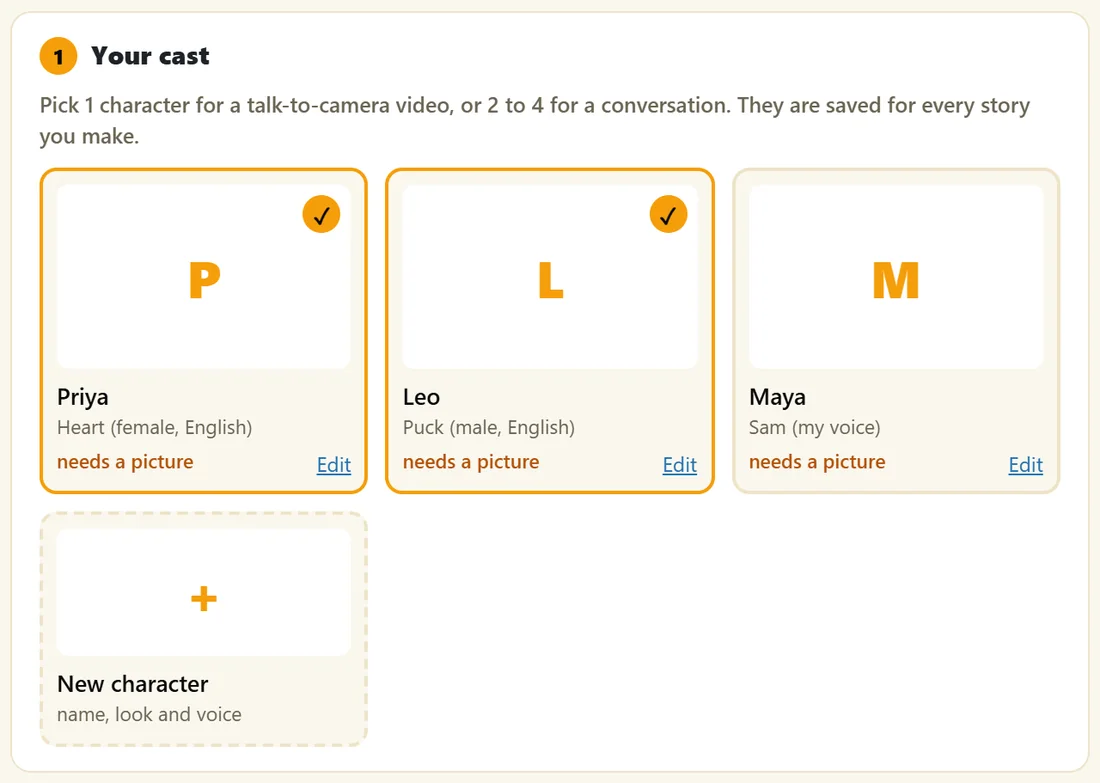
Open Create Video, click Animated Story, and look at step 1, Your cast. Each character is a card with their picture (or their first letter until it is made), their name, their voice, and an Edit link.
Create a character:
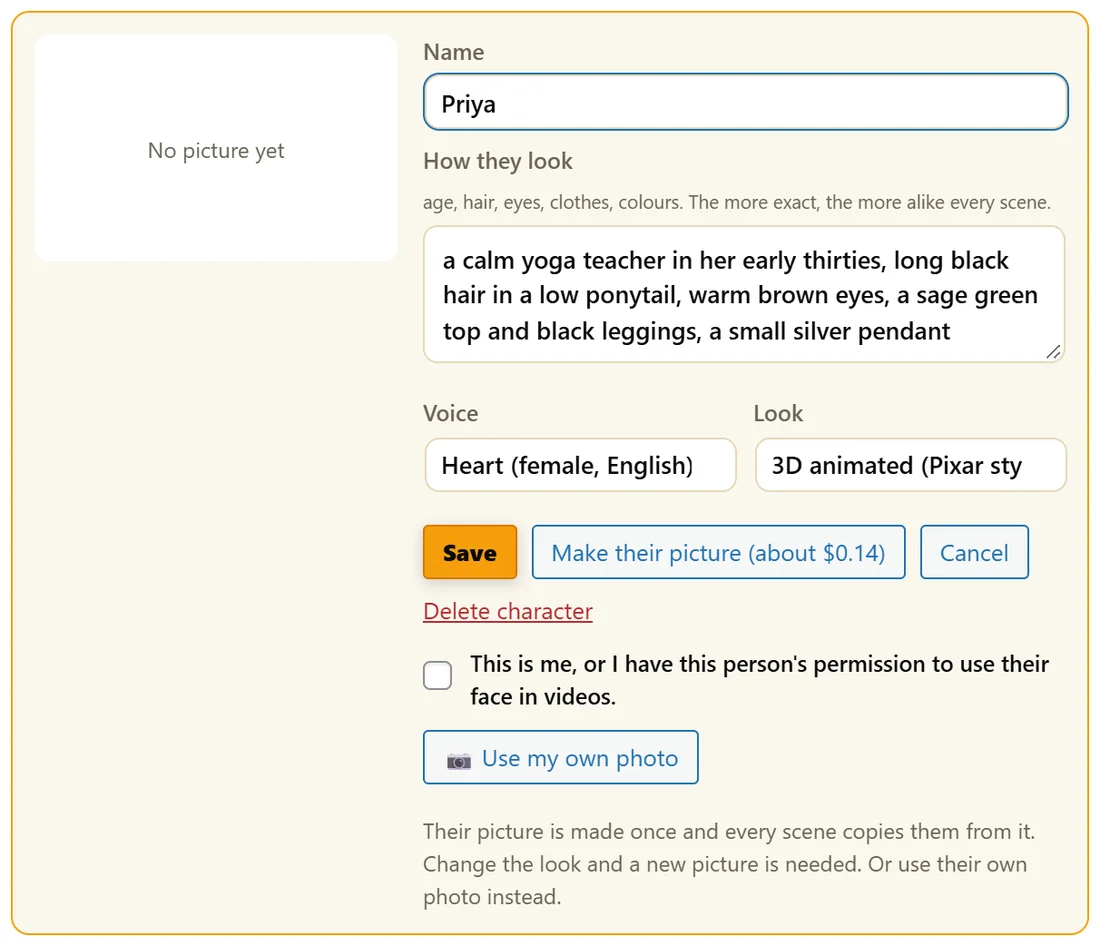
- Click New character.
- Type a Name.
- Describe How they look: age, hair, eyes, clothes and colours. The more exact, the more alike every scene.
- Pick a Voice. Your own cloned voices are under My cloned voices, and the Voice Engine's voices under Built-in voices. Keep the Voice Engine app open so the list fills in.
- Pick a Look: 3D animated (Pixar style), 2D cartoon, Anime, Claymation or Realistic (real people).
- Click Save.
No cast yet? Click Add Maya and Leo for a ready made mentor and student pair, then change them as you like.
Their picture:
Each character gets one reference picture that every scene copies them from, so they look the same throughout the video. It is made the first time you click Make everything, or when you click Edit and then Make their picture, which shows its price. If you change the look or the description later, the old picture no longer matches, so a new one is made next time.
Use your own photo:
- Click Edit on the character.
- Tick This is me, or I have this person's permission to use their face in videos.
- Click Use my own photo and choose a JPG, PNG or WebP picture, up to 15 MB.
That photo becomes the reference picture, so every scene keeps that face. Choose Realistic (real people) to look real, or a cartoon look for a cartoon version. With a photo, the description can be short.
Pick who is in this video:
Click a character's picture to tick them for the current video, and click again to leave them out.
- One character: a talk to camera video. The button in step 2 says Write the script.
- Two to four characters: a conversation. The button says Write the conversation.
Edit or delete:
Click Edit to change anything, then Save. Delete character removes them from your cast for every future story. Videos already made keep their scenes. If a character still speaks in this video's scenes, change those scenes to another speaker first.
Choosing the look:
- 3D animated (Pixar style): friendly and warm, the most popular choice.
- 2D cartoon: bold outlines and flat colours, great for quick tips and humour.
- Anime: clean line art with soft shading.
- Claymation: soft clay textures, playful and handmade.
- Realistic (real people): real looking presenters and hosts, or a real person from their own photo.
The look you choose in step 2 applies to the whole story, so the whole cast is drawn in the same style.
Realistic people:
Use realistic characters as presenters or hosts. Never show a made up customer giving results. A note under step 2 reminds you of this whenever the look is Realistic.
A real example:
Yoursite Studio creates Priya: a calm yoga teacher in her early thirties, long black hair in a low ponytail, warm brown eyes, a sage green top and black leggings, voice Heart (female, English), look 3D animated (Pixar style). Leo, from the Maya and Leo pair, plays the nervous beginner with Puck (male, English). Both cards are ticked for Your First Class With Priya. The owner's cloned voice, Sam (my voice), goes to a third character for a later story.
Writing a good description:
- Age and role: a calm yoga teacher in her early thirties.
- Hair and eyes: long black hair in a low ponytail, warm brown eyes.
- Clothes with colours: a sage green top and black leggings.
- One small detail that is easy to spot: a small silver pendant.
Tips:
- Describe clothes and colours precisely. It is the biggest help for matching faces from scene to scene.
- Give each character a different voice so viewers always know who is talking.
- A card that reads needs a picture simply has no reference picture yet. Make everything makes it.