When your video is ready, export it as an MP4 you can upload anywhere: YouTube, Facebook, TikTok, your course platform or an email. The export runs in your own browser, so there is nothing to upload and nothing to pay per minute.
Where to find it:
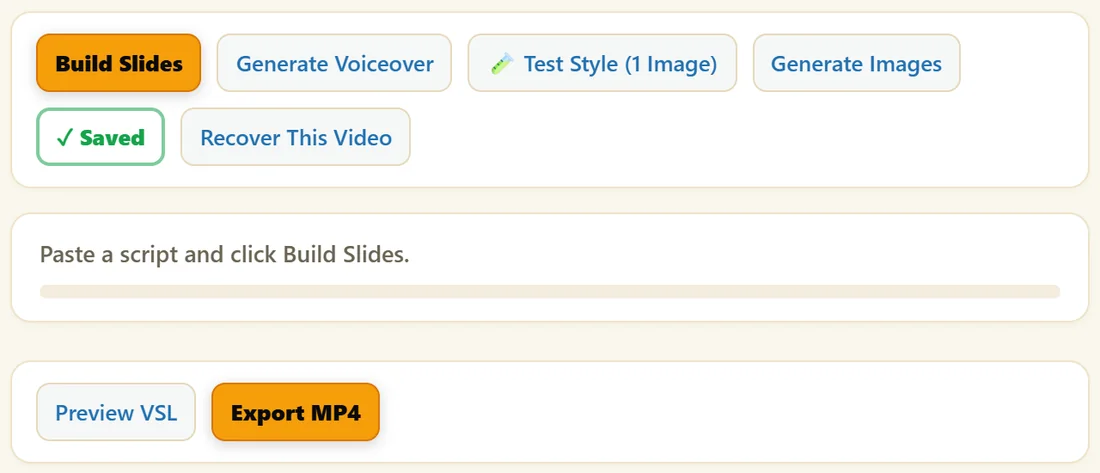
On Create Video, Export MP4 sits next to Preview VSL, under the status bar. The Format menu is in the look controls.
Step by step:
- Click Generate Voiceover so every slide has a voice. Export MP4 switches on.
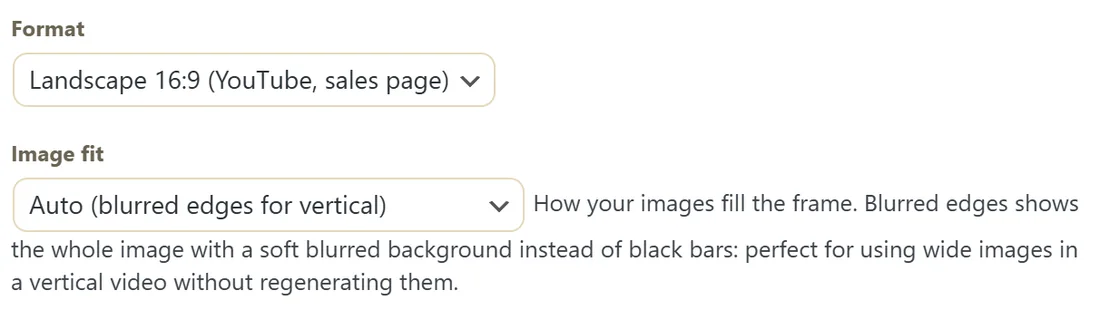
- Choose the Format: Landscape 16:9 (YouTube, sales page) or Vertical 9:16 (Reels, Shorts, ads).
- Click Export MP4.
- Your browser asks where to save the file. The name is already filled in with your video title.
- Keep the tab open. The working bar at the bottom shows each step and the percentage.
- When it finishes, the MP4 is in the folder you chose.
Browsers that cannot ask where to save make the video first, then show a Download MP4 button.
What the file contains:
- Landscape exports at 1920 by 1080 and vertical at 1080 by 1920, at 30 frames a second.
- Your slides with your theme, font, accent, images or background, and, with PRO, Motion, Captions and your Brand Kit logo.
- Your narration with Voice Polish, mixed with your background music, which dips under the voice.
- AAC audio, which plays everywhere, in every browser that supports it. Others use Opus audio.
- Animated Story videos export at a higher bitrate, so they stay sharp after Facebook or YouTube compress them.
The file name:
The save box suggests your video's title as the file name, for example Beginner Yoga Course VSL.mp4. Only characters that file names cannot hold are taken out. A video with no title is offered as ResultsAiX Video.mp4.
A real example:
Yoursite Studio exports the 12 slide course video in Landscape 16:9 for YouTube, then switches Format to Vertical 9:16 and exports again for Instagram Reels. With Image fit on Fit with blurred edges, the same landscape images look right in the tall frame.
Long videos:
The MP4 is written to disk as it is made, so even videos with more than a hundred slides export on an ordinary computer. Generate and export in desktop Chrome, Edge or Brave.
Before you export, a quick check:
- Every voice chip is green.
- Preview VSL plays from start to finish with the sound you want.
- The Format matches the platform.
- Your logo shows in the corner, if you use the PRO Brand Kit.
- The title is the file name you want.
Where each format fits:
- YouTube, Vimeo, your sales page and course platforms: Landscape 16:9.
- Instagram Reels, YouTube Shorts, TikTok and Facebook or Instagram ads: Vertical 9:16.
- Email: upload the MP4 to YouTube or your site and link to it, or use the living VSL on a page.
Tips:
- Watch it once with Preview VSL before you export.
- Export one version per platform: landscape for YouTube and your sales page, vertical for Reels, Shorts and TikTok.
- If an exported video ever has no sound, run Audio Pipeline Debug on the Diagnostics tab and send the result to support.