ResultsAiX Video reads every slide aloud with an AI voice. The built in voices run in your own browser, so there are no per word charges and nothing to sign up for. You can also narrate in your own voice with the free ResultsAiX Voice Engine app.
Where to find it:
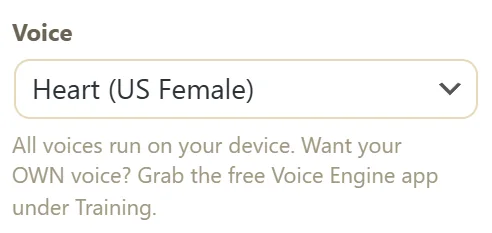
On Create Video, the Voice menu sits in the options under the Direct The AI Images panel. The Generate Voiceover button is in the row under your script.
Step by step:
- Build your slides.
- Pick a voice in the Voice menu, for example Heart (US Female).
- Click Generate Voiceover.
- The first time, your browser downloads the voice model once. After that it is kept by your browser.
- Each slide is narrated in turn. Its voice chip turns green with the length, for example voice 5.5s.
- When every slide has a voice, Preview VSL and Export MP4 switch on.
What Generate Voiceover does:

- It narrates only the slides that have no voice yet, so you never pay in time for the same slide twice.
- It removes any empty slides first.
- Each clip is saved to your Media Library and onto the video the moment it is made, so a reload keeps your narration.
- When you change a slide's words, that slide's old voice is cleared, and the next Generate Voiceover narrates just that slide.
Your own cloned voice:
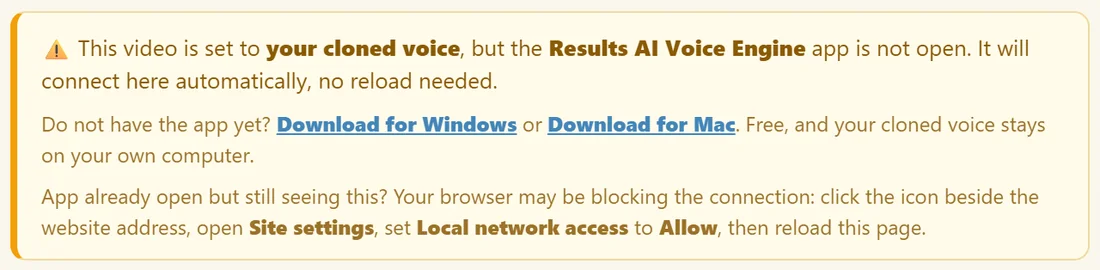
With the free ResultsAiX Voice Engine app open on your computer, your cloned voice appears in the Voice menu under My Voices. Pick it and click Generate Voiceover. The app narrates the first slide, then is handed the others and works through them by itself, so you can switch to another tab.
If the app is not open, a note under the options says so, with Download for Windows and Download for Mac links. It connects by itself once you open the app, with no reload needed. The full setup is in Set Up Your Own Cloned Voice (Windows And Mac).
A real example:
Yoursite Studio picks Heart (US Female) for the course video and clicks Generate Voiceover. The 12 slides are narrated one after another, and the chips read voice 5.5s, voice 1.8s, voice 3.4s and so on, 48 seconds in total. She changes slide 9, clicks Generate Voiceover again, and only slide 9 is made.
Getting the best narration:
- End every line with a full stop, question mark or exclamation mark. The voice reads the punctuation as a natural pause or lift.
- Write numbers the way you want them said. 30 days reads well; long codes and web addresses are clearer written out, such as yoursite dot com.
- Keep lines short. One idea per line gives the cleanest delivery and the best slide.
- Change a word, not the whole script. Only edited slides are narrated again.
Tips:
- Listen with Preview VSL before you export. It plays the voices with your look and music.
- Voice Polish shapes the sound of every voice. See Voices, Languages And Voice Polish.
- If a saved video ever opens without its voices, click Build Slides from the same script, then Recover This Video. The clips already made are attached again from your Media Library.
- The Diagnostics tab has an Audio Pipeline Debug that tests every step your narration goes through.