Your licence key unlocks the builder and keeps ResultsAiX Video up to date. This guide covers the licence, updates, what happens to your data when you reinstall, and the questions people ask most.
Where to find it:
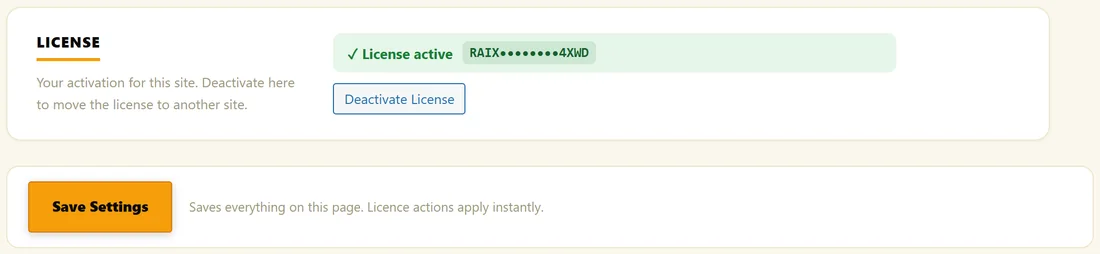
- Open Settings. Before activation, the licence box is the first thing you see. After activation, the License section sits at the bottom of Settings, with a green License active badge and your key shown masked.
- With PRO, the PRO tab holds your separate PRO licence.
Activate your licence:
- Open Settings and paste the key from your purchase email.
- Click Activate License.
- Create Video and My Videos unlock straight away.
Move your licence to another site:
- On the old site, open Settings and scroll to License.
- Click Deactivate License.
- On the new site, install the plugin, open Settings, paste the key and click Activate License.
The PRO licence:
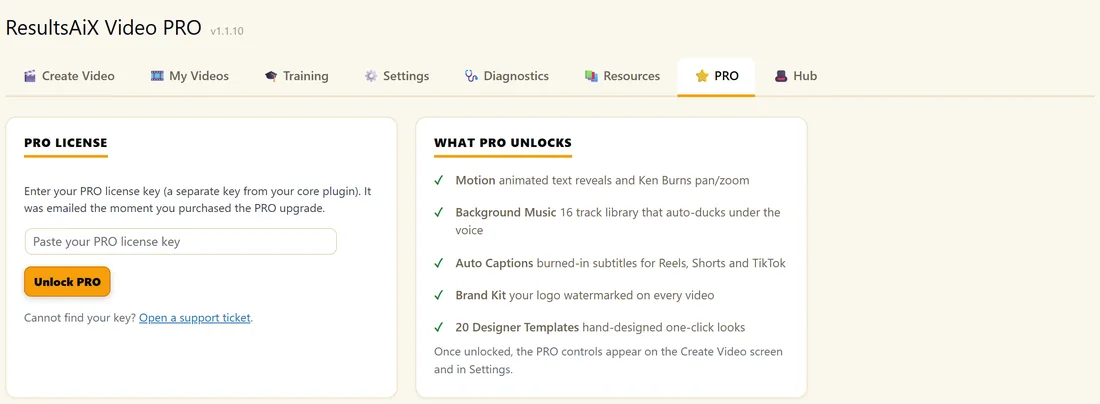
ResultsAiX Video PRO has its own key. Open the PRO tab, paste your PRO licence key and click Unlock PRO. The screen then shows PRO is unlocked, your masked PRO key and Deactivate PRO License, which you use to move PRO to another site.
Updates:
When a new version is out, WordPress shows it on the Plugins screen like any other plugin, and you update with one click. The version number shows in the header of every plugin screen and on Diagnostics as Core version.
Your data is safe when you reinstall:
Deleting the plugin keeps your licence, your AI keys, your settings, your colour scheme, your saved videos and the media they use. Only temporary data and caches are cleared. Install it again and everything is where you left it.
If Create Video asks you to activate your licence:
Open Settings, paste the key from your purchase email and click Activate License. If you cannot find your key, use the Open a support ticket link under the box and it will be sent again.
If your cloned voice is not in the Voice menu:
Open the ResultsAiX Voice Engine app and keep it running. The builder connects by itself. On newer versions of Chrome, also allow Local network access in Site settings. See Set Up Your Own Cloned Voice (Windows And Mac).
If a saved video opens without its narration:
Click Build Slides from the same script, then click Recover This Video. The clips already made are attached again from your Media Library.
If images take a while:
Without an image engine key, images come from AI Horde, a free shared queue that can take a minute or more per image. Add a free key for a faster engine under Settings, Free picture engines. See Image Engines, Free Options And Image Fit.
If a very large video feels heavy:
Use Test Style (1 Image) first, then Generate Images, which works two at a time. Export writes the MP4 straight to disk as it goes, so long videos export on ordinary computers.
If an update does not show:
Check that the License section shows License active, then look at the Plugins screen again.
Still need a hand?
Open Diagnostics for the health checks, the Error Log and the Audio Pipeline Debug, then open a support ticket from the Training tab with a screenshot.
A real example:
Yoursite Studio moves its website to a new host. The owner clicks Deactivate License on the old site, installs ResultsAiX Video on the new one, and activates the same key. Her Defaults and keys come across with the database, and My Videos shows every video as before.
Before you contact support:
- Open Diagnostics and take a screenshot of the checks.
- If the problem is about sound, click Run Audio Debug and screenshot the result.
- Under Error Log, click Download .txt.
- Note the video's name in My Videos and what you clicked just before.
Send these with your ticket and the answer comes much faster.
Tips:
- Keep your purchase email in a safe folder so your key is always at hand.
- Update when a new version appears. Updates keep your videos and settings.