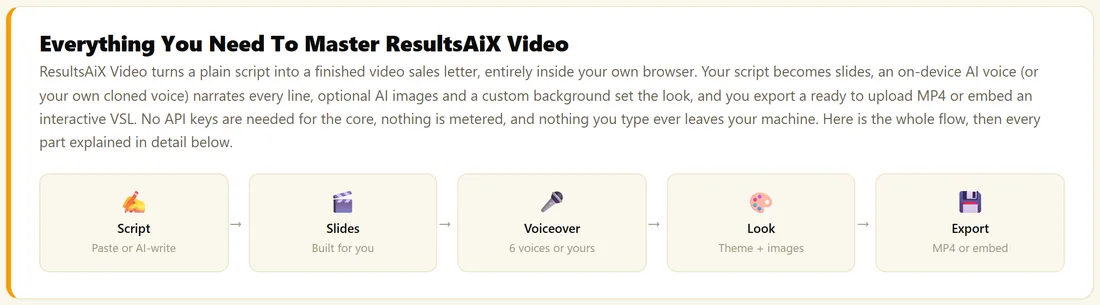
ResultsAiX Video turns a plain script into a finished video right inside WordPress. Every line of your script becomes a slide, an AI voice reads each slide aloud, and you export an MP4 for YouTube, Reels or your sales page. The voices, the slides and the MP4 export all run in your own web browser, so nothing is metered and there are no render credits.
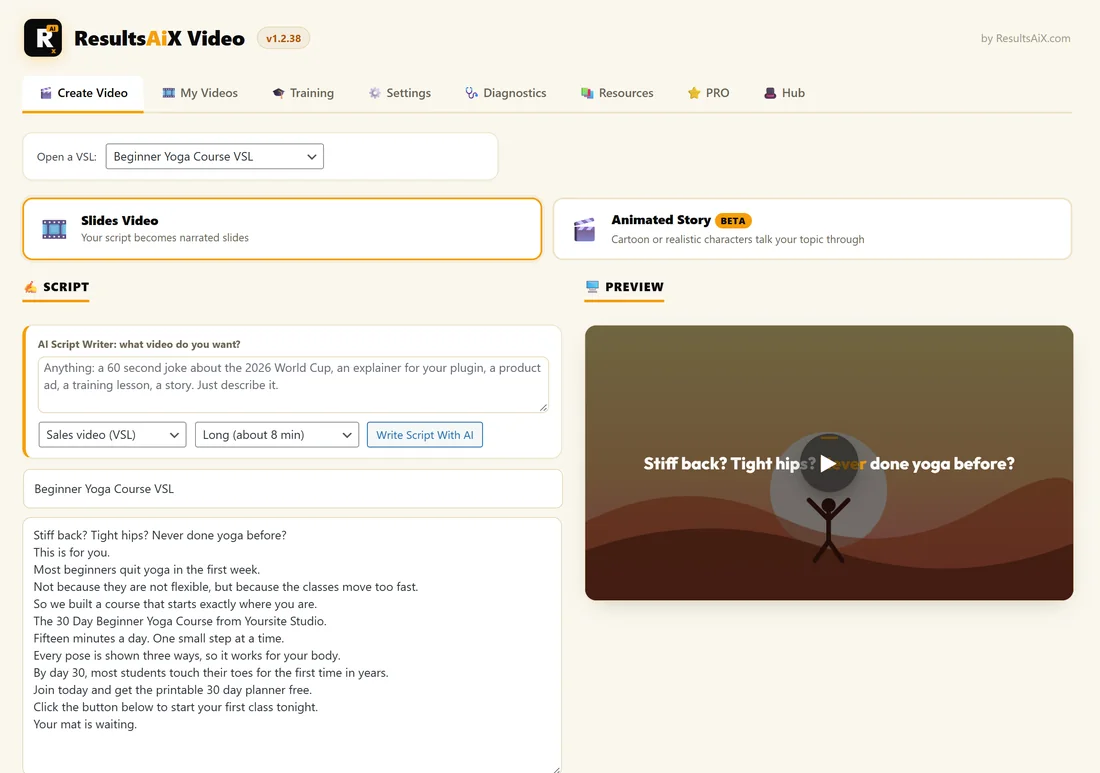
There are two ways to make a video. A Slides Video turns your script into narrated slides. An Animated Story (Beta) lets a cartoon or realistic cast talk your topic through, scene by scene.
Where to find it:
After you install the plugin, a new menu called AI Video appears in your WordPress sidebar. Every screen of the plugin also has the same row of tabs at the top: Create Video, My Videos, Training, Settings, Diagnostics, Resources, PRO and Hub.
The whole flow in five steps:
- Script: paste your own script, or let the AI Script Writer draft one if you connected an AI key.
- Slides: click Build Slides and every line becomes its own slide.
- Voiceover: click Generate Voiceover and every slide is narrated.
- Look: pick a theme, font, accent and text position, and add AI images, your own images or one background for the whole video.
- Export: click Export MP4, or put the living VSL on any page with a shortcode.
What you need:
- A WordPress site with ResultsAiX Video installed and your licence key activated.
- Desktop Chrome, Edge or Brave to generate voices and export. People who watch your finished video or your living VSL need nothing special.
- Optional: your own Claude, ChatGPT or Gemini key for the AI Script Writer, the Image Director, Recolour and Animated Story.
- Optional: the free ResultsAiX Voice Engine app on Windows or Mac to narrate in your own cloned voice.
- Optional: ResultsAiX Video PRO, a separate plugin that adds Motion, Background Music, Auto Captions, a Brand Kit, 20 Designer Templates, 16 more voices and the full font library.
A real example:
Yoursite Studio is a small yoga studio at yoursite.com. The owner pastes a 12 line script for the 30 Day Beginner Yoga Course, clicks Build Slides, then Generate Voiceover. She picks the Ink and Amber theme, uploads four warm illustrations, adds a soft background track and a Join The 30 Day Course button that shows at slide 10. Ten minutes later the video plays on yoursite.com/beginner-yoga/ and an MP4 copy is ready for YouTube.
The guides in this series:
- Getting Started And Installing The Plugin
- Connecting AI (Optional Bring Your Own Key), then AI Usage, Fallback Provider And Monthly Budget
- Writing Or Generating Your Script, then Building Slides And The Builder Layout
- Generating The Voiceover, Voices, Languages And Voice Polish, and Set Up Your Own Cloned Voice
- AI Images And The Image Director, Full Frame Slides For Screenshots And Demos, and Image Engines, Free Options And Image Fit
- Themes, Colours, Accents And Restyle
- PRO Features and Background Music (PRO)
- Preview, The Living VSL And Call To Action, My Videos And Folders, and Exporting Your MP4
- Six Animated Story guides, from the overview to troubleshooting
- Settings, Storage Clean Up And Diagnostics, and License, Updates And Troubleshooting
Slides Video or Animated Story?
- Choose a Slides Video for sales letters, explainers, training lessons, product updates and ads. Your words are the star, every line is on screen, and it costs nothing to make.
- Choose an Animated Story for a short scene where people talk: a beginner asking a question, a mentor explaining an idea, a host welcoming viewers. It needs the Voice Engine app and uses your own picture key, or Free practice pictures for tests.
- Both live in My Videos, both export as MP4 and both play on your pages with the same shortcode.
Your first hour:
- Activate your licence on Settings (two minutes).
- Paste a short script on Create Video and click Build Slides.
- Click Generate Voiceover and wait for every voice chip to turn green.
- Try two themes and two fonts, and watch the Preview change.
- Click Preview VSL and listen to the whole video.
- Click Export MP4 and save the file.
- Add a Call To Action, save, and put the shortcode on a test page.
- Optional: connect a free Gemini key and try the AI Script Writer.
Where your work is kept:
Each video is saved on your own WordPress site. Narration clips and images go into your Media Library, and the video's settings are stored with it. Nothing about your videos lives on an outside server, which is why the MP4 export happens in your own browser.
Words you will see:
- VSL: a video sales letter, a video that sells one offer from start to finish. In the plugin, every saved video is a VSL, whatever its type.
- Slide: one line of your script, shown on screen while its narration plays.
- Voice chip and image chip: the small labels on each slide card that show whether it has a voice and an image yet.
- Living VSL: your video playing on a page of your site through the results_video shortcode, with a button that appears at the slide you choose.
- Voice Engine: the free ResultsAiX Voice Engine app on your own computer, for cloned voices, native language voices, Animated Story voices and lip sync.
- PRO: the separate ResultsAiX Video PRO plugin with its own key.
- Scene: one line of an Animated Story, with its speaker, picture, voice and camera shot.
Tips:
- The Training tab inside the plugin has a short version of this guide, with the Voice Engine download buttons.
- Start small: a 6 to 10 line script is the quickest way to learn every button.
- Save often. The Save button turns amber when you have changes and Ctrl or Cmd plus S saves too.