Background Music is a PRO feature. It adds a music panel to Create Video so your videos have a soundtrack that sits neatly under the narration, in the Preview and in the exported MP4.
Where to find it:
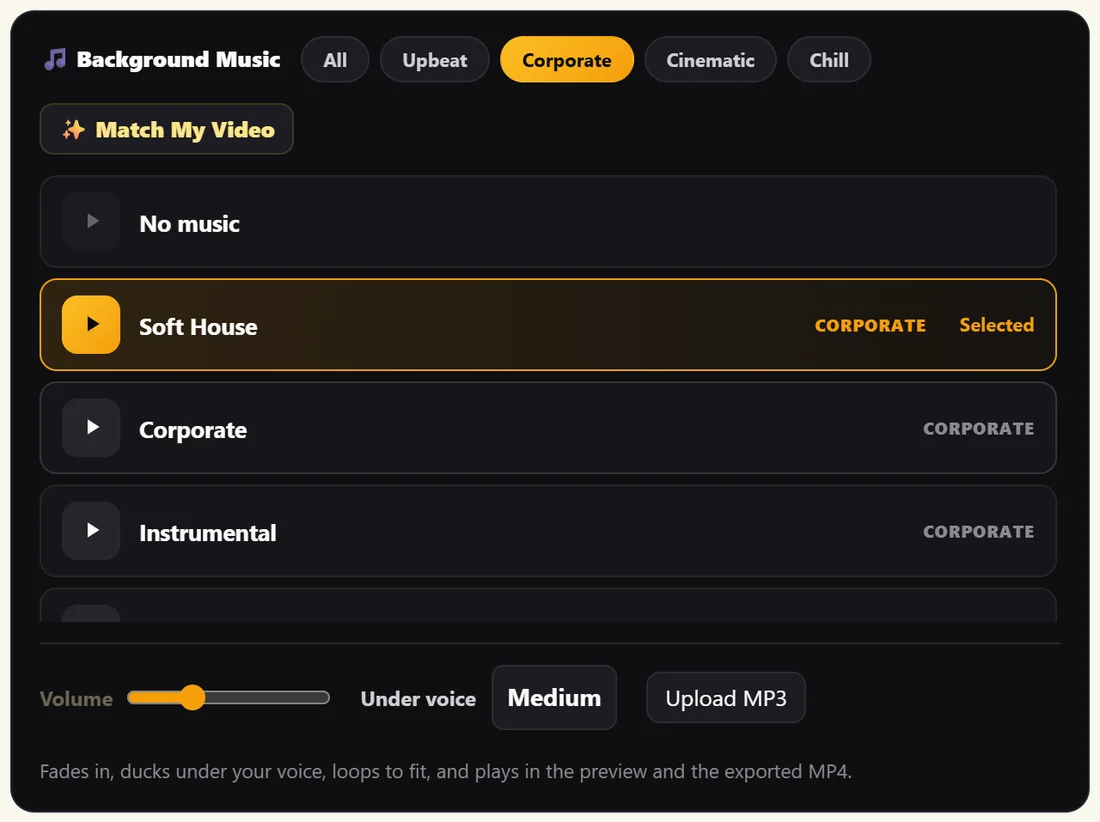
On Create Video with PRO active, the Background Music panel sits under Voice Polish.
Step by step:
- Click a mood chip to filter the list: All, Upbeat, Corporate, Cinematic or Chill.
- Click the play button on any track to hear it. Click it again to stop.
- Click a track's name to choose it. Its row turns amber and shows Selected.
- Or click Match My Video and the plugin picks a track for the Mood you set in Direct The AI Images. You can still choose another track afterwards.
- Set the Volume slider and choose Under voice.
- Click Preview VSL to hear the mix with your narration.
Every setting:
- No music: the first row. Choose it to take music off this video.
- The library: 16 tracks, including Upbeat 1 to 3, Happy, Pop, Rock, Future Bass, Beats, Soft House, Corporate, Instrumental, Adventure, Children and World. Each row shows its mood.
- Match My Video: looks for a track whose mood fits your video's Mood. Serious and Corporate look for Corporate, Dramatic and Inspirational for Cinematic, and Funny, Exciting or no mood for Upbeat. When no track in the library has that mood, it picks the first track in the list.
- Volume: how loud the music sits overall, from 0 to 60. The starting point is 18.
- Under voice: how far the music dips while someone is speaking. Subtle, Medium or Strong. Stronger keeps the voice clearest over busy music.
- Upload MP3: add your own track. It shows at the top of the list and plays like any other.
How the music plays:
The music fades in, dips under your voice, loops to fit the length of the video, and plays in both the Preview and the exported MP4. Tracks come from the ResultsAiX music server the first time you choose them and are then kept on your own site.
A real example:
The 30 Day Beginner Yoga Course video uses Soft House at volume 18 with Under voice on Medium: calm, and quiet enough for the narration. For the Morning Stretch Reel the owner clicks Upbeat, auditions Upbeat 2, chooses it and raises the volume to 22.
Getting the mix right:
- Choose a track and leave Volume at 18.
- Click Preview VSL and listen to the first 20 seconds on your normal speakers.
- If the voice feels crowded, set Under voice to Strong or lower the Volume.
- If the music disappears completely, raise the Volume a little.
- Listen once more on a phone before you export. Most people watch on a phone.
Uploading your own track:
- Click Upload MP3 and choose the audio file from your computer.
- It is saved to your Media Library and appears at the top of the list under its file name, selected for this video.
- Click its play button to check it, then set the Volume and Under voice as usual.
- To go back to a library track, click any other row. To use no music at all, click No music.
Tips:
- Use music you have the rights to when you upload your own MP3.
- If the music feels loud on a phone, lower the Volume a few steps or set Under voice to Strong.
- Diagnostics shows whether your site can reach the music server and how many tracks are kept locally.