Animated Story is the second way to make a video in ResultsAiX Video. Instead of slides, characters talk your topic through. Pick one presenter for a talk to camera video, or two to four characters for a conversation. Type what it is about, and the AI writes the script, draws every scene and records each line in that character's own voice. Then you preview it and export an MP4, like any other video.
Where to find it:

Open Create Video and click Animated Story at the top, next to Slides Video. The Animated Story panel opens in the left column. To start a fresh story, choose New VSL in Open a VSL first.
What the panel shows at the top:
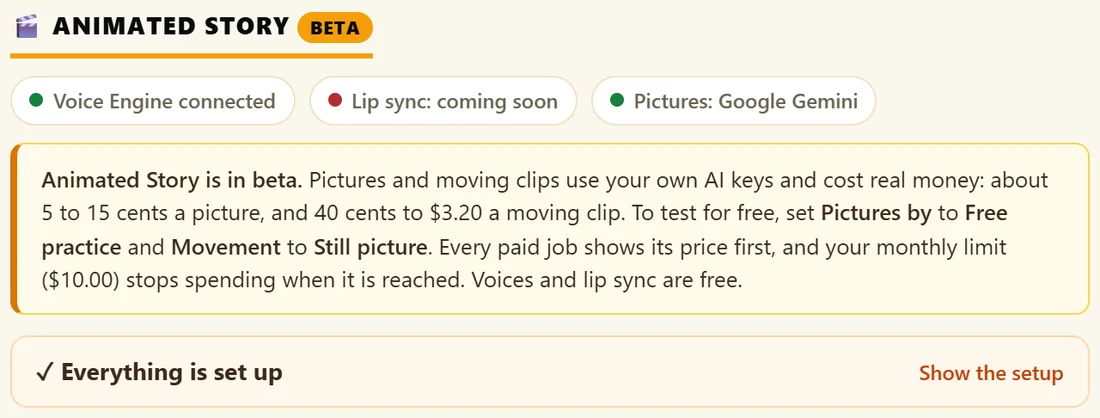
- Three status dots: the Voice Engine (for example Voice Engine connected), lip sync (for example Lip sync: coming soon or Lip sync ready), and pictures (for example Pictures: Google Gemini).
- A short note about the beta and its costs.
- A set up box. When something is still to do it reads Get set up first, with the exact steps. When all is ready it reads Everything is set up, with Show the setup to open it again.
- Four numbered steps that explain the flow: Cast, Story, Scenes and Make everything.
What you need:
- The free ResultsAiX Voice Engine app, open on your computer. It speaks every line.
- An AI key for writing the conversation: Claude, ChatGPT or Gemini.
- For the scene pictures: your own Google Gemini key with billing on, or an OpenAI key. Or Free practice pictures at no cost.
- Optional: a Gemini key with billing on, for moving clips with Google Veo.
The looks:
Each story is drawn in one look: 3D animated (Pixar style), 2D cartoon, Anime, Claymation or Realistic (real people). A character can also be drawn from a real photo of you, or of someone who has given permission.
Lip sync:
Lip sync makes the mouths move with the words. It runs free on your own computer, as part of the Voice Engine, and needs an NVIDIA graphics card. The lip sync dot and the set up box tell you exactly where your computer is: coming soon (it arrives with a Voice Engine update), not set up yet (GPU, Lip Sync, Add Lip Sync in the app), downloading, or ready. Without it, every scene still plays with its picture, its voice, captions and a gentle camera movement.
The steps:
- Your cast: who is in the video. See Your Cast: Characters, Looks, Voices And Your Own Photo.
- What is it about?: the topic, the place, the look, the length and the picture settings.
- Scenes: every line becomes a scene you can change.
- Make everything: the pictures, voices and lip sync are made, then you Preview and Export MP4.
The full walkthrough is in Making An Animated Story Step By Step.
What it costs:
The script costs a fraction of a cent on your AI key and the voices and lip sync are free. Scene pictures and optional moving clips are billed by your AI provider. Every paid job shows its price before it starts, and the Animated Story monthly limit in Settings stops spending when it is reached. Read Animated Story Costs And Free Practice before you start.
A real example:
Yoursite Studio makes Your First Class With Priya: Leo, a nervous beginner, asks Priya, the studio's teacher, what the first class is like. The panel shows Voice Engine connected and Pictures: Google Gemini. Six scenes, about 28 seconds, in 3D animated (Pixar style), with the title card Your First Class.
Good first stories:
- A beginner asks a teacher what to expect, and books.
- A customer asks a question your support team hears every week, and a host answers it.
- A mentor explains one idea to a student in under a minute.
- A presenter talks to camera about one tip, as a talk to camera video with a single character.
Tips:
- Test your first story with Free practice pictures and Still picture movement: it costs nothing.
- Keep stories short to start with. 30 to 45 seconds is perfect for Reels and Shorts.
- Animated Story videos live in My Videos with your slide videos and use the same shortcode.