The Voice menu on Create Video decides who narrates your video. You can mix a built in voice for one video and your own voice for the next. Voice Polish then shapes how every voice sounds, in the preview and in the MP4.
Where to find it:
Open Create Video. The Voice menu is in the options block next to Theme. Voice Polish is further down, under Custom Background.
Built in voices:
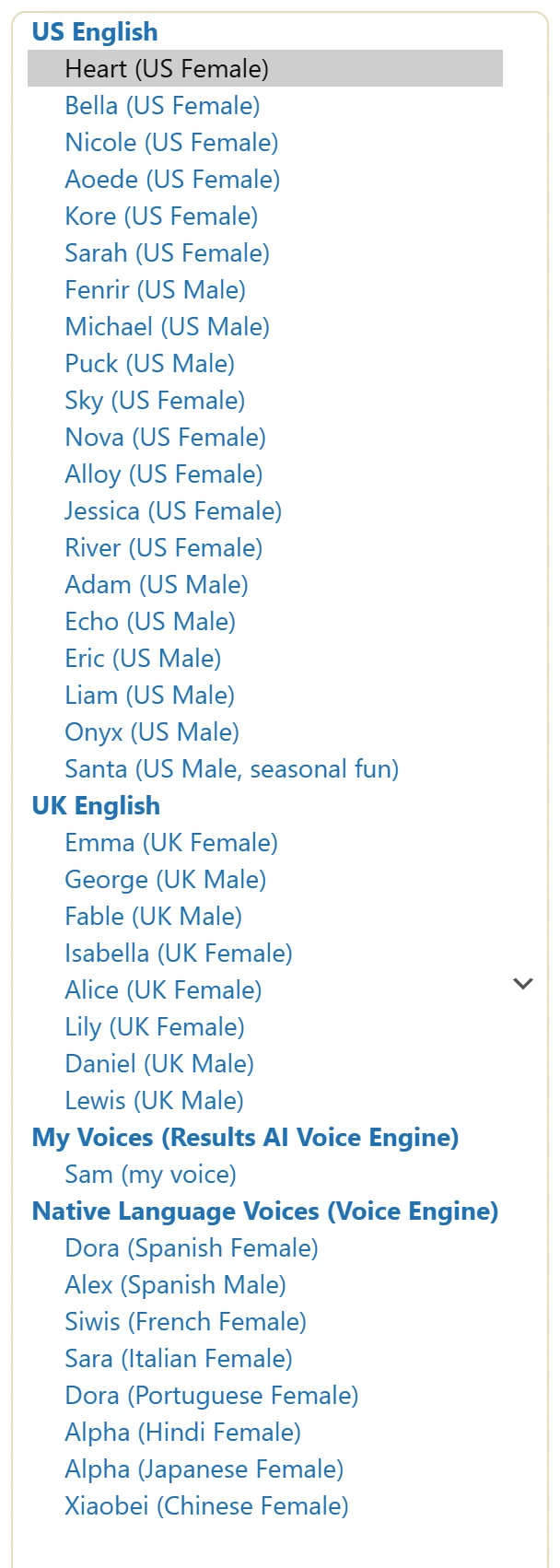
The core plugin includes 12 natural English voices that run on your own device:
- US English: Heart, Bella, Nicole, Aoede, Kore and Sarah (female); Fenrir, Michael and Puck (male).
- UK English: Emma (female); George and Fable (male).
More voices with PRO:
ResultsAiX Video PRO adds 16 more voices to the same menu: Sky, Nova, Alloy, Jessica, River, Adam, Echo, Eric, Liam, Onyx and Santa in US English, and Isabella, Alice, Lily, Daniel and Lewis in UK English. Without PRO, the menu ends with Unlock 16 more premium voices with PRO.
Your own voice and native language voices:
When the free ResultsAiX Voice Engine app is open on your computer, the Voice menu adds two groups.
- My Voices: the voices you cloned in the app.
- Native Language Voices (Voice Engine): native speakers of Spanish, French, Italian, Portuguese, Hindi, Japanese and Chinese, when the app offers them.
The first time you use a native language voice, the plugin prepares it in the app for you.
Narration Language:
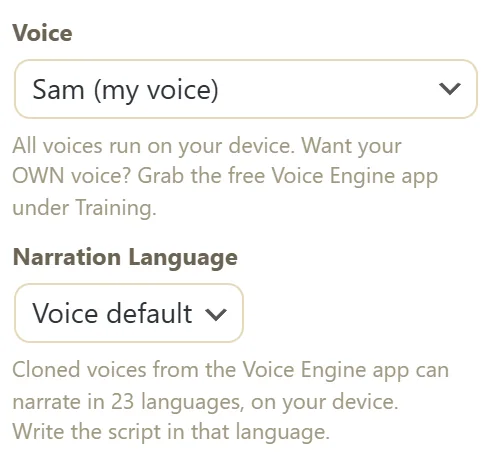
When you pick a voice from the Voice Engine app, a Narration Language menu appears under the Voice menu. Leave it on Voice default, or choose one of 23 languages: English, Spanish, French, German, Italian, Portuguese, Dutch, Polish, Russian, Turkish, Swedish, Norwegian, Danish, Finnish, Greek, Hebrew, Arabic, Hindi, Japanese, Korean, Chinese, Malay or Swahili. Write your script in that language. The built in browser voices speak English.
Voice Polish:
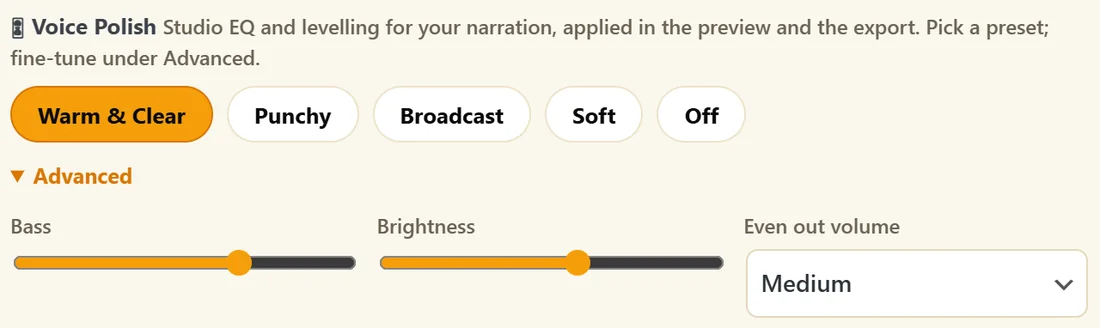
Voice Polish adds studio style EQ and levelling to your narration, in the preview and in the exported MP4. It is part of the core plugin.
- Presets: Warm & Clear (the starting preset), Punchy, Broadcast, Soft and Off.
- Advanced: Bass and Brightness sliders, each from -6 to +6, and Even out volume with Off, Medium or Strong.
Step by step:
- Open the Voice menu and pick a voice.
- If you picked a Voice Engine voice, choose the Narration Language.
- Click Generate Voiceover.
- Click a Voice Polish preset, then Preview VSL to hear it.
- Open Advanced to fine tune Bass, Brightness and Even out volume.
A real example:
Yoursite Studio narrates the English course video with Heart (US Female) and Warm & Clear. For a Spanish version she opens the Voice Engine app, picks Dora (Spanish Female) under Native Language Voices, sets Narration Language to Spanish and pastes the Spanish script. For the studio welcome she uses Sam (my voice), the owner's own cloned voice.
Choosing a voice for your audience:
- Calm, warm topics such as health, coaching or wellbeing: Heart, Bella or Emma.
- Confident sales and business videos: Michael, Fenrir or George.
- Light, friendly explainers: Puck, Nicole or Sarah.
- Selling to a UK audience: Emma, George or Fable.
- Selling as yourself: your own cloned voice, so the video sounds like you.
Try two voices on the first three slides before you narrate the whole video. Change the Voice, click Generate Voiceover on a short test video, and listen with Preview VSL.
Voice Polish recipes:
- Sales video on a phone: Punchy, then Even out volume on Strong.
- Long training video: Warm & Clear with Even out volume on Medium, easy on the ears for many minutes.
- Calm wellbeing video: Soft, with Brightness at 0.
- Your own recorded voice sounds thin: Warm & Clear with Bass at +3.
- You want the voice exactly as recorded: Off.
Tips:
- The voice every new video starts with is set in Settings, Defaults.
- Punchy suits short ads; Soft suits calm topics like breathing or sleep.
- If a voice sounds boomy on your speakers, try Bass at 0 under Advanced.