When you connect your own AI keys, ResultsAiX Video keeps a record of every AI job it runs, with an estimated cost, so there are no surprises on your provider's invoice. You also decide which AI does which job, and you can add a backup that takes over by itself.
Where to find it:
Open AI Video, then Settings. Two sections cover this: What each AI does (just below Your AI keys) and AI usage (further down). The links across the top of Settings jump straight to each section.
What each AI does:
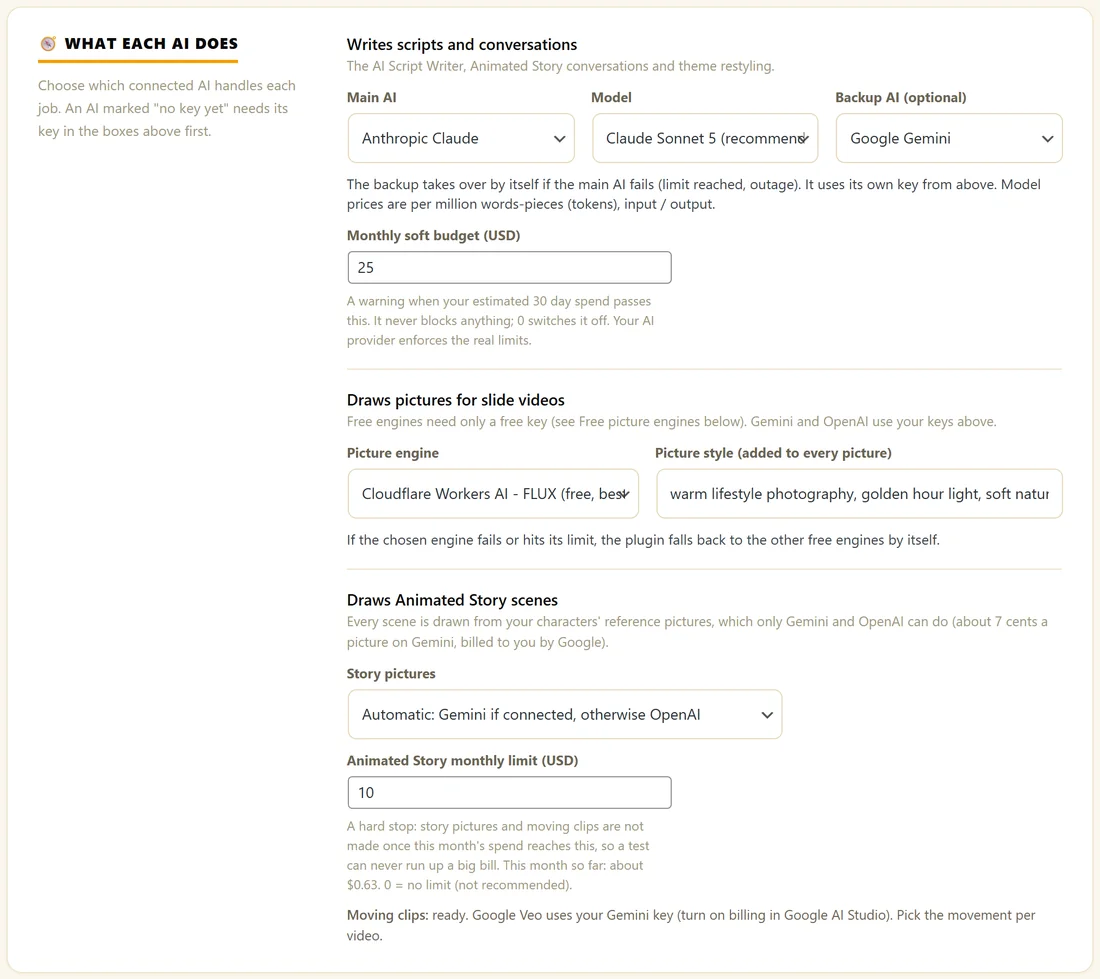
This section has three parts.
- Writes scripts and conversations: the AI Script Writer, Animated Story conversations and theme restyling.
- Draws pictures for slide videos: the picture engine and the picture style. See Image Engines, Free Options And Image Fit.
- Draws Animated Story scenes: the story picture engine and the Animated Story monthly limit.
Every setting:
- Main AI: the AI that writes. Choose None (AI writer off) to switch the writer off. An AI with no key yet shows (no key yet).
- Model: leave it on Recommended default, or pick one. Each model shows its published price per million tokens, input and output, so you can see what a choice costs.
- Backup AI (optional): if the Main AI fails, for example because a limit is reached or the service is down, the backup takes over by itself. It uses its own key from Your AI keys and is only used when it is a different AI from the main one.
- Monthly soft budget (USD): a warning when your estimated spend over the last 30 days passes this amount. It never blocks anything. 0 switches it off. Left empty, the plugin uses 50.
- Story pictures: Automatic (Gemini if connected, otherwise OpenAI), Google Gemini or OpenAI GPT Image.
- Animated Story monthly limit (USD): a hard stop. Story pictures and moving clips are not made once this month's spend reaches it. It starts at 10. 0 means no limit, which is not recommended. The hint under the box shows this month's spend so far.
Step by step:
- Connect at least two AI keys under Your AI keys if you want a backup.
- Under What each AI does, choose the Main AI and the Model.
- Choose a different AI as Backup AI (optional).
- Type a Monthly soft budget, for example 25.
- Check the Animated Story monthly limit.
- Click Save Settings.
The AI usage section:
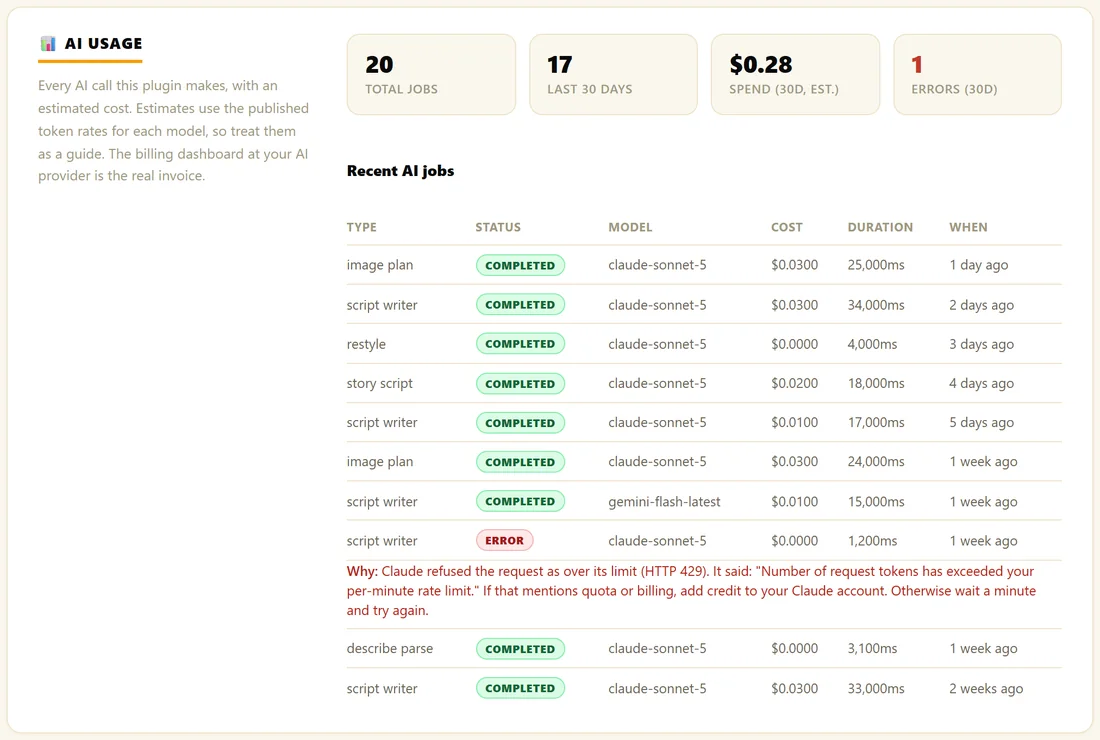
- Total jobs: every AI job since you started.
- Last 30 days: jobs in the last 30 days.
- Spend (30d, est.): the estimated cost of those jobs.
- Errors (30d): jobs that did not complete. The box turns red when there are any.
- Recent AI jobs: the last ten jobs with Type, Status, Model, Cost, Duration and When. Types include script writer, image plan, restyle, describe parse and story script.
When a job did not complete, a Why line under it shows the reason in the provider's own words. When your 30 day spend passes your soft budget, an Over budget note appears at the top of the section. The AI features keep working.
The estimates use each model's published token rates. Treat them as a guide: the billing page at your AI provider is the real invoice.
How the backup works in practice:
You click Write Script With AI. Your Main AI is busy and answers with an error. The plugin records that job with its reason, then sends the same request to your Backup AI with its own key and model. The script arrives as normal, and the usage table shows both jobs, so you always know which AI wrote it.
A real example:
Yoursite Studio writes with Claude Sonnet 5 and keeps Google Gemini as the Backup AI, with a soft budget of 25 dollars. On the day Claude was busy, the usage table shows one script writer job with an error, its Why line, and just above it the same job completed by gemini-flash-latest, the Backup AI. The 30 day estimate is 28 cents across 17 jobs.
Good values to start with:
- Model: Recommended default. It is chosen for good results at a sensible price.
- Backup AI: any second AI you have a key for.
- Monthly soft budget: a figure you would be happy to see on your provider's bill, such as 10 or 25. Most script writing jobs cost a cent or two.
- Animated Story monthly limit: keep the starting 10 while you learn, and raise it when you make finished videos.
Reading the Recent AI jobs table:
- Type tells you what the job was: script writer (Write Script With AI), image plan (the Image Director), describe parse (Fill Fields), restyle (Recolour) and story script (an Animated Story conversation).
- Status is completed or error.
- Cost is the estimate for that one job, to four decimal places.
- Duration shows how long the AI took, in milliseconds.
- When shows how long ago it ran, such as 2 days ago.
Tips:
- A Backup AI is the easiest way to make sure a script always arrives.
- Raise the Animated Story monthly limit only when you are ready to make finished videos. Free practice pictures never count against it.
- See Animated Story Costs And Free Practice for what each story picture and clip costs.