Many ResultsAiX plugins use AI with your own key, including the Mailer, Funnels, Forms, Surveys, Email, Search, Video, ADs, Launch Manager, Support Desk, Pulse, Optimize, Engage, Publisher, WP Conversion Tracker and the ResultsAiX Theme. Each one keeps its own log of every AI job. The Overview adds them all up in one section, so you can see what AI costs you across the whole site and which plugin or model uses most.
Where to find it:
Open ResultsAiX Hub. The section AI: what every plugin spent sits on the Overview below Audience Vault and Launch Manager. It appears as soon as any plugin has an AI log on the site.
What it shows:
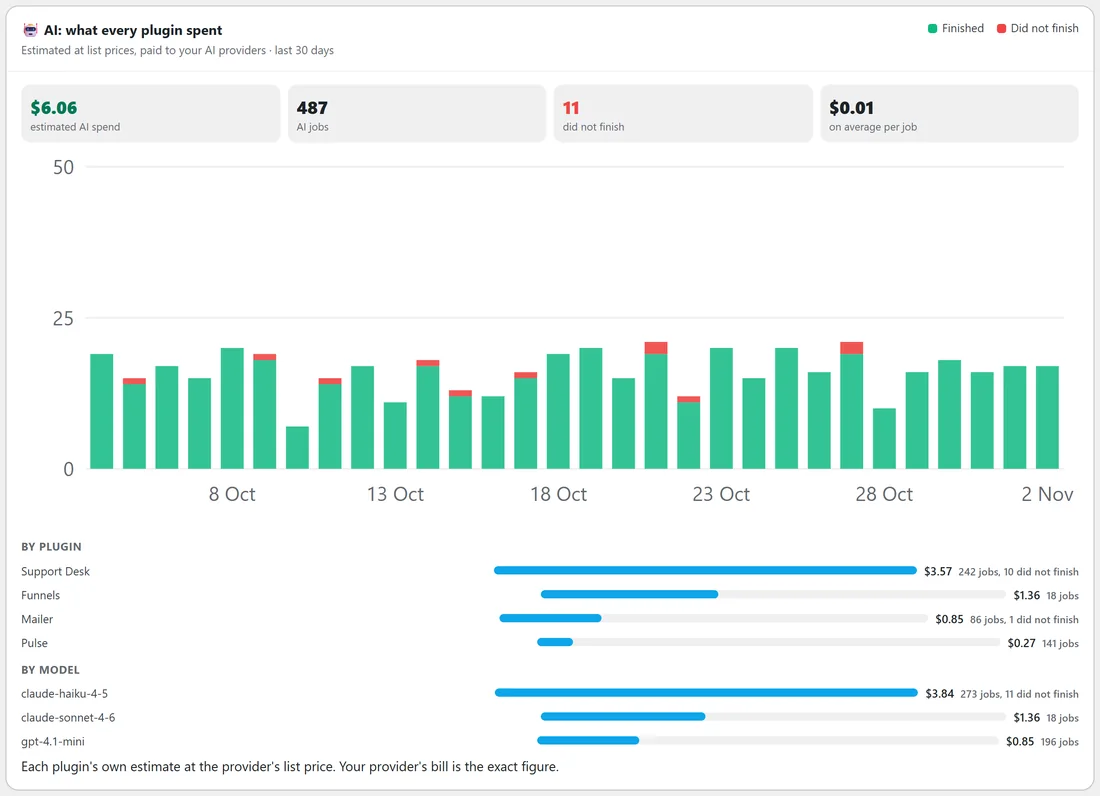
Four boxes across the top:
- Estimated AI spend for the range you picked
- How many AI jobs ran
- How many did not finish, for example after a rejected key or a busy provider, in red when there are any
- The average cost per job
Below them:
- A chart of finished (green) and unfinished (red) jobs, day by day
- By plugin: each plugin's estimated spend and number of jobs, and how many did not finish
- By model: the same, for each AI model used, up to eight rows each
Choosing a date range:
The section follows the Range bar at the top of the Overview, like every other section: Today, Yesterday, 7 Days, 30 Days, 90 Days, This Year, Lifetime or Custom. The line under the title names the range.
A real example:
On yoursite.com, 30 Days: $6.06 estimated AI spend over 487 AI jobs, 11 of which did not finish, about one cent per job on average. By plugin, Support Desk leads with its AI reply drafts, followed by Funnels, Mailer and Pulse. By model, the small fast model the Support Desk uses carries most of the jobs, while the larger model Funnels uses for page copy costs more per job. Jamie sees that drafting support replies is the biggest AI cost, and that it is still only a few dollars a month.
Where the numbers come from:
Every figure comes from each plugin's own AI log, read without changing anything. The cost is each plugin's own estimate at the provider's list price. Your provider's bill is the exact figure, because only the provider knows about discounts, cached prompts and free tiers. A job that cost less than a cent shows as under $0.01, and a model a plugin has no price for counts as $0. A job with no model recorded is listed as model not recorded.
Who can see it?
Only administrators, like every Hub screen. Customers and members never see what AI costs you.
Which plugins log AI jobs:
The section reads the AI log of every ResultsAiX plugin that keeps one on this site: Mailer, Funnels, Launch Manager, Video, WP Conversion Tracker, ADs, Search, Email, Surveys, Forms, Optimize, the ResultsAiX Theme, Support Desk and Pulse, plus the short logs Engage and Publisher keep. Plugins that are not installed have no log, so they simply do not appear.
Step by step: find what costs the most:
- Pick 30 Days in the Range bar.
- Read the By plugin list: the top row is the plugin spending the most.
- Read the By model list to see which model that spend went to.
- Open that plugin and check which model it uses for its everyday jobs. A smaller model for routine work often cuts the cost a lot.
- Come back next month and compare.
Reading the boxes:
- Estimated AI spend under $0.01 shows as under $0.01, never as $0
- The average per job divides the spend by every job in the range, finished or not
- The chart counts jobs, not money, so a busy day of small jobs and a quiet day of big ones can look very different from the spend
Tips:
- Check By model when you choose models inside a plugin: a cheaper model for routine jobs often makes a big difference.
- A rising did not finish count usually means a key needs checking in the plugin that shows the failures.
- Compare 30 Days with the 30 days before to see whether a new AI feature changed your spend.