Two more ResultsAiX plugins hold numbers worth seeing without opening them, so each gets its own section under the WP Sync and Membership sections. A section only appears when that plugin is in use and has records to read. Both follow the Range bar, and both are read only: the Hub never writes to either plugin.
Where to find them:
Open ResultsAiX Hub and scroll past the WP Sync and Membership sections. Audience Vault sits on the left and Launch Manager on the right. When only one of them is in use, it takes the full width.
Audience Vault: who your visitors are:
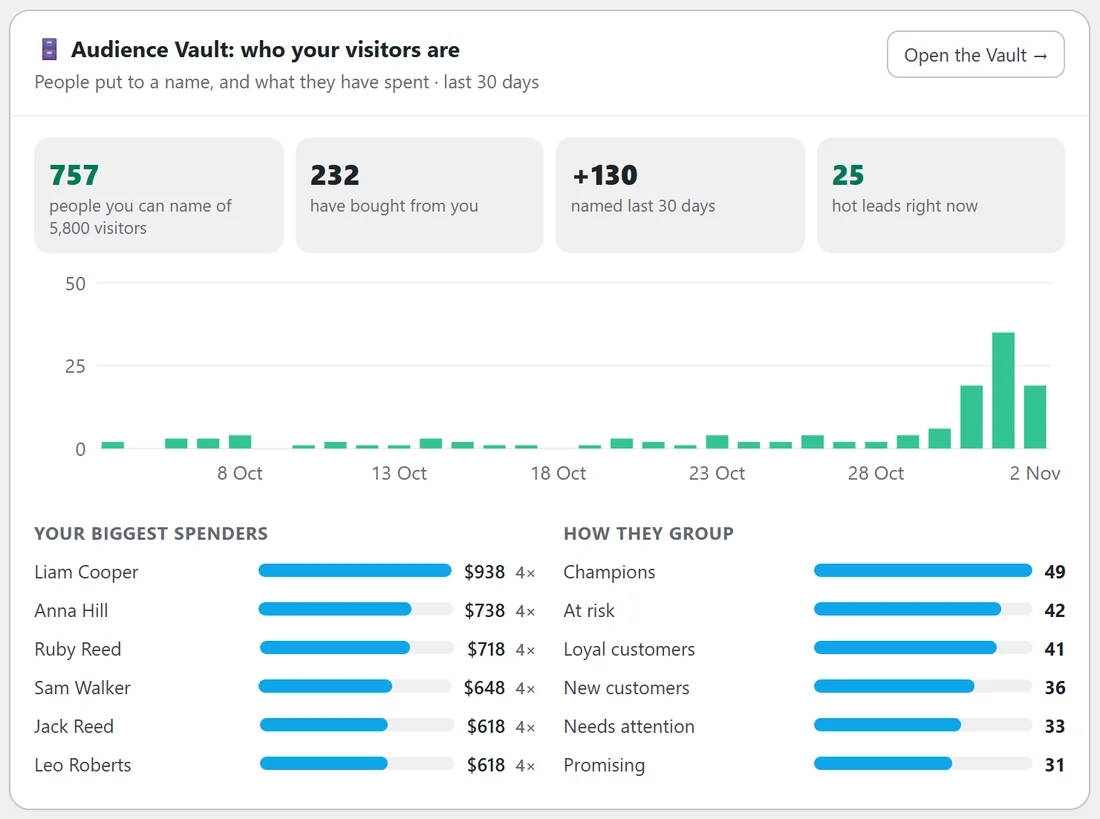
Audience Vault, the WP Conversion Tracker add-on, turns anonymous traffic into people. The section shows four boxes:
- People you can name, out of all the visitors the Vault has seen
- How many of them have bought from you
- How many were named in the range you picked, with a day by day chart below
- How many are hot leads right now, or how many you have marked VIP when the Vault has not scored hot leads yet
Then two lists:
- Your biggest spenders, up to six, by what they have actually spent, with how many times they bought
- How they group, in the Vault's own words such as Champions, At risk or Loyal customers, or by country when the Vault has not worked out its groups yet
Names and email addresses are shown in full. This is your own admin screen, so nothing is masked. The Open the Vault button takes you into Audience Vault.
Launch Manager: vendor and affiliate income:
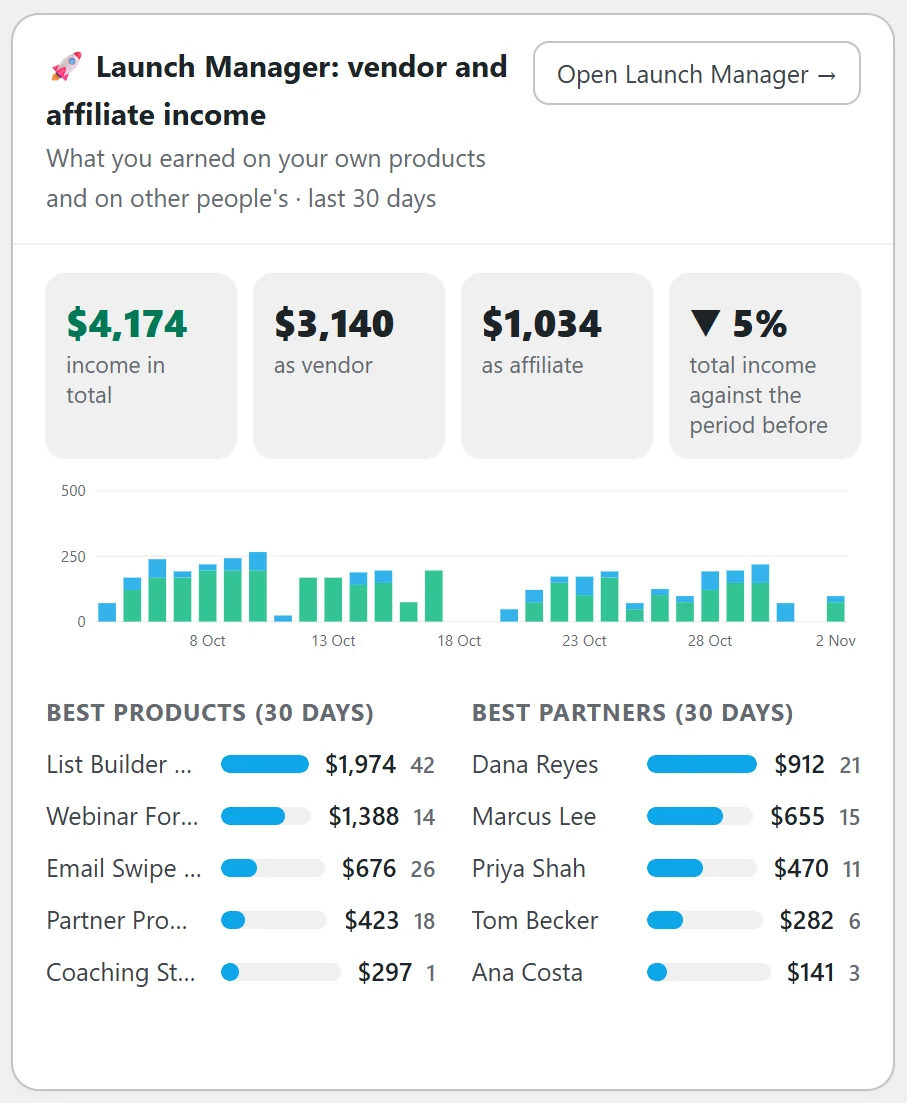
The section shows what you earned on your own products and on other people's, in four boxes:
- Income in total for the range
- As vendor: what you earned selling your own products
- As affiliate: what you earned promoting other people's
- The change in total income against the period before
Below them is a day by day chart of vendor income (green) and affiliate income stacked on top, then two lists for the last 30 days:
- Best products, by money, with how many sales each
- Best partners, by money, with how many sales each
The Open Launch Manager button takes you into Launch Manager.
A real example:
On yoursite.com, 30 Days: the Vault can name 757 people out of 5,800 visitors, 232 of them have bought, 130 were named in the last 30 days and 25 are hot leads right now. Liam Cooper is the biggest spender with four purchases. Launch Manager shows $4,174 in total, $3,140 as vendor and $1,034 as affiliate, with the List Builder Blueprint as the best product and Dana Reyes as the best partner.
Never counted twice:
Launch Manager records the same marketplace sales WP Conversion Tracker records, so this section stands on its own and is never added into the Revenue tile while WP Conversion Tracker is running. When WP Conversion Tracker is not running, the Revenue tile takes its sales from Launch Manager instead. Either way, nothing is counted twice.
Step by step: follow up your hot leads:
- Open the Overview and read the hot leads box in the Audience Vault section.
- Press Open the Vault.
- Look through the people the Vault marks as hot leads and follow up with a personal email or an offer through the Mailer.
- Next week, compare the have bought from you number.
Reading Launch Manager's change box:
The fourth box compares vendor plus affiliate income with the period before, the same total the first box shows. It follows the comparison rules of the headline tiles: it says No earlier numbers to compare when the earlier period has too little data.
Tips:
- Use the hot leads number as a daily prompt: open the Vault and follow up with the people who are warm right now.
- Check Best partners before a launch: they are the people most likely to promote your next product.
- More on the counting rules in How The Overview Counts: One Person, One Sale.