The Licenses tab answers three questions at a glance: which keys this site uses, how many sites each key is on, and when each one renews. It is a view only. Keys are entered in each plugin's own screen, and everything else about your keys lives in the Customer Portal, which the Customer Portal button at the top opens.
It covers the ResultsAiX plugins that are switched on and registered with the Hub. Switched off plugins are not listed.
Where to find it:
Open ResultsAiX Hub and click the Licenses tab. The page heading reads Licences. You also get here from the View button on the Overview's licence panel and from a licence reminder in Needs you today.
The top row:

- Plugins licensed: how many plugins have an active key, and how many different keys that takes on this site, or that the keys are kept in each plugin
- Needs a key: paid plugins with no key yet, or whose key needs attention, naming the first two. When there are none it says Nothing needs a key
- Renews: the soonest renewal of any key on this site, with the date. It turns amber inside fourteen days. When nothing is due it says No renewal due
- Need no key: how many free plugins and add-ons are running. Add-ons always use their parent plugin's key
Needs a key:
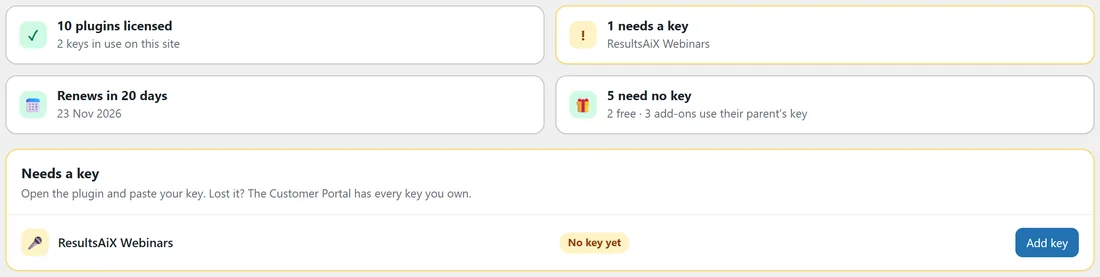
Any paid plugin without a working key is listed first, in its own card, marked No key yet, Expired or Check key, with an Add key button that opens that plugin's own screen. Lost your key? The Customer Portal has every key you own.
Step by step: add a missing key:
- Press Add key beside the plugin. That plugin's own screen opens.
- Paste your key into the plugin's licence box and activate it there.
- Come back to Licenses. The plugin has moved into the card of the key you used.
Grouped by key:
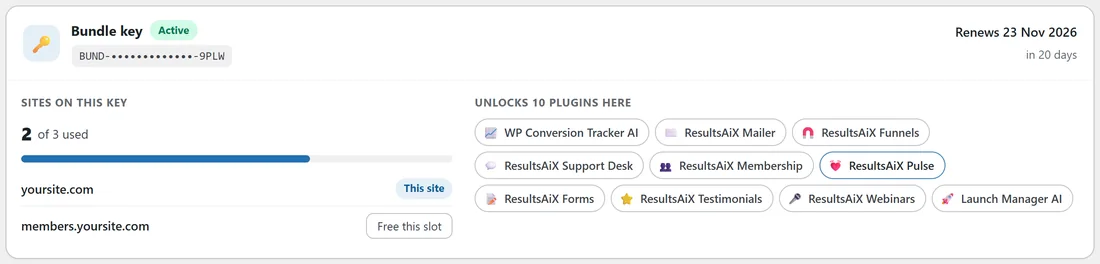
One Bundle key usually unlocks most of your plugins. Instead of printing the same key twenty times, each key gets one card, with the key that covers the most plugins first. Each card shows:
- The key type, for example Bundle key, or Licence key when the plugin names no tier, with an Active, Expired or Check key label
- The key masked, so only its first four and last four characters show
- When it renews and how many days are left, or how long ago it expired
- Sites on this key: how many sites use it out of how many are allowed, with a bar, and a Full label when every slot is used
- Unlocks: the plugins that key unlocks on this site, as chips. Click any of them to open it
If a renewal date is missing:
Some plugins do not report when their key renews. The card then says the renewal date is shown in your Customer Portal, rather than guessing.
The sites on a key:
When a plugin reports the sites a key is active on, they are listed. The site you are on is marked This site. Another site gets a Free this slot button when a plugin on that key supports freeing slots from the Hub.
Step by step: free a site slot:

- Find the site under Sites on this key.
- Press Free this slot. The button turns red and says Click again to free it; hovering over it explains what will happen.
- Click again within five seconds. The message at the top says Site slot freed, and the slot is ready for another site.
The plugins on the freed site need a key entered there again before they get updates.
With more than five sites on a key, the list moves to the Customer Portal, which has search and tools for moving and freeing sites. When a plugin does not report its site list, the card says the list lives in the Customer Portal.
Other plugins:
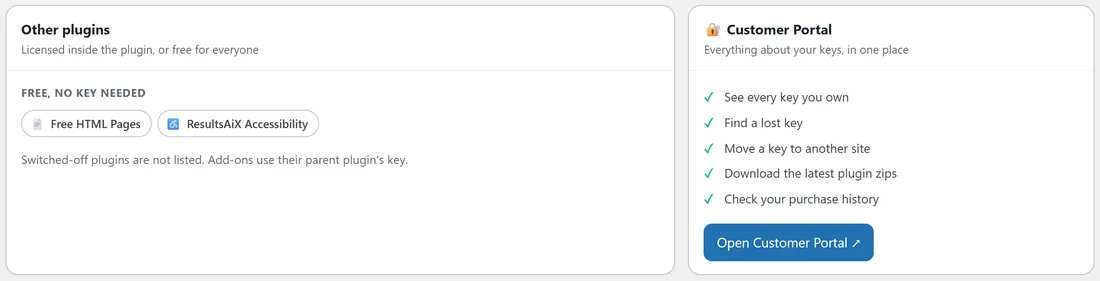
Plugins that keep their key to themselves are listed as Licensed (the key is kept in the plugin), plugins that check their own key as Managed in the plugin, and free plugins as Free, no key needed.
Recent activity:
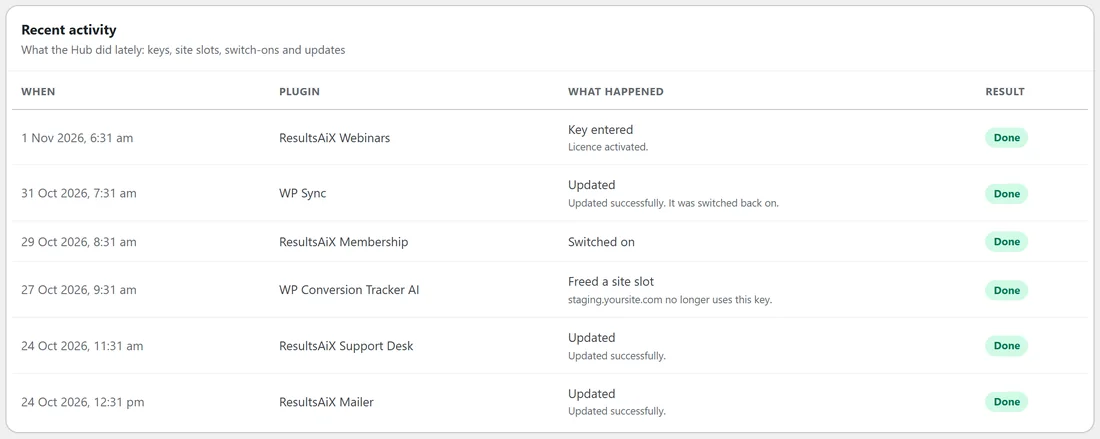
The last fifteen things the Hub did, in plain words, with when, which plugin and whether each was Done or Failed: keys entered, site slots freed, plugins switched on and plugins updated, each with the message that came back.
A real example:
yoursite.com shows 11 plugins licensed with 2 keys in use. The Bundle key card, BUND followed by dots and 9PLW, is Active, renews on 23 Nov 2026 in 20 days, and is used on 2 of 3 sites: yoursite.com (This site) and members.yoursite.com. It unlocks 10 plugins here, from WP Conversion Tracker AI to Launch Manager AI. A second card holds the WP Sync key, used on 1 of 3 sites. Free HTML Pages and ResultsAiX Accessibility sit under Free, no key needed. Recent activity shows that a staging site slot was freed last week and that WP Sync was updated and switched back on.
Customer Portal:
For everything else, such as seeing every key you own, finding a lost key, moving a key to another site, downloading the latest plugin zips and checking your purchase history, press Customer Portal at the top or Open Customer Portal in its card.
What each label means:
- Active: the key is working on this site
- Expired: the key has expired. Open the Customer Portal to see its details
- Check key: the plugin could not confirm the key. Open the plugin and enter it again
- No key yet: the plugin is switched on but no key has been entered
- Full: every site slot on that key is in use. Free a slot you no longer need
- This site: the site you are looking at right now
Tips:
- Free the slot of a staging or old site you no longer use, so a new site can take it.
- Keep an eye on the Renews panel: amber means a key renews within fourteen days.
- Lost a key? The Customer Portal finds it in seconds.