This is a short tour for the day you install the Hub. It takes about ten minutes and leaves your plugins updated, your keys checked and your Overview set to the view you like. Each step links to the article that explains that screen in full.
We use the demo site yoursite.com, home of YourSite Academy, with sixteen ResultsAiX plugins switched on.
Minute 1: open the Overview:

- Click ResultsAiX Hub in the sidebar.
- Read the greeting line. It says which date range you are looking at and what it is compared with.
- Click 30 Days in the Range bar. The Hub remembers this choice in your browser.
- Read the four health panels: plugins running, updates, licences and plugins switched off.
On yoursite.com the panels say 16 plugins running, 3 updates ready, Bundle licence OK, and 2 plugins switched off. More in The Overview: Your Whole Business On One Screen.
Minute 3: read the headline numbers:
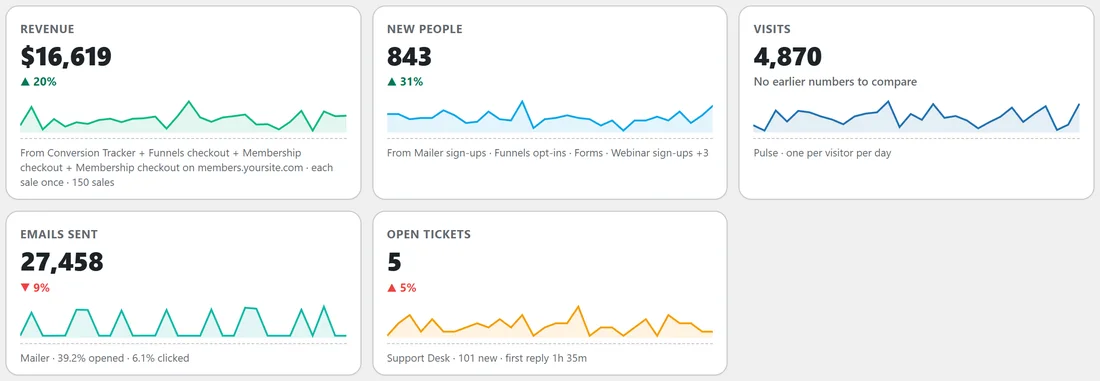
Scroll past the Mailer section to the headline tiles: Revenue, New people, Visits, Emails sent and Open tickets. Each one shows the change against the 30 days before and where the number comes from. On yoursite.com, revenue is up 20 percent and 843 new people arrived. How each number is counted is in How The Overview Counts: One Person, One Sale.
Minute 4: clear Needs you today:
Further down, the Needs you today card lists what only you can do. Work from the top:
- Press Review on the plugins switched off line. My Plugins opens showing just those plugins.
- Press Switch on for any plugin you want running again. Leave off anything you switched off on purpose.
- Come back to the Overview and press Open inbox on the support tickets line to answer the oldest ones.
Minute 6: update your plugins:
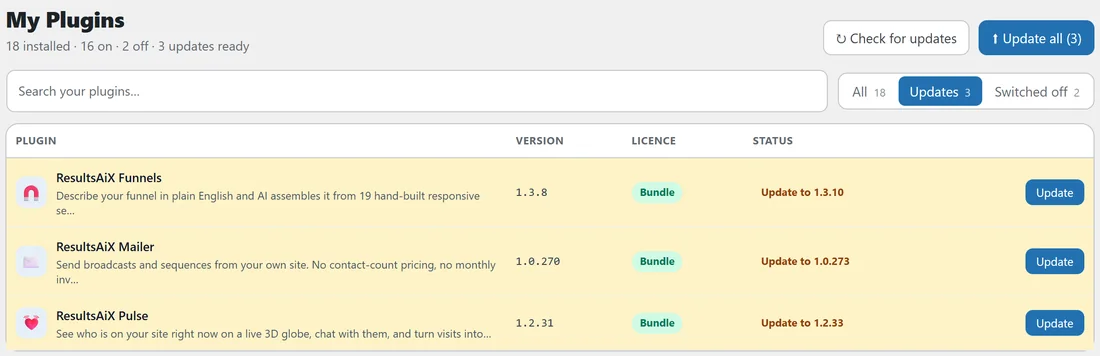
- Click the My Plugins tab, or the Update button in the health row.
- Press Check for updates to ask every update server again right now.
- Press Update all, then click again within five seconds to confirm.
- Read the message at the top: it says how many plugins were updated.
Every plugin stays switched on through its update. See My Plugins: Every Plugin, Its Licence And One Button.
Minute 8: check your keys:
Click the Licenses tab. You see one card per key, such as your Bundle key, with the plugins it covers, the sites it is on and when it renews. If anything is listed under Needs a key, press Add key to open that plugin and paste its key. See The Licenses Tab: Keys, Slots And Sites.
Minute 9: tidy your sidebar:
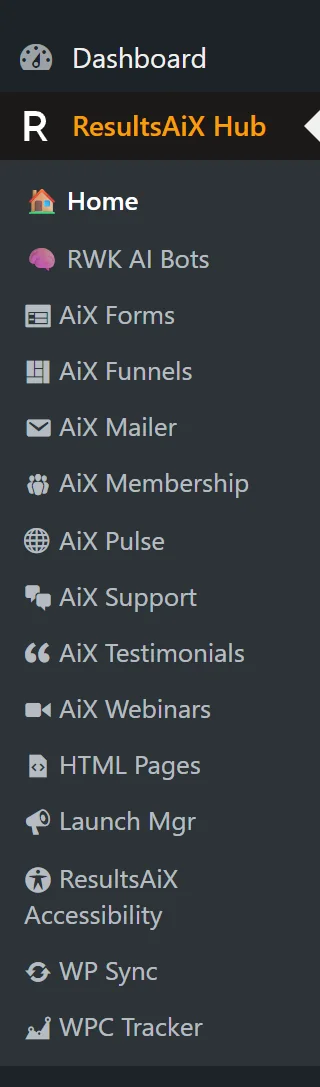
Click Settings. Tick Consolidate plugin menus under ResultsAiX and press Save Settings. Every ResultsAiX plugin now sits as one row under the ResultsAiX Hub menu, sorted A to Z. Tick Keep at top level for the one or two plugins you open all day. See Settings: Menu Consolidation And Per Plugin Overrides.
Minute 10: save the support report for later:
Click Diagnostics and scroll to the Diagnostic Report box. You do not need it today, but this is where you copy it from if you ever contact support.
Tips:
- Bookmark the Overview, or use the ResultsAiX Hub shortcut in the admin bar.
- Run more than one site? Link them now: Linked Sites: Show Another Site On Your Main Hub.
- Want every ResultsAiX plugin in the same colours? See Appearance: One Colour Scheme For Every Plugin.