Two of the ResultsAiX plugins deserve more than a card at the bottom of the Overview. WP Sync moves your contacts to the places they need to go, and ResultsAiX Membership decides who can see what. When either one is switched on, the Overview gives it its own section, side by side, just below the two main charts. When it is switched off, its section does not appear at all, and when only one is in use it takes the full width.
Both sections follow the Range bar at the top of the Overview, like the headline numbers.
WP Sync: every contact delivered:
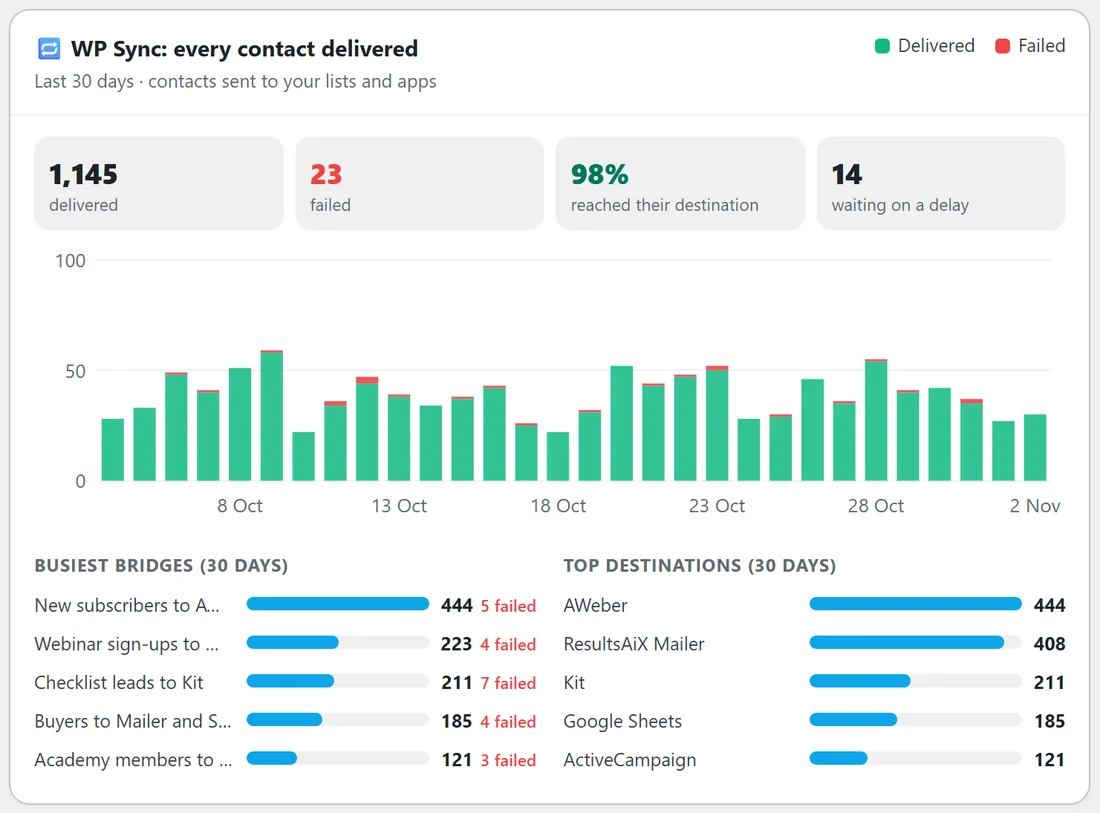
The section is titled WP Sync: every contact delivered, with a line under it naming the range. The four boxes across the top:
- Delivered: contacts WP Sync sent to their destination in the range
- Failed: contacts that could not be delivered, shown in red when there are any
- Reached their destination: the share of all delivery attempts that succeeded. It turns red when it falls below 95 percent
- Waiting on a delay: contacts queued behind a delay you set on a bridge, which will be delivered when the delay ends
Below them is a day by day chart of delivered (green) against failed (red), so a bad day stands out at once. If nothing has been sent yet, the section says so and points you to WP Sync to build a bridge.
Then two short lists, both for the last 30 days:
- Busiest bridges: the five bridges that handled the most contacts, and how many of each failed
- Top destinations: the five places your contacts went most, such as AWeber, ResultsAiX Mailer, Kit or Google Sheets
Membership:
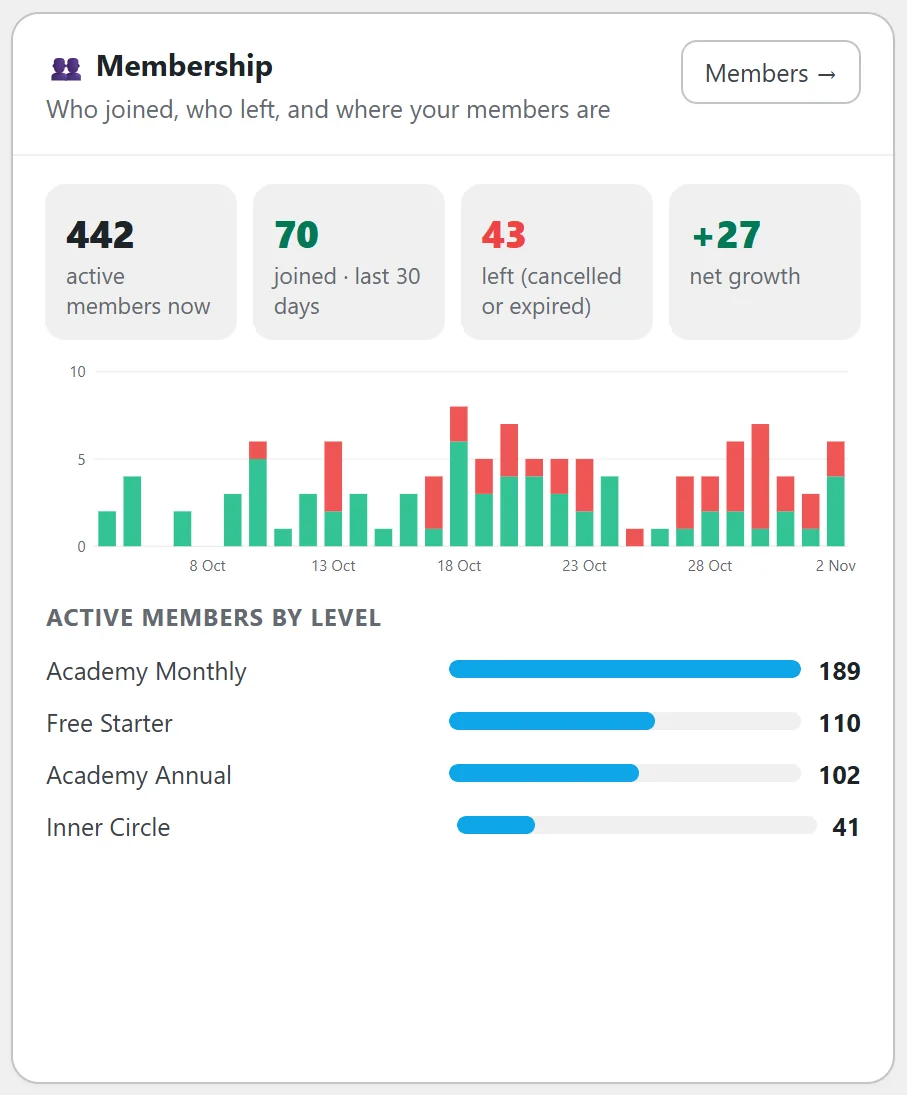
The Membership section appears once ResultsAiX Membership has at least one member on this site. If you have it installed but run your members on another site, link that site instead (see Linked Sites: Show Another Site On Your Main Hub). The Members button in its corner opens your members list in ResultsAiX Membership.
The four boxes across the top:
- Active members now: members who are active and not past their expiry date, the same rule ResultsAiX Membership uses when it decides who can see your content. Each member counts once, however many levels they hold
- Joined: members who joined in the range. Members imported from another membership plugin or a CSV file are not counted as new
- Left: memberships that were cancelled or expired in the range
- Net growth: joined minus left, green when you grew or held steady and red when you shrank
Below them is a chart of joined (green) against left (red), and Active members by level, a list of up to six levels with how many active members each holds.
A real example:
On yoursite.com, 30 Days: WP Sync delivered 1,145 contacts with 23 failures, so 98 percent reached their destination, and 14 contacts wait on a delay. New subscribers to AWeber is the busiest bridge, and a few of its contacts failed, so Jamie opens WP Sync to check that bridge's connection. Membership shows 442 active members, 70 joined and 43 left, a net growth of 27. Academy Monthly is the biggest level, followed by Free Starter and Academy Annual.
New members count as new people too:
Members who joined through ResultsAiX Membership are also a lead source in the New people number, shown as New members in Where your new people came from. They are matched by email address like everyone else, so a member who also signed up through a form or a funnel is still one person.
Membership sales in Revenue:
Sales through ResultsAiX Membership's own checkout are part of the Revenue tile, live orders only, with reversed sales taken off. Its marketplace orders are the same sales WP Conversion Tracker or Launch Manager record, so they only count when neither of those is running. Orders passed in from the licence server are never added, because they are copies of sales made off your site.
On the plugin cards:
Both plugins also have a card in Every plugin at a glance, placed right after WP Conversion Tracker and Mailer. WP Sync's card shows contacts sent and failed over the last 30 days and how many are waiting. Membership's shows active members now, and how many joined and left over the last 30 days.
In Needs You Today:
- WP Sync deliveries that failed in the last 24 hours, with a See the log button
- Membership sales that could not be placed in the last 7 days, usually a product code not mapped to a level, with a Fix mapping button to Membership's Integrations tab
- Members whose access expires in the next 7 days, with a See members button
Tips:
- Watch the Reached their destination box. Anything under 95 percent turns red and usually means one bridge needs its connection checked.
- Use Net growth on 90 Days to see the trend of your membership, not just this month.
- For the rules behind every number, see How The Overview Counts: One Person, One Sale.