Many owners run more than one WordPress site: for example tracking and email on the main site, and a membership on another. Each Hub only sees its own site, so the main Overview would show nothing for the membership. Linked sites fix that: your main Hub shows the other site's own sections, under that site's name and address, on the same Overview.
Where to find it:
On both sites, open ResultsAiX Hub, then the Settings tab. Linked sites is the first card. It has two halves: 1. On the site to show elsewhere, and 2. On your main site.
How to link two sites:
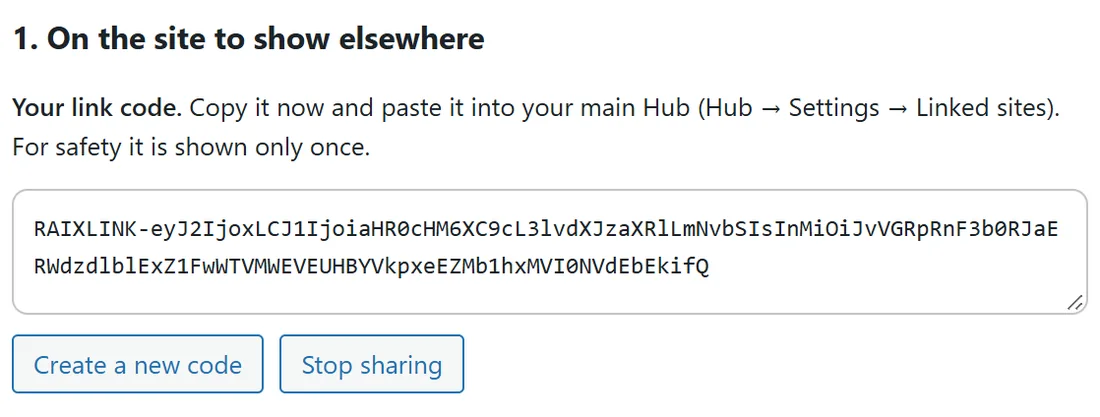
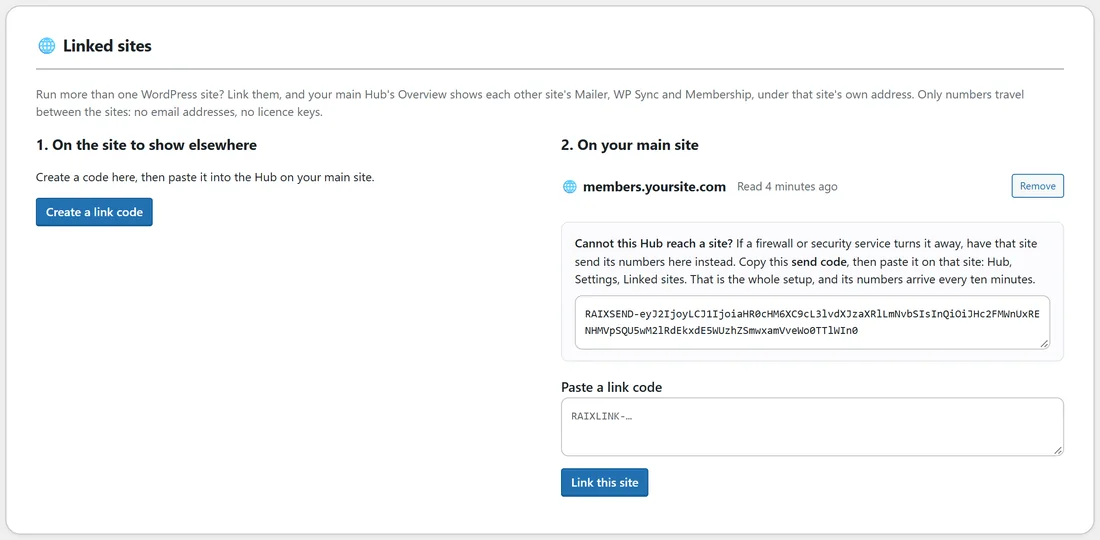
- On the site you want to show elsewhere (for example your members site), open the Hub, then Settings, and in Linked sites press Create a link code.
- Copy the code straight away. It starts with RAIXLINK and, for safety, it is shown only once.
- On your main site, open the Hub, then Settings, then Linked sites. Paste the code into Paste a link code and press Link this site.
- The main site reads the other site straight away and tells you whether it worked, for example members.yoursite.com is linked. Its sections now show on your Overview.
- Open the Overview on your main site. The linked site has its own block further down the page.
Keep both sites on the latest version of the Hub. The other site needs Hub 1.0.43 or newer.
If your main site cannot reach the other site, for example because a firewall turns it away, the other site can send its numbers instead. See When Your Main Hub Cannot Reach A Linked Site.
What you see:
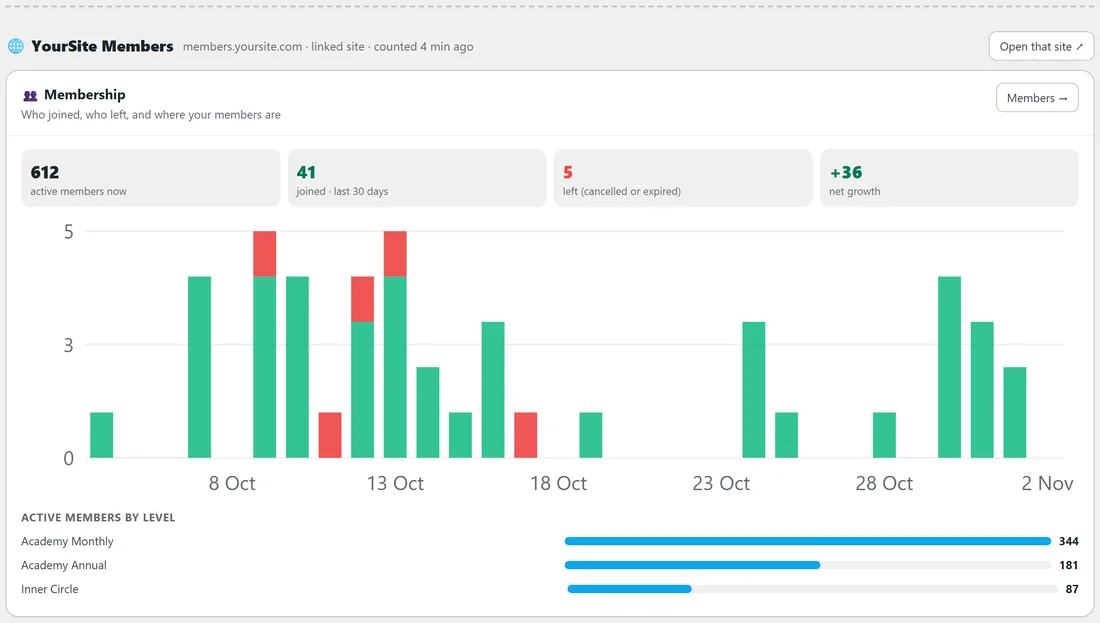
Your main Overview gets a block for each linked site, under that site's name and address, with when its numbers were counted and an Open that site button. Inside it are that site's own Mailer, WP Sync and Membership sections, exactly as they look on that site, following your Range bar. A section only comes across when it has something in it, so a plugin that is installed there but not used does not add an empty panel. If none of the three is in use there, the block says so. If a linked site cannot be read, its block says why, in plain words.
The Every plugin at a glance cards can use a linked site's numbers too: if a plugin is switched on here but used on a linked site, its card shows that site's numbers and names the site. This works for Membership, Mailer, WP Sync and Support Desk.
A real example:
YourSite Academy keeps its members on a second WordPress site, members.yoursite.com. Jamie opens the Hub there, presses Create a link code and copies the RAIXLINK code. On yoursite.com, Jamie pastes it under Paste a link code and presses Link this site. From then on the main Overview shows a YourSite Members block with that site's Membership section: 612 active members, how many joined and left in the range, and its members by level. Its own checkout sales are added to the Revenue tile on yoursite.com, and the tile's source line says Membership checkout on members.yoursite.com.
What is added to your totals, and what is not:
The same person or the same sale can exist on both sites. A marketplace sale, for example, can be recorded by WP Conversion Tracker on one site and by Membership on the other. So a linked site's numbers stay in its own block and are not added to your main New people or Emails sent tiles. The one exception is Membership's own checkout, which nothing else records: those sales are added to your main Revenue, and the tile's source line names the site they came from.
What travels between the sites:
Only counts and chart numbers, plus names such as the site's name and address, broadcast names and subjects, WP Sync bridges and destinations, and membership levels. No email addresses and no licence keys. The code holds the other site's address and a random secret, never a licence key. Every request is signed with that secret and refused if it is more than five minutes old, so a copied request cannot be used again later.
How fresh are the numbers?
The main Hub reads each linked site when it counts its own Overview, and keeps each answer for ten minutes. Refresh on the Overview reads them again straight away. The linked site answers from its own saved numbers, so the main site never waits for it to count everything.
Checking a link:
- On the shared site, Linked sites says the site is shared, which Hub reads it, and when it was last read, or Not read yet until you paste the code into your main Hub
- On the main site, each linked site is listed with when it was last read, Not read yet, or the reason it could not be read
Stopping or changing a link:
- On the shared site, Stop sharing cuts the link off straight away
- On the shared site, Create a new code replaces the old one, so the main Hub stops reading it until you paste the new code there
- On the main site, Remove takes a site off your Overview
Each of these asks for a second click within five seconds to confirm: the first click changes the button to Click again to confirm.
Linking three or more sites:
You can link as many sites as you like to one main Hub. Create a code on each site and paste each one into Paste a link code on the main site. Every linked site gets its own block on the main Overview, in the order you linked them, and its own row in the Linked sites list.
Which site should be the main Hub?
The one you open every day, usually the site with your tracking and your Mailer. A site can share with one main Hub at a time: creating a new code replaces the old one.
Tips:
- Link from the smaller site to the bigger one: the site you open most should be your main Hub.
- After linking, press Refresh on the main Overview to see the linked block straight away.
- Use Remove and paste a fresh code if you ever move the other site to a new address.