My Plugins is one list of every ResultsAiX plugin installed on this site. It is where you update your plugins, switch one back on, or jump into a plugin's own screens. It replaced the old Updates tab, and the old Updates address still opens My Plugins, so any bookmark or link you had keeps working.
Where to find it:
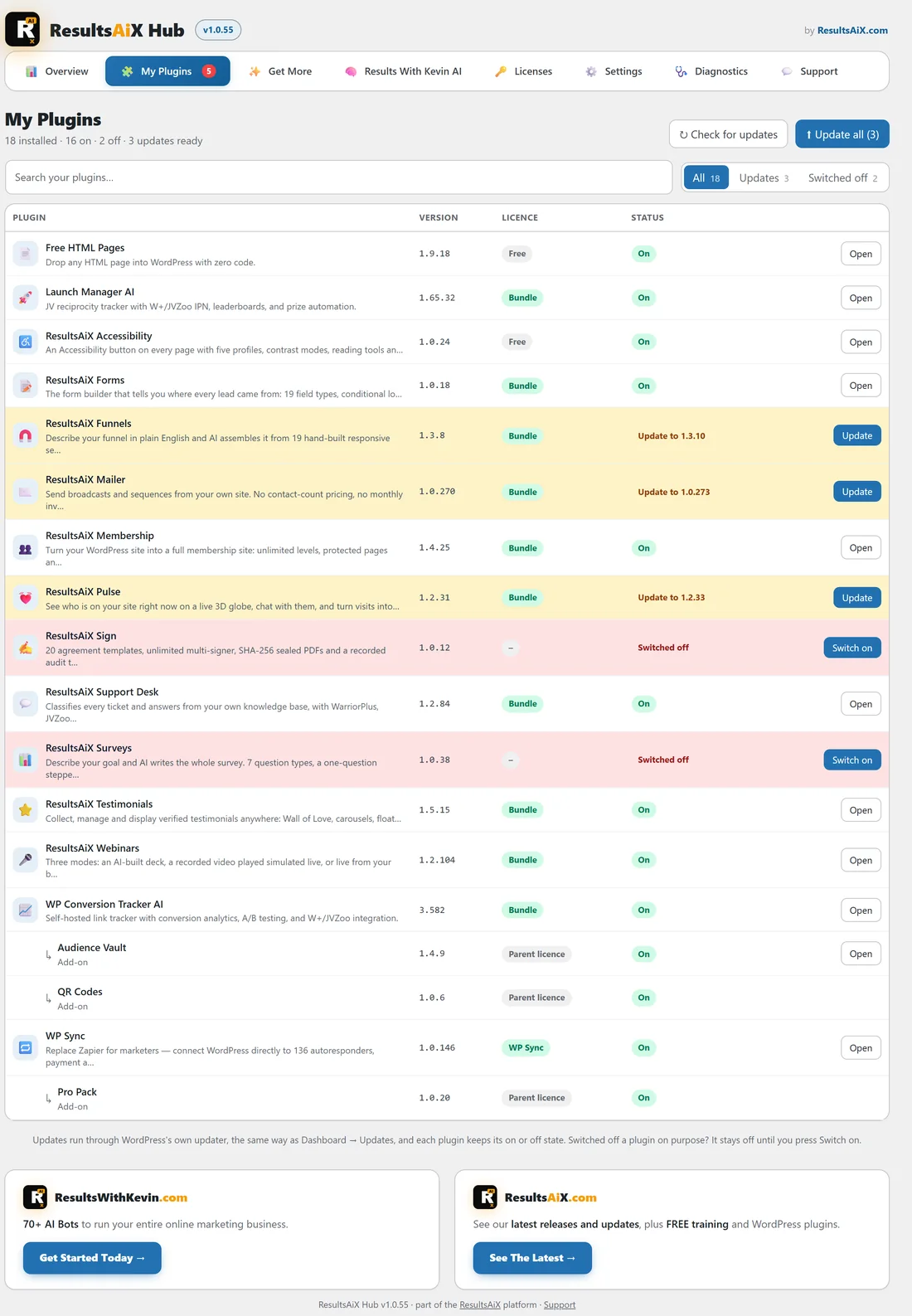
Open ResultsAiX Hub and click the My Plugins tab. The tab carries a small red number whenever updates are ready or plugins are switched off, so you can see from any Hub screen that something is waiting. The Update and Review buttons on the Overview open this screen with the right filter already chosen.
The line under the heading:

It sums the site up: how many plugins are installed, how many are on, how many are off and how many updates are ready, for example 18 installed, 16 on, 2 off, 3 updates ready. The Hub itself is not in the list; it updates from your WordPress Plugins screen like any other plugin.
What each row shows:
- Plugin: its icon, its name and a short description from the catalogue. Add-ons sit directly under their parent plugin and are marked Add-on
- Version: the version installed on this site
- Licence: one word for the state of its key. This column is hidden on narrow screens
- Status: On, Switched off, or Update to followed by the new version number
- One button: Switch on, Update or Open
Rows with an update are tinted amber and switched off rows are tinted red, so they stand out as you scroll.
The licence column:
- Bundle: licensed with a Bundle key
- Licensed, or the name of the tier the plugin reports: the key is active. Hover over it to see when it renews
- No key yet: no key has been entered for that plugin
- Expired: the key has expired
- Check key: the key was not accepted
- Free: a free plugin that needs no key at all
- Parent licence: an add-on, which runs on its parent plugin's licence and has no key of its own
- In the plugin: a plugin that does not report its licence to the Hub. Check its key inside the plugin itself
The one button:
- Switch on appears when a plugin is installed but switched off. It switches that plugin on and brings you back with a message saying it is switched on again
- Update appears when the plugin is on and a newer version is ready
- Open appears when the plugin is on and up to date, and takes you into that plugin's own screens
Switch on needs permission to activate plugins and Update needs permission to update plugins, the same permissions WordPress itself asks for. Without them, the button is not shown.
Search and filters:
The search box narrows the list as you type a plugin name. The filters beside it show All, Updates or Switched off, each with its count. If nothing matches, the list says Nothing matches.
Step by step: update everything:


- Press Check for updates. The Hub asks every ResultsAiX plugin's update server again right now and brings you back with Checked every ResultsAiX plugin for updates just now.
- Click the Updates filter to see what is waiting.
- Press Update on one plugin, or Update all to update every plugin that has an update.
- Update all asks twice to stop an accidental click: the first click changes the button to Click again to confirm, and a second click within five seconds starts the updates.
- Read the message at the top, for example 3 of 3 plugins updated. Each plugin keeps its on or off state.
Update all updates every ResultsAiX plugin that has an update, switched on or off, so it always matches the count on the button. It runs the updates one at a time, never in parallel, so two updates can never collide.
Step by step: switch a plugin back on:

- Click the Switched off filter.
- Press Switch on beside the plugin.
- The message at the top says it is switched on again, and its row now shows On with an Open button.
A real example:
yoursite.com has 18 ResultsAiX plugins installed. The Updates filter shows three: ResultsAiX Funnels 1.3.8 with Update to 1.3.10, ResultsAiX Mailer 1.0.270 with Update to 1.0.273, and ResultsAiX Pulse 1.2.31 with Update to 1.2.33. Jamie presses Update all, clicks again to confirm, and all three update while staying switched on. ResultsAiX Sign and ResultsAiX Surveys show Switched off; Jamie leaves them off for now. WP Conversion Tracker AI is listed with its two add-ons, Audience Vault and QR Codes, both marked Parent licence.
Your plugins stay switched on:
The Hub hands every update to WordPress's own plugin updater, so every safety net you rely on still applies. Updating from the Hub keeps each plugin switched on, and if anything did leave a plugin that was on switched off after its update, the Hub switches it straight back on and says so. A plugin you switched off on purpose is updated and stays off until you press Switch on.
Switched off is never shown as not installed:
A plugin that is installed but switched off is shown as Switched off, with a Switch on button. It is never listed as missing, and it is never offered to you on Get More.
Can Switch on turn on any plugin?
No. Switch on only works for ResultsAiX plugins that WordPress reports as already installed on this site. It cannot be pointed at any other plugin, and it never installs anything.
A record of every action:
Every update and every Switch on, successful or not, is written to the Hub's activity record with the message that came back. The most recent entries are listed under Recent activity at the bottom of the Licenses tab. More on updates in Keeping The Hub And Your Plugins Updated.
What the Hub lists here:
My Plugins lists the ResultsAiX plugins WordPress reports as installed, matched against the ResultsAiX catalogue and the plugins that registered with the Hub. Plugins from other makers are not listed here; they appear on the Diagnostics tab under All Active Plugins.
Tips:
- Press Check for updates before Update all when you know a fix was released in the last few hours.
- Use Open to jump into a plugin. It saves hunting for its menu in a long sidebar.
- A plugin marked No key yet: see The Licenses Tab: Keys, Slots And Sites.