The bot directory has a two button switch at the top: Standard and PRO. It changes how the bot cards are presented, so you can choose between one simple Open button per bot and a choice of five AI models on the bots that offer it. Your choice is saved to your WordPress user account, so each administrator on the site sets it for themselves, and it stays as you left it.
Where to find it:
Open ResultsAiX Hub, click the Results With Kevin AI tab, and look at the left end of the toolbar above the grid.
Step by step:
- Click PRO. The page reloads, and a message confirms Tier saved as PRO.
- Look at any card with a PRO label: a row of five model links now sits under its Open button.
- Click a model link to open that bot built around that model, in a new tab.
- Click Standard to go back. The message confirms Tier saved as Standard.
In Standard mode:
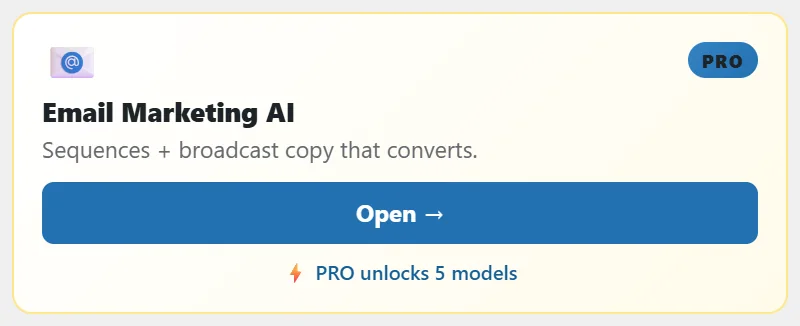
Every card shows a single Open button pointing at the normal version of that bot. The thirteen multi model bots also show a short line, PRO unlocks 5 models, so you can see what is behind the switch without flipping it.
In PRO mode:
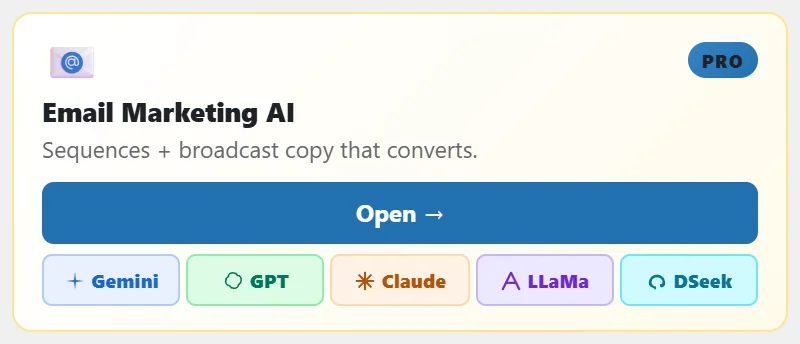
The thirteen multi model bots grow a row of five small model links underneath the Open button: Gemini, GPT, Claude, LLaMa and DSeek, one for each of five leading AI models from five different AI companies. Each link opens a version of that same bot built around that model, so you can send the same task to a different model without hunting for the right page in the members area. Each link carries a small mark and a tooltip naming its model in full, such as Open with ChatGPT or Open with DeepSeek. If a model version is ever missing for a bot, that link falls back to the standard version of the bot rather than breaking.
The Open button never changes. It always points at the standard version of the bot, in both modes.
Which bots have model choice?
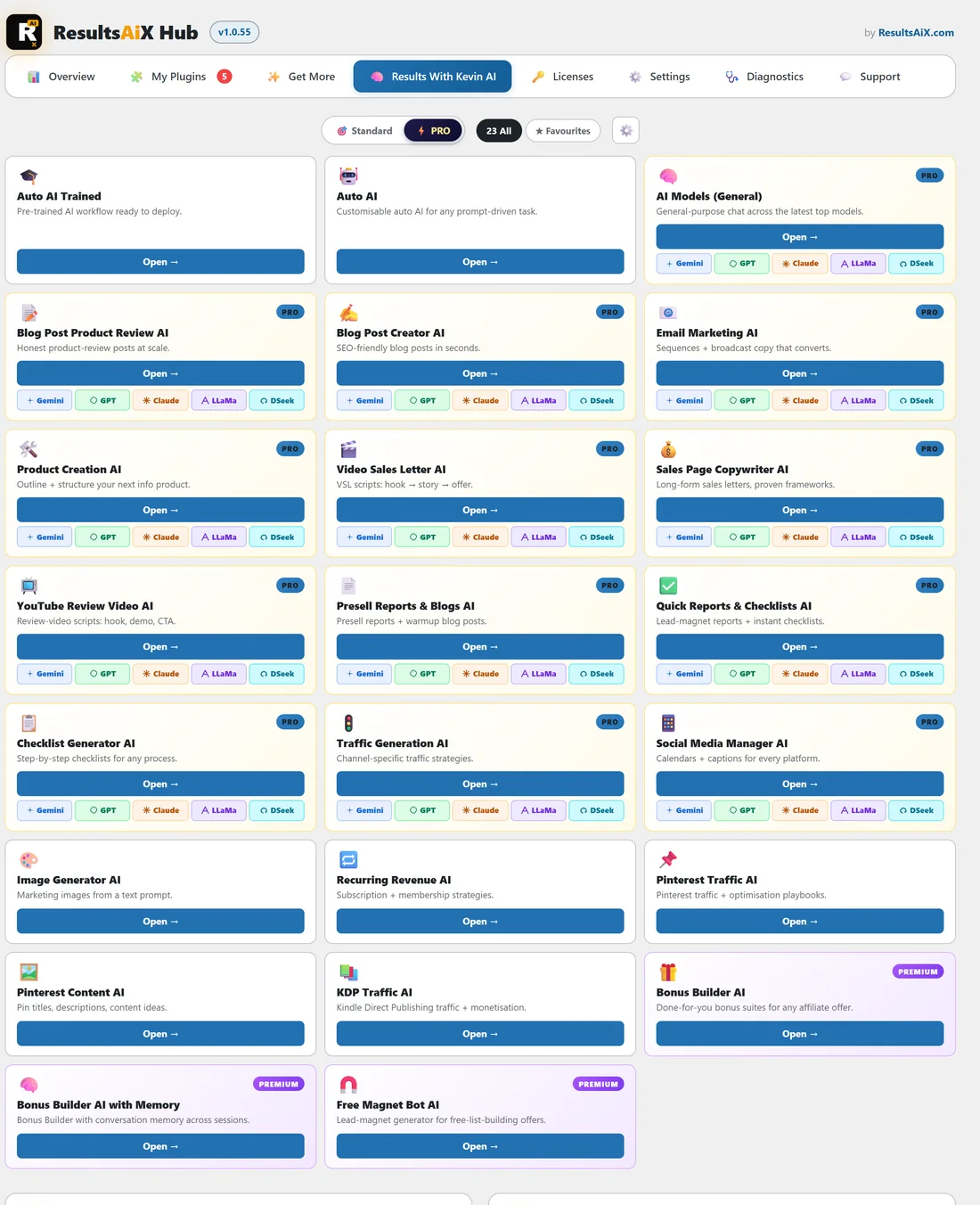
Only the thirteen carrying the PRO label. The three premium bots and the seven standard bots have one version each, and their cards look the same in both modes.
A real example:
Jamie is writing the launch email for the List Builder Blueprint. With PRO chosen, Jamie opens Email Marketing AI with Claude for the first draft, then sends the same brief to the GPT version for a second take, and keeps the best lines from both. The Email Marketing AI card stays starred, so next week it is the first card on the page.
Does switching to PRO give me access?
No. The switch is a display preference inside your own WordPress admin. It reveals links, nothing more. Whether a given bot opens for you is decided by your Results With Kevin members account when you land on the page.
Which model should I pick?
There is no single right answer, which is exactly why the row exists. A practical approach is to run the same brief through two or three of them for an important piece, then keep using whichever suits your voice. Star that bot so it sits at the top of the grid next time.
Where is my choice saved?
In your WordPress user account, so it follows you to any browser and computer where you sign in to this site. Your favourites and hidden cards are different: they live in each browser.
Tips:
- Leave Standard on if you always use the same model: the grid stays calmer.
- Each administrator has their own setting, so a team member can use PRO without changing yours.
- More about the grid in The RWK AI Bots Tab: 23 Bots In Your Admin.