The Results With Kevin AI tab (RWK AI Bots in the sidebar) is a tile grid of the AI bots that live in the Results With Kevin members area. It puts every bot one click away inside WordPress, so you can write an email, a sales page or a blog post without hunting for the right page.
The bots are not part of the plugin. Every card opens a page on resultswithkevin.com/members/ai/ in a new browser tab, and whether it opens for you is decided by your Results With Kevin members account. The Hub gives you the directory, the tidy layout and the links.
Where to find it:
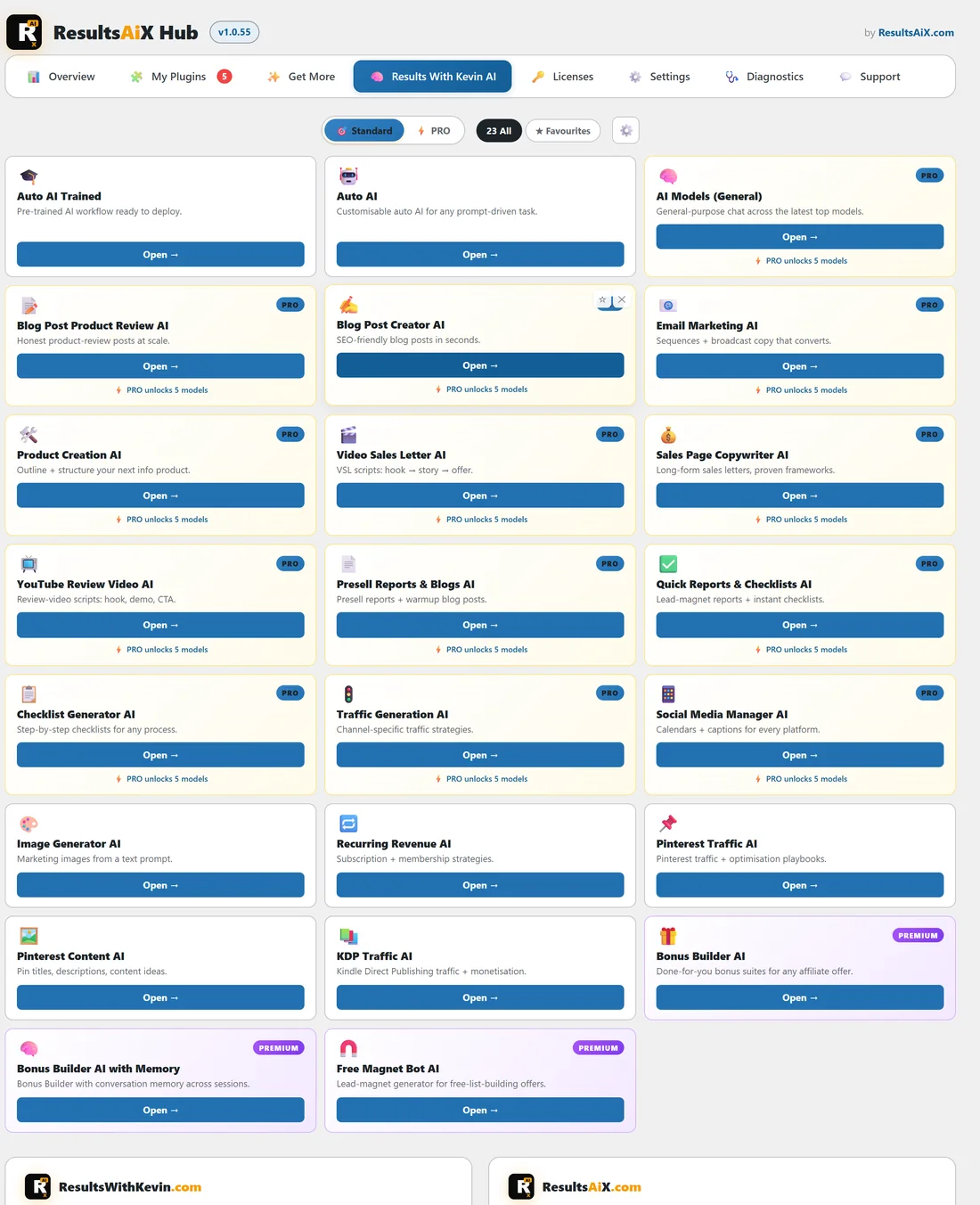
Click RWK AI Bots under ResultsAiX Hub in the sidebar, or the Results With Kevin AI tab at the top of any Hub page.
How the twenty three break down:
Each card has an icon, a name, a one line description and an Open button.
- 13 bots offer a choice of five AI models each, and carry a PRO label
- 3 are premium bots for paid PRO members, carry a PREMIUM label, and have a single version
- 7 are standard bots with a single version and no label
The thirteen model choice bots:
AI Models (General), Blog Post Product Review AI, Blog Post Creator AI, Email Marketing AI, Product Creation AI, Video Sales Letter AI, Sales Page Copywriter AI, YouTube Review Video AI, Presell Reports and Blogs AI, Quick Reports and Checklists AI, Checklist Generator AI, Traffic Generation AI and Social Media Manager AI.
The three premium bots:
Bonus Builder AI, Bonus Builder AI with Memory, which remembers your conversation across sessions, and Free Magnet Bot AI.
The seven standard bots:
Auto AI Trained, Auto AI, Image Generator AI, Recurring Revenue AI, Pinterest Traffic AI, Pinterest Content AI and KDP Traffic AI.
The toolbar:

Above the grid you find, left to right:
- The Standard and PRO switch (see Standard And PRO: How Model Selection Works)
- All, with the number of bots, which shows every bot you have not hidden
- Favourites, which narrows the grid to your starred bots
- The gear button, with two tools for resetting the grid
Making the grid yours:
Each card has two small buttons in its top corner.
- Click the star to mark a bot as a favourite. It moves to the top of the grid, and the bot you starred most recently sits first. Click it again to unstar.
- Click the cross to hide a card you never use. Hiding a bot also removes it from your favourites.
- Click Favourites in the toolbar to see only your starred bots, and All to see everything again.
A real example:
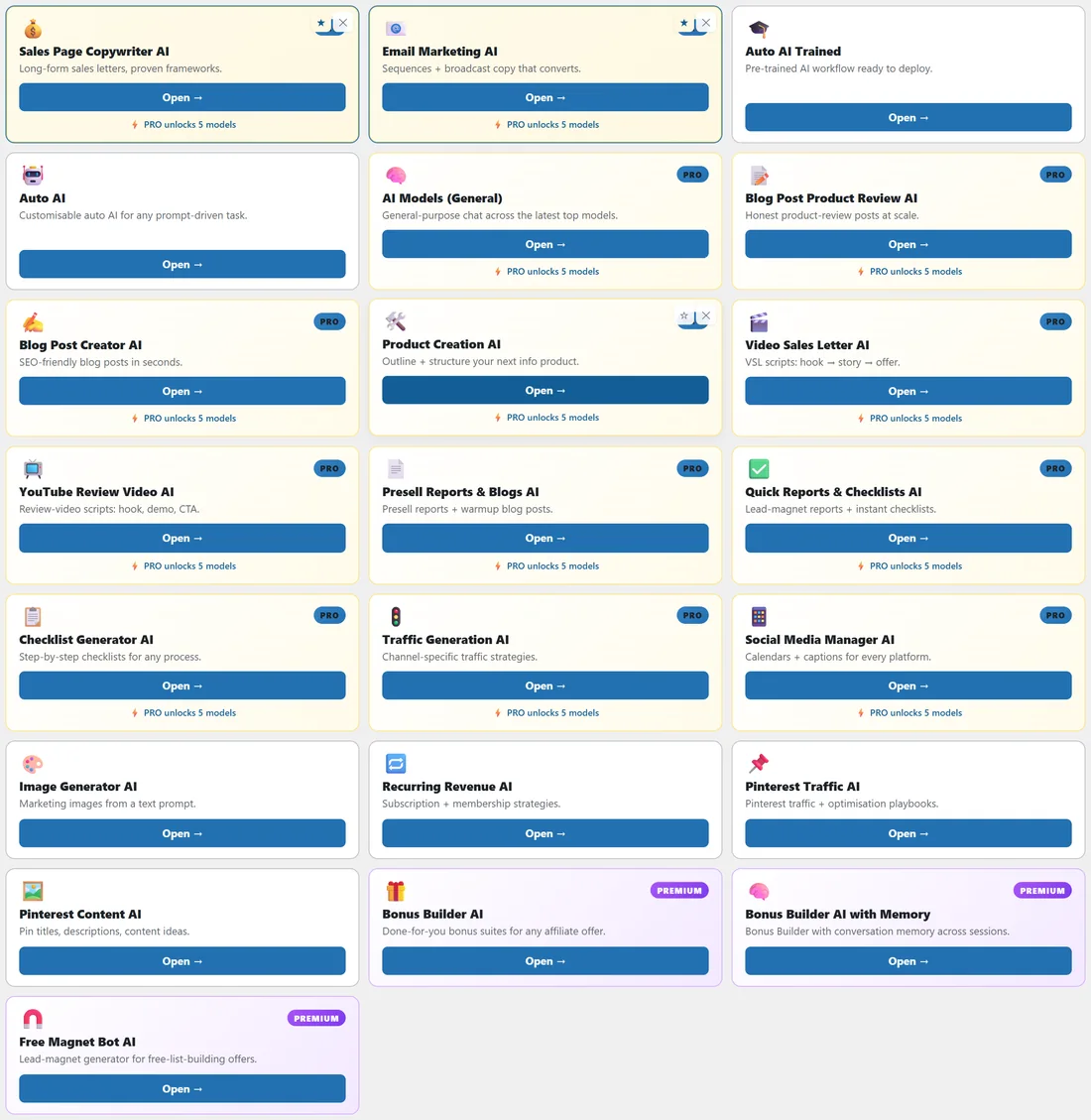
Jamie writes a weekly email and a monthly sales page, so Jamie stars Email Marketing AI and Sales Page Copywriter AI. Both jump to the top of the grid. Jamie never publishes books, so the cross on KDP Traffic AI hides it. Now the first two cards are the two bots used most, and Favourites shows just those two.
Where are my choices stored?
Favourites, hidden cards and the chosen filter are stored in your browser, so they are per person and per device rather than saved to the site. Nothing about your grid layout is written to the database. The Standard or PRO switch is different: it is saved to your WordPress user account.
Resetting:

The gear button opens a small menu with two items:
- Restore hidden cards brings back everything you have hidden, and shows how many are hidden
- Reset favourites + hidden + filter clears your favourites, restores hidden cards and returns the filter to All. A Reset this page? box asks you to confirm with Reset, or press Cancel. It only affects this browser
Hiding the tab from the sidebar:
Settings has a switch that hides the RWK AI Bots row from the sidebar. The tab stays in the tab strip at the top of every Hub page. See Settings: Menu Consolidation And Per Plugin Overrides.
Tips:
- Star the three or four bots you use every week so they are always first.
- Use a different browser on another computer? Star your favourites there too: favourites live in each browser.
- A bot that does not open is a members account question, not a Hub one. Check your access on resultswithkevin.com.