Engage calls your chosen AI provider directly from your own site, with your own key. There is no middleman, and you choose the provider and the model.
Where to find it:
Open ResultsAiX Engage and click the PRO tab. The Your AI Key card is at the top, with AI Usage and PRO Features below it.
The three providers:
- Google Gemini, shown as Google Gemini (free key available): the recommended choice. Google AI Studio keys have a free tier and need no card. The default model is Gemini Flash, always current.
- OpenAI: paid per use with OpenAI. The default model is GPT-5 mini.
- Anthropic Claude: paid per use with Anthropic. The default model is Claude Sonnet 5.5.
Connecting a key:
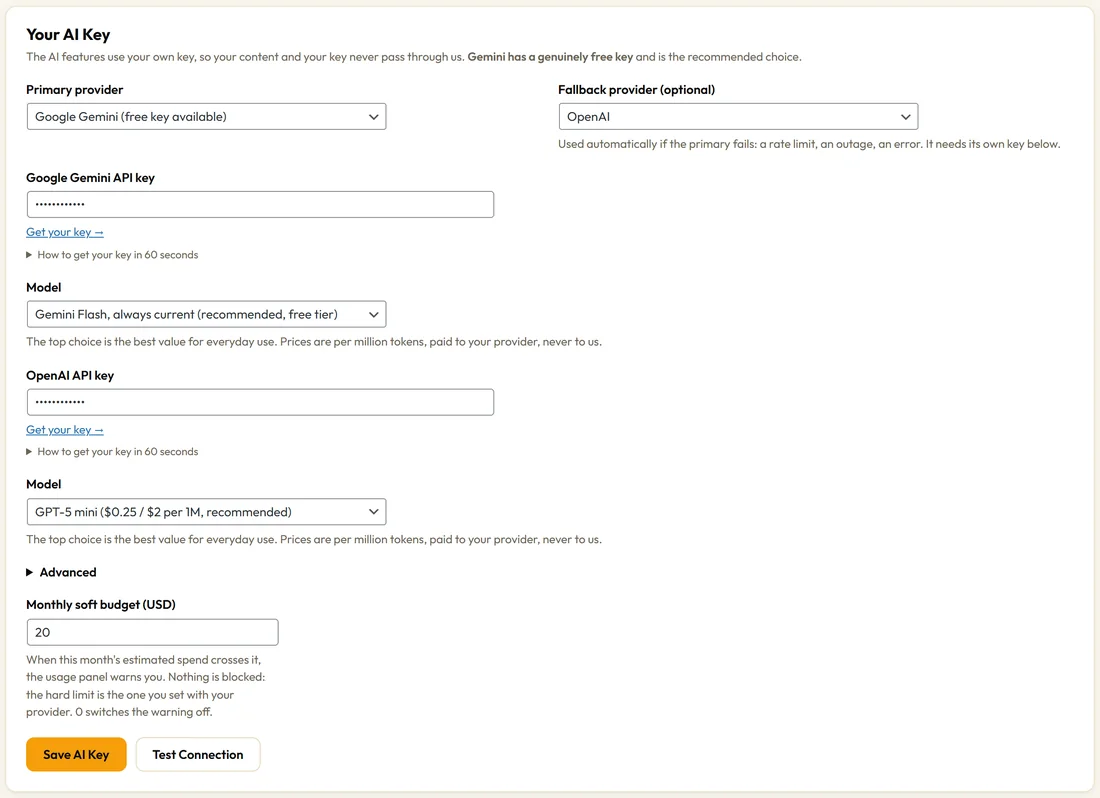
- Pick your Primary provider.
- Click Get your key under the key box. It opens the right page with the provider. How to get your key in 60 seconds explains each step.
- Paste the key into the API key box.
- Leave the Model on the top choice unless you want a different one.
- Click Save AI Key.
- Click Test Connection. Engage makes one small request and tells you in plain words whether the key works.
The Model list shows each model's cost per million tokens, charged by your provider, beside the model name. The top choice is the best value for everyday use.
A fallback provider:
Fallback provider (optional) lets you pick a second provider. If the primary is busy or returns an error, Engage tries the fallback automatically. Its own key panel appears below, so paste a key there too.
Advanced:
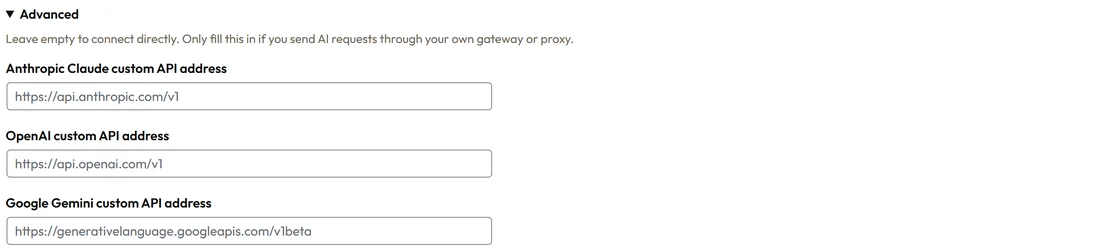
Click Advanced to set a custom API address for each provider. Leave these empty to connect directly. Fill them in only if you send AI requests through your own gateway or proxy.
Monthly soft budget:
Monthly soft budget (USD) starts at 20. When this month's estimated spend crosses it, AI Usage shows a gentle heads-up. Nothing is blocked, because your real limit is the one you set with your provider. Set it to 0 to turn the heads-up off.
AI Usage:
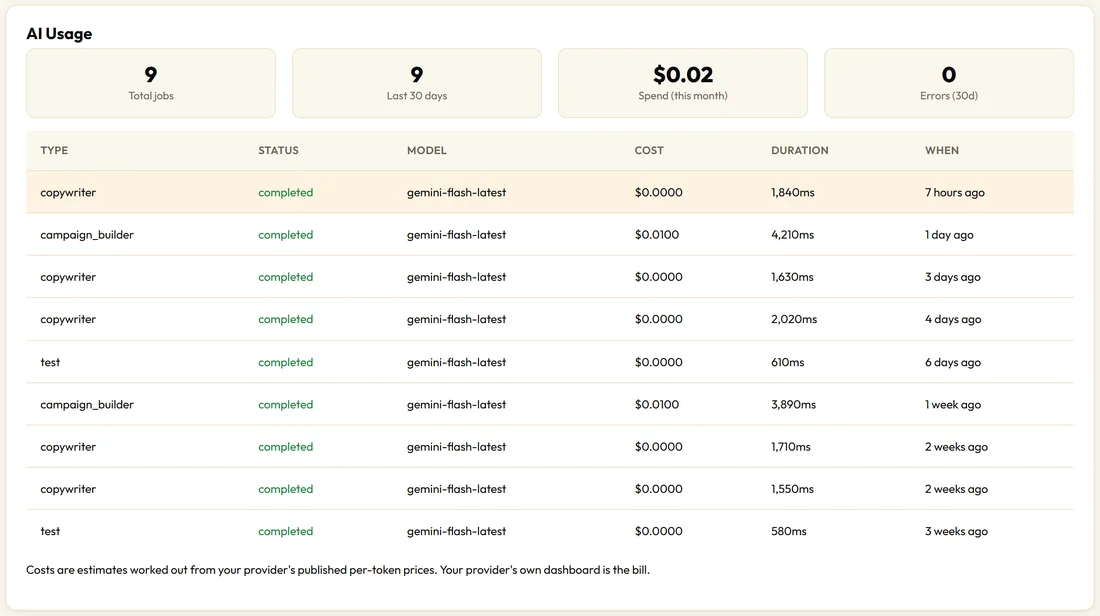
- Total jobs, Last 30 days, Spend (this month) and Errors (30d)
- A table of the last 10 jobs with Type, Status, Model, Cost, Duration and When
Costs are estimates worked out from each provider's published token rates. Your provider's own dashboard shows your real bill.
Your key stays private:
Once saved, your key is shown masked and never sent back to your browser in full. Leaving the masked value untouched keeps the stored key.
When a provider retires a model:
If a model you picked is retired by its provider, Engage uses its current replacement for the request, so the AI features keep working. Your saved choice stays as you left it.
A real example:
Northside connects a free Gemini key as the primary and an OpenAI key as the fallback. Their AI Usage shows nine jobs in the last 30 days, all completed, at a few cents in total.
Which model to choose:
- For campaign copy, the top model in each list is plenty. Short headlines do not need the largest model.
- Gemini Flash, always current follows Google's newest Flash model by itself, so you never need to change it.
- Pick a larger model only if you want longer, more polished drafts and do not mind a slower answer.
Switching providers:
- Pick the new provider under Primary provider. Its key panel appears.
- Paste its key and choose a model.
- Click Save AI Key, then Test Connection.
Your old key stays stored. To keep it as a backup, choose that provider under Fallback provider.
Tips:
- Start with Gemini: it is quick, capable and free to begin.
- If you see a message from your provider, it is shown in their own words. A rejected key means copy it again; a rate limit means wait a moment and try again.