The Leads tab is the record of every opt-in your campaigns have captured. It lives in your own WordPress database, in a table Engage creates when it is installed.
Where to find it:

Open ResultsAiX Engage and click the Leads tab.
Saved first, always:
Engage saves the lead on your site, and only then sends it to your autoresponder, your webhook and WP Sync. If a service is busy or a key needs updating, the subscriber is still yours here and in the export.
What the Leads tab shows:
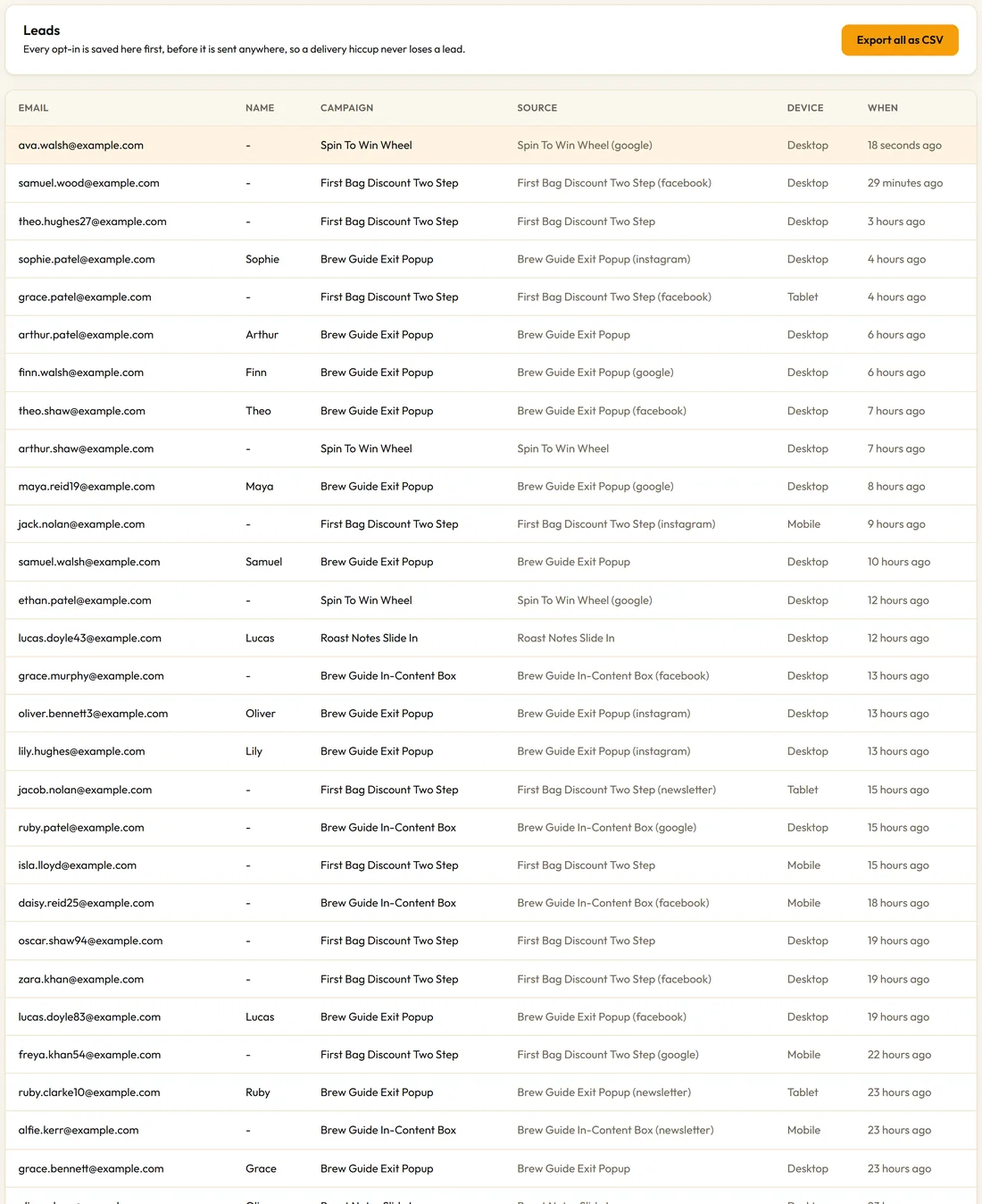
The newest 100 leads, newest first, with:
- Name, when the form asked for it
- Campaign, the campaign that captured it
- Source, the campaign name, with the UTM source in brackets when the visit had one, for example First Bag Discount Two Step (instagram)
- Device: Desktop, Tablet or Mobile
- When, for example 2 days ago
Under the table, Engage tells you how many of your total leads are shown.
What is stored with every lead:
- Email, first name, last name and phone, as far as the campaign asked
- The campaign and its type
- The page it was captured on, and the referrer
- UTM source, medium, campaign, term and content
- The device
- The result of each delivery, for the Diagnostics tab
Exporting:
- Click Export all as CSV at the top right.
- Your browser saves a file named engage-leads with today's date.
The file has one row per lead with ID, Date, Email, First name, Last name, Phone, Campaign, Campaign type, Source, Page, Referrer, UTM source, UTM medium, UTM campaign and Device. Open it in Excel, Google Sheets or Numbers, or import it into any email service.
Privacy:
The IP address is not stored unless you switch on Store the IP address with each lead in Settings. Only do that if you have a lawful reason and say so in your privacy policy.
Keeping your leads:
Leads stay when you deactivate, update or reinstall Engage. They are only removed if you switch on Delete all Engage data when the plugin is deleted in Settings and then delete the plugin.
A real example:
At the end of each month Northside exports the CSV and sorts it by Source. This month the First Bag Discount Two Step brought in the most leads from Instagram, so they post the offer there again.
Moving leads into a new service:
- Click Export all as CSV.
- Open your new email service's import screen and upload the file.
- Match Email, First name and Last name to the service's fields.
- Connect the new service on the Connections tab and choose it on each campaign's Opt-in tab, so new leads go there from now on.
Reading the source of a lead:
The Source column shows the campaign name, and the UTM source in brackets when the visitor arrived from a tagged link. Brew Guide Exit Popup (newsletter) means a newsletter reader joined from the exit popup.
Tips:
- Sort the CSV by Campaign to see which campaign earns its place.
- Use the UTM columns to see which traffic source brings subscribers, not just clicks.