Two options on the Opt-in tab cover any provider that does not have its own card, and any tool you want a lead to reach as well.
Where to find it:
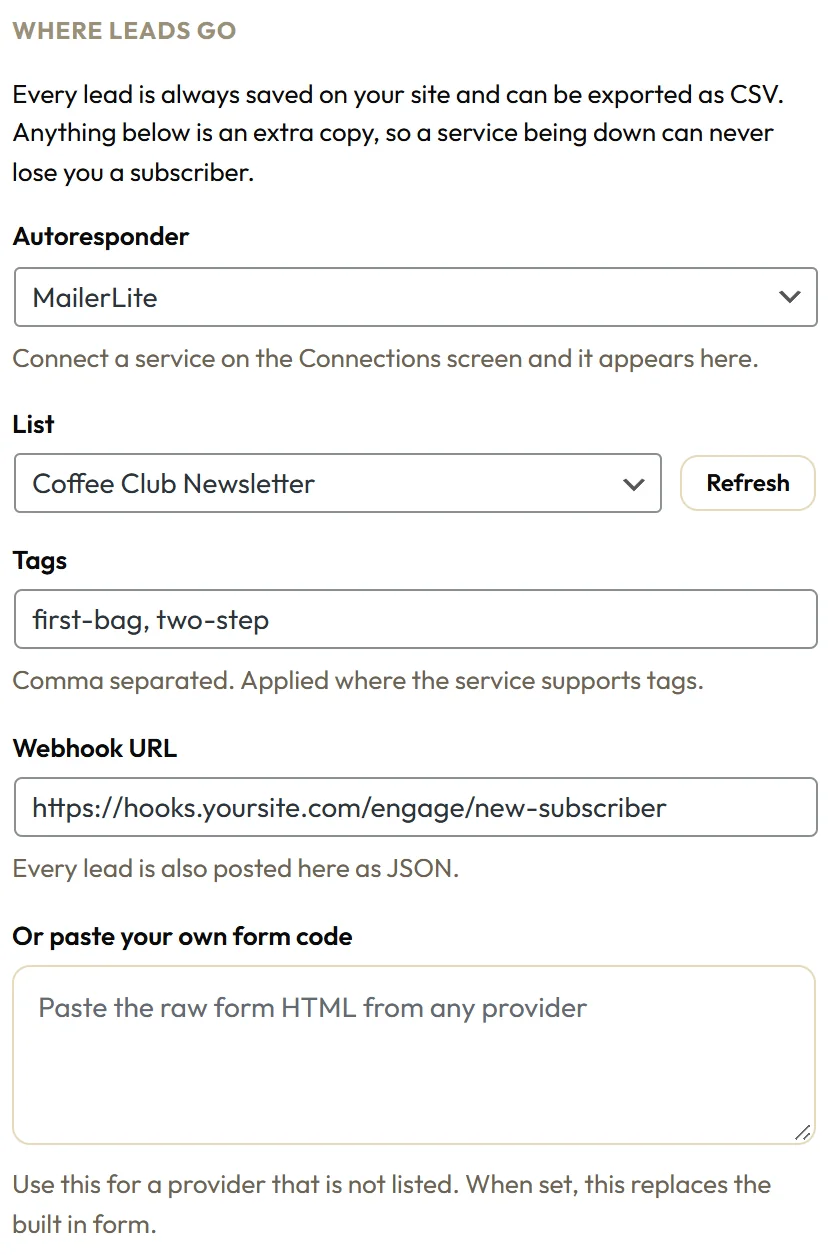
Open a campaign, click the Opt-in tab, tick Turn this campaign into an opt-in, and scroll to Where leads go. You will see Webhook URL and Or paste your own form code.
The webhook:
Paste an address into Webhook URL and every lead from that campaign is also posted there as JSON. The body contains:
- email, first_name, last_name and phone
- campaign, the campaign name
- source, always ResultsAiX Engage
- campaign_type, page_url, referrer and device
- utm_source, utm_medium, utm_campaign, utm_term and utm_content when the visit had them
The webhook runs as well as the autoresponder, not instead of it. Each one is tried separately, so one never holds up the other. Zapier, Make, n8n and your own scripts all accept this kind of post.
The raw form embed:
Paste the form code your provider gives you into Or paste your own form code. When that box has content, it replaces the built in form, and the campaign shows your provider's own form inside the bar or popup.
Raw form code keeps its script tags so it can work. Only a WordPress user who is allowed to add unfiltered HTML, normally an Administrator, can save it as given.
Which one to use:

Use the webhook when you can. It keeps the Engage form, so you keep the spam protection, your styling, the Success message, the redirect and the copy on your Leads tab. Use the raw embed when a provider needs its own form to work.
Seeing what happened:
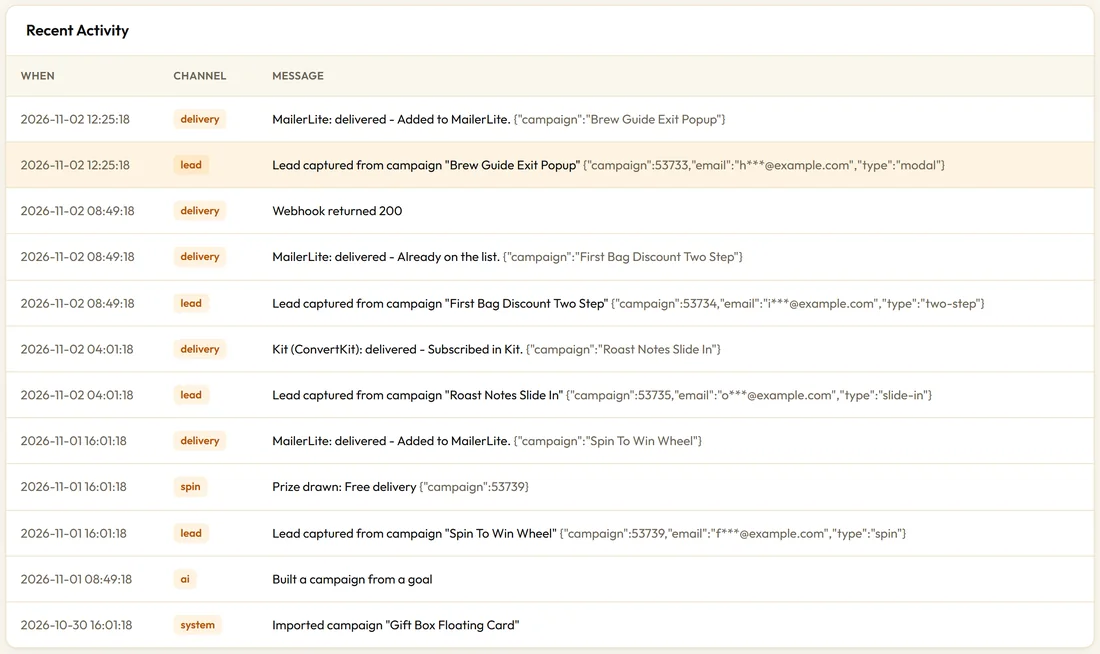
Every delivery is written to the Debug Log on the Diagnostics tab, for example Webhook returned 200, which means the address accepted the lead.
A real example:
Northside's First Bag Discount Two Step sends each lead to MailerLite and also to https://hooks.yoursite.com/engage/new-subscriber, a small automation that posts new subscribers into their team chat. One opt-in, two places, no extra plugin.
An example webhook body:
A lead from Northside's two step popup arrives as JSON with fields like these:
- email: amelia.hughes@example.com
- first_name: Amelia
- campaign: First Bag Discount Two Step
- source: ResultsAiX Engage
- campaign_type: two-step
- page_url: https://yoursite.com/shop/
- device: mobile
- utm_source: instagram
Connecting a webhook to an automation tool:
- In your automation tool, create a new workflow that starts with a catch webhook or incoming webhook step, and copy the address it gives you.
- Paste it into Webhook URL on the campaign's Opt-in tab and click Update.
- Send one test opt-in from your site.
- Your tool now shows the fields above, ready to map into the next step.
Using a raw form embed, step by step:
- In your email provider, create or open a sign up form and copy its HTML or embed code.
- In Engage, open the campaign's Opt-in tab, tick Turn this campaign into an opt-in, and paste the code into Or paste your own form code.
- Check the Live preview, then click Update.
- Sign up once from your site to confirm your provider receives it.
Tips:
- Test a webhook with one opt-in from your own site, then check the Debug Log.
- For many destinations at once, use WP Sync. See Using Engage With WP Sync.