Three more features that come with every Engage licence: split testing on the Display tab, geo targeting on the Targeting tab, and the Spin To Win campaign type.
Split testing:
Run two versions of one campaign at the same time and let real visitors pick the winner.
Where to find it:
Open the campaign, click the Display tab, and scroll to Split Testing.
Setting up a split test:
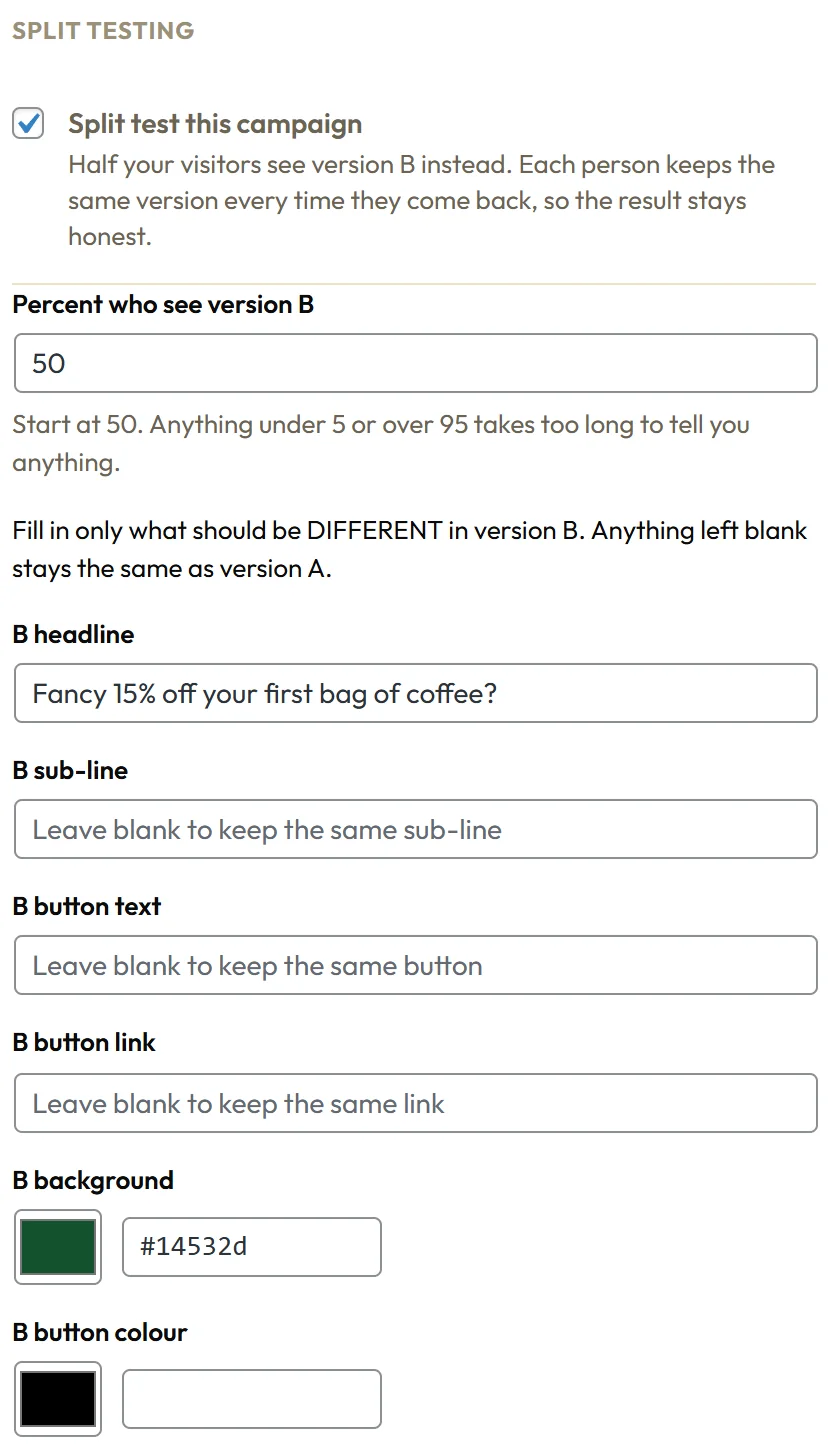
- Tick Split test this campaign.
- Set Percent who see version B, from 5 to 95. Start at 50.
- Fill in only what should be different in version B: B headline, B sub-line, B button text, B button link, B background or B button colour.
- Anything left blank stays the same as version A, the campaign itself.
- Click Update.
Each visitor keeps the same version every time they come back, so the result stays fair. Version B also keeps every later change you make to the design, trigger or targeting, because only the fields you filled in are swapped.
Reading the result:

The Campaigns list shows a note under the campaign name:
- Split test running, still gathering views, until both versions have at least 100 views.
- Split test: A is winning at, or B is winning at, with the winner's conversion rate.
- Split test: too close to call, when the two rates are within half a percentage point.
Hover the note to see each version's views and conversion rate. The winner is always judged on conversion rate, never on raw conversions, so a 70 to 30 split cannot fool you.
When you have a winner, copy its words into version A and untick Split test this campaign, or start a new test against it.
Geo targeting:
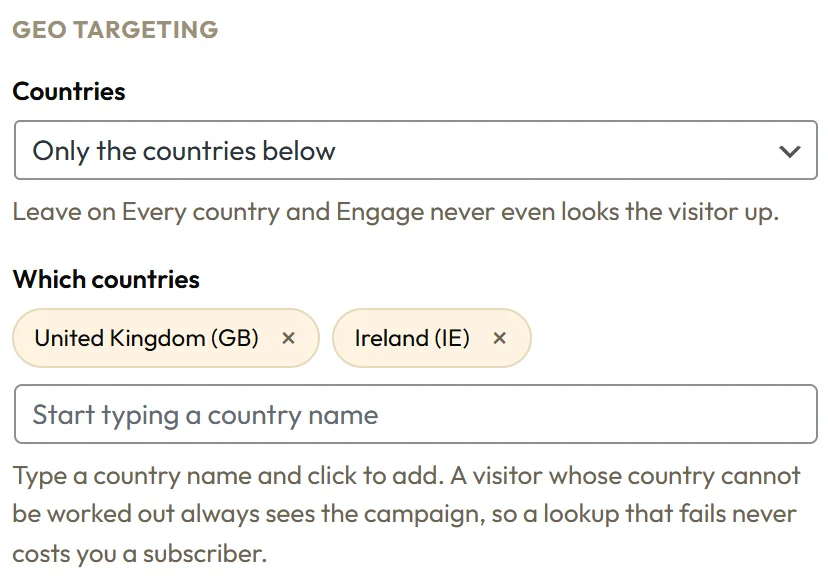
Show a campaign only in some countries, or hide it in some.
Where to find it:
Open the campaign, click the Targeting tab, and find Geo Targeting.
Setting it up:
- Pick Countries: Every country (the default), Only the countries below, or Everywhere except the countries below.
- Under Which countries, type a country name and click it in the list. It appears as a chip, for example United Kingdom (GB).
- Click Update.
On Every country, Engage never looks the visitor up at all. When a country is needed, Engage reads it from your hosting's country header when there is one, for example on Cloudflare, or looks it up once and remembers it for a day. A visitor whose country cannot be worked out always sees the campaign, so a lookup never costs you a subscriber. The country is decided in the visitor's browser, so it works on cached pages.
Spin To Win:
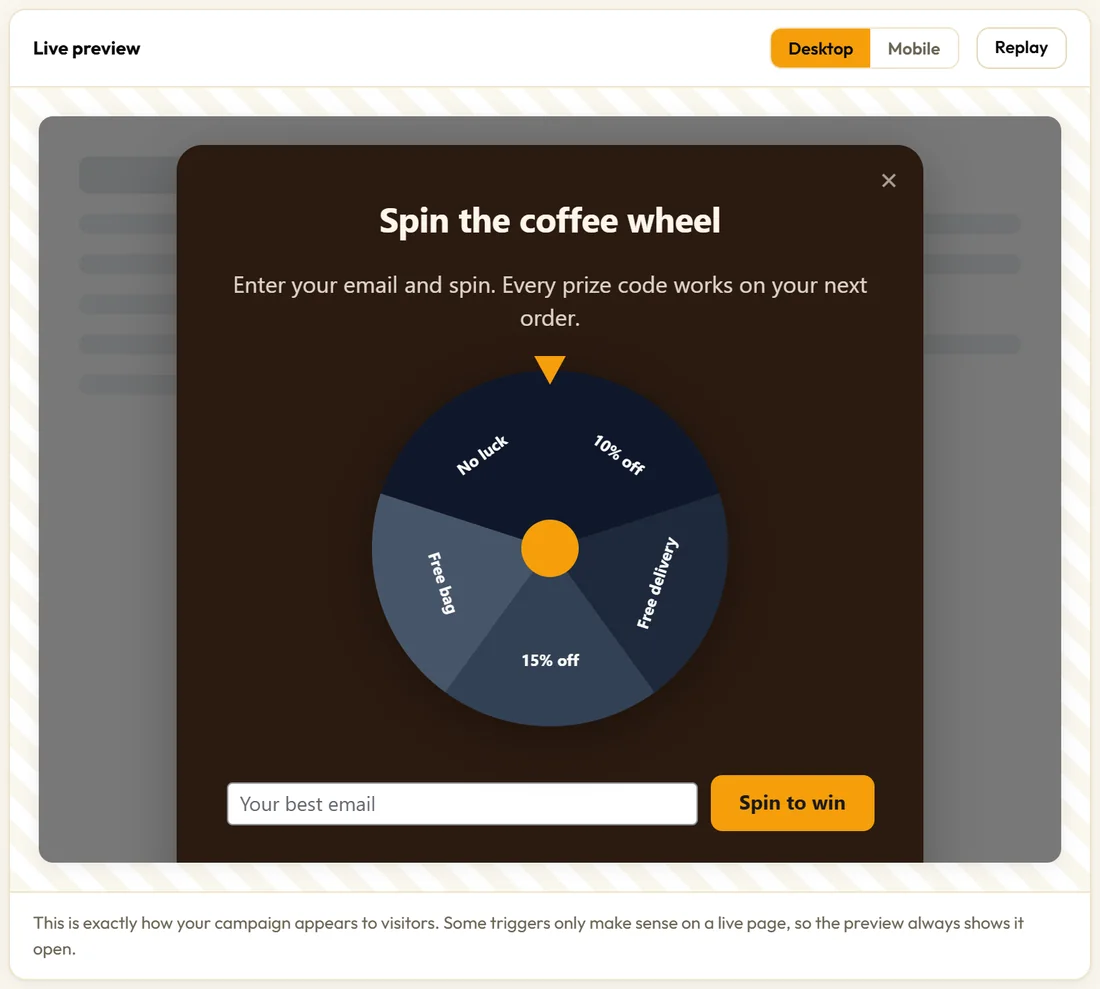
A popup with a prize wheel. The visitor enters their email, clicks the button and the wheel spins to their prize.
Where to find it:
Campaigns tab, + New Campaign, Spin To Win in the Popups group, or the Spin To Win Wheel template.
Setting up the prizes:
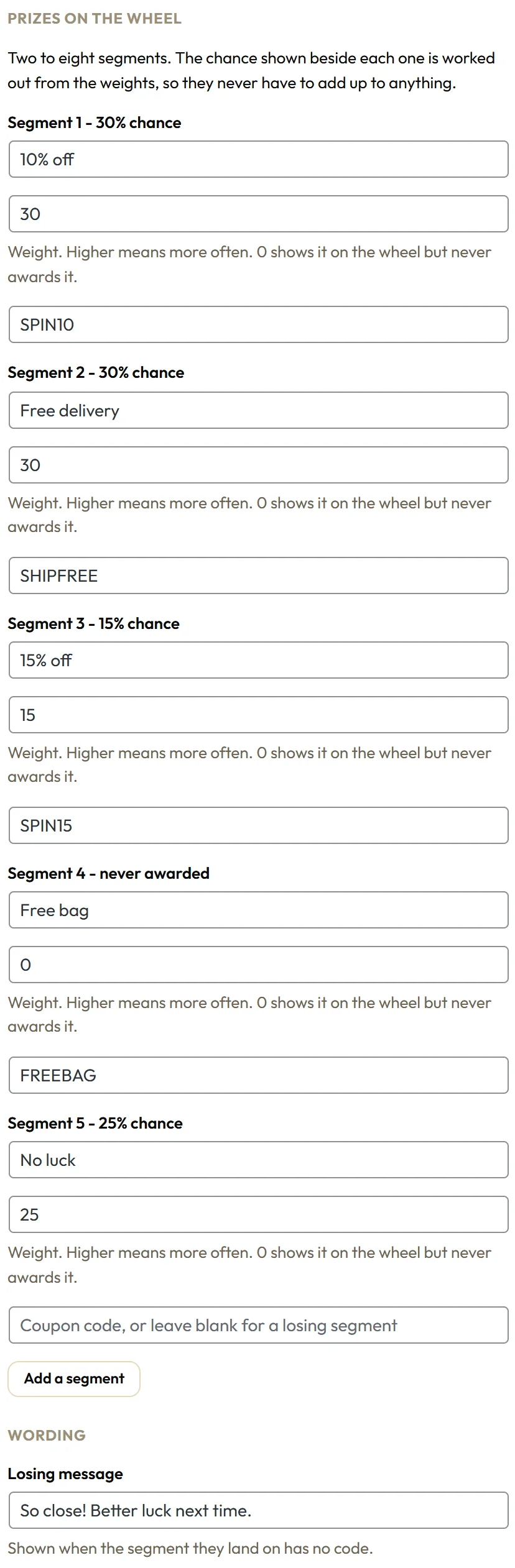
- On the Content tab, under Prizes on the wheel, fill in each segment: a label, a Weight, and a coupon code.
- Leave the code empty for a losing segment, and write the Losing message under Wording.
- Click Add a segment for more. You can have two to eight segments.
- On the Opt-in tab, choose your autoresponder and list. A prize wheel always collects an email.
- On the Display tab, set Show this campaign to Once, ever.
Weights are relative, so they never need to add up to 100. Beside each segment the builder shows its real chance, for example Segment 1 - 30% chance. A weight of 0 shows the segment on the wheel and marks it never awarded.
Fair by design:
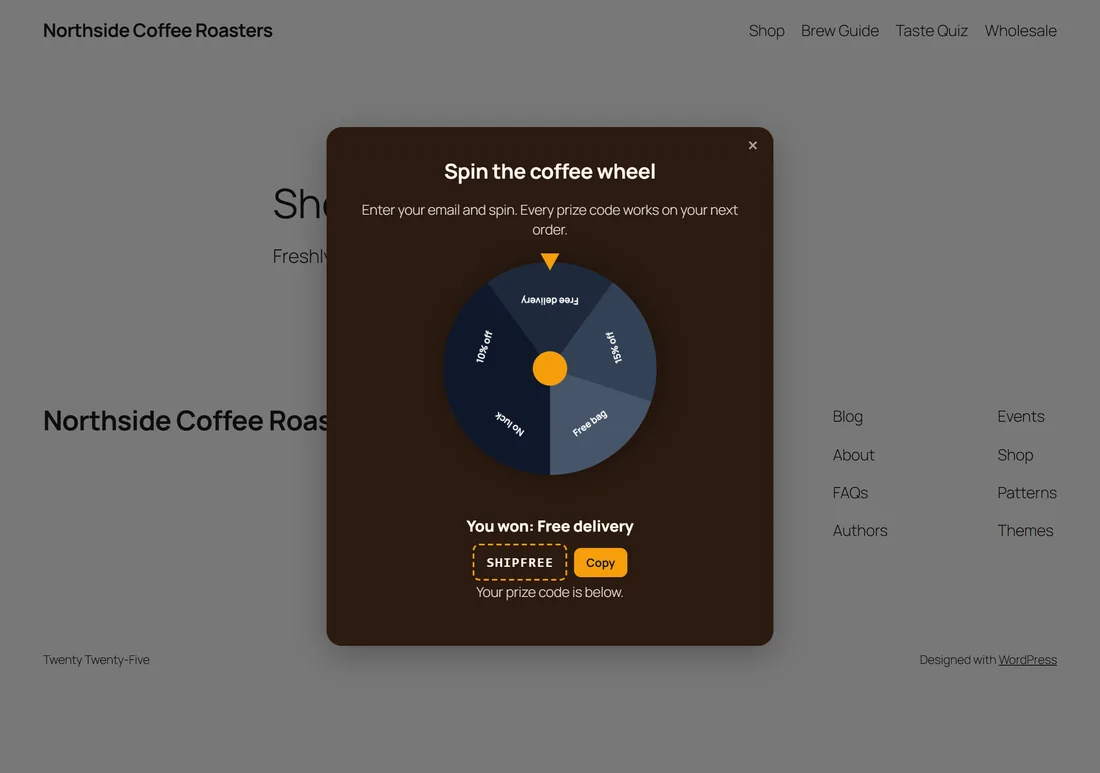
The winner is drawn on your server after the email arrives, and only then does the wheel spin to it. The coupon codes and the weights are never sent to the visitor's browser, so nobody can read the prizes or the odds in the page source. The visitor sees You won, their prize, the code and a Copy button.
A real example:
Northside's Spin To Win Wheel has 10% off, Free delivery and 15% off, a No luck segment, and a Free bag segment with weight 0. It shows once, ever, on the shop and home page, only in the United Kingdom and Ireland. Every player is added to the Spin To Win Players list in MailerLite.
Ideas for what to test:
- A question headline against a statement headline
- A specific number against a general promise, for example 15% off against Save on your first bag
- Two button texts, for example Send my code against Yes, send it
- A dark background against a light one
- A different link for the button, such as a product page against a category page
Tips:
- Test one change at a time: a headline, or a button colour.
- Give a split test a week, or until both versions have a few hundred views.
- Make every winning code real and working before you publish a wheel.