Engage and WP Sync are separate plugins that work together. With both active, nothing needs setting up on the Engage side.
How the hand off works:
When a lead is captured, Engage saves it, sends it to the campaign's own autoresponder and webhook, and also hands it to WP Sync. Inside WP Sync every Engage campaign appears as a source, so you build a bridge there and choose where the lead goes next.
One opt-in can then reach several places at once: your autoresponder, a Google Sheet, an outbound webhook, a CRM, or anything else WP Sync connects to.
This is an extra path. Engage still delivers to its own connections either way.
What travels with the lead:
- Email, first name and last name
- The campaign name and type, the page, the referrer and the device
- The phone number, when the form asked for it
- Every UTM value on the visit
- A key that is unique to each lead, so WP Sync never processes the same lead twice
Where to switch it:
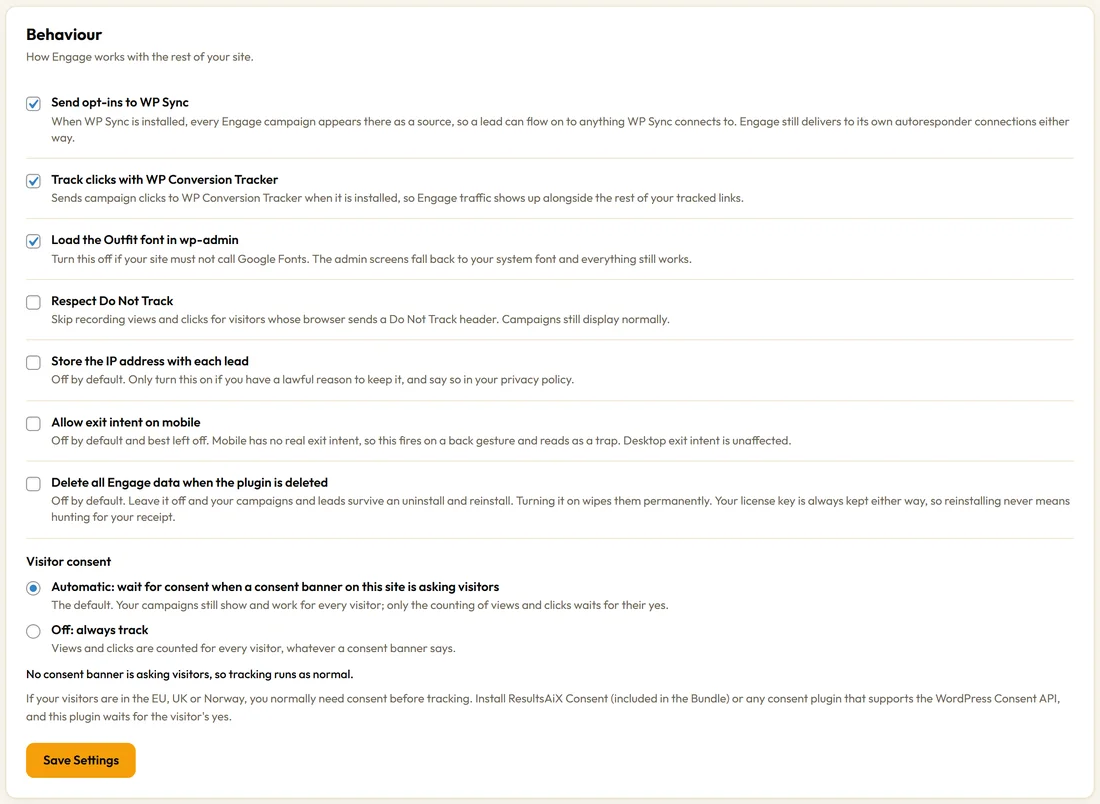
Settings tab, Behaviour card, Send opt-ins to WP Sync. It is on by default. Untick it and click Save Settings to keep the two plugins separate.
Checking it is working:
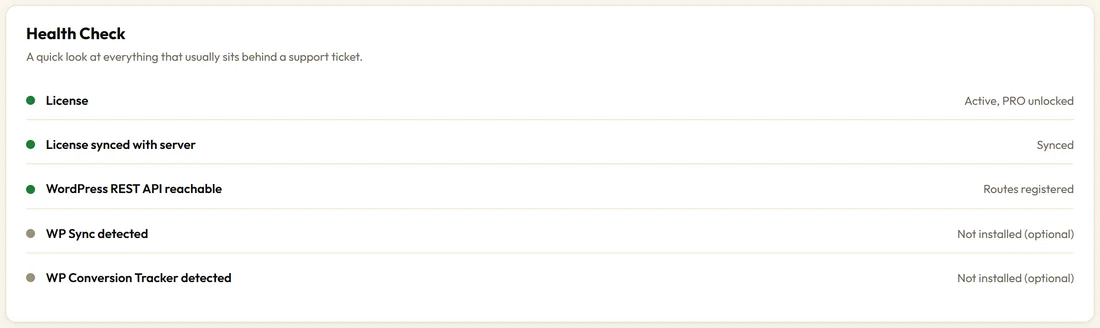
The Diagnostics tab shows WP Sync detected under Health Check. Once a lead is passed on, the Debug Log shows Pushed lead to WP Sync with the number of bridges that ran.
Requirements:
The hand off runs when WP Sync is installed and licensed on the same site.
A real example:
Northside adds every Spin To Win lead to a Google Sheet for their weekly prize draw. In WP Sync they create a bridge with the Spin To Win Wheel campaign as the source and their sheet as the destination. MailerLite still receives every lead from Engage directly.
Building your first bridge:
- Make sure Send opt-ins to WP Sync is on in Engage's Settings.
- Open WP Sync and create a new bridge.
- Choose ResultsAiX Engage as the source and pick the campaign.
- Choose the destination and map the fields: email, names, and any of the source details above.
- Save the bridge, then send one test opt-in from your site and check it arrives.
Ideas for bridges:
- Every lead into a Google Sheet for a weekly review
- Wholesale enquiries from the Side Drawer into your CRM
- Spin To Win players tagged in a second email list
- A webhook to your team chat for every new subscriber
Tips:
- Use the Engage autoresponder for your main list and WP Sync for everything else.
- See Webhooks And Raw Form Embeds for a single extra destination without WP Sync.