There are 21 campaign types. Each belongs to a family, and the family decides how it sits on the page and which design controls appear in the builder. Pick by how much you want to interrupt the visitor: a bar sits quietly at the edge, a popup asks for full attention.
Where to find it:
Campaigns tab, then + New Campaign. Scroll past the templates to Or Pick A Type And Design It Yourself. The types are grouped as Bars, Popups, Callouts and In Content, each with a short description.
Bars, the gentlest option:
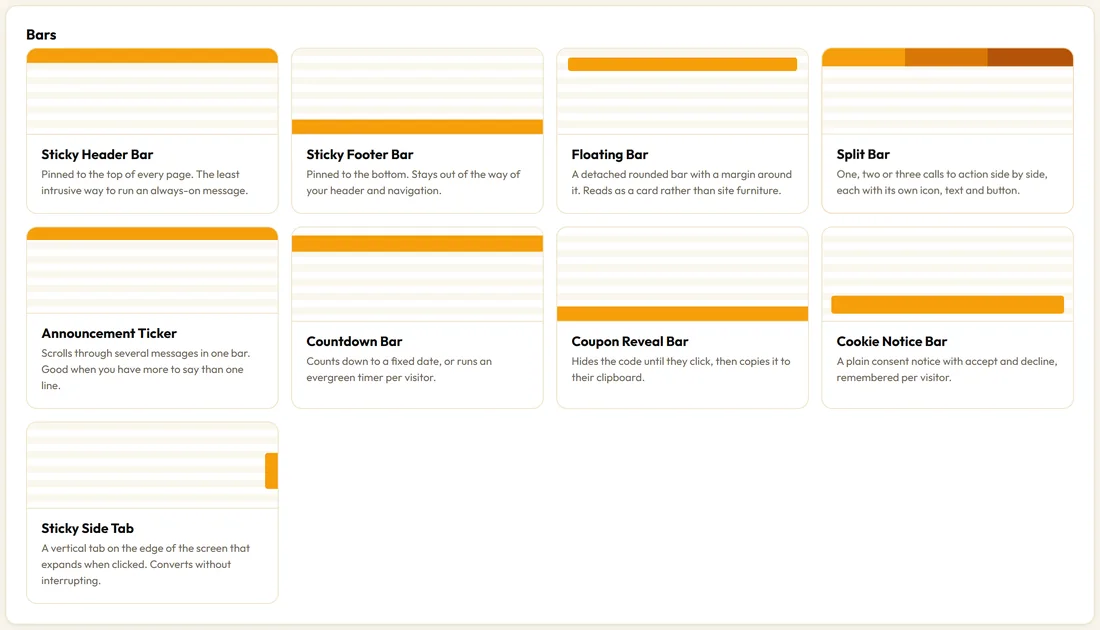
Always visible and out of the way. Best for a launch, a discount or one announcement on every page.
- Sticky Header Bar: pinned to the top of every page.
- Sticky Footer Bar: pinned to the bottom, clear of your header and menu.
- Floating Bar: a detached rounded bar with space around it, so it reads as a card.
- Split Bar: one, two or three calls to action side by side, each with its own icon, headline, sub-line and button.
- Announcement Ticker: scrolls through up to 10 short messages in one bar.
- Countdown Bar: a live clock to a date, an evergreen deadline per visitor, or the campaign end date. See Countdown Timers On Any Campaign.
- Coupon Reveal Bar: hides the code until the visitor clicks, then shows it with a Copy button.
- Cookie Notice Bar: a simple notice with Accept and Decline buttons.
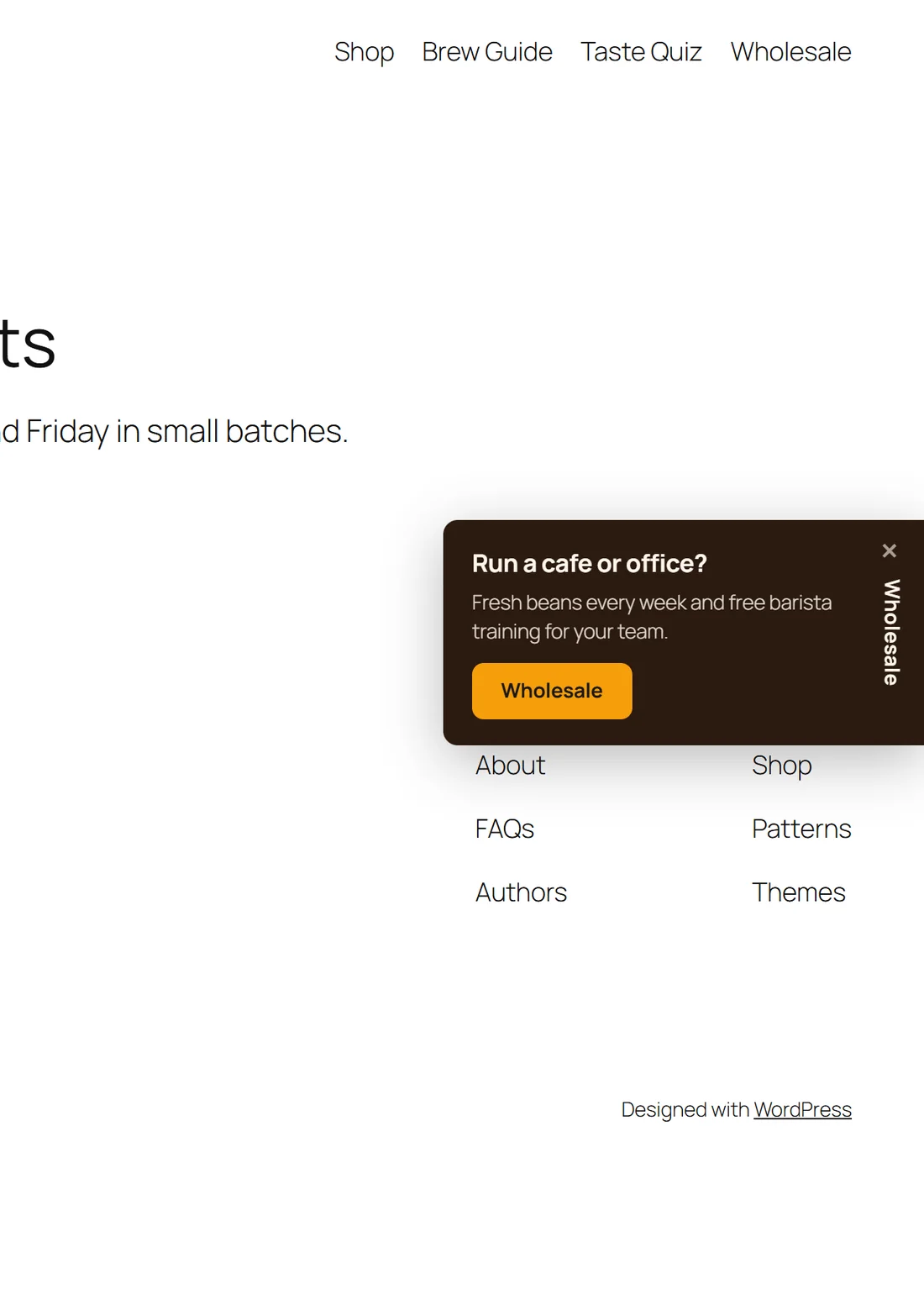
- Sticky Side Tab: a vertical tab on the left or right edge that opens into a small card when clicked.
Bar examples:
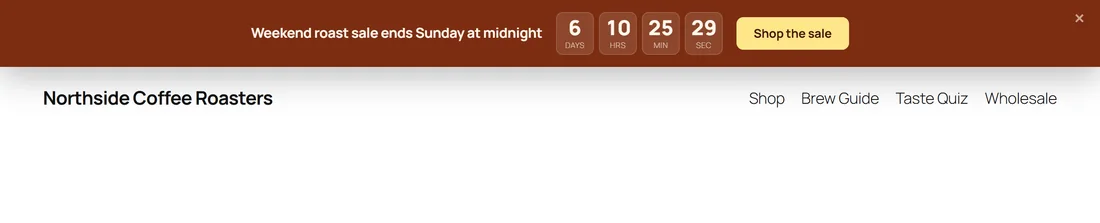


The Countdown Bar counts every visitor down to the same moment. The Coupon Reveal Bar shows the code only after a click. The Split Bar puts three ranges side by side, and the Announcement Ticker rotates short news lines.
Popups, the highest impact:
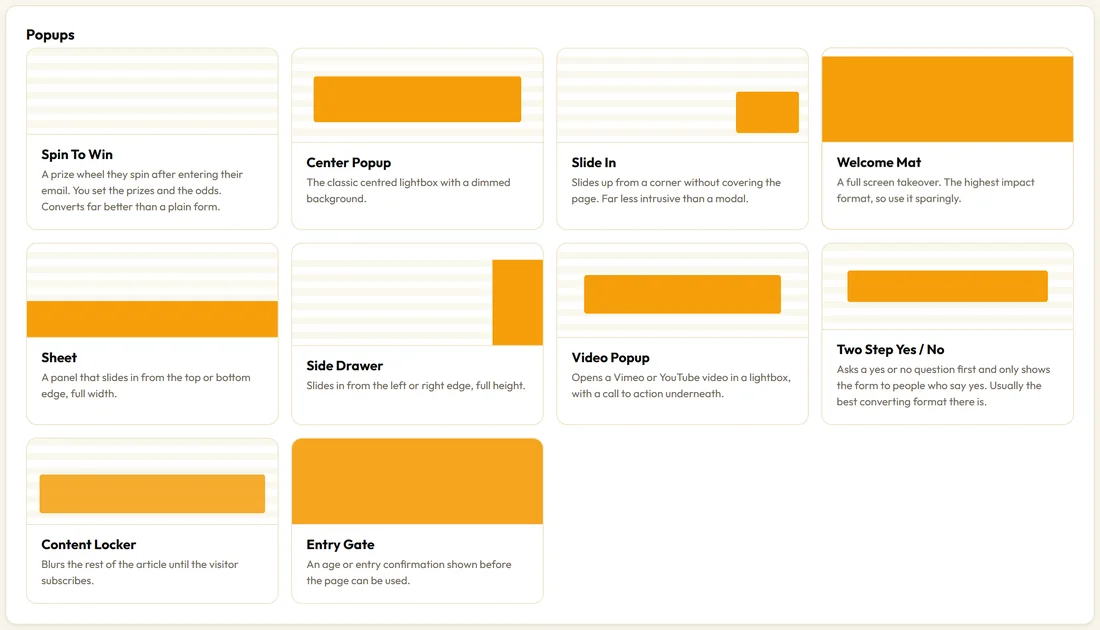
They take the visitor's attention, so use them for one clear, valuable ask.
- Center Popup: the classic centred box with the page dimmed behind.
- Slide In: slides up in a corner you choose, without covering the page.
- Welcome Mat: a full screen takeover. Best kept to landing pages.
- Sheet: a full width band that slides in from the bottom or the top.
- Side Drawer: a full height panel from the left or right edge.
- Video Popup: a YouTube or Vimeo video in a box, with a call to action underneath. The video starts muted.
- Two Step Yes / No: asks a question first and only shows the form to people who say yes.
- Content Locker: blurs the rest of an article until the visitor subscribes.
- Entry Gate: an age or entry question shown before the page can be used.
- Spin To Win: a prize wheel the visitor spins after entering their email. You set the prizes and the odds.
Popup examples:
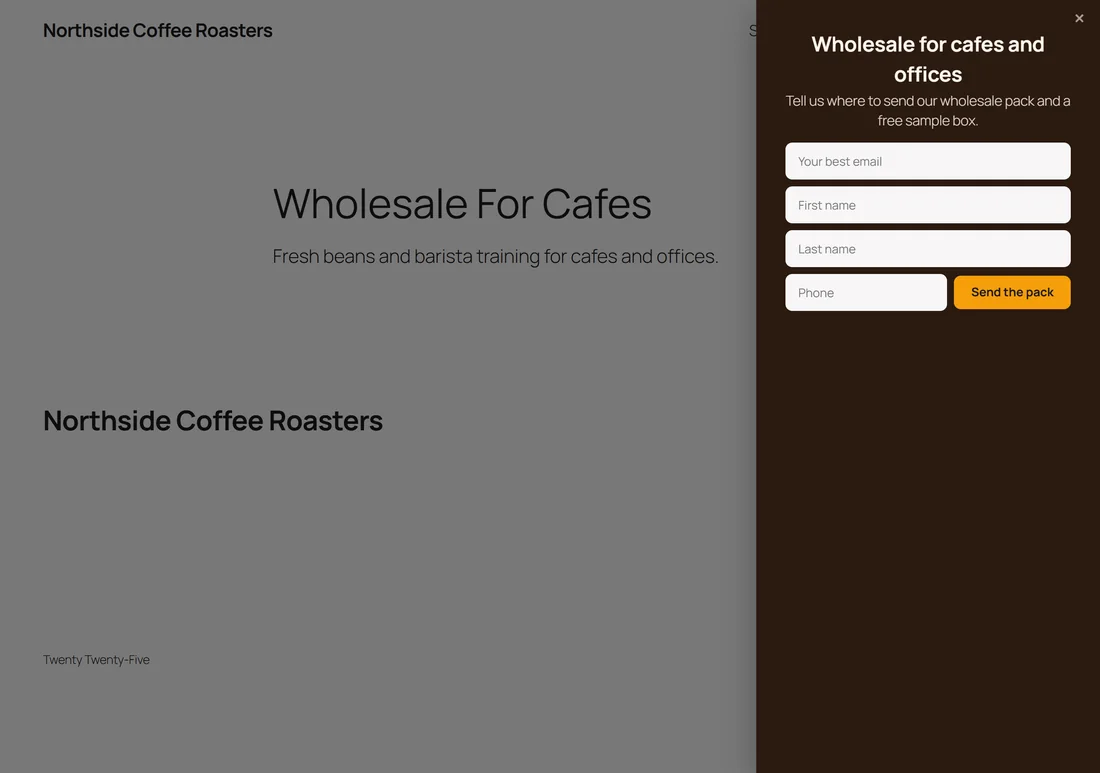
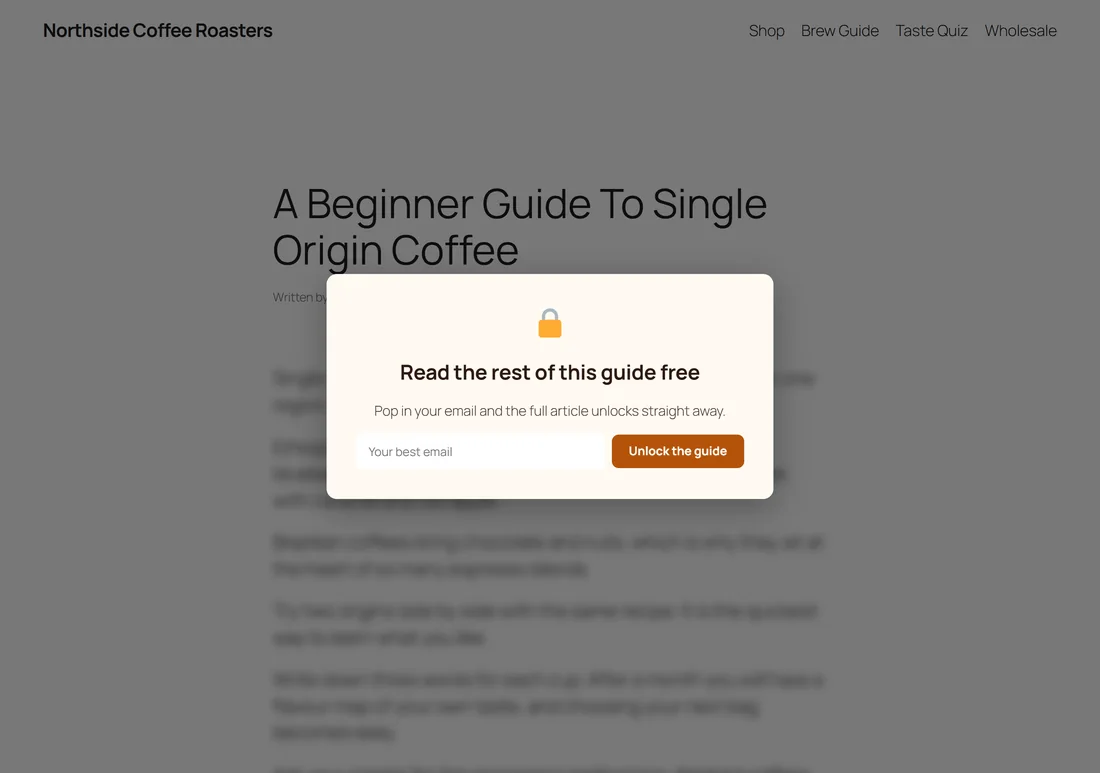
A Side Drawer is a calm way to ask for longer details, a Content Locker turns a popular guide into a list builder, and an Entry Gate asks a simple yes or no before the page opens.
Callouts, the friendliest:
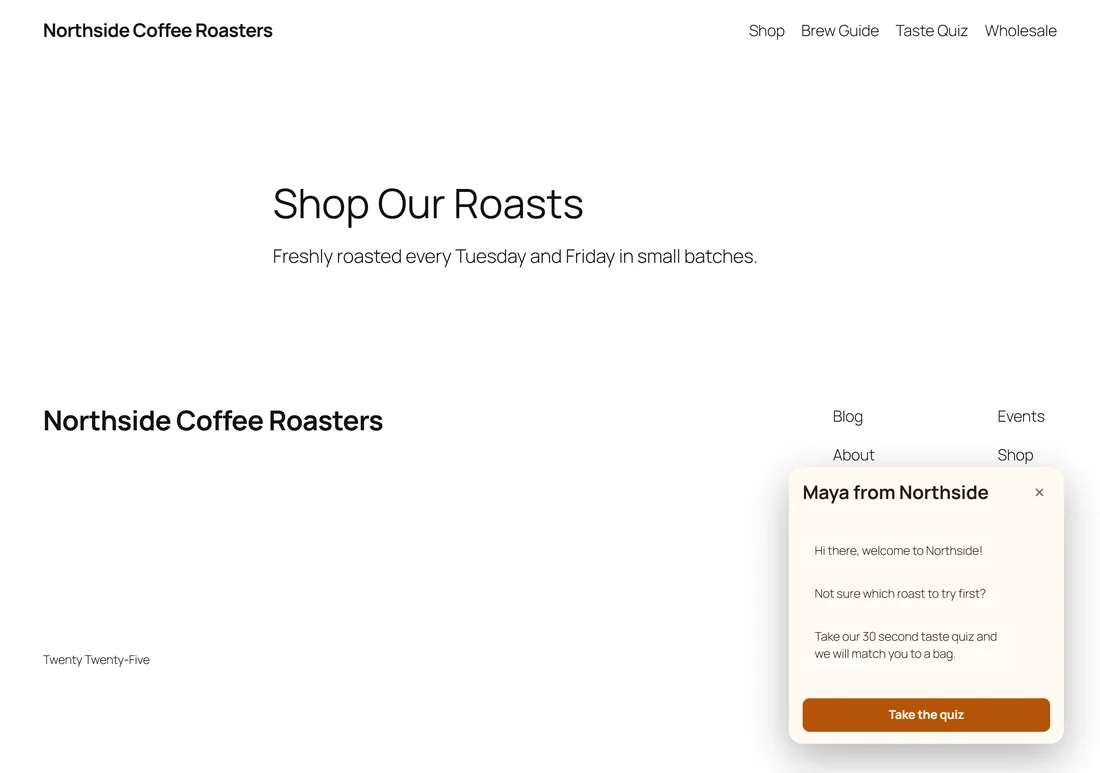
- Chat Bubble Callout: a round bubble in the corner that opens into a message card with a name, an optional avatar and messages that appear one after another with typing dots. It opens by itself after a few seconds. It reads like a person rather than an advert.
In Content, part of the article:
- In-Content Box: sits inside your blog post after the paragraph you choose. No overlay and nothing to close by default. See The In-Content Box.
How types share the page:
Bars, side tabs, the chat callout and the In-Content Box can share a page with anything. Popups take turns: if a second popup is ready while one is open, it waits and shows after the first one closes. See Display Rules: Frequency And Priority.
Which type for which job:
- Grow your list on a blog: In-Content Box, Slide In, or a Content Locker on your best guide.
- Grow your list on any page: Two Step Yes / No, or a Center Popup on exit intent.
- A sale or launch: Countdown Bar, Sticky Header Bar or Coupon Reveal Bar.
- Several offers: Split Bar.
- A friendly nudge: Chat Bubble Callout or Sticky Side Tab.
- A required notice: Cookie Notice Bar or Entry Gate.
A real example:
Northside Coffee Roasters runs a Sticky Header Bar for free delivery, an In-Content Box inside their brewing guide, a Two Step Yes / No for a first bag discount, a Chat Bubble Callout on the shop page, and a Sticky Side Tab for wholesale enquiries. Each one does a different job, and none of them fight for attention.
Tips:
- Every type has a template, so pick a template when you want copy and colours ready to edit.
- Change one thing at a time and compare the numbers on the Campaigns list.