Starting from something is faster than starting from nothing. Engage gives you 22 ready made templates, and lets you move any campaign between your sites as a single file.
Where to find it:
Templates: Campaigns tab, then + New Campaign. Import: the Import button at the top of the Campaigns tab. Export and Copy: the buttons on each campaign row.
The 22 templates:
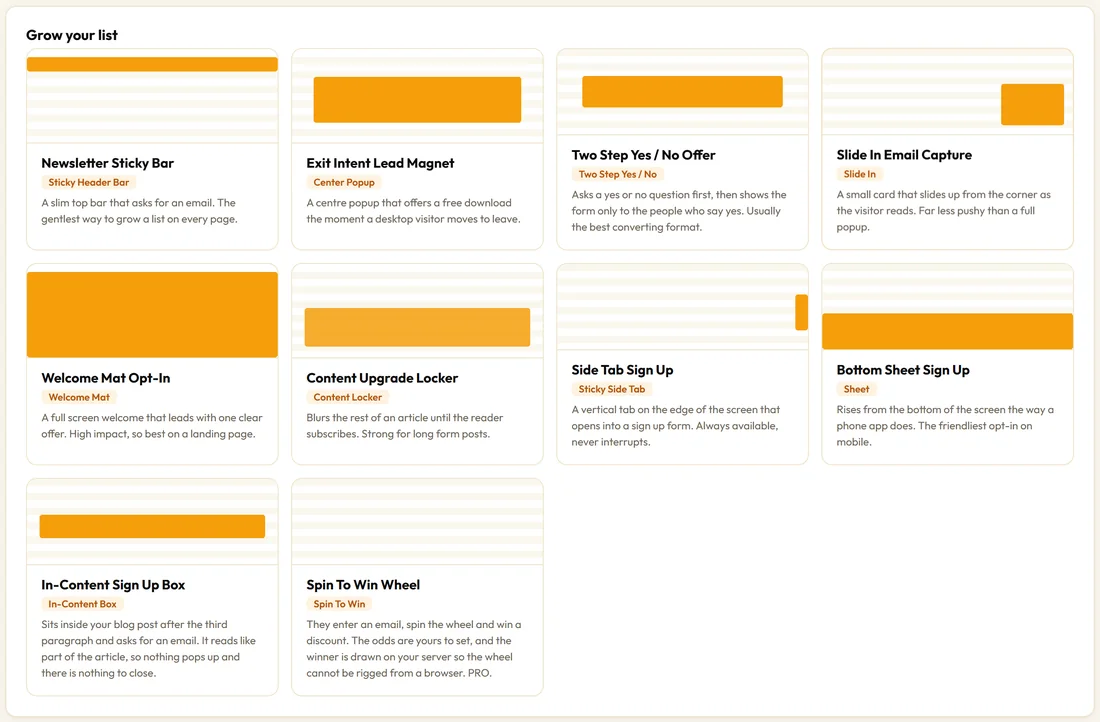
Grow your list, 10:
- Newsletter Sticky Bar, Exit Intent Lead Magnet, Two Step Yes / No Offer, Slide In Email Capture, Welcome Mat Opt-In, Content Upgrade Locker, Side Tab Sign Up, Bottom Sheet Sign Up, In-Content Sign Up Box and Spin To Win Wheel
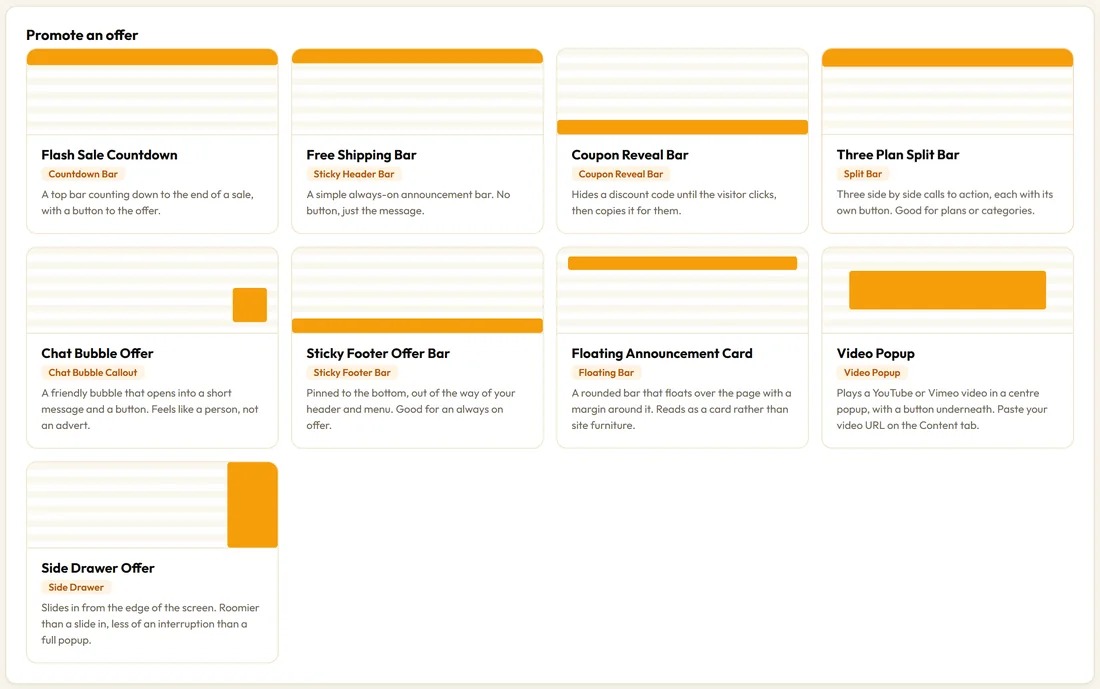
Promote an offer, 9:
- Flash Sale Countdown, Free Shipping Bar, Coupon Reveal Bar, Three Plan Split Bar, Chat Bubble Offer, Sticky Footer Offer Bar, Floating Announcement Card, Video Popup and Side Drawer Offer
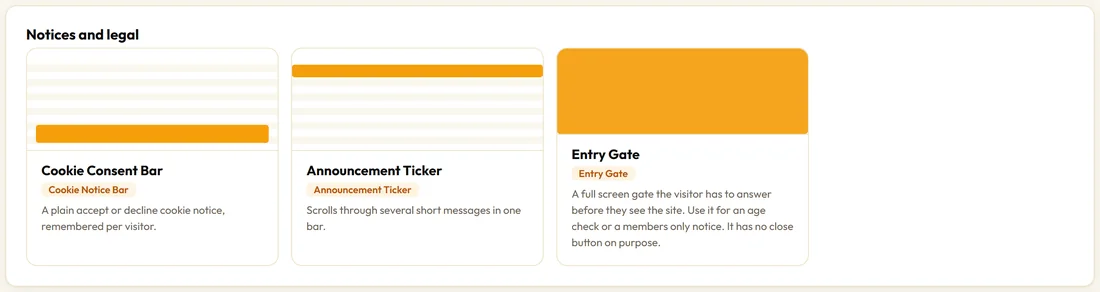
Notices and legal, 3:
- Cookie Consent Bar, Announcement Ticker and Entry Gate
Each tile shows the template name, its type and a one line description. Click one and you land in the builder with the type, copy, colours, trigger and frequency already set. Everything is editable.
Copying a campaign:

Click Copy on any row. Engage makes a new draft called the same name with (copy) at the end and opens it in the builder. It is the fastest way to try a second headline or a different trigger.
Exporting a campaign:
Click Export on any row. Your browser saves one JSON file named after the campaign, for example engage-brew-guide-exit-popup.json. It holds the name and every setting.
The chosen autoresponder and list are cleared on the way out, because they belong to this site. Statistics and leads are not part of a campaign file, so they stay where they are. Tags and the webhook address do travel, so check them after importing.
Importing a campaign:
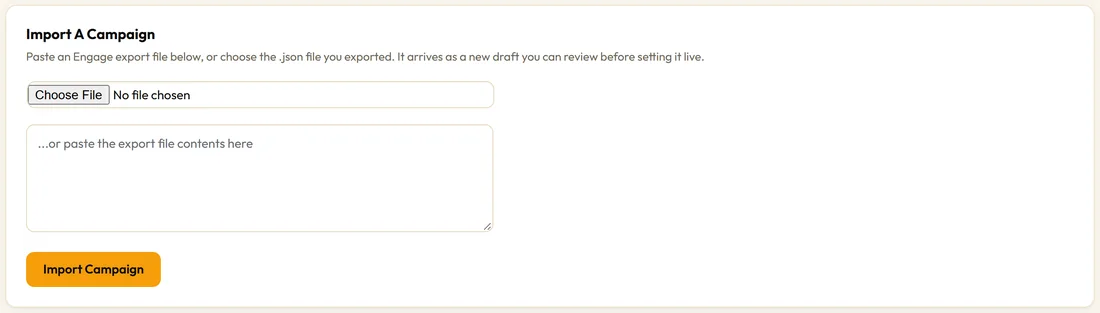
- On the Campaigns tab, click Import.
- Choose the .json file you exported, or paste the file contents into the box.
- Click Import Campaign.
- The campaign arrives as a draft with (imported) after its name, and opens in the builder.
- On the Opt-in tab, pick your autoresponder and list, then click Save & Publish.
Engage checks every setting in the file against its own list of settings, so an edited file cannot add anything unexpected.
A real example:
Northside built their Brew Guide Exit Popup on yoursite.com. To use it on their wholesale site, they click Export, open Campaigns on the second site, click Import, choose the file, then select their wholesale list on the Opt-in tab and publish. Five minutes, same design.
What each template sets:
- Newsletter Sticky Bar: Sticky Header Bar, Immediately.
- Exit Intent Lead Magnet: Center Popup, On exit intent, once every 3 days.
- Two Step Yes / No Offer: Two Step Yes / No, scroll 45 percent.
- Slide In Email Capture: Slide In, scroll 55 percent.
- Welcome Mat Opt-In: Welcome Mat, Immediately, once, ever.
- Content Upgrade Locker: Content Locker, scroll 40 percent.
- Side Tab Sign Up: Sticky Side Tab, Immediately.
- Bottom Sheet Sign Up: Sheet, scroll 50 percent, once per browsing session.
- In-Content Sign Up Box: In-Content Box, every page view.
- Spin To Win Wheel: Spin To Win, 6 second delay, once, ever.
- Flash Sale Countdown: Countdown Bar with a 24 hour evergreen clock that hides the campaign at zero.
- Free Shipping Bar: Sticky Header Bar, every page view.
- Coupon Reveal Bar: Coupon Reveal Bar, 5 second delay.
- Three Plan Split Bar: Split Bar with three columns, Immediately.
- Chat Bubble Offer: Chat Bubble Callout, 4 second delay.
- Sticky Footer Offer Bar: Sticky Footer Bar, 3 second delay.
- Floating Announcement Card: Floating Bar, scroll 30 percent.
- Video Popup: Video Popup, 8 second delay, once every 7 days.
- Side Drawer Offer: Side Drawer, On exit intent, once every 3 days.
- Cookie Consent Bar: Cookie Notice Bar, once, ever.
- Announcement Ticker: Announcement Ticker, Immediately.
- Entry Gate: Entry Gate, Immediately, once per browsing session.
Tips:
- Keep exported files in one folder as your own campaign library.
- Start every new campaign from the closest template, then change the copy.