Targeting answers two questions: where a campaign may appear, and who may see it. Good targeting is the quickest way to lift results, because the right message reaches the right people and nobody else is disturbed.
Where to find it:
Open a campaign in the builder and click the Targeting tab. It has six groups: Where, Geo Targeting, Who, Members and roles, From where and When.
Where:
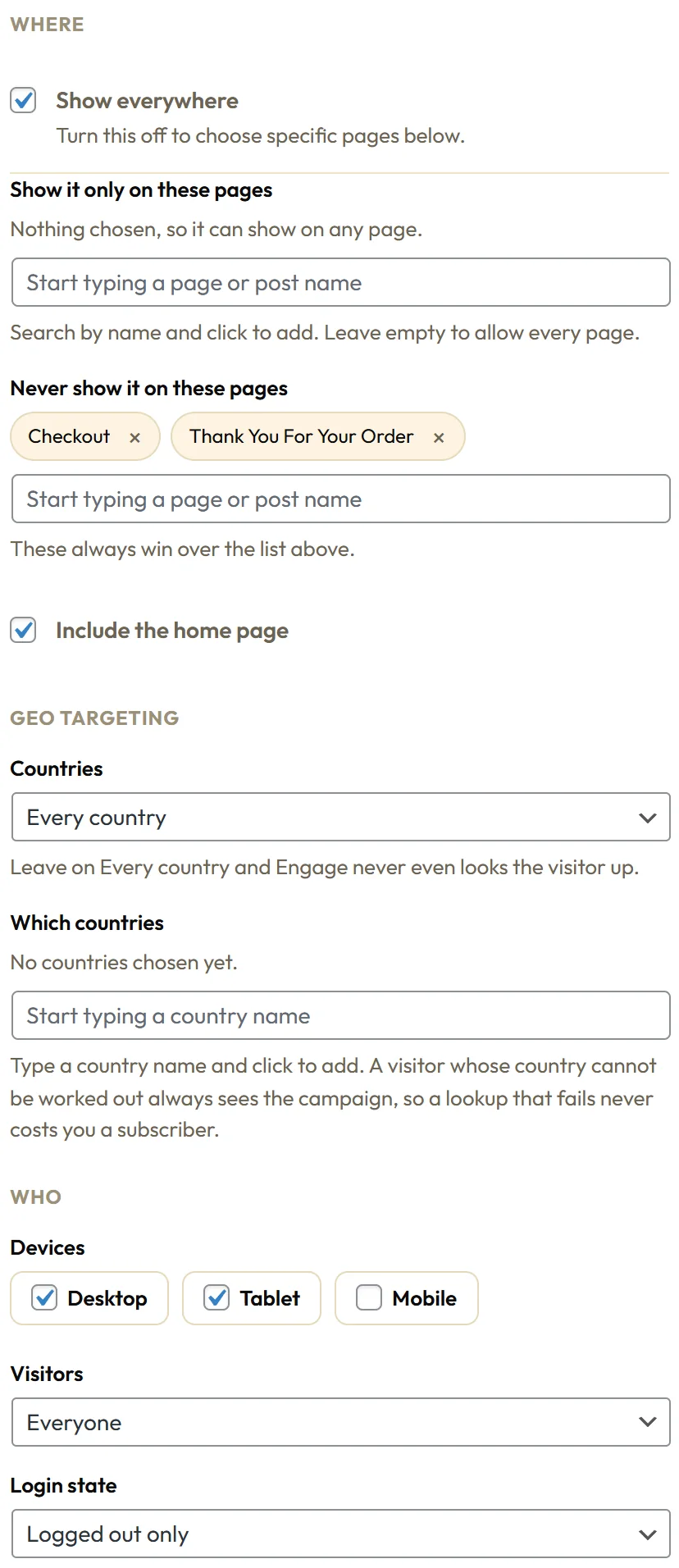
- Show everywhere: ticked by default. Untick it to show the campaign only on pages you choose.
- Show it only on these pages: start typing a page or post name and click it in the list. Leave it empty to allow every page.
- Never show it on these pages: the same picker. These always win, even when Show everywhere is ticked.
- Include the home page: shows the campaign on your front page and your blog home when you are choosing pages.
You search by name, so there is no ID to look up. Each chosen page appears as a chip with a small x to remove it.
Who:
- Devices: Desktop, Tablet and Mobile. Phones are screens under 768 pixels wide, tablets under 1024, desktops anything wider. Untick a device to hide the campaign there.
- Visitors: Everyone, New visitors only, or Returning visitors only. A new visitor is on their first ever page view on your site.
- Login state: Everyone, Logged out only, or Logged in only.
Members and roles:
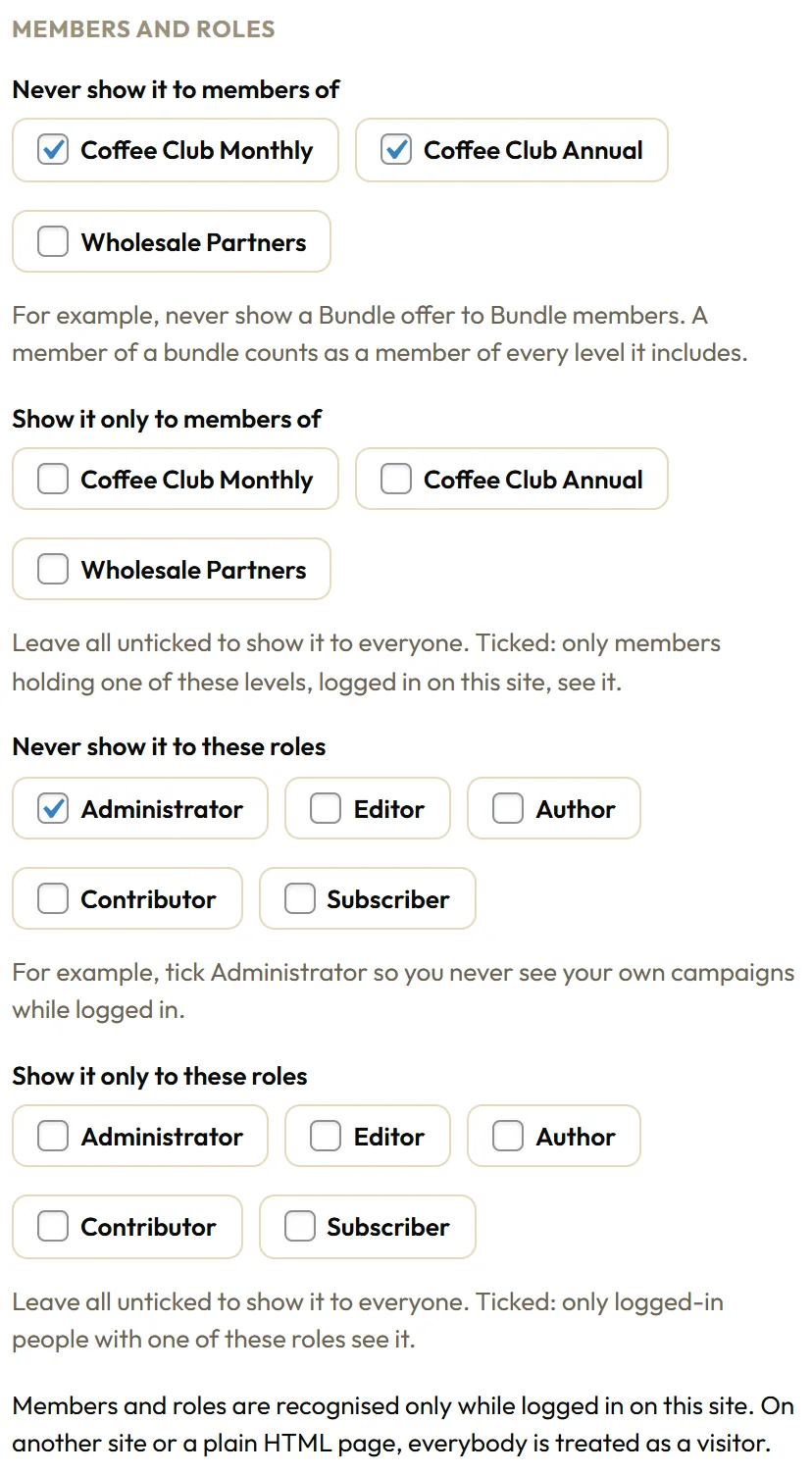
- Never show it to members of, and Show it only to members of: tick ResultsAiX Membership levels. A member of a bundle counts as a member of every level it includes. These appear when ResultsAiX Membership is active on the same site.
- Never show it to these roles, and Show it only to these roles: tick WordPress roles such as Administrator or Subscriber.
Members and roles are recognised while people are logged in on this site. Tick Administrator under Never show it to these roles and you will not see your own campaigns while you work.
From where:
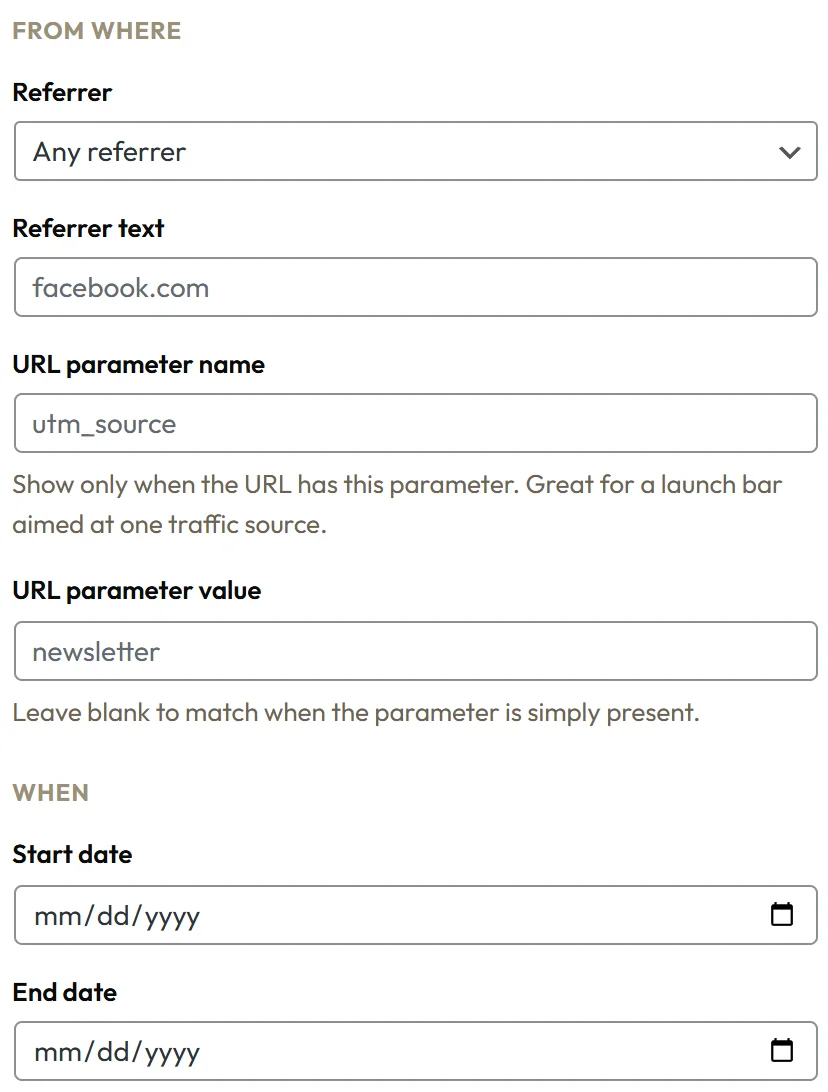
- Referrer: Any referrer, Referrer contains..., Referrer does not contain..., or Direct visits only.
- Referrer text: the words to look for, for example facebook.
- URL parameter name and URL parameter value: show the campaign only when the address has that parameter. Leave the value blank to match whenever the parameter is there. For example utm_source and newsletter.
When:
- Start date and End date: the campaign switches itself on and off at the start of the start date and the end of the end date, in your site's time zone.
How the rules combine:
Every rule must pass. A campaign shows only when the page, the device, the visitor, the login state, the members and roles, the referrer, the URL parameter, the dates and the country all allow it.
Page, user, referrer, URL and date rules are checked on your server before the page is sent. A campaign that does not apply is never sent to the browser, so it costs nothing. Device, new or returning and how often a campaign shows are checked in the visitor's browser, so a page served from a cache still behaves correctly for every visitor.
A real example:
Northside's First Bag Discount Two Step should only reach people who have not joined yet. They set:
- Show everywhere, with Checkout and Thank You For Your Order under Never show it on these pages.
- Never show it to members of: Coffee Club Monthly and Coffee Club Annual.
- Never show it to these roles: Administrator.
Their Newsletter Coupon Reveal uses URL parameter name utm_source and value newsletter, so only readers who click the newsletter link see the code.
Geo targeting:
The Geo Targeting group shows a campaign only in chosen countries, or hides it in them. See PRO: Split Testing, Geo Targeting And Spin To Win.
Targeting recipes:
- Blog only: untick Show everywhere and add your best posts under Show it only on these pages.
- Everywhere except buying pages: Show everywhere, plus checkout, basket and thank you pages under Never show it on these pages.
- Members only offer: Show it only to members of, ticking the levels that qualify.
- Upgrade offer: Show it only to members of your entry level, and Never show it to members of your top level.
- Social visitors: Referrer contains... facebook, with a headline that welcomes them.
- Email readers: URL parameter name utm_source and value newsletter.
- Returning readers: Visitors set to Returning visitors only, with a welcome back message.
- A launch week: Start date and End date around the launch, paired with a countdown.
Testing your targeting:
- Save the campaign.
- Open a private window and visit a page that should show it.
- Visit a page that should not.
- For URL parameters, add them to the address, for example ?utm_source=newsletter.
- For member and role rules, log in as a test member in the private window.
Tips:
- Always exclude checkout, thank you and download pages from list building campaigns.
- Use a URL parameter to give one traffic source its own offer.
- If a campaign shows to fewer people than you expect, read the Targeting tab top to bottom: one rule is usually narrower than you meant.