Your knowledge base articles are the answers you write once and use everywhere: on your help centre, in the contact form's suggestions, in the contact page chat and in every AI reply. Each article has its own web address you can send to customers.
Where to find it:
Open Knowledge Base on the desk's menu bar. Add New Article and Existing Articles are below Teach The Desk What You Know and Public Answers.
Adding an article:
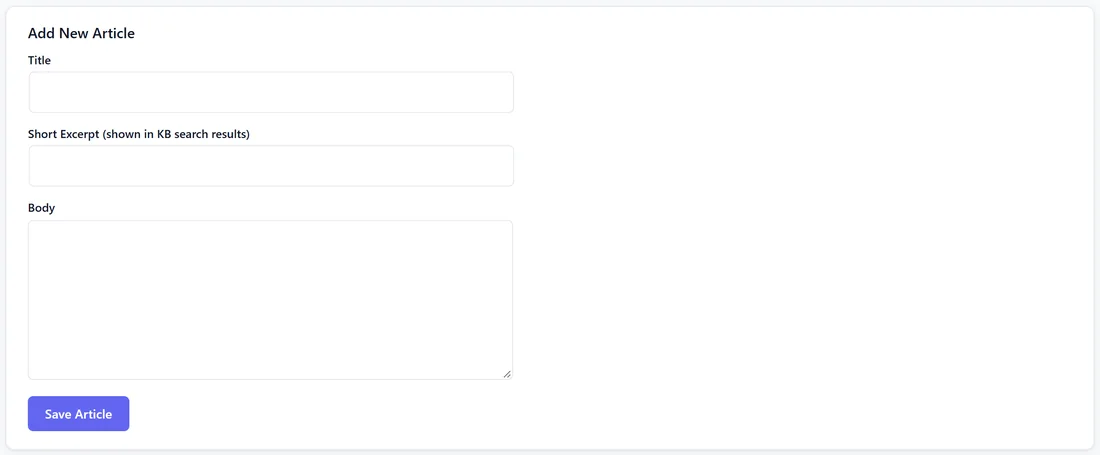
- Under Add New Article, type the Title. Use the words a customer would use, for example Where Is My Licence Key?
- Fill in the Short Excerpt (shown in KB search results). Write a one line summary; it shows in search results and in the contact form's suggestions.
- Write the Body.
- Press Save Article. It is published and searchable straight away.
Each article is published at /kb/ followed by its name, for example yoursite.com/kb/where-is-my-licence-key/.
Your articles:
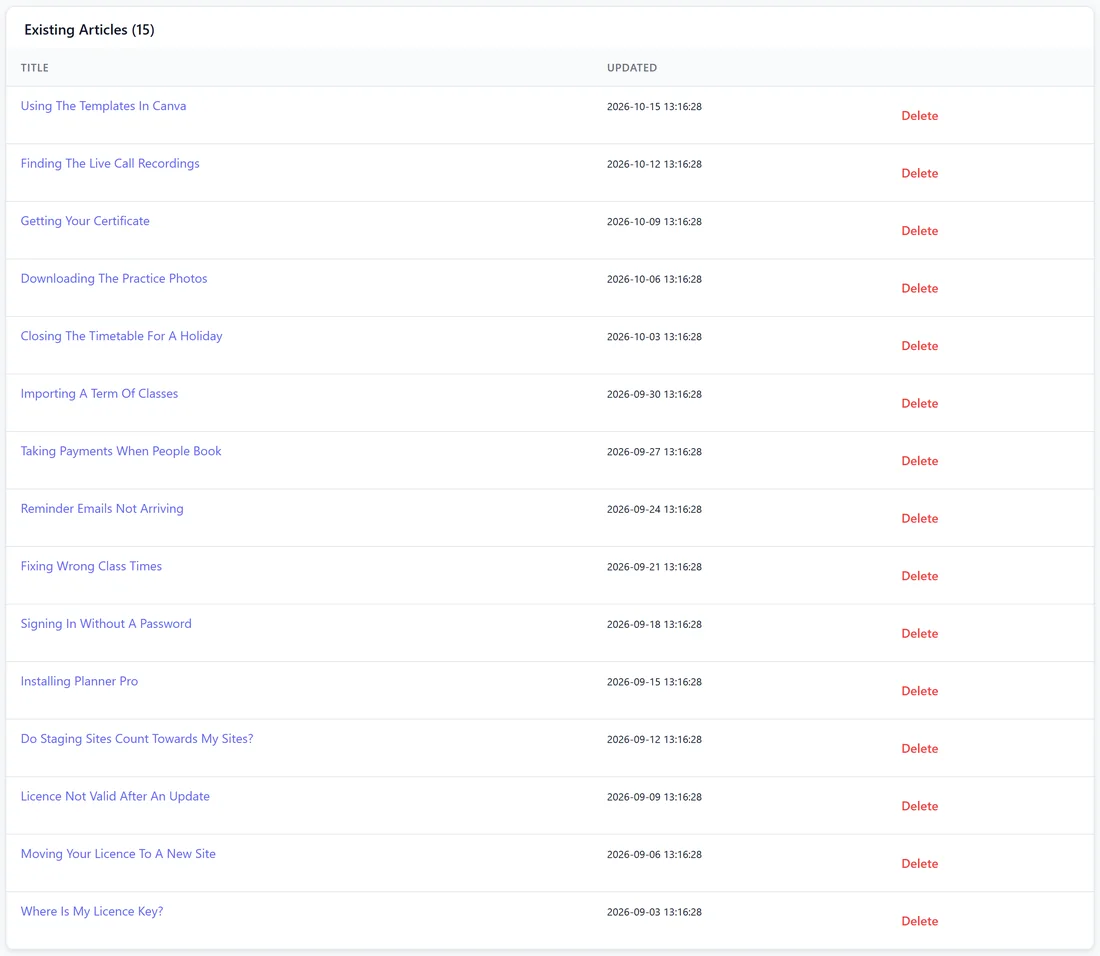
Existing Articles lists the 50 most recently changed articles with when each was updated, each title linking to its page, and a Delete button. Saving an article again rebuilds its search entries.
Categories:
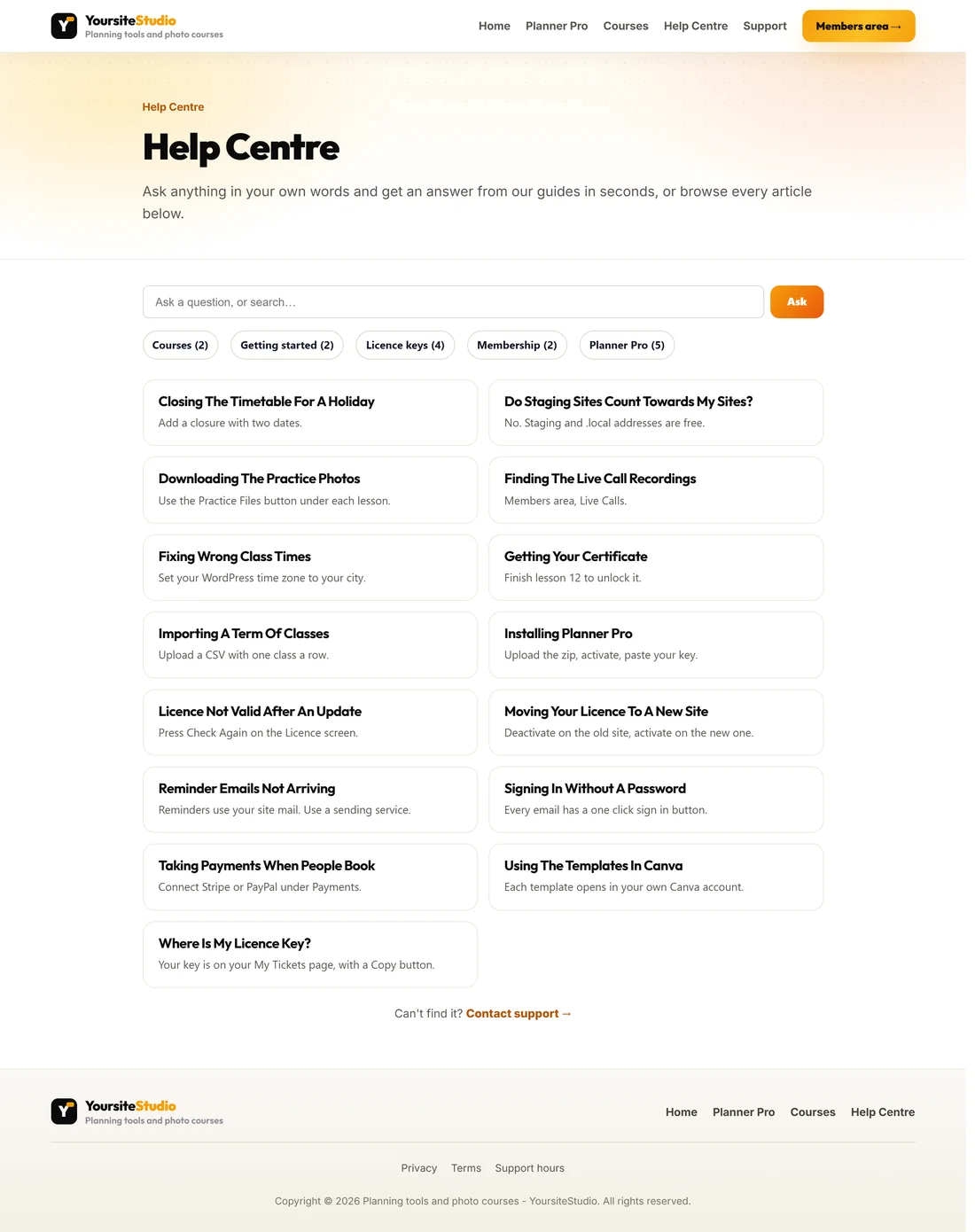
Articles brought in with the Import screen keep the category they had in your old helpdesk. Categories show as buttons with counts on your help centre, and each has its own page at /kb-category/ followed by the category name, with its description as the introduction. The Add New Article form itself has no category box, so articles you write here sit outside a category.
How the search works:
When an article is saved, its title, excerpt and body are split into pieces of about 400 words, and each piece is stored with its 40 most useful words. A search counts how well each piece matches the words asked, and ranks articles by that. It is word matching, so it needs no extra service and costs nothing to run. Use the words your customers actually use, including any error text they paste in.
Where the articles are used:
- Auto-resolve's how-to answers use the top five matches.
- Drafts use the top four matches.
- The contact form shows the top three while someone types.
- The help centre, the contact page chat and Still Have A Question? on every article page.
Writing a good article:
- Title: the question as the customer asks it.
- Excerpt: the answer in one line, because it shows in search results and suggestions.
- Body: short steps, with the exact names of buttons and menus. Add any error message customers paste, word for word.
- One question per article.
Deleting an article:
Press Delete beside it in Existing Articles. Its search entries go with it, and nothing else changes.
Where customers find articles:
- Your help centre page with [asd_kb].
- The designed help centre at /kb/, when Show help articles as a designed help centre is on.
- Suggestions on the contact form while they type.
- Answers on the contact page chat and Still Have A Question? on every article.
A real example:
Yoursite Studio has 15 articles, brought over from its old helpdesk in five categories: Getting started, Licence keys, Planner Pro, Courses and Membership. After Sam added Fixing Wrong Class Times, the next time-zone ticket was answered from it, and the help centre lists it with the rest.
Tips:
- One question per article. Long catch-all pages match everything weakly.
- Put the real question in the title.
- Documentation you already have can go in without rewriting. See Feeding It Your Own Documentation, And The Search That Answers.
- If search ever seems out of date, press Reindex KB on the Import screen.