Your contact page is more than a form. Anyone can ask a question in their own words and get an answer from your help centre on the same screen. A customer who has bought from you can sign in with one click and chat with their own account open. A person is always one press away.
Where to find it:
The switches are on the Knowledge Base screen, under Public Answers. Open Knowledge Base on the desk's menu bar and scroll to that panel.
The three switches:
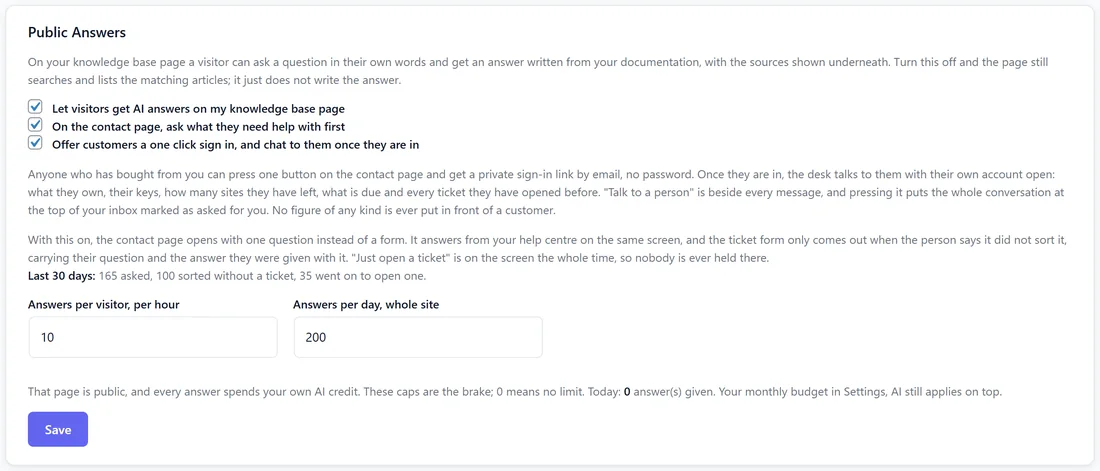
- Let visitors get AI answers on my knowledge base page.
- On the contact page, ask what they need help with first.
- Offer customers a one click sign in, and chat to them once they are in.
The sign-in link needs your Contact page set under Settings, General. Press Save under the panel.
Two caps sit with them: Answers per visitor, per hour, and Answers per day, whole site. The page is public and every answer uses your own AI credit, so these are the brake; 0 means no limit. The panel also shows how many answers were given today and in the last 30 days.
What a visitor sees:
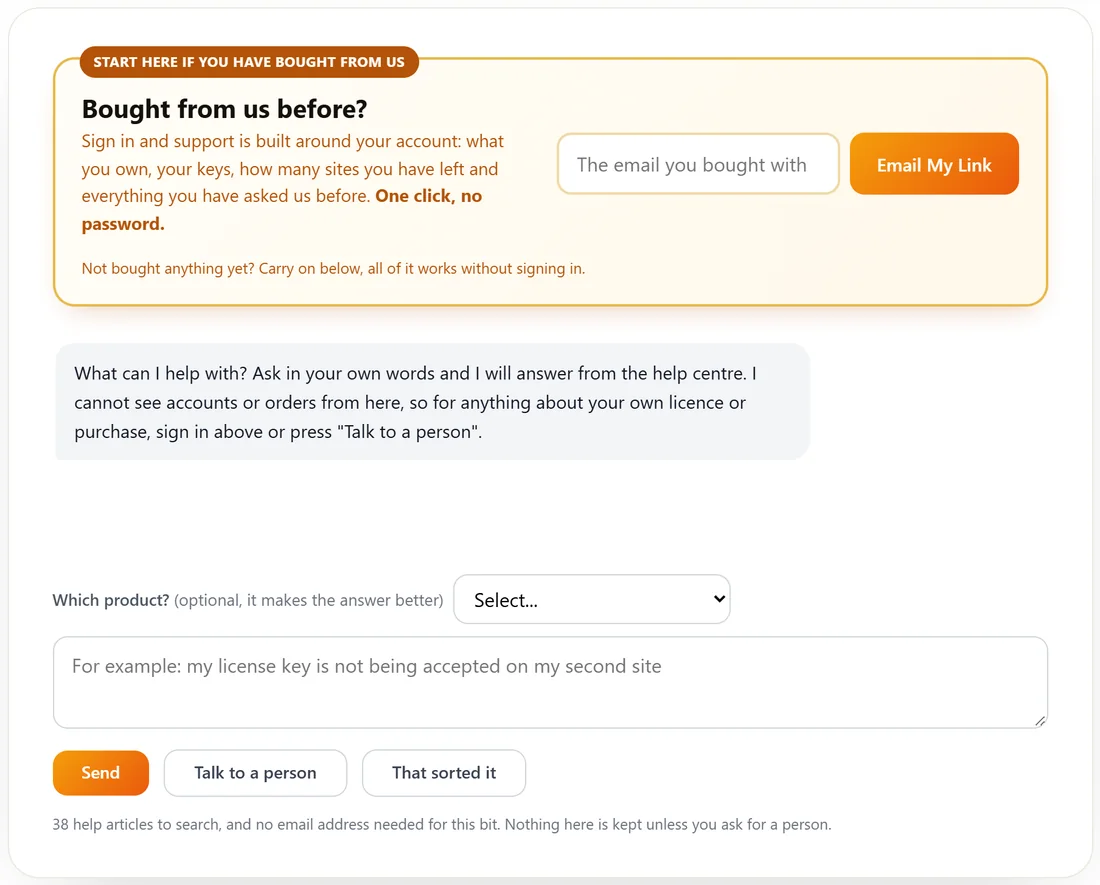
With the first two switches on, the page opens with a chat: "What can I help with? Ask in your own words and I will answer from the help centre." There is a Which product? picker, a message box, and three buttons:
- Send asks the question. The answer is written from your help centre, with the articles it used.
- Talk to a person opens the ticket form with the conversation carried over, so they never type it twice.
- That sorted it closes the question. They see "Good. That is what the help centre is for." with Ask something else and Open a ticket anyway.
A line under it says how many help articles there are, and that nothing is kept unless they ask for a person.
With the sign-in switch off, the page asks one question instead, with Get help now and Just open a ticket. Turn the middle switch off and the contact page opens straight on the form.
What reaches you:
A ticket that came through this step arrives with a private note holding what they asked, what they were told and which articles they read, so your reply starts where the help centre stopped. Only you see it. The Dashboard counts what never became a ticket: how many people asked, how many were sorted on the spot, and the share.
Signing in:
Bought from us before? sits first on the page. The customer types the address they bought with and presses Email My Link. One click in that email and they are in, no password. If the address has bought something but never opened a ticket, a contact is made for it, so every buyer can sign in.
Chatting with their account open:
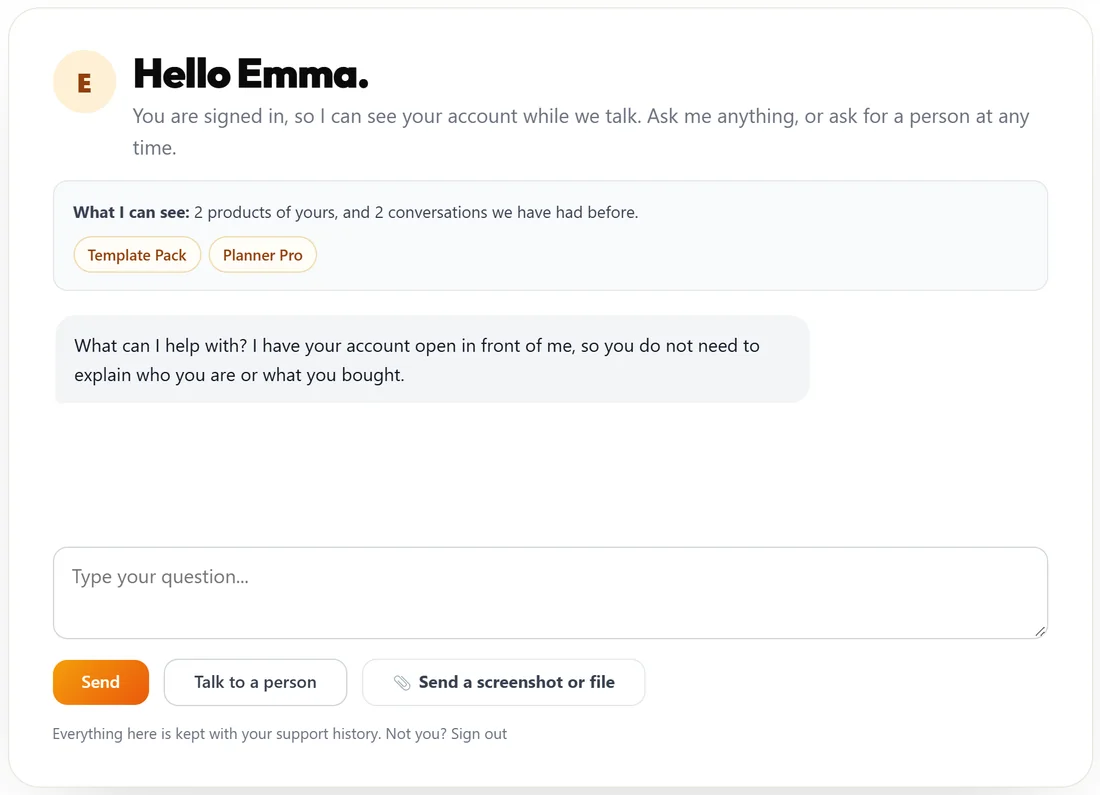
Signed in, the page says Hello and their first name, and What I can see lists their products and how many conversations you have had before. The chat knows what they own, their keys, how many sites they have left and every ticket they opened before, so nobody has to explain who they are.
- The chat is a ticket, so the whole conversation sits in your inbox and on the customer's own page.
- Talk to a person puts the whole conversation at the top of your inbox with an Asked for you tag and their account attached, and tells them a person has it and the reply comes by email.
- Send a screenshot or file sends a picture, PDF, text, CSV or zip, up to 10 MB each and 4 at a time, straight to a person, with anything they typed.
- They get the same We got your message email as a form ticket, so they have an email to reply to.
- Nothing about what a customer has paid is ever put in front of them, and the chat hands anything about money or a closed account to a person.
- One customer can send a sensible number of messages an hour.
- Not you? Sign out is under the chat.
Which product?
The product picked on the contact page settles the whole conversation, so a question like "what is included?" is answered for the thing they chose, signed in or not.
Step by step, switching it on:
- Open Settings, General and make sure Send a ticket points at your contact page.
- Open Knowledge Base and scroll to Public Answers.
- Tick Let visitors get AI answers on my knowledge base page, On the contact page, ask what they need help with first, and Offer customers a one click sign in, and chat to them once they are in.
- Set Answers per visitor, per hour and Answers per day, whole site.
- Press Save.
- Open your contact page in a private window to see it as a visitor.
Good values:
- Answers per visitor, per hour: 10 stops one person spending your credit, and is more than any real customer asks.
- Answers per day, whole site: a few hundred suits most sites. Raise it if the counter under the panel reaches it often.
What the customer sees after Talk to a person:
Not signed in, the ticket form opens with a green box, We have kept what you already read, so they never type it again. Signed in, the chat says a person has it, gives the ticket number, and says the reply comes by email.
What the AI may say here:
Answers come only from your help centre and your product details, never from guesses. For a visitor who is not signed in, the chat says it cannot see accounts or orders, and points them to sign in or to a person for anything about their own licence or purchase. Signed in, it may name their products, keys and sites left, but never an amount.
A real example:
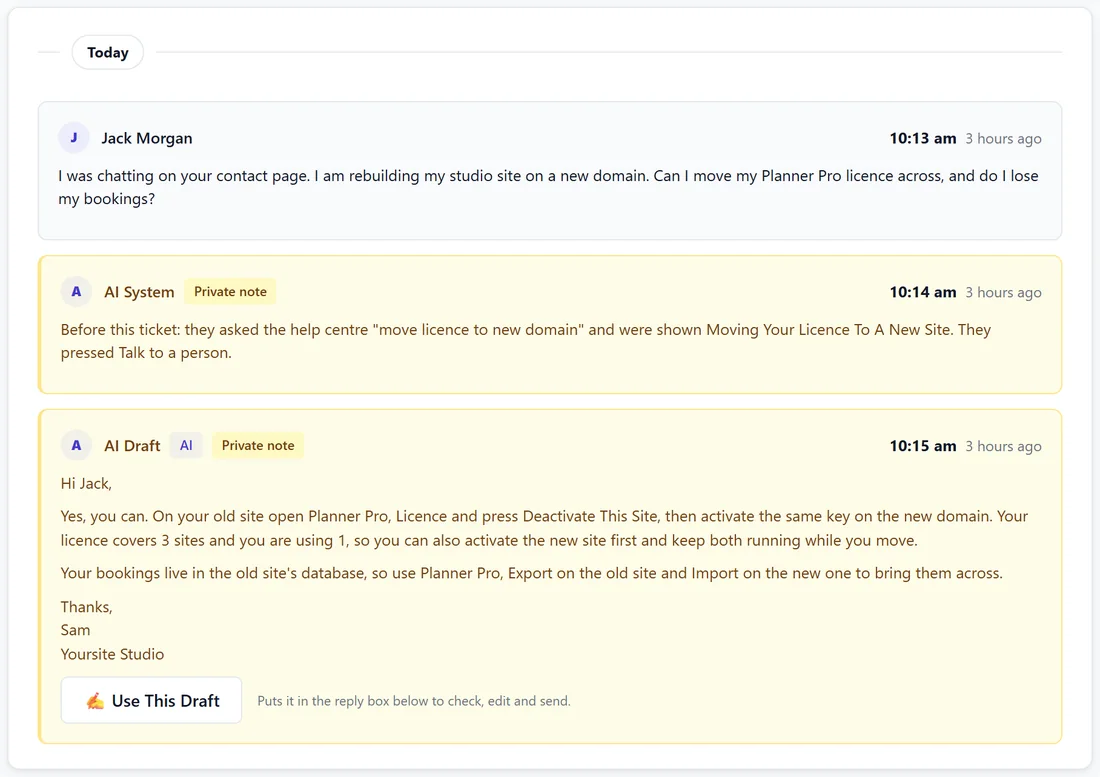
Owen visits yoursite.com/contact-support/ and types "can I move my licence to a new site?". The chat answers from the article Moving Your Licence To A New Site. Jack, a Planner Pro buyer, signs in instead, asks the same thing, then presses Talk to a person. Ticket 1002 lands at the top of Sam's inbox marked Asked for you, with a note of what Jack read and an AI draft ready.
What is counted:
Each question asked on the contact page counts on the Dashboard's Never became a ticket and in What your AI did. That sorted it counts as sorted on the spot; Talk to a person and a ticket opened afterwards count as a ticket. The AI cost shows on Settings, AI as Chat on your contact page and Chat with a signed-in customer.
Tips:
- The better your help articles, the more people press That sorted it. See Building The Knowledge Base.
- Keep the caps on. 10 an hour per visitor and a few hundred a day suit most sites.
- The same caps cover the help centre pages. See Feeding It Your Own Documentation, And The Search That Answers.