The Dashboard answers one question first: is anybody waiting for me? Then it shows what the AI did for you and how your desk has been doing. Open it every morning and you know in ten seconds where to start.
Where to find it:
Click AiX Support in your WordPress menu, or Dashboard on the desk's own menu bar. Next to it, the Needs you button carries a red count of open tickets and opens exactly those.
The top of the screen:
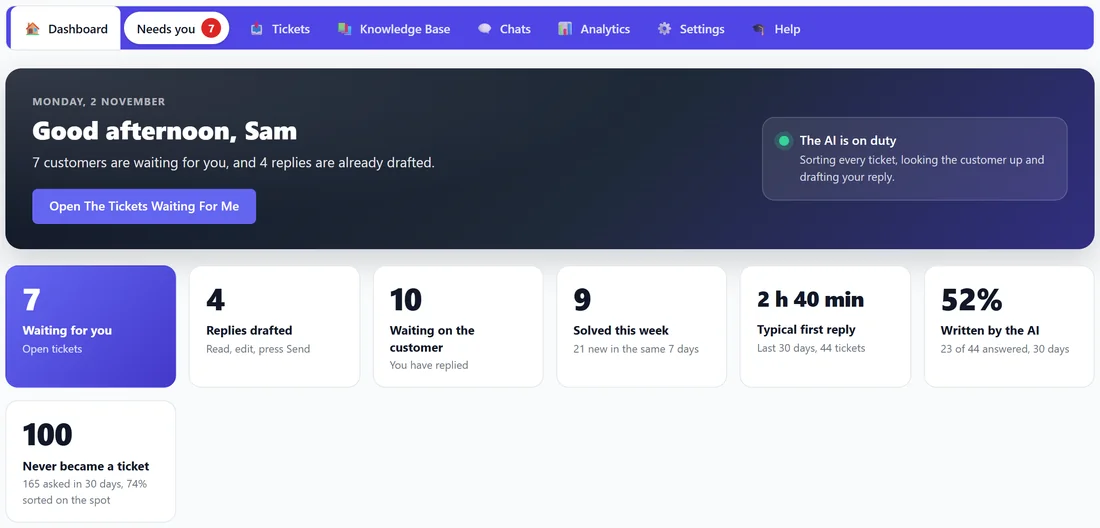
A greeting with today's date, then one plain sentence, for example "7 customers are waiting for you, and 4 replies are already drafted." Open The Tickets Waiting For Me opens that list. A panel on the right says whether the AI is on duty. With no AI key saved yet it says so and links straight to the step that connects one.
The seven numbers:
Each number is a link to the tickets behind it.
- Waiting for you: your open tickets.
- Replies drafted: open tickets where the AI's reply is written and only needs you to read it and press Send.
- Waiting on the customer: you have replied and the next move is theirs.
- Solved this week, with how many new tickets arrived in the same 7 days.
- Typical first reply: the middle value of the last 30 days, not the average, so one ticket answered after a holiday does not make a fast desk look slow.
- Written by the AI: the share of the last 30 days' answered tickets whose replies the AI wrote, sent by itself or by you.
- Never became a ticket: how many people asked your contact page in 30 days, and the share that were sorted on the spot.
What your AI did:
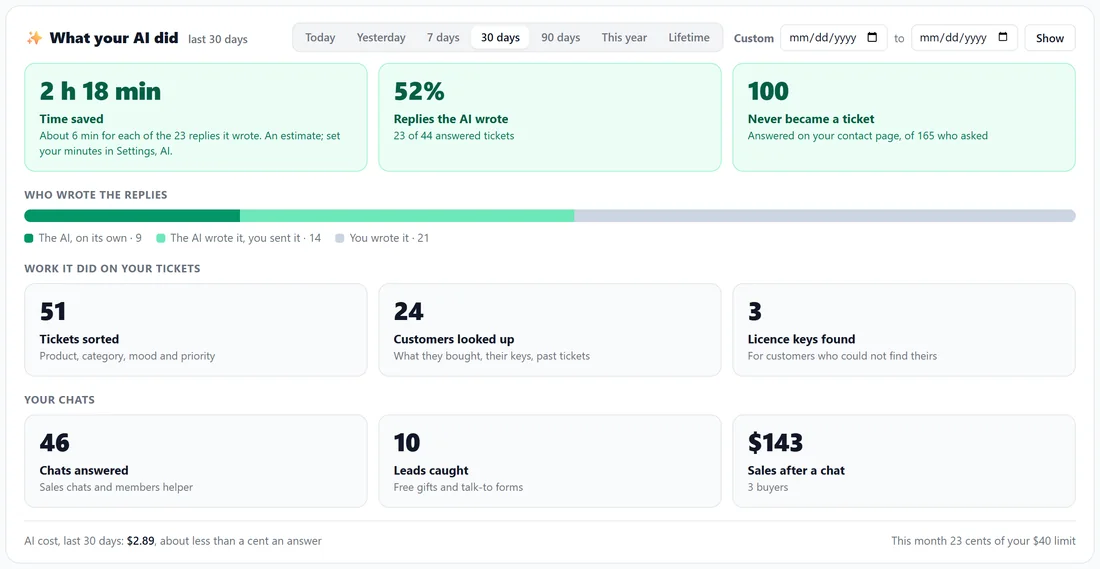
This panel covers the dates you pick at its top: Today, Yesterday, 7 days, 30 days, 90 days, This year, Lifetime, or Custom with your own two dates. It starts on 30 days.
- Time saved: replies the AI wrote times your minutes per reply. You set the minutes under Settings, AI, The time it saves you; 6 is the default.
- Replies the AI wrote, out of all answered tickets.
- Who wrote the replies: a bar split into the AI on its own, the AI with you pressing Send, and you.
- Work it did on your tickets: tickets sorted, customers looked up and licence keys found.
- Your chats: chats answered, leads caught, and sales after a chat.
- A footer line with the AI cost for those dates, about how much one answer costs, and this month against your monthly limit.
Four lists of tickets:
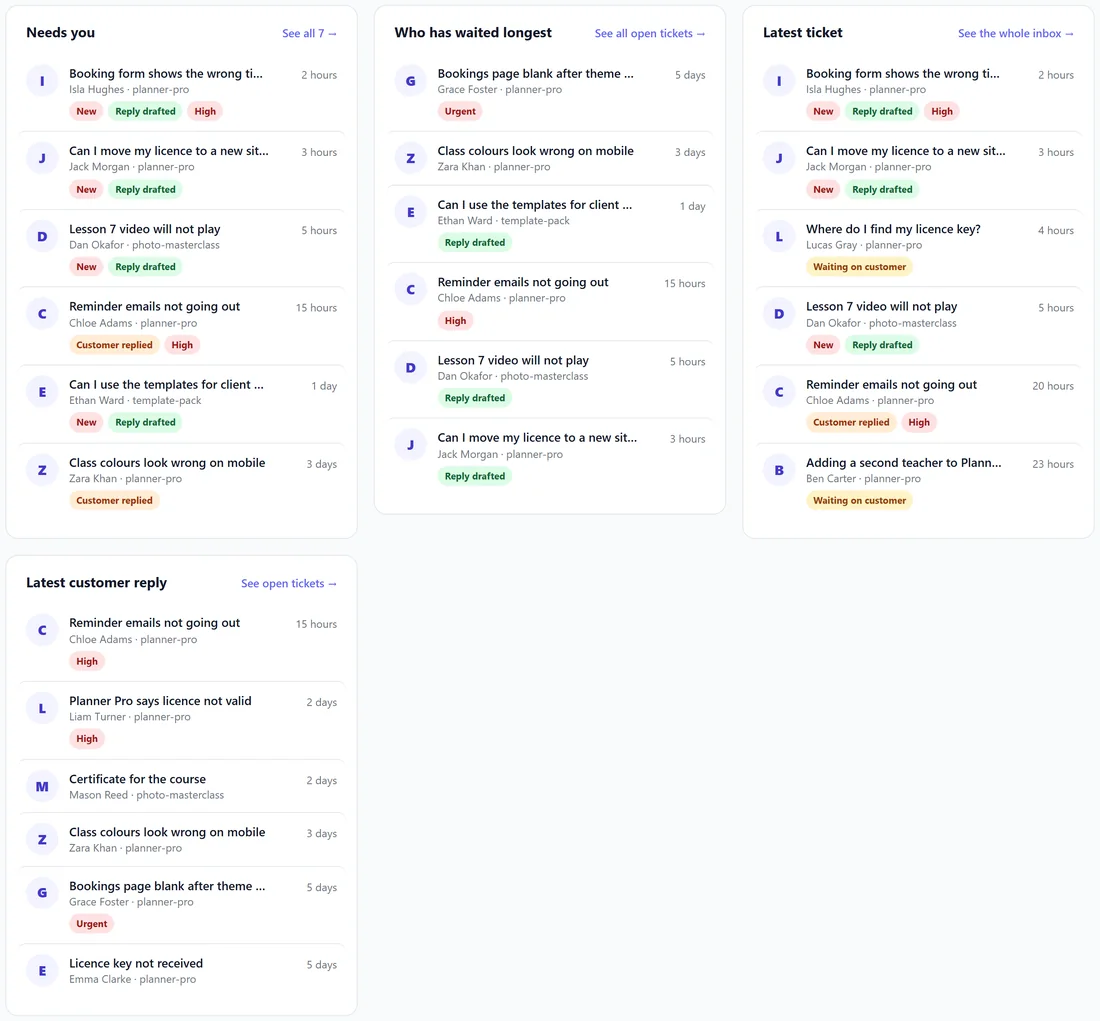
Up to six tickets in each, with the customer's name, the product and how long ago.
- Needs you: every open ticket waiting on you, the one that moved most recently first.
- Who has waited longest: the same pile from the other end, oldest first.
- Latest ticket: the newest ticket, whatever state it is in.
- Latest customer reply: ordered by the customer's own last message.
Each ticket says where it stands in words: New, Customer replied, Waiting on customer and so on. A green Reply drafted tag marks the ones that only need you to press Send, and a High or Urgent tag shows where it applies.
The chart:
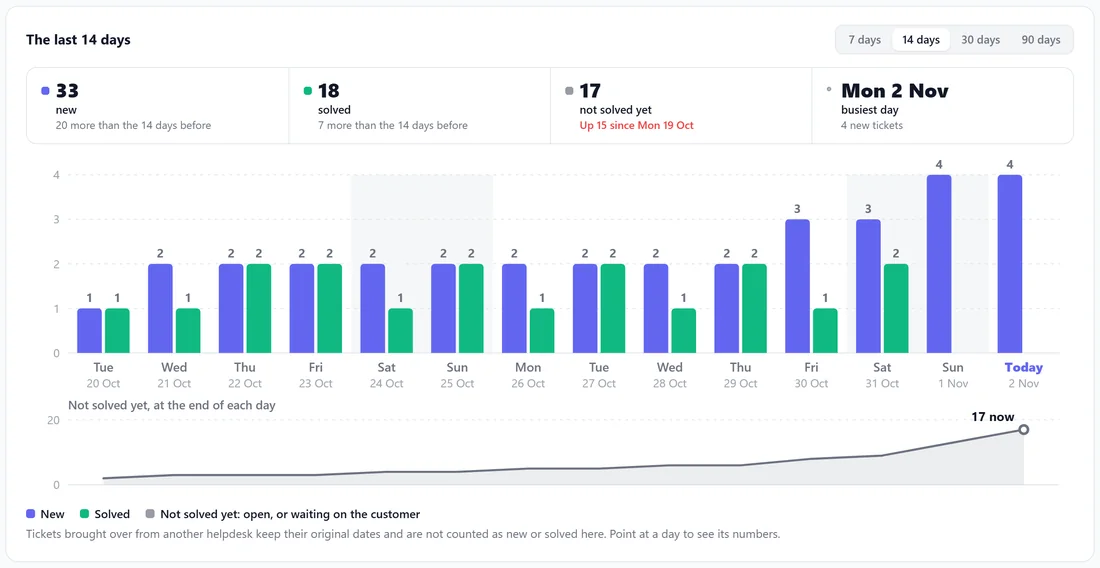
Pick 7 days, 14 days, 30 days or 90 days; 14 is where it starts and the desk remembers your choice. The summary row shows new tickets, solved tickets and tickets not solved yet, each compared with the days before, plus your busiest day. Bars show new and solved tickets day by day with weekends shaded and today marked. A line underneath shows how many tickets were still not solved at the end of each day. Point at a day to see its numbers.
Tickets brought over from another helpdesk keep their original dates and are never counted as new or solved here, and spam is never counted.
Getting set up:
Until the five essentials are done, a ring on the Dashboard fills as you go: your name and reply address, the AI, your customer pages, something to answer from, and a first ticket. Anything not ticked is a link. Once all five are done, the panel leaves the Dashboard so the screen is about your tickets.
The rest of the screen:
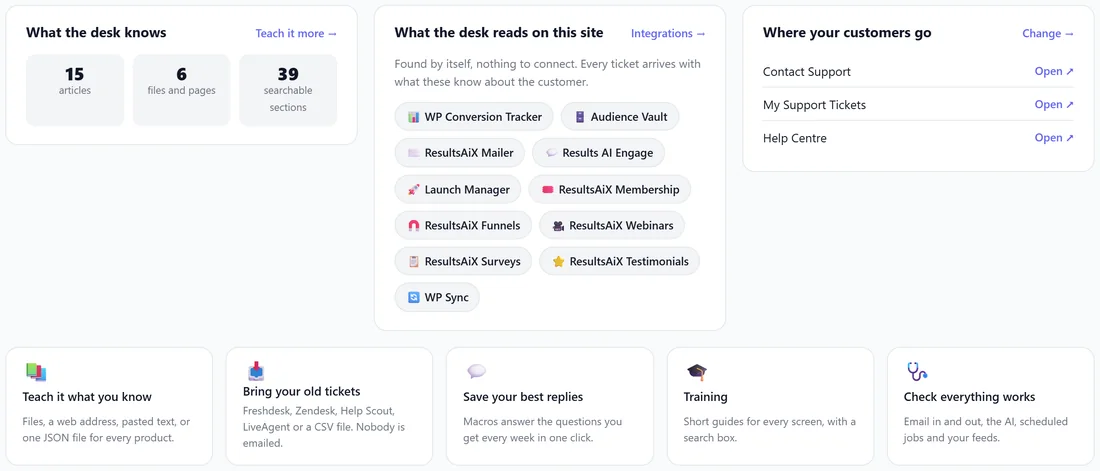
- What the desk knows: articles, files and pages, and how many searchable sections they make. Teach it more opens the Knowledge Base.
- What the desk reads on this site: the ResultsAiX plugins it found and reads, with a link to Integrations.
- Where your customers go: links to your Contact Support, My Support Tickets and Help Centre pages.
- Shortcuts: Teach it what you know, Bring your old tickets, Save your best replies, Training, and Check everything works.
Reading the numbers:
- Waiting for you is the pile to clear. If it grows faster than Solved this week, look at What people write about on Analytics for the questions worth a help article.
- Replies drafted is the quickest win of the day. Each one takes seconds.
- Typical first reply shows after your first reply. Under a few hours is good for a small team.
- Written by the AI climbs as your knowledge base grows. Shows after your first replies until there is enough to count.
- Never became a ticket counts people who asked your contact page and pressed That sorted it, and the share against those who still opened a ticket.
Step by step, a morning on the Dashboard:
- Read the sentence at the top: how many are waiting, how many drafted.
- Press Replies drafted and send the ones that are right.
- Go back and open Who has waited longest; answer the oldest first.
- Glance at Latest customer reply for anybody who wrote back overnight.
- Look at the chart's not solved yet line. Going down means you are ahead.
Picking dates for What your AI did:
Press any of Today, Yesterday, 7 days, 30 days, 90 days, This year or Lifetime, or type two dates under Custom and press Show. The panel works its figures out again for those dates. Days for AI costs are counted in UTC, the clock the AI services bill by.
Where amounts show:
The Dashboard never shows what any customer spent. The only money on it is your own AI cost and, under Your chats, sales that followed a chat.
On a phone:
The numbers stack two to a row, the lists one under another, and the chart scrolls sideways starting at today.
A real example:
Sam opens the Dashboard on Monday afternoon. It says 7 customers are waiting and 4 replies are drafted. The AI saved 2 hours 18 minutes over the last 30 days and wrote 52 percent of the replies. Sam clicks Replies drafted, reads four drafts, presses Send on three and edits one.
What counts as answered:
A ticket counts once in Who wrote the replies. If the AI wrote a reply you sent, it counts as the AI with you pressing Send. If the AI answered by itself, it counts as the AI on its own. If you wrote every reply, it counts as you. Tickets brought over from another helpdesk and spam are left out.
How time saved is worked out:
Every reply the AI wrote that went to a customer, by itself or through you, times your minutes per reply. A long thread with three AI replies counts three times. Change the minutes under Settings, AI, The time it saves you, and the figure follows.
How the AI cost line is worked out:
The cost for the dates you picked, from your AI log at each model's own rates, divided by every answer the AI gave in that time: replies, chat answers and contact page answers. This month and your limit come from Settings, AI.
Tips:
- Work from Replies drafted first. They take seconds each.
- Then clear Who has waited longest, so nobody waits two days.
- If Written by the AI stays low, add knowledge. See Feeding It Your Own Documentation, And The Search That Answers.