Notifications are short messages with a button that show on the pages you pick, for the people you pick, between two dates. A new lesson is up, a live call starts tonight, a new product is out: say it once, to the right people, where they will see it. They are messages on your pages, not emails.
Where to find it:
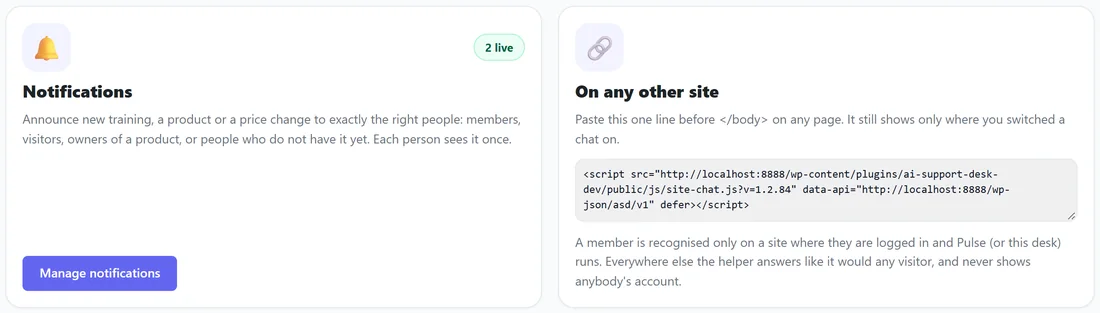
Open Chats on the desk's menu bar. On the Notifications card press Add a notification. Once you have some, the card says how many are live and the button reads Manage notifications.
Adding a notification:
- Press + Add a notification.
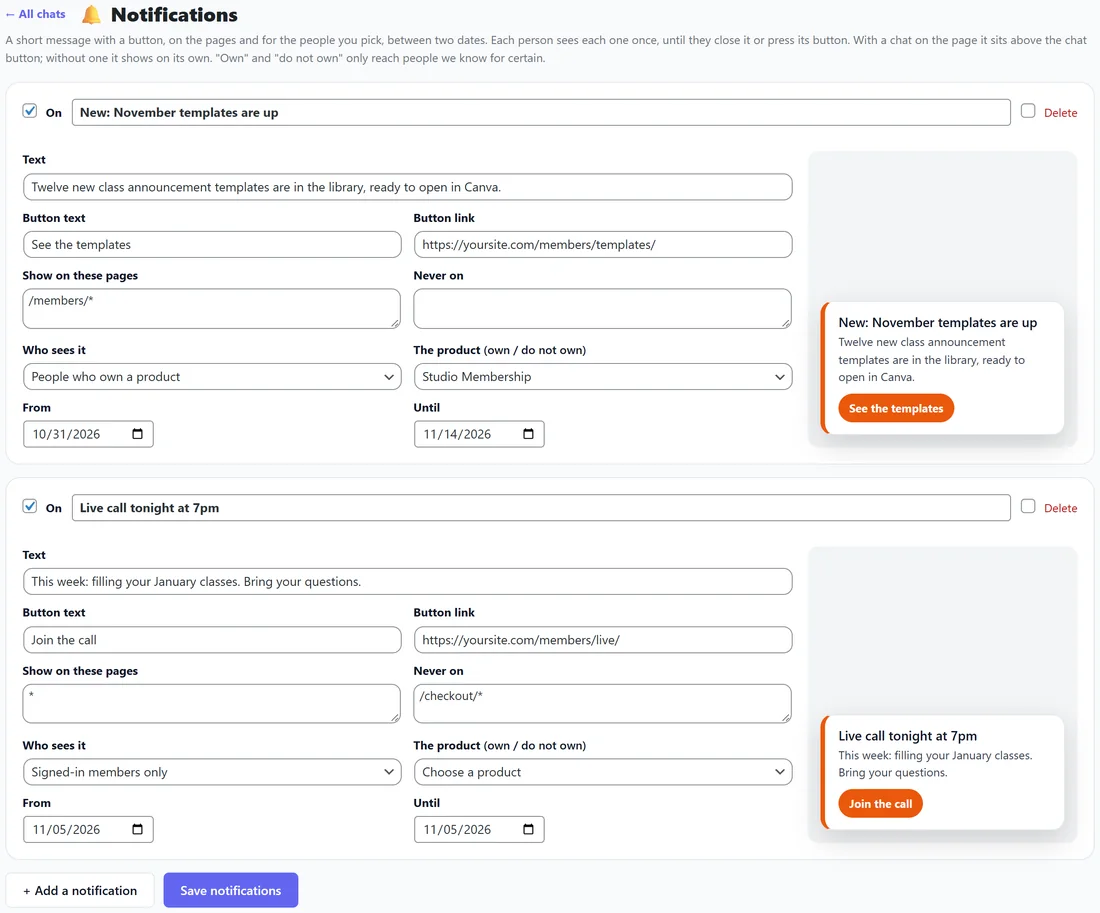
- Type a title, up to 90 characters, for example "New: November templates are up".
- Write the text, one or two short sentences, up to 300 characters.
- Fill in Button text and Button link. The button only appears when both are filled in. A link to another site opens in a new tab.
- Choose the pages under Show on these pages, and any to leave out under Never on.
- Pick Who sees it, and a product if it asks for one.
- Set From and Until if it should only run for a while.
- Press Save notifications.
Every setting:
- On: ticked by default. Untick it to pause a notification without losing it.
- Show on these pages: one page a line, read the same way as a chat's pages. A line starting with / matches that path on any of your sites, /* covers a page and everything under it, and * means every page. A notification with nothing here shows nowhere.
- Never on: pages to leave out. It wins over Show on these pages.
- Who sees it: Everybody, Signed-in members only, Visitors who are not signed in, People who own a product, or People who do not own a product yet.
- The product (own / do not own): needed for the last two choices. They only reach people the desk knows for certain; somebody it cannot be sure about sees neither.
- From and Until: both optional. A notification shows from the first moment of the first day to the last moment of the last.
- Delete: tick it and save to remove the notification.
A live preview beside each notification shows the title, the text and the button as you type. You can keep up to 40.
On your pages:
One notification shows at a time: the first one that matches and has not been seen. With a chat on the page it sits above the chat button; without one it shows on its own. Each person sees it once per browser, until they close it or press its button.
Good values:
- Title: what is new, in under eight words.
- Text: one sentence of why it matters to this person.
- Button text: the action, such as See the templates or Join the call.
- Who sees it: the narrowest group that should know. Everybody is rarely right.
- From and Until: always set an end date for anything about a date, so it never lingers.
How a notification and a chat share the page:
With a chat on the page, the notification sits above the chat button with a small count. Opening the chat from a notification is counted on Reports under How people started, so you can see whether your notifications start conversations.
Editing and removing:
Change any field and press Save notifications. Untick On to pause one and keep it for later. Tick Delete and save to remove it for good.
A real example:
Sam adds two notifications. New: November templates are up shows on /members/* to People who own a product, Studio Membership, for two weeks, with a See the templates button. Live call tonight at 7pm shows on * to Signed-in members only, on the day of the call, with a Join the call button and Never on /checkout/*.
Tips:
- Keep the title short and the button clear; people decide in a second.
- Use People who do not own a product yet to tell visitors about something new without bothering those who have it.
- Testing? Open the page in a private window, because once you close a notification your browser remembers.
- See Chats: A Sales Chat And A Members Helper On Your Pages for how page lines work.