The Import screen moves an existing helpdesk into the desk. It reads your whole history, however far back it goes, keeps every original date, and is safe to run on a live desk. Importing never emails anybody and never wakes the AI.
Where to find it:
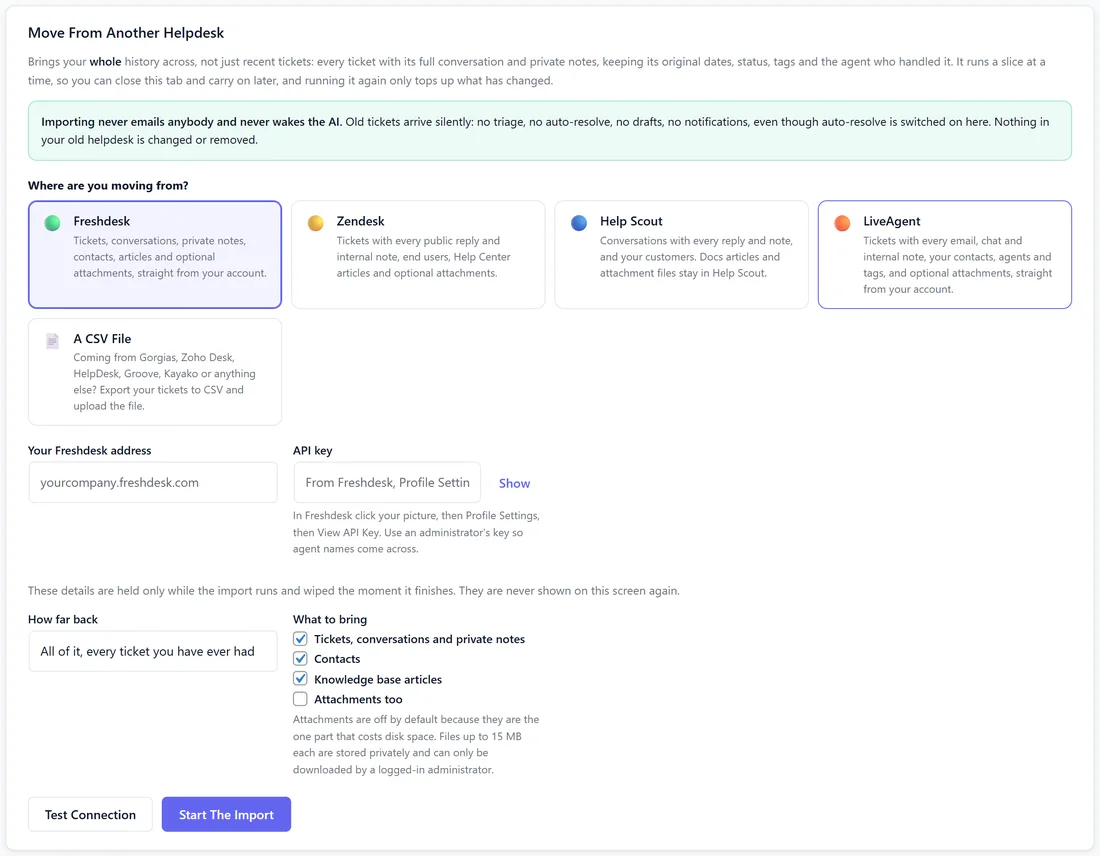
Open Tickets on the desk's menu bar, then Import. Start under Where are you moving from?
Freshdesk:
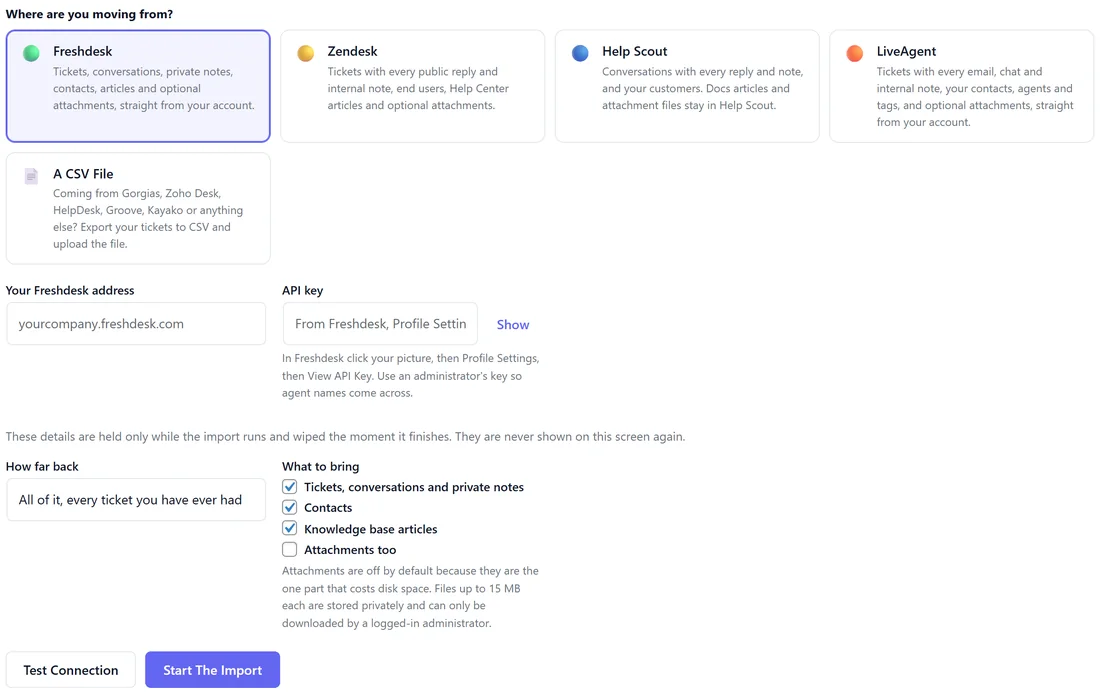
You need Your Freshdesk address and an API key. In Freshdesk click your picture, then Profile Settings, then View API Key. Use an administrator's key so agent names come across. It brings tickets with their conversations and private notes, contacts, solution articles and, if you tick it, attachments.
Zendesk:
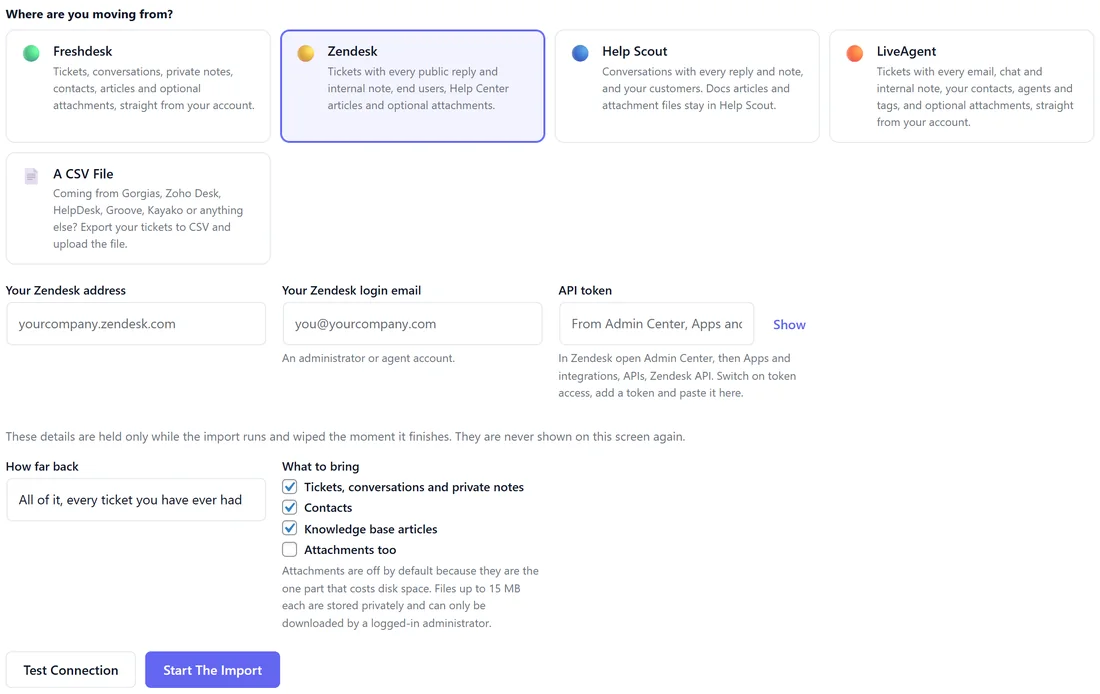
You need Your Zendesk address, Your Zendesk login email and an API token. In Zendesk open Admin Center, then Apps and integrations, then APIs, then Zendesk API; switch on token access and add a token. It brings tickets with every public reply and internal note, your end users, Help Center articles and, if you tick it, attachments.
Help Scout:
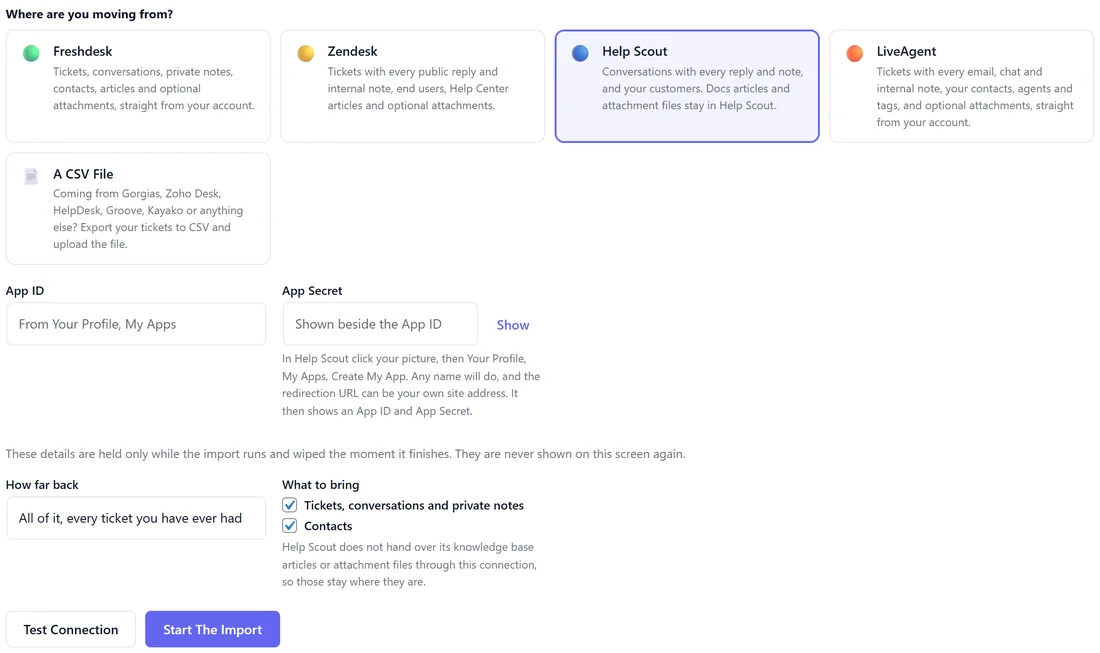
You need an App ID and App Secret. Click your picture, then Your Profile, then My Apps, then Create My App; any name will do. It brings every conversation in every status with its replies and notes, and your customers. Docs articles and attachment files stay in Help Scout, and the form says so.
LiveAgent:
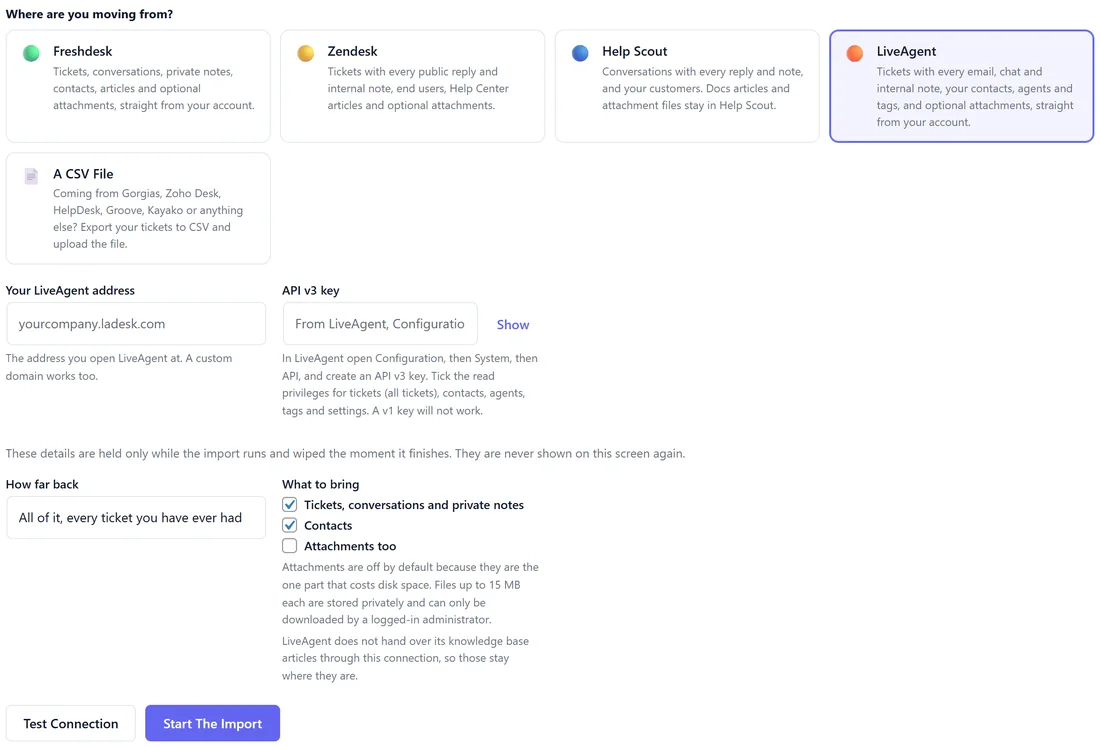
You need Your LiveAgent address and an API v3 key. In LiveAgent open Configuration, then System, then API, create an API v3 key and tick the read rights for tickets (including all tickets), contacts, agents, tags and settings. It brings every ticket with each email, chat line and internal note, your contacts, agents and tags and, if you tick it, attachments. Times arrive as they happened, in your LiveAgent account's time zone. A very large account is read window by window, in date order, with nothing missed or doubled.
Anything else, by CSV:
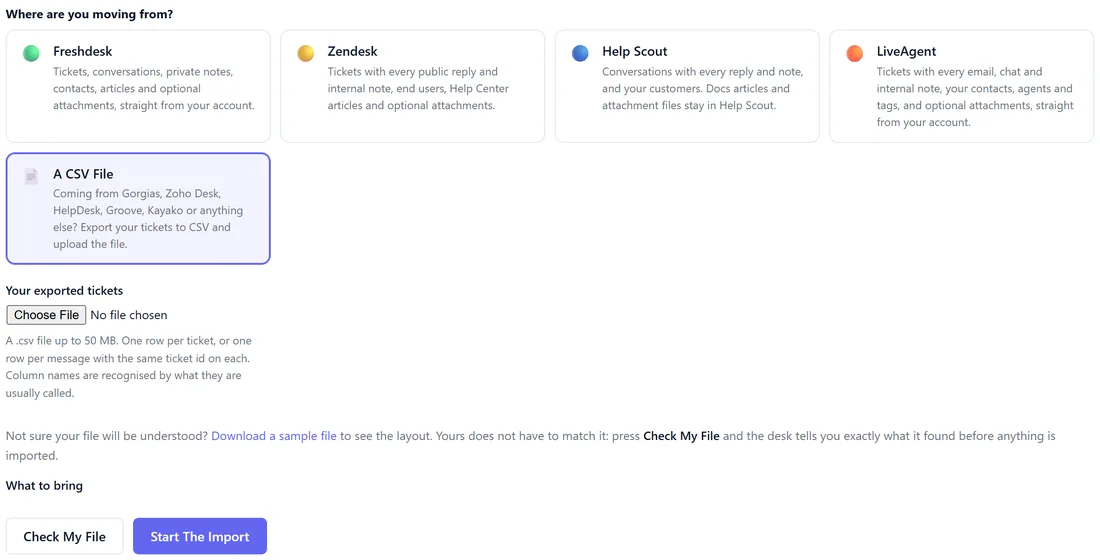
Gorgias, Zoho Desk, HelpDesk, Groove, Kayako and most other helpdesks can export tickets to a CSV file.
- Choose A CSV File, then choose the file under Your exported tickets.
- Press Check My File. Before anything is imported, the desk says how many rows and tickets it found, which columns it understood and which it will not use, and shows the first few tickets.
- Press Start The Import.
One row per ticket works, and so does one row per message with the same ticket id on each. Download a sample file from the screen to see the layout. With no status column, every ticket arrives as closed, so nothing old lands in your open queue.
The options:
- How far back: All of it, every ticket you have ever had; The last 3 years; The last 12 months; or The last 90 days.
- What to bring: Tickets, conversations and private notes; Contacts; Knowledge base articles; Attachments too. Attachments are off by default because they take disk space; files up to 15 MB each are stored privately and only an administrator can open them.
Press Test Connection, then Start The Import.
What every import keeps:
- The original created, updated and closed dates, and the date on every message.
- Status, priority, tags and the channel the ticket came in on.
- The agent who handled it, by name. If they have a WordPress account here under the same email, the ticket is assigned to them.
- Contacts, matched by email so nobody is doubled.
- Phone, chat and social tickets with no email address, kept under a placeholder address that can never be mailed.
Nobody is emailed and the AI is not run:
Imported tickets arrive silently: no sorting, no auto-resolve, no drafts and no notifications, even with sending switched on. Nothing in your old helpdesk is changed or removed.
Stopping and carrying on:
Your place is saved as it goes. Press Stop after this batch, close the tab or lose your connection, then come back and press Continue The Import. When the other side asks for a pause, the progress window counts it down and carries on. If it stops answering altogether, the import stops with the reason and Try again from here picks up at the same ticket.
Running it again:
Every ticket, message and article remembers where it came from, so nothing is brought in twice. A second run skips what has not changed and tops up tickets with new replies. Import a week before you switch over, then once more on the day.
Your details:
Keys and tokens are held only while an import is running, so Continue works, and are wiped when it finishes or you press Forget This Import. They are never shown on this screen again.
What Has Come Across:

A panel per source shows how many tickets came across. Take This Import Back Out removes every ticket, message, file and article from that source, and nothing else. Tickets raised here are untouched and contacts are kept.
Reindex Knowledge Base:
At the foot of the screen, Reindex KB rebuilds the whole search index and says how many articles it covered. Use it if search ever seems out of date.
Step by step, a Freshdesk move:
- Open Tickets, Import and choose Freshdesk.
- Type Your Freshdesk address and paste the API key.
- Leave How far back on All of it and tick what to bring.
- Press Test Connection, then Start The Import.
- Watch the progress window. Close the tab if you like and come back to press Continue The Import.
- When it finishes, open the Inbox: imported tickets are there with their old dates, but Still to do shows only today's work.
A real example:
Yoursite Studio moved from Freshdesk. Sam pasted the address and an administrator's API key, left How far back on All of it, and pressed Start The Import. Six old tickets came across with their original dates and Sam as the agent, and none of them showed as new on the Dashboard chart.
Good to know:
- Imported tickets never run triage, auto-resolve or drafts. Use Sort It Again on any you want sorted.
- Imported tickets are never solved by themselves under When a customer goes quiet.
- Contacts are matched by email, so a customer who also writes in on the new desk has one history.
- An uploaded CSV is removed from the server when its import finishes.
Tips:
- Import before you announce the new contact page, then once more on the day you switch.
- Imported tickets are never counted as new or solved in your reports.