The AI is what sorts your tickets, looks your customers up, drafts your replies and answers your chats. It runs on your own account with Claude (Anthropic), OpenAI or Google Gemini. You pay that service directly for what you use, and nobody marks it up. Without a key the desk is still a full helpdesk; it just does not sort, draft or answer by itself.
Every AI feature works on all three services: sorting, drafts, auto-resolve, help page answers, the contact page chat, the sales chats, the members helper, saved replies and the database mapper.
Where to find it:
Open Settings on the desk's menu bar, then the AI tab. The page has six parts: Your AI services, What the AI does by itself, Your monthly limit, The time it saves you, Which models, and What the AI costs you.
Your AI services:
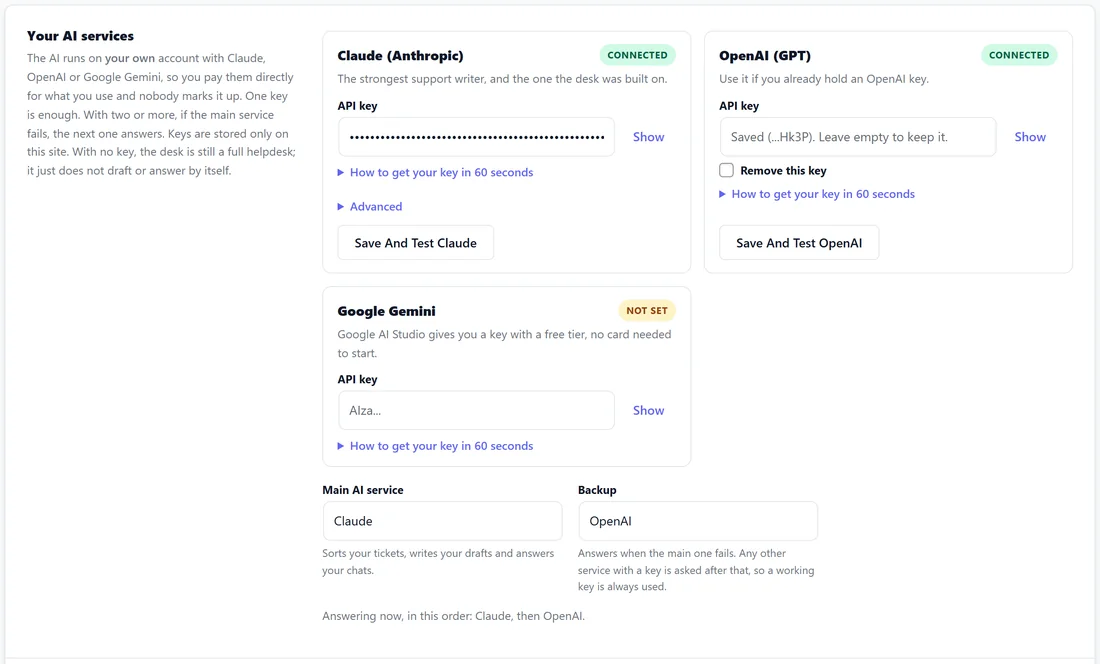
There is a card for Claude (Anthropic), OpenAI (GPT) and Google Gemini. Each shows Connected or Not set, an API key box, and How to get your key in 60 seconds.
Getting a key:
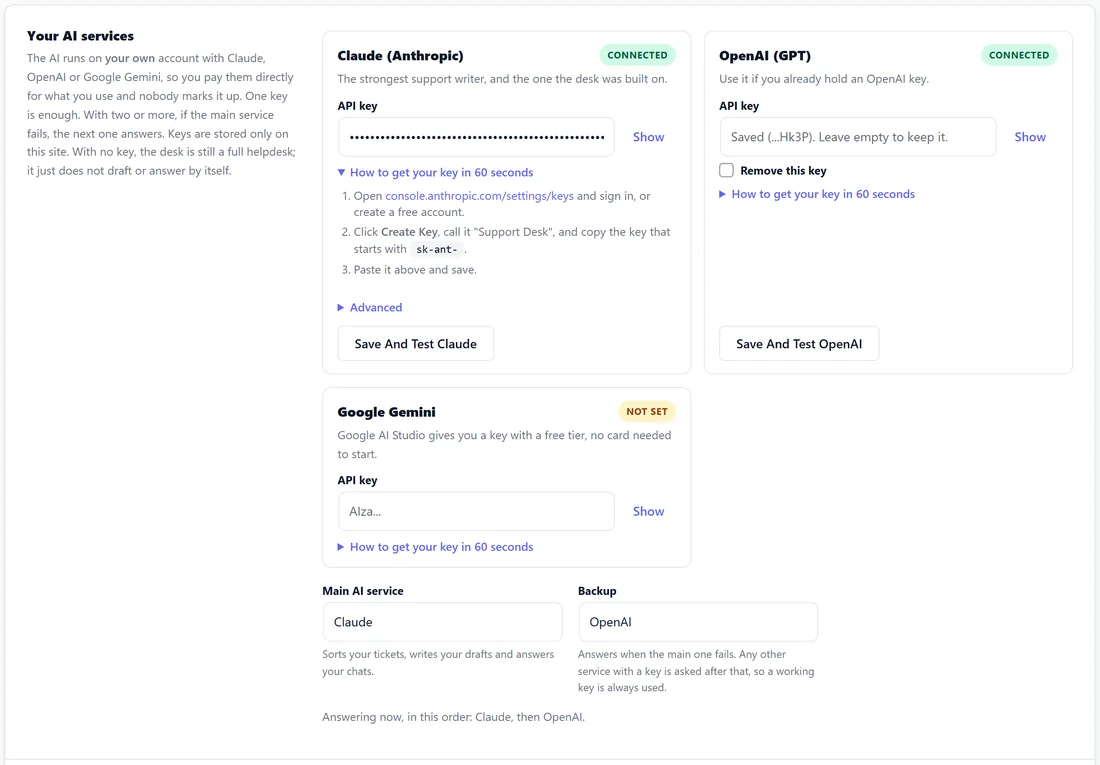
- Claude: open console.anthropic.com/settings/keys, press Create Key, call it Support Desk, and copy the key that starts with sk-ant.
- OpenAI: open platform.openai.com/api-keys, add a little credit under Billing if you have not already, press Create new secret key and copy the key that starts with sk-.
- Gemini: open aistudio.google.com/apikey, press Create API key and copy the key that starts with AIza. Google AI Studio has a free tier.
Paste the key into its card and press Save Settings, or the card's own Save And Test button. Pasted it into the wrong card? The desk tells the three apart by how they start and saves each where it belongs. A saved key shows only as Saved with its last characters; leave the box empty to keep it, or tick Remove this key to clear it. The OpenAI and Gemini keys are stored encrypted.
Save And Test saves the page, sends that one service a tiny test and shows its answer, the model that answered and how long it took, or the service's own words if it failed.
A key you already saved in another plugin:
If another ResultsAiX plugin on the site already holds a key, for example AiX Webinars or AiX Mailer, the top of the page offers Use This Key. One press and the desk uses it too. Only the key's last four characters are ever shown.
Main service and backup:
- Main AI service picks the service that sorts your tickets, writes your drafts and answers your chats.
- Backup picks the one asked when the main one fails: a wrong key, no credit left, or the service down.
After that, any other service with a key is asked, so a working key is always used. A line under the pickers says the order in words, for example "Answering now, in this order: Claude, then OpenAI."
What the AI does by itself:
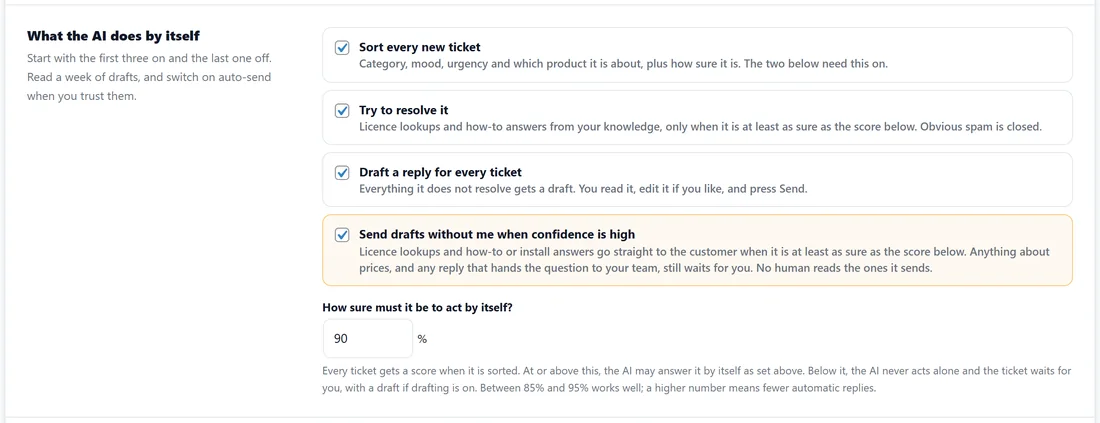
Four switches decide how far the AI goes without you.
- Sort every new ticket: category, mood, urgency and which product it is about, plus how sure it is. The two below need this on.
- Try to resolve it: licence lookups and how-to answers from your knowledge, only when it is at least as sure as your score. Obvious spam is closed.
- Draft a reply for every ticket: everything it does not resolve gets a draft. You read it, edit it and press Send.
- Send drafts without me when confidence is high: licence lookups and how-to or install answers go straight to the customer when the AI is at least as sure as your score. Anything about prices, and any reply that hands the question to your team, still waits for you. No human reads the ones it sends.
Start with the first three on and the last one off. Read a week of drafts, then switch on sending when you trust them.
How sure must it be to act by itself?
Every ticket gets a score when it is sorted. Type the bar as a percentage: 90 means 90 percent. At or above it, the AI may answer by itself as the switches allow. Below it, the AI never acts alone and the ticket waits for you, with a draft if drafting is on. The default is 85. Between 85 and 95 works well; a higher number means fewer automatic replies.
Your monthly limit:
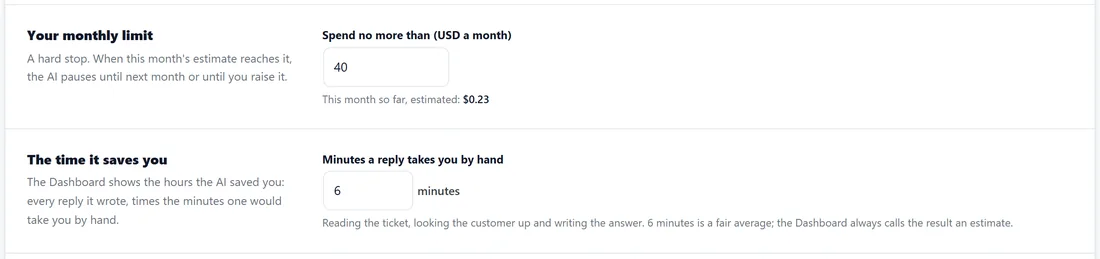
Spend no more than (USD a month) is a hard stop, 50 by default. When this month's estimate reaches it, AI calls pause until next month or until you raise it. Tickets keep arriving as normal. This month so far is printed under the box.
The time it saves you:
Minutes a reply takes you by hand, 6 by default. The Dashboard multiplies it by every reply the AI wrote to show the time saved, and always calls it an estimate.
Which models:
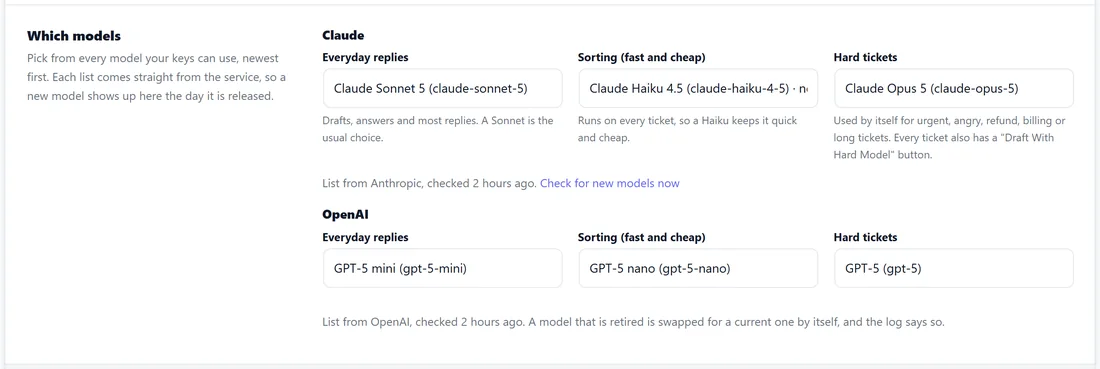
For Claude and for each other service with a key there are three lists:
- Everyday replies: drafts, answers and most replies. A Sonnet is the usual choice; the default is Claude Sonnet 5.
- Sorting (fast and cheap): runs on every ticket, so a Haiku keeps it quick; the default is Claude Haiku 4.5.
- Hard tickets: used by itself for urgent, angry, billing or long tickets, and when sorting was unsure. Every ticket also has a Draft With Hard Model button. The default is Claude Opus 5.
For OpenAI the defaults are GPT-5 mini, GPT-5 nano and GPT-5.
Each list holds the models your key can use, newest first, read from the service itself, so a new model appears the day it is released. A line underneath says when the list was read; it is read again every 12 hours, and Check for new models now reads it on the spot. The model you saved always stays in its list, so opening the page never changes a setting behind your back. If a model you chose is retired, the desk answers with a current model of the same service and the AI log says which one was used.
When a service is busy:
- A moment of overload or a rate limit is waited out and tried again, up to three times.
- A key with no credit left goes straight to your backup.
- A reply that runs out of room is asked for again with more space, so customers never get half an answer.
- If every service fails, the log gives each one's own words.
What the AI costs you:
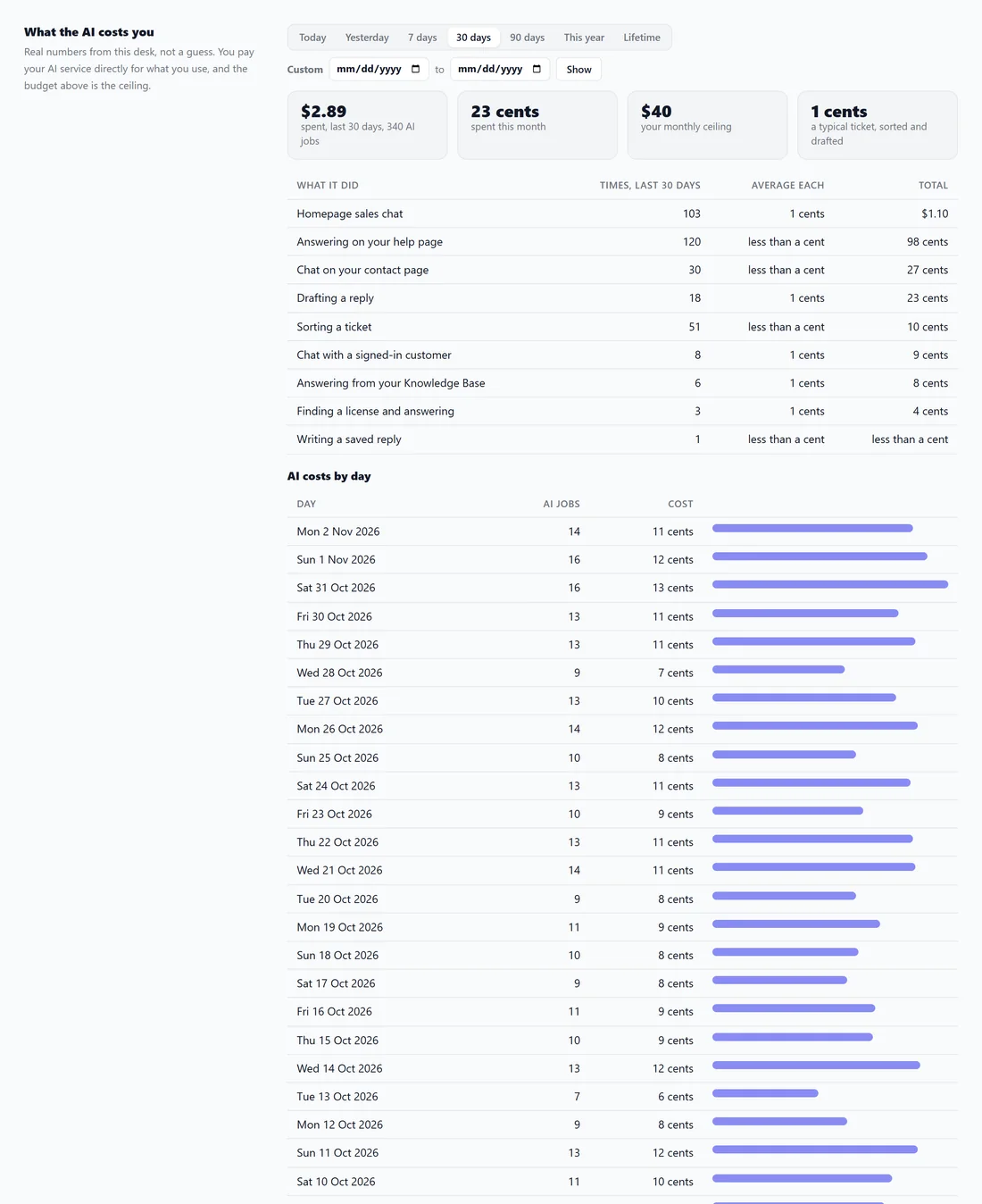
Real numbers from your own desk for the dates you pick: what was spent and how many AI jobs ran, what has been spent this month, your monthly ceiling, and what a typical ticket costs to sort and draft. A table lists each kind of job with how many times it ran, the average cost and the total. AI costs by day lists every day with AI work, newest first. A line under it works out what 100 tickets a month would come to at that rate.
Costs are worked out per model at each service's own list rates for the tokens actually used. A model the desk has no rate for is counted at the dearest rate of its family, never as free, so the limit can only stop early. Your own bill is on your AI service's console.
Advanced, a custom API address:
The Claude card has an Advanced drawer for a custom API address, for example a gateway you run in front of Anthropic. It must be a full address starting with https:// (http:// only for localhost or a .local name), with no ? or # part. An address that is not safe is refused and the one saved before is kept. Leave it empty to talk to Anthropic directly.
Models that think before they answer:
Models that reason first, such as Claude Opus 5.5, GPT-5 and the newest Gemini models, are told to think lightly on everyday work and harder on hard tickets, and are given enough room so a reply is never cut off. A thinking setting a model does not accept is dropped and the request sent again, so it can never fail a reply.
How calls are made:
- Claude requests use prompt caching, so the parts of a prompt that repeat, such as knowledge base passages, cost less the second time.
- OpenAI and Gemini cache repeated text by themselves.
- Forms the AI fills in, such as sorting a ticket, are sent as functions it must fill in, so the answer always comes back in the same fields.
- Every call is logged with the model actually used, tokens in and out, cache tokens, how long it took and any error, in the service's own words. Costs are worked out from that log.
If the AI declines:
If a service declines a request, nothing is sent, the ticket stays with you, and the log gives the service's own reason. A declined message is never passed to another service.
Choosing models, in short:
- Sorting runs on every ticket, so the fastest, cheapest model is right.
- Everyday replies are most of the cost and most of the quality; a mid model such as a Sonnet is the usual balance.
- Hard tickets are few, so the strongest model costs little overall.
- Mixing services is fine: for example Claude for replies and a backup on OpenAI.
Step by step, adding a backup:
- Get a second key from another service.
- Paste it into that service's card.
- Under Backup, pick that service.
- Press Save Settings, then that card's Save And Test.
- Read the line under the pickers to confirm the order.
What counts towards the monthly limit:
Every AI job: sorting, drafts, auto-resolve, help page answers, contact page chats, sales chats, the members helper, saved replies and tests. The limit is checked before each call, from the log, at each model's own rate.
A real example:
Sam pastes a Claude key and an OpenAI key, sets Main AI service to Claude and Backup to OpenAI, sets the score to 90 and the monthly limit to 40. With all four switches on, licence questions at 90 percent or more are answered by themselves, and everything else waits as a draft. After 30 days, What the AI costs you shows a few dollars for the whole month.
If a model is retired:
The model you saved stays your setting. When a service retires it, the request is sent again on a current model of the same service: for Claude, Haiku 4.5 in place of a retired Haiku and Sonnet 5 in place of anything else; for OpenAI, GPT-5 mini; for Gemini, its current flash model. Replies keep flowing and the AI log says which model answered. Pick a new model from the list when you next visit.
Reading the cost table:
Each row is one kind of job, named in plain words: Sorting a ticket, Drafting a reply, Drafting a reply (hard model), Answering from your Knowledge Base, Finding a license and answering, Answering on your help page, Homepage sales chat, Chat with a signed-in customer, Chat on your contact page, Writing a saved reply, Improving a saved reply, Reading your own orders table, and Testing the key. Runs, the average cost each and the total for the dates you picked are beside each.
Tips:
- A second key as a backup costs nothing until it is used, and keeps replies flowing if one service has a bad day.
- Raise the score before you switch on sending without you.
- Next, read How AI Triage Classifies Every Ticket and How Auto-Resolve Decides To Answer.