If you sell software with licence keys from your own licence server, the desk can ask that server for a customer's keys while it answers a ticket. Lost key and activation tickets are then answered with real data instead of a request for more information.
Where to find it:
Open Settings, Integrations and scroll to For developers and special setups. Open License servers for software you sell. A ResultsAiX Commerce licence server has its own row just above, ResultsAiX Commerce license server.
Adding a licence server:
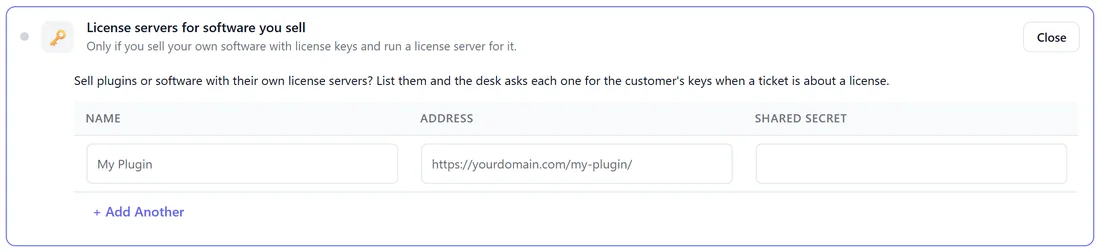
- Under NAME, type the product name customers know, for example Planner Pro. It appears as the product name in the reply.
- Under ADDRESS, type the server's base address.
- Under SHARED SECRET, type the secret you set on your server.
- Press + Add Another for more servers.
- Press Save Integrations at the bottom of the page.
What the lookup sends:
For each server, the desk posts a small JSON body with the customer's email address to a licence lookup address under your base address. The body is signed with your shared secret and the signature is sent in a header, so your server can refuse anything that is not from you.
What it expects back:
A JSON reply with a list of keys. For each key the desk reads the key, its status, its expiry date, and the seats used and allowed. A server that does not answer, or answers with no keys, is skipped quietly and the others still run.
How the result is used:
The keys are handed to the AI with the recorded purchases, with instructions to use only that data, invent nothing, and list each key against its product. If neither your sales nor any licence server returns anything, the AI does not reply and leaves you a private note instead.
This is a simple contract, not a lock-in. Any server of yours that accepts the signed email and returns keys in that shape works.
A ResultsAiX Commerce licence server:
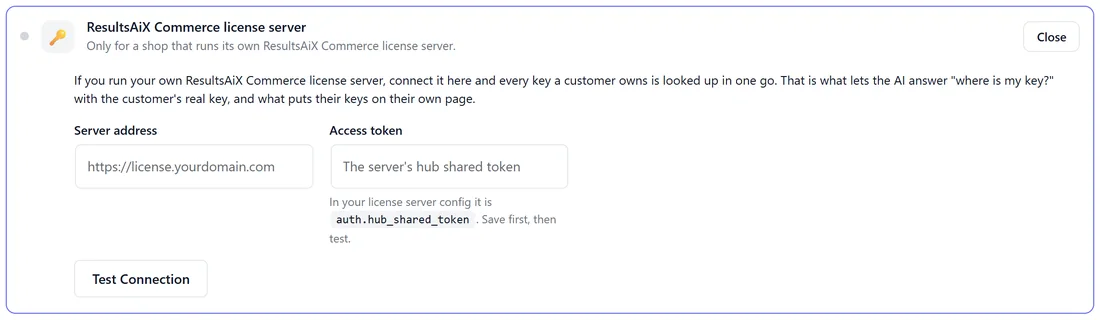
- Open ResultsAiX Commerce license server.
- Type the Server address and the Access token, which is auth.hub_shared_token in your licence server's config.
- Press Save Integrations, then Test Connection.
From then on a licence ticket pulls every key the customer owns in one call.
For your developer:
- The desk posts JSON with the customer's email to a licence lookup address under your base address.
- The body is signed with HMAC-SHA256 using the shared secret, and the signature travels in a header.
- The reply is JSON with a list of keys; for each: the key, status, expiry date, seats used and seats allowed.
- A server that times out or returns nothing is skipped; the others still run.
When it runs:
Only while the desk answers a licence ticket, so your server is asked once per such ticket, not on every page view.
A real example:
Yoursite Studio issues Planner Pro keys from its own licence server. Sam adds a row: Planner Pro, the server address and the shared secret. When Emma writes "my key is not working", the desk asks the server, gets her key with 1 of 3 sites used, and the reply tells her the key is fine and how to reconnect.
Tips:
- Bought under a different email? Add the customer's other address under Linked emails on their contact page and every lookup searches both.
- See How Auto-Resolve Decides To Answer for when the AI answers licence tickets by itself.