Macros are the replies you send every week, saved once. On any ticket, pick one from Insert a saved reply and it drops into the reply box with that customer's name, the product and the ticket number already filled in.
Where to find it:
Open Tickets on the desk's menu bar, then Macros.
Twelve starter replies:

Press Add The 12 Starter Replies and twelve are added in one click, covering licence keys, moving a licence, installing, downloads, logins, missing emails, bug reports, feature requests, checking in, closing and passing a ticket to a specialist. They are general on purpose: each says {{product}} rather than a product name, so the same reply fits everything you sell. Edit any of them to sound like you.
Placeholders:
- {{customer_name}}: the customer's first name.
- {{product}}: the product on the ticket, or "your product" when there is none.
- {{ticket_uid}}: the ticket number.
- {{ticket_subject}}: the ticket's subject.
- {{customer_email}}: their email address.
- {{brand}}: your brand name from Settings, General.
- {{signature}}: your signature from Settings, General.
Start a reply with Hi {{customer_name}}, and end it with {{signature}}.
Adding a macro:
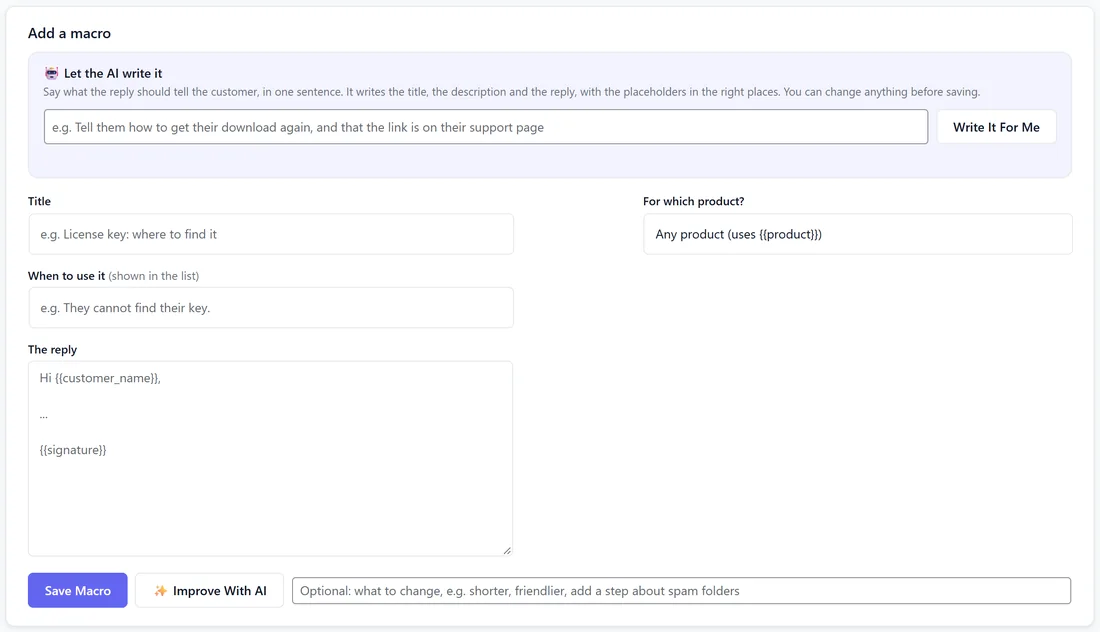
- Type a Title, for example Planner Pro: wrong class times.
- Pick For which product?, or leave it on Any product (uses {{product}}). The list comes from Settings, Products.
- Fill in When to use it (shown in the list), for example "Booking form times are an hour out after the clocks change".
- Write The reply.
- Press Save Macro.
Let the AI write it:
With an AI key connected, type one sentence in the box under Let the AI write it, for example "tell them how to get their download again", and press Write It For Me. The AI writes the title, the description and the reply with the placeholders in the right places. It never invents dates or policies: where it needs a fact it does not have, it leaves a short note in square brackets for you to fill in.
Improve one you have:
Under the reply box, add an optional note such as "shorter" or "add a step about spam folders", then press Improve With AI. It keeps the meaning, every fact and every placeholder, and makes the reply clearer and warmer.
Your macros:
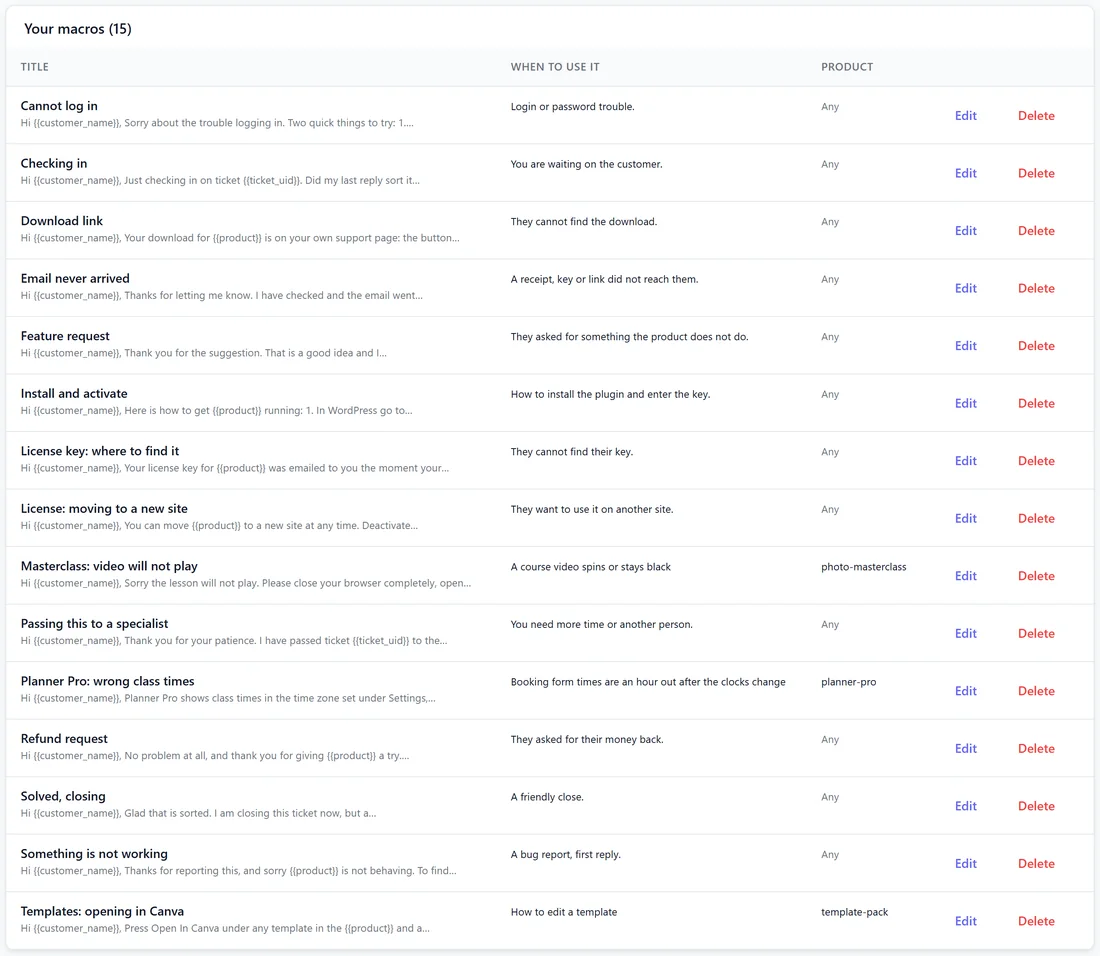
The list shows every macro with its title, when to use it, its product, and Edit and Delete. Edit loads it into the form above; save to keep the changes. Deleting a macro never touches tickets already answered with it.
On a ticket:
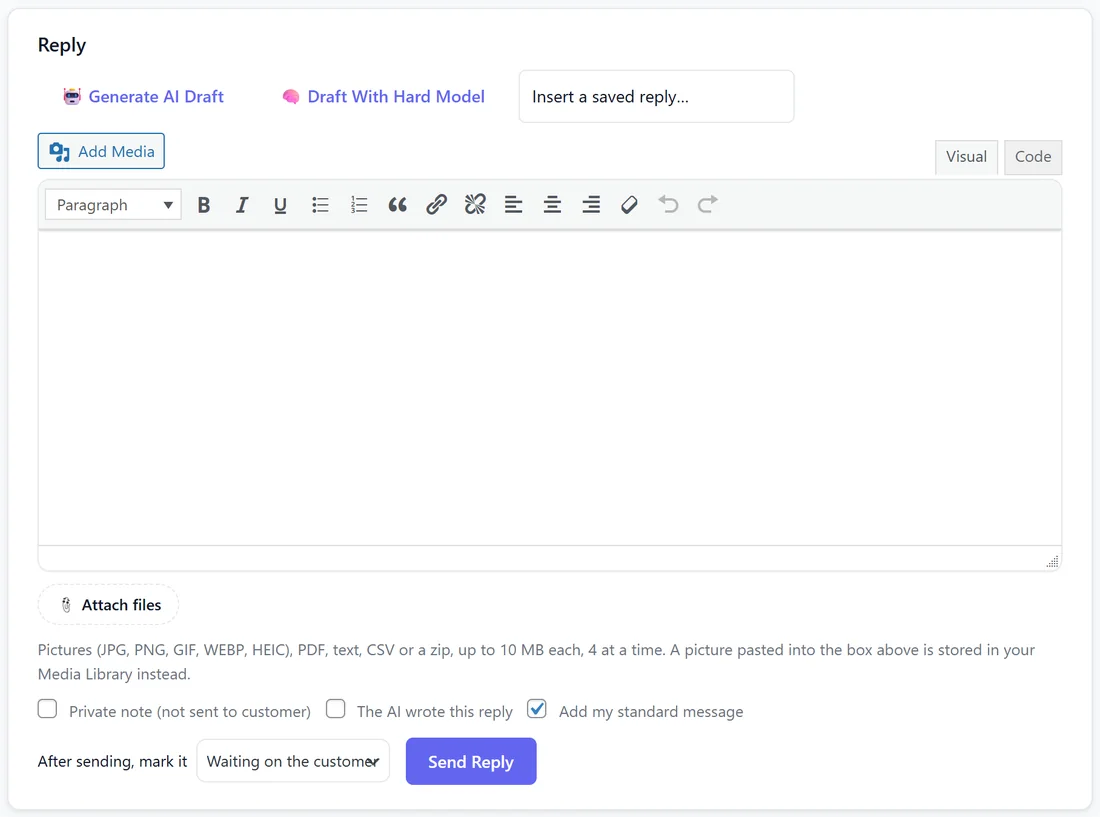
Insert a saved reply lists the macros for that ticket's product first, then the general ones, then the rest. Pick one and it goes into the reply box, filled in, for you to check and send.
Without an AI key:
Everything works except Write It For Me and Improve With AI.
Good macros:
- Write them the way you speak, with Hi {{customer_name}} at the top and {{signature}} at the end.
- Use {{product}} in general macros so one reply fits every product.
- Tie a macro to a product only when the answer is about that product alone.
- Keep When to use it short; it is what you scan in the list.
Editing a macro:
- Press Edit beside it in Your macros.
- It loads into the form above.
- Change what you like and press Save Macro.
A real example:
Sam adds the starters, then writes three for Yoursite Studio's products: Planner Pro: wrong class times, Masterclass: video will not play, and Templates: opening in Canva. On Isla's time-zone ticket, the Planner Pro macro is first in the picker and fills in "Hi Isla".
Tips:
- Keep each macro to one situation, and name it the way you think of it.
- Turn your best replies into knowledge too, so the AI can answer them alone. See Building The Knowledge Base.