Two optional designs turn your support pages into a proper help centre with your own header and footer: the Support Centre for your Contact Support page, and designed pages for every help article. Visitors get one clean place to ask, search and reach a person.
Where to find it:
Open Settings, General. The two designs are under Help article design and Support page design.
The Support Centre:
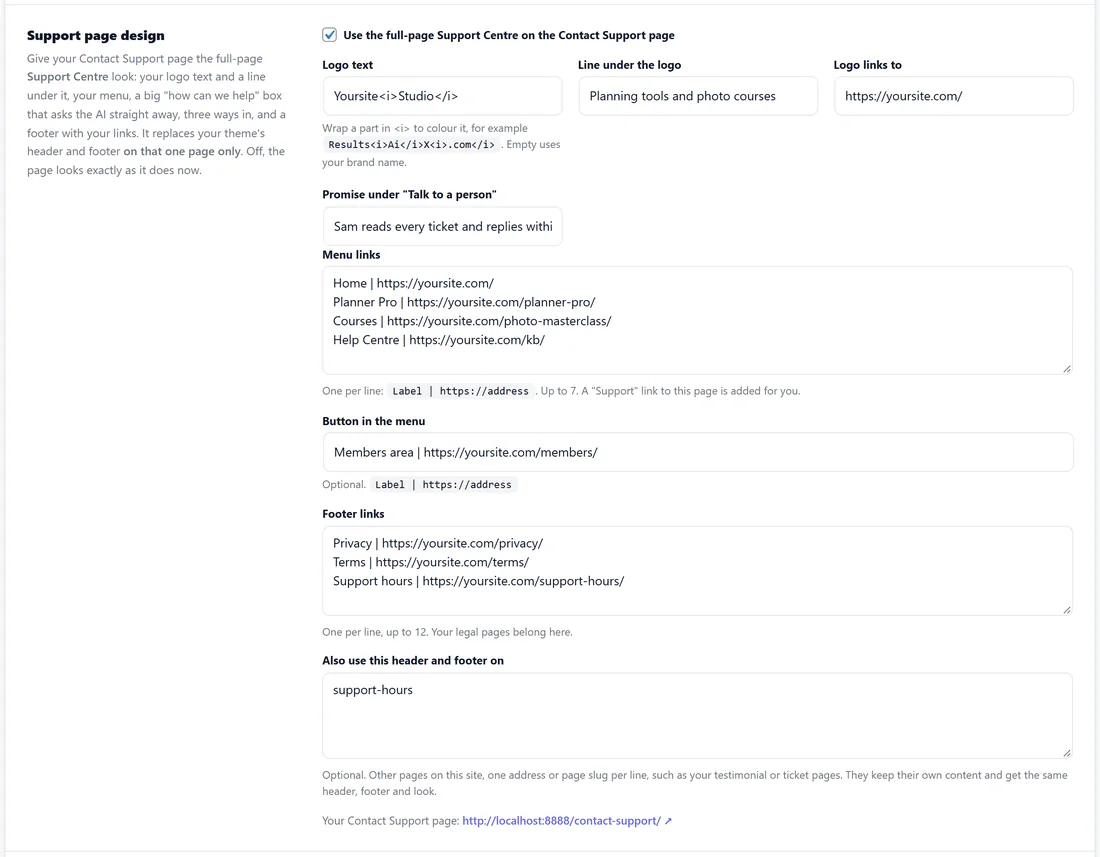
Tick Use the full-page Support Centre on the Contact Support page and press Save Settings. It is off until you switch it on, and it replaces your theme's header and footer on that one page only. Switch it off and the page looks exactly as before.
The Contact Support page is the page chosen under Where customers go, Send a ticket. If none is chosen, any page holding [asd_submit_ticket] counts.
What the page holds, top to bottom:
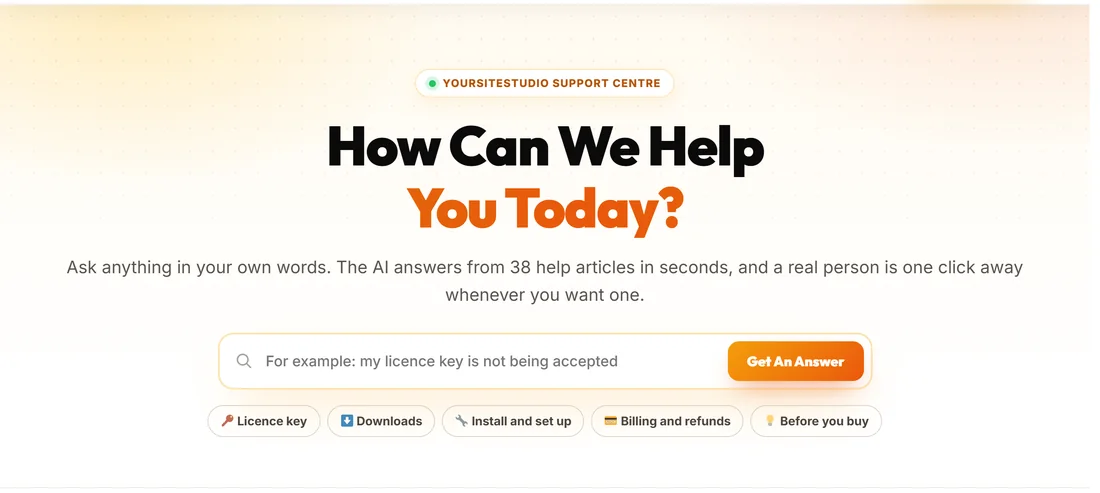
- Your Support Centre label and the headline How Can We Help You Today?
- A big ask box with Get An Answer, and five quick questions underneath, such as Licence key, Downloads, Install and set up and Before you buy.
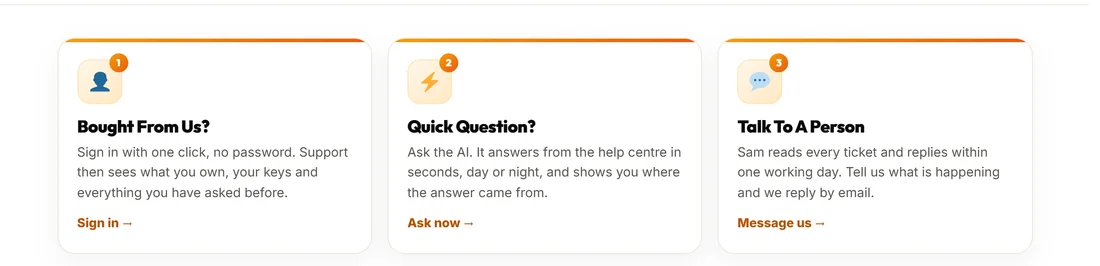
- Three ways to get help: Bought From Us? signs a customer in with one click, Quick Question? asks the AI, and Talk To A Person opens the ticket form.
- The desk itself: the chat, the question box and the ticket form, as on a normal contact page.
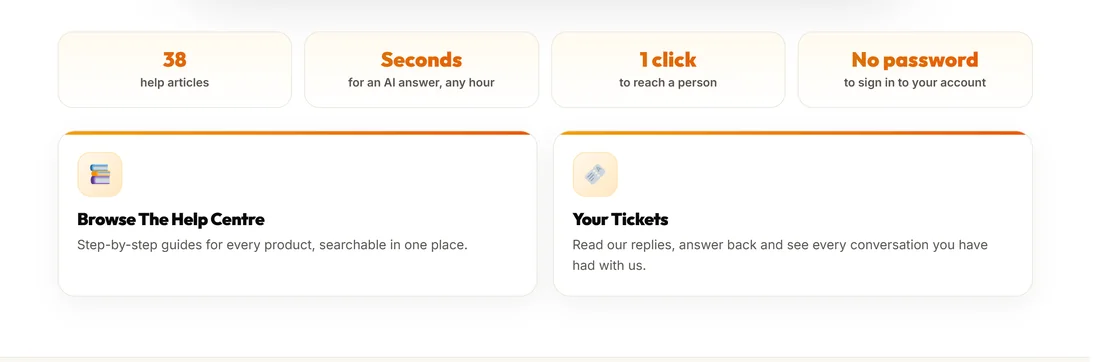
- A row of plain facts: how many help articles you have, that an AI answer takes seconds at any hour, that a person is one click away, and that signing in needs no password.
- Cards to Browse The Help Centre and Your Tickets, when those pages are set.
- Your footer.
The ask box and quick questions hand the question to the desk below, so the visitor never types it twice.
Your header and footer:
These fields sit with the switch, and are used by the Support Centre and the help article pages.
- Logo text: your brand name if left empty. Wrap part of it in <i> to colour that part, for example Yoursite<i>Studio</i>. The logo is text with a round mark showing its first letter.
- Line under the logo, for example Planning tools and photo courses.
- Logo links to: your home page if left empty.
- Promise under "Talk to a person", for example "Sam reads every ticket and replies within one working day". Leave off the full stop; the page adds one.
- Menu links: one a line, written Label | https://address, up to 7. A Support link to this page is added for you.
- Button in the menu: one optional Label | https://address.
- Footer links: one a line, up to 12. Your legal pages belong here.
- Also use this header and footer on: other pages on this site, one address or page slug a line, up to 20. They keep their own content and gain the same header and footer. Only the last part of the address is matched, so https://yoursite.com/support-hours/ and support-hours mean the same page.
Links must start with http://, https:// or /. On a phone, the menu folds into a menu button.
Help articles that look like a help centre:

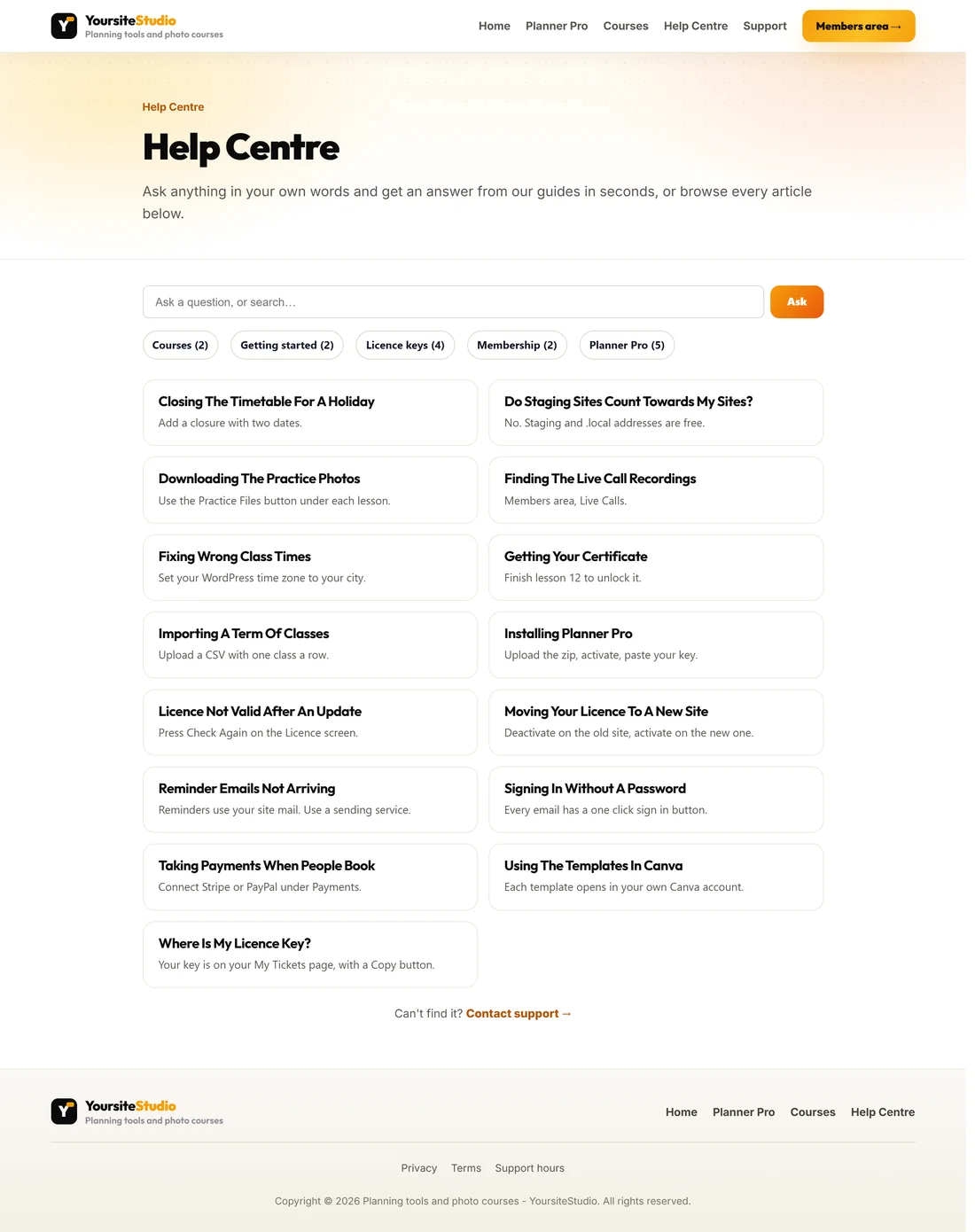
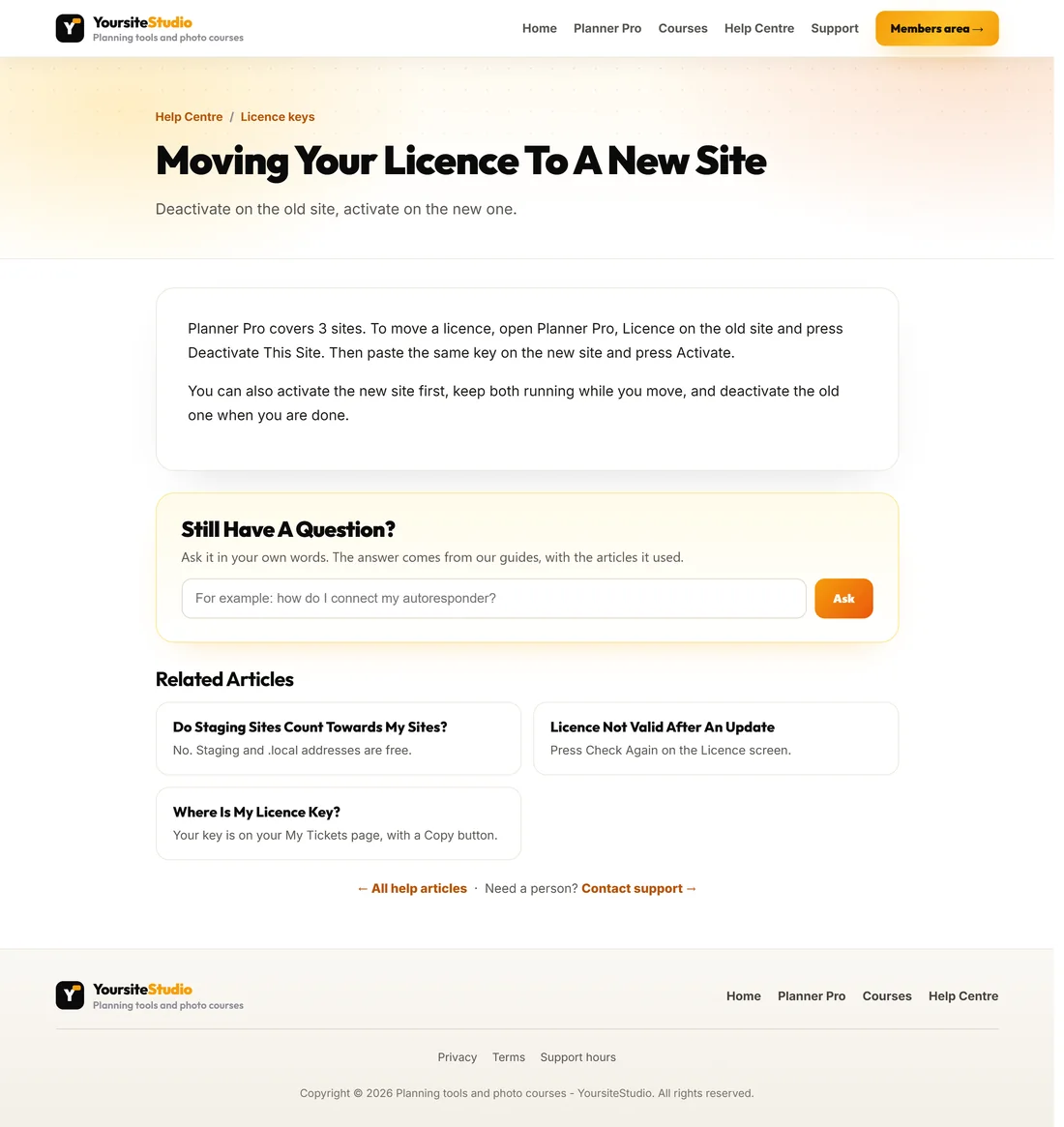
Show help articles as a designed help centre, under Help article design, is on by default. Your knowledge base pages then wear the same header and footer as the Support Centre, whether or not the Support Centre itself is on.
- /kb/ is the help centre front page: every article, a search and ask box, and category buttons with counts.
- /kb-category/ followed by a category name shows that category's articles.
- Each article sits at /kb/ followed by its own name, with a breadcrumb, its summary and every address in the text clickable.
Every article ends with Still Have A Question? With AI answers on, a visitor asks in their own words and the answer is written from your articles, with the articles it used underneath. Without AI the same box searches your guides. Related Articles follow, from the same category first, and a Contact support link carries their question to your contact page. Untick the switch and articles go back to your theme's normal post layout.
AI answers here need an AI key under Settings, AI, and Let visitors get AI answers on my knowledge base page ticked on the Knowledge Base screen. The same caps per visitor and per day apply as on your help page.
Step by step, switching on the Support Centre:
- Open Settings, General and check Send a ticket points at your contact page.
- Under Support page design, tick Use the full-page Support Centre on the Contact Support page.
- Fill in Logo text, Line under the logo and Logo links to.
- Write your Promise under "Talk to a person".
- Add Menu links, a Button in the menu, and Footer links, one Label | https://address a line.
- Press Save Settings and open your contact page.
Good values:
- Menu links: Home, your main product, your help centre. Three or four is plenty.
- Button in the menu: the place customers go most, such as your members area.
- Footer links: privacy, terms and your support hours.
- Promise: a real time you can keep, such as replies within one working day.
The ask box on the Support Centre:
Typing in How Can We Help You Today? and pressing Get An Answer hands the question to the chat below. With no chat showing, the question goes straight into the ticket form.
Your help centre address:
Under Help article design the screen shows your help centre's address with a link, so you can open /kb/ and check it.
A real example:
Sam ticks the Support Centre, sets the logo text to Yoursite<i>Studio</i>, adds Home, Planner Pro, Courses and Help Centre to the menu, a Members area button, and Privacy, Terms and Support hours in the footer. yoursite.com/contact-support/ now opens on How Can We Help You Today?, and yoursite.com/kb/ shows all 15 articles in the same design.
How the design is chosen:
- The Support Centre only takes over the page chosen under Send a ticket, and the pages you list under Also use this header and footer on, and only while its switch is on.
- The designed help pages take over /kb/, its categories and each article while Show help articles as a designed help centre is on.
- A separate Help centre page with [asd_kb] keeps your theme's design.
On a phone:
The menu folds into a menu button, the three ways in stack one under another, and the ask box spans the screen.
Tips:
- Keep the menu short. The help centre is the point of the page.
- Put the page you send people to most, such as your members area, in the menu button.
- See The Chat On Your Contact Page for what happens below the three ways in.