If customers email your support address, the desk can read that mailbox and turn every email into a ticket. Replies thread back onto the right ticket, so the whole conversation lives in one place whether it started on your form or in someone's email app.
Email to ticket is off until you switch it on. Your contact form, the My Tickets page and the sales feeds all work without it.
Where to find it:
Open Settings, Email and scroll to Turn emails into tickets.
What you need:
- The PHP IMAP extension on your host. If it is missing, the box says so in plain words: ask your host to "please enable php-imap". Everything else works without it.
- Your mail server, port, email address and password. Gmail and Outlook need an app password, not your normal password.
Setting it up:
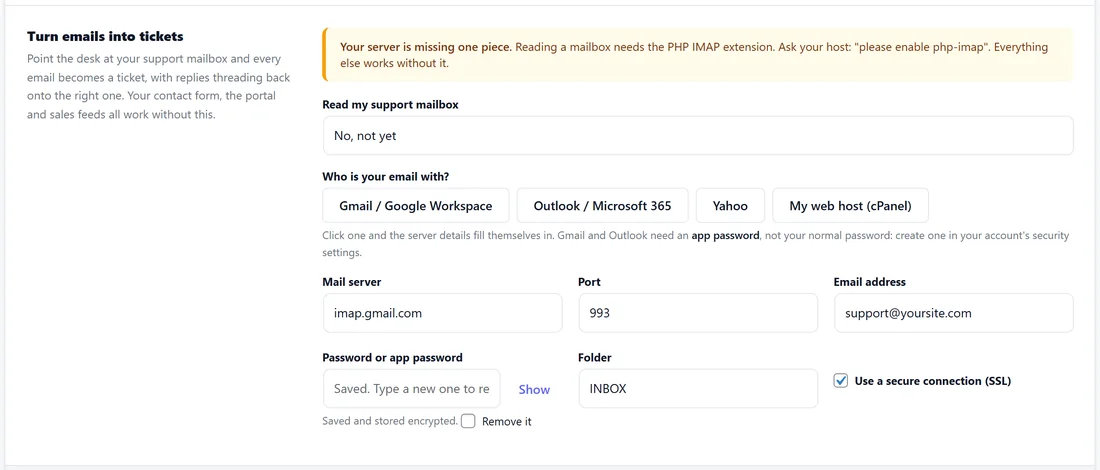
- Set Read my support mailbox to Yes, check it every 5 minutes.
- Under Who is your email with?, press Gmail / Google Workspace, Outlook / Microsoft 365, Yahoo or My web host (cPanel). The server details fill themselves in.
- Type your Email address and your Password or app password.
- Leave Folder on INBOX unless your support mail lands in another folder.
- Keep Use a secure connection (SSL) ticked.
- Press Save Settings.
Your password is stored encrypted. The box never shows a saved password: it says Saved. Leave it empty to keep it, type a new one to replace it, or tick Remove it to clear it.
Every setting:
- Read my support mailbox: No, not yet, or Yes, check it every 5 minutes.
- Mail server: for example imap.gmail.com.
- Port: 993 for a secure connection.
- Email address: the mailbox login, usually the full address.
- Password or app password.
- Folder: INBOX by default.
- Use a secure connection (SSL): on for nearly every host.
How the checking works:
- Every five minutes the background job opens the mailbox and looks for unread messages.
- Each message is read for the sender, the subject and the text. Plain text is preferred, HTML is cleaned as a fallback, and common quoted reply text at the bottom is trimmed.
- If the subject carries a ticket number in square brackets, such as [1042], the message is added to that ticket and the ticket comes back to you. A number in brackets only counts when the sender is the customer on that ticket, or one of the linked addresses on their contact page. Otherwise a new ticket is made on the email channel.
- The message is then marked as read so it is never taken twice.
Every stored message keeps the email's own Message-ID, so a re-delivered email cannot create a second ticket.
Replies going out:
Replies are sent from the name and address on Settings, General, through your site's mail or your own sending service. The subject starts with the ticket number, for example [1042] Re:, and each email says that replying continues the conversation. That number is what threads the answer back onto the right ticket, so leave it in place.
Creating an app password:
- Gmail or Google Workspace: 2-Step Verification must be on. Then open myaccount.google.com/apppasswords, name it Support Desk, and copy the 16 letters. On Google Workspace your administrator must allow IMAP.
- Outlook or Microsoft 365: create an app password in your Microsoft account's security settings. Some work accounts need IMAP switched on by an administrator.
- Yahoo: create an app password in your Yahoo account's security settings.
- Your web host: use the mailbox's normal password and the server your host gives you, usually mail.yourdomain with port 993.
What becomes a ticket:
- Every unread email in the folder you chose, from anyone.
- A reply with a ticket number in brackets, from that customer, joins their ticket instead.
- An email the desk already stored, by its Message-ID, is skipped.
Anything already read in your mailbox is left alone, so mark old mail as read before you switch checking on if you do not want it brought in.
Good to know:
- New email tickets go through the same steps as form tickets: sorting, auto-resolve, drafts and your alerts.
- The sender becomes a contact by email address, or is matched to an existing one.
- Checking runs with the five-minute background job, so a new email can take up to five minutes to appear.
A real example:
Yoursite Studio's support mail is on Google Workspace. Sam creates an app password for support@yoursite.com, presses Gmail / Google Workspace, types the address and the app password, and switches checking on. When Chloe replies to ticket 1005 from her phone, her reply appears on the ticket within five minutes and it moves to Customer replied.
Tips:
- The same mailbox details power Email history on every ticket, even with email to ticket switched off. See Reading A Customer's Email History From Your Mailbox.
- Use a separate support mailbox rather than your personal one, so only support mail becomes tickets.