None of this is required. The desk is a complete helpdesk on its own: tickets, AI replies, the knowledge base, your customer pages and your marketplace sales all work with no other plugin installed. Everything here is extra customer knowledge you can switch on when you have it.
If you run other ResultsAiX plugins on the same site, the desk reads them by itself and builds one profile per customer: what they bought, clicked, watched and subscribed to. That profile is the Customer 360 card on every ticket, and the AI writes its replies from it.
Where to find it:
Open Settings, Integrations. Customer 360 shows in the sidebar of every ticket and on every contact page.
Found on this site, nothing to set up:

- WP Conversion Tracker: tracked purchases with revenue, and the link each sale came through.
- Audience Vault: lifetime clicks, conversions, revenue, VIP flag and last seen.
- ResultsAiX Mailer: subscriber status, lists, opens, clicks and engagement score.
- ResultsAiX Engage: opt-ins, with the campaign and page they came from.
- Launch Manager: launch sales history with product, amount and gateway.
- ResultsAiX Membership: which levels they belong to, whether access is active and until when.
- ResultsAiX Funnels, Webinars, Surveys, Testimonials and WP Sync join the profile by themselves too.
Each one found gets a row under Working now. Press Manage to open it; Show this on customer profiles and let the AI use it is ticked by default. Untick it to leave that system out without uninstalling anything.
Try it on a real customer:
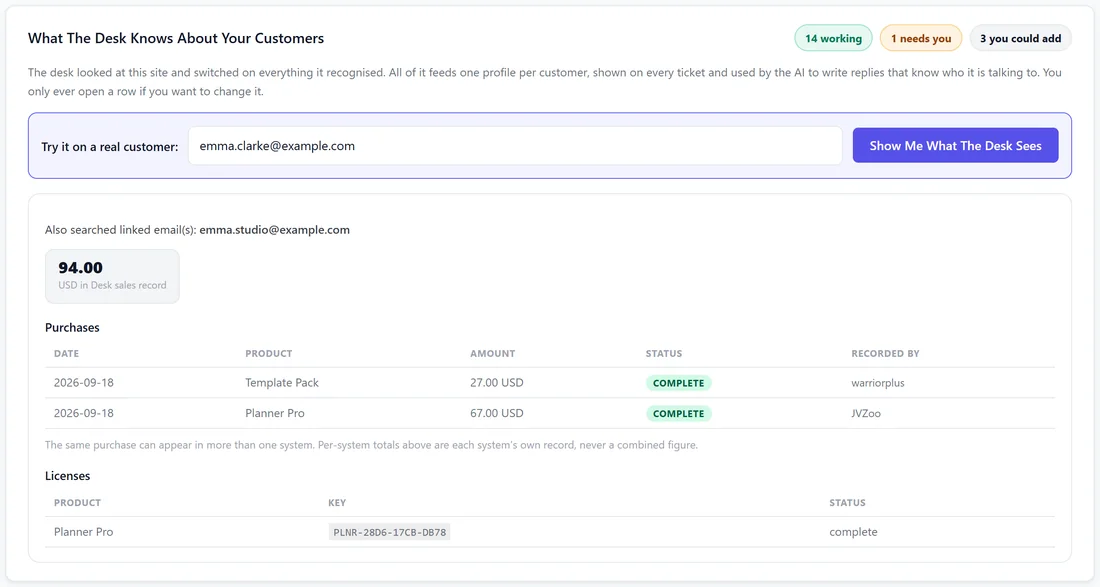
At the top of Integrations, type a customer's email and press Show Me What The Desk Sees. What appears is exactly what the ticket sidebar shows and what the AI replies from: linked emails searched, a total per system, purchases with date, product, amount, status and which system recorded them, and licence keys. If it looks right there, it is right everywhere.
Customer sign-in and licence keys:
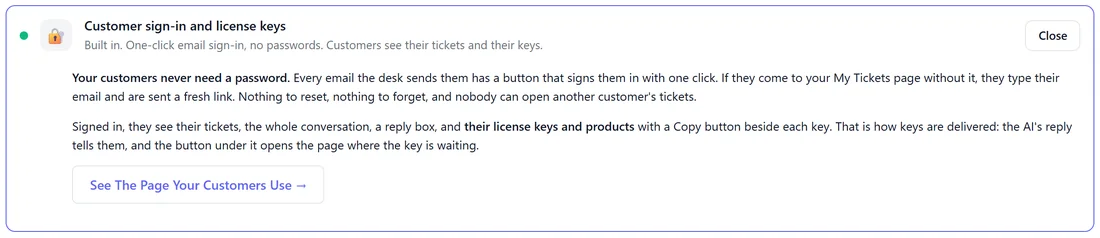
The Customer sign-in and license keys row is built in. Every email the desk sends has a button that signs the customer in with one click, and signed in they see their tickets and their licence keys with a Copy button. It needs only a My Tickets page; if you have none, the row offers to create it.
Connecting ResultsAiX Commerce:
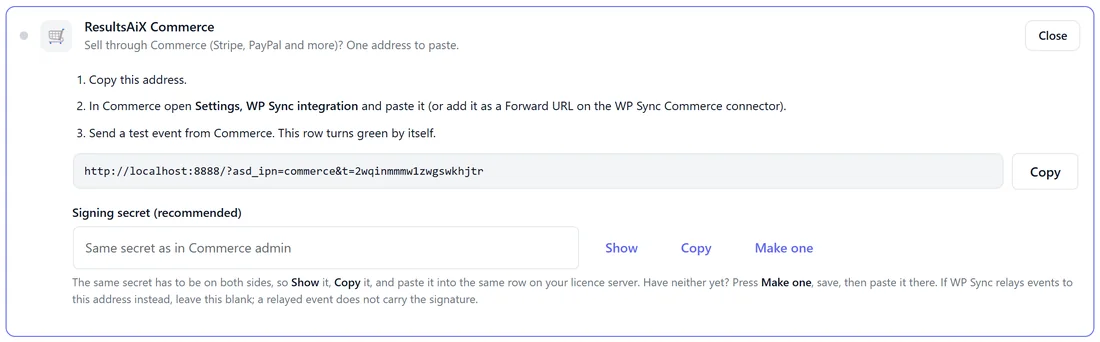
- Open the ResultsAiX Commerce row and press Copy beside the address.
- In Commerce open Settings, WP Sync integration and paste it in, or add it as a Forward URL on the WP Sync Commerce connector.
- Under Signing secret (recommended), press Make one, then Copy, and put the same secret on the Commerce side. Leave it blank if the address is a WP Sync forward.
- Press Save Integrations, then send a test from Commerce. The row says when the test arrived.
If something reaches the address and is turned away, the row says when and why.
Your own account portal:
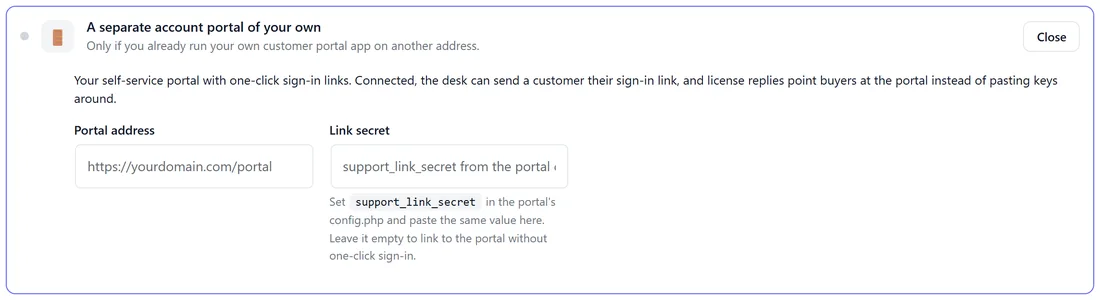
Only if you already run your own customer portal on another address. Open A separate account portal of your own under For developers and special setups, type the Portal address and the Link secret (support_link_secret in the portal's config.php). Every ticket and contact page then has Send Portal Sign-In Link, and licence answers point buyers at the portal.
Orders kept in your own database table:
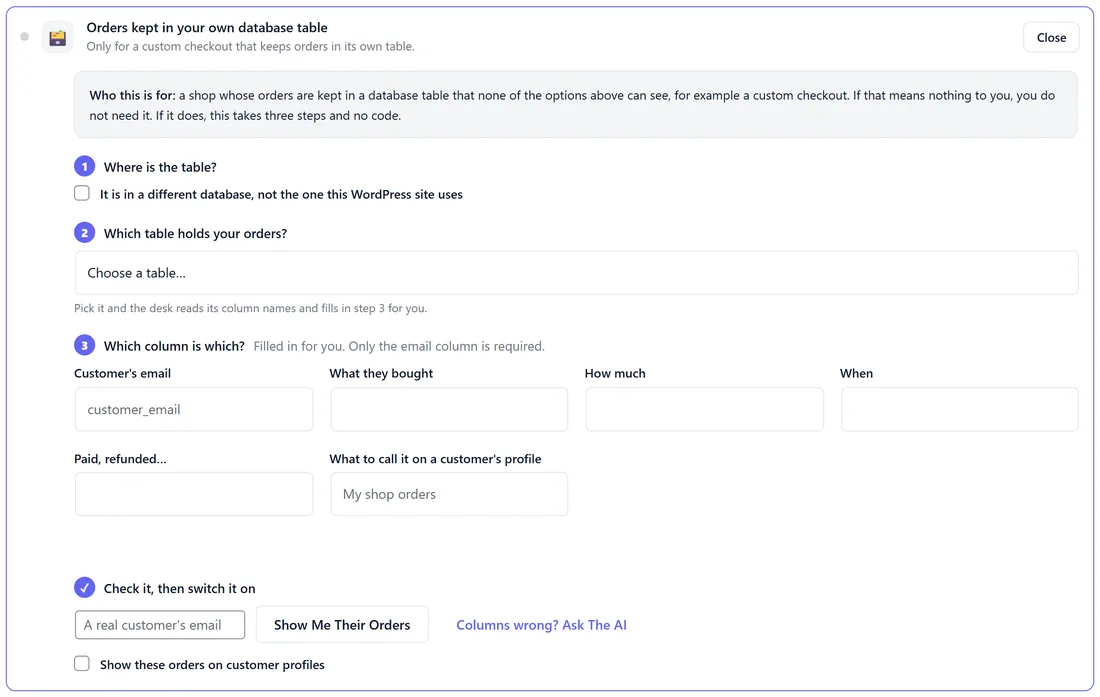
For a custom checkout that keeps orders in its own table. Open Orders kept in your own database table:
- Where is the table? Tick It is in a different database if it is not this WordPress database, and fill in its details. Use a read-only database user; the desk only ever reads.
- Which table holds your orders? Pick it, and the desk reads its column names.
- Which column is which? Customer's email is required. The columns for what they bought, how much, when and the order status, and What to call it on a customer's profile, are filled in for you where it can tell.
- Check it, then switch it on: type A real customer's email and press Show Me Their Orders. Columns wrong? Ask The AI reads the table layout with your own AI key and suggests the mapping. Tick Show these orders on customer profiles and save.
About the totals:
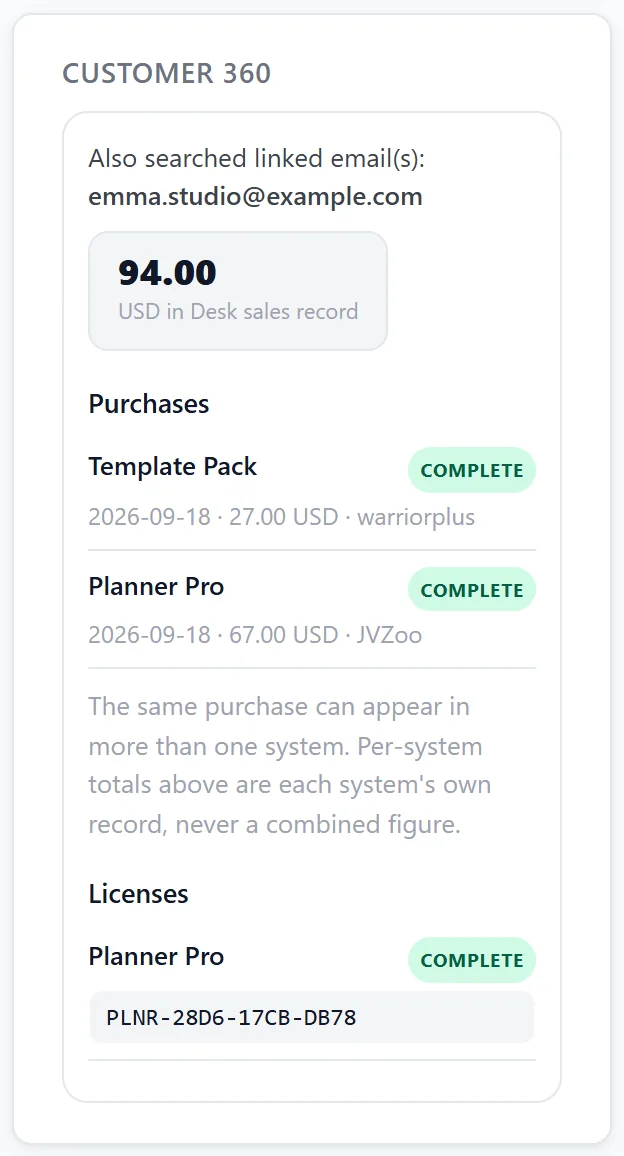
The same purchase can be recorded by more than one system. Totals are shown per system, and the AI is told never to add systems together into one figure. The Spent figure in your Inbox counts each sale once.
Bought under a different email:
Open the customer's contact page and add their other addresses under Linked emails. Every lookup, the ticket sidebar and the AI then search those addresses too.
Watching the feeds:
Diagnostics has a Connected Feeds panel showing when each feed last delivered.
Step by step, checking the profile:
- Open Settings, Integrations.
- Type a customer's email under Try it on a real customer.
- Press Show Me What The Desk Sees.
- Read the totals per system, the purchases and the keys.
- If a purchase is missing, check the customer's other addresses and add them under Linked emails.
Switching one system off:
- Open its row under Working now with Manage.
- Untick Show this on customer profiles and let the AI use it.
- Press Save Integrations.
The plugin itself is untouched; the desk just stops reading it.
What the AI may say from the profile:
It may name products, dates, keys and order status. It never states an amount, a total or what the customer has spent, and never adds systems together.
A real example:
Emma Clarke bought Planner Pro under emma.studio@example.com and the Template Pack under emma.clarke@example.com. Sam linked the studio address on her contact page. Show Me What The Desk Sees now finds both purchases, her Planner Pro key, and says it also searched emma.studio@example.com.
What the profile holds:
- Linked emails searched.
- A tile per system with its own total, such as USD in Desk sales record.
- Purchases: date, product, amount, status, and which system recorded it.
- Licence keys: product, key and status.
- From other connected sites, the same under an Other sites heading.
The profile is kept for a short while, so a ticket opens fast, and is built again after that.
Tips:
- Run Try it on a real customer after connecting anything new.
- Plugins on a different site? See Connecting Other Sites With Keys.
- Developers can add any data source with the asd_customer_profile filter.