Chats puts your assistant on the pages you choose, on this site or any of your other sites. The Sales Page Chat answers buying questions on your sales pages and shows product cards. The Members Helper answers your members inside your members area. Both know your products and your customers, and both hand anybody who wants a person straight to you.
Nothing shows on any page until you have picked its pages and switched it on.
Where to find it:
Open Chats on the desk's menu bar. Under it are Chats, Reports and Chat history.
The top of the screen:
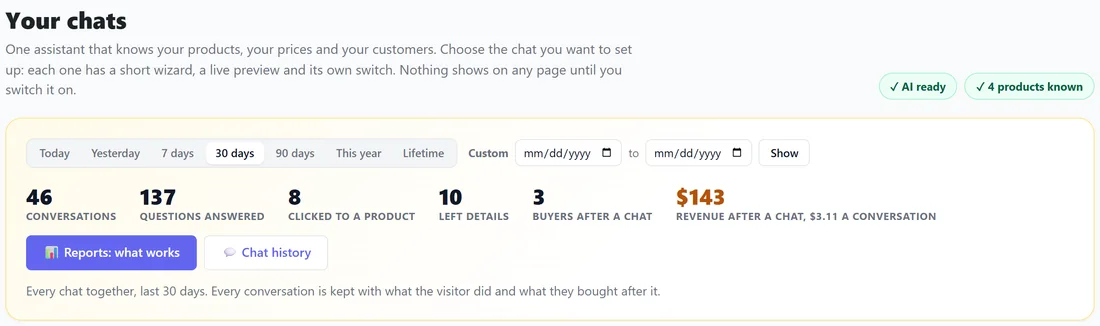
The heading Your chats has checks beside it: whether the AI is ready, how many products the desk knows from your product catalog and, with ResultsAiX Pulse active, that your chats work on all your Pulse sites. Under them, every chat added together for the dates you pick (Today, Yesterday, 7 days, 30 days, 90 days, This year, Lifetime, or Custom): conversations, questions answered, clicks to a product, people who left details, buyers after a chat and revenue after a chat. Reports: what works and Chat history open on the same dates.
Your chats:
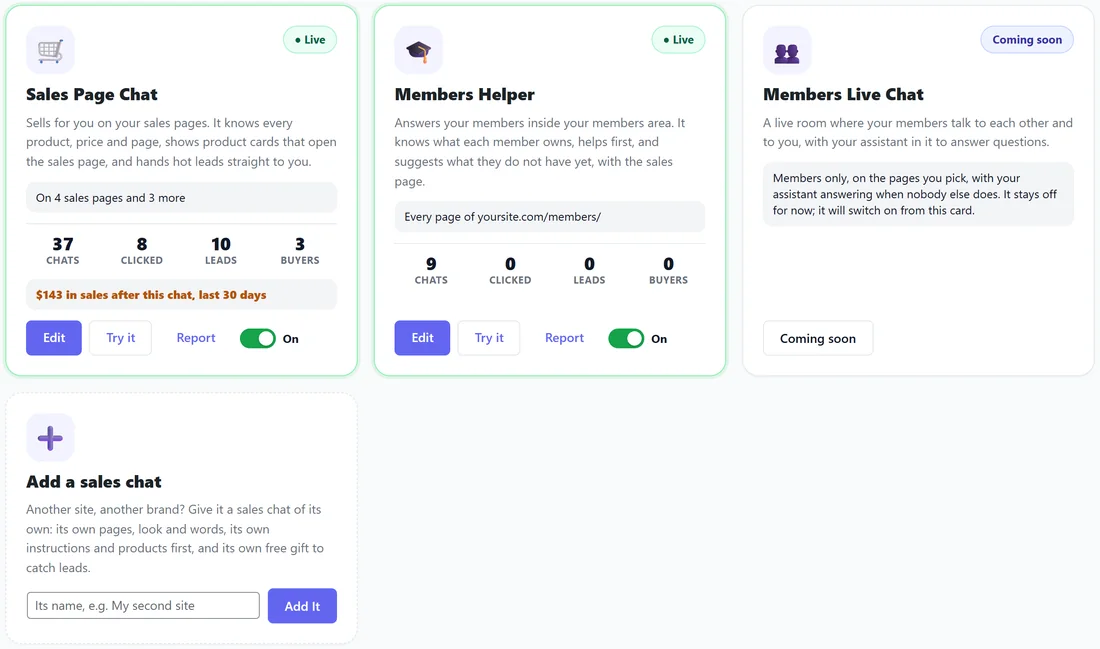
- Sales Page Chat: sells for you on your sales pages. It knows every product, price and page, shows product cards that open the sales page, and hands hot leads straight to you.
- Members Helper: answers your members inside your members area. It knows what each member owns, helps first, and suggests what they do not have yet.
- Members Live Chat: a live room for members. It is marked Coming soon and cannot be switched on yet.
- Add a sales chat: a sales chat of its own for another site or brand.
Each card shows its status (Live, Not set up yet or Off), where it shows, and its chats, clicks, leads and buyers for the dates above. Set it up or Edit opens the wizard. Once set up, Try it, Report and an On and Off switch appear on the card. Switched off, nothing about that chat shows anywhere.
The five-step wizard:
Every chat is set up in five steps: Where it shows, How it looks, What it says, Its rules, and Test and go live. The real chat sits in the corner of the screen the whole time and changes as you type. Each step saves only its own fields with Save and continue. After the first time through you can jump to any step from the step bar.
Step 1, where it shows:
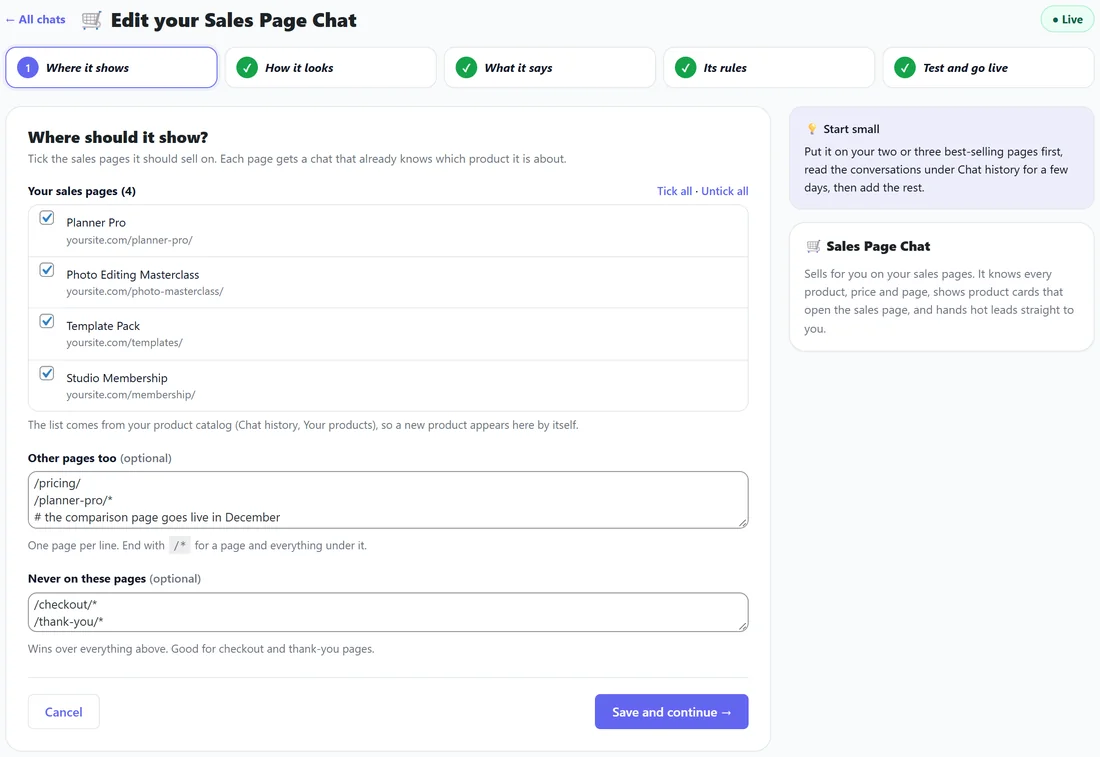
For the Sales Page Chat, tick your sales pages under Your sales pages. The list comes from your product catalog, so a new product appears by itself; Tick all and Untick all save time. Add any other pages under Other pages too, one a line. For the Members Helper, type Your members area address and choose Every page in my members area, which is recommended, or Only the pages I list. Both chats have Never on these pages, which wins over everything; checkout and thank-you pages belong there.
How a page line is read:
- http, https, www, anything after a question mark and a trailing slash are ignored.
- A line with a domain matches that site only. A line starting with / matches that path on any of your sites.
- End a line with /* for a page and everything under it. A * on its own means every page.
- A line starting with # is a note to yourself and is ignored.
If both chats would show on the same page, the Sales Page Chat wins.
Step 2, how it looks:
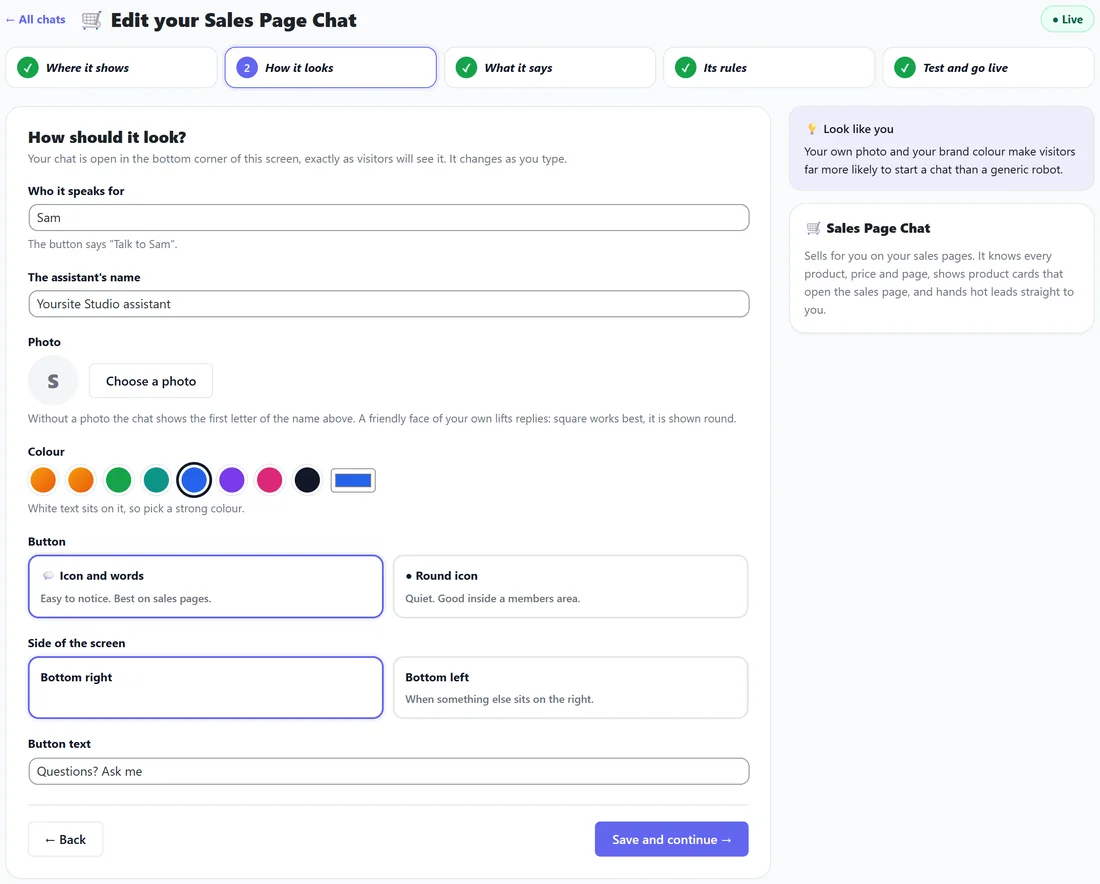
- Who it speaks for: the name on the Talk to button, for example Sam, so the button says Talk to Sam.
- The assistant's name, shown at the top of the chat.
- Photo, from your Media Library and shown round. Without one, the chat shows the first letter of the name.
- Colour, from eight swatches or any colour. White text sits on it, so pick a strong one.
- Button: Icon and words, best on sales pages, or Round icon, good inside a members area.
- Side of the screen: Bottom right or Bottom left.
- Button text: Questions? Ask me on the sales chat and Need a hand? on the helper, until you change it.
Step 3, what it says:
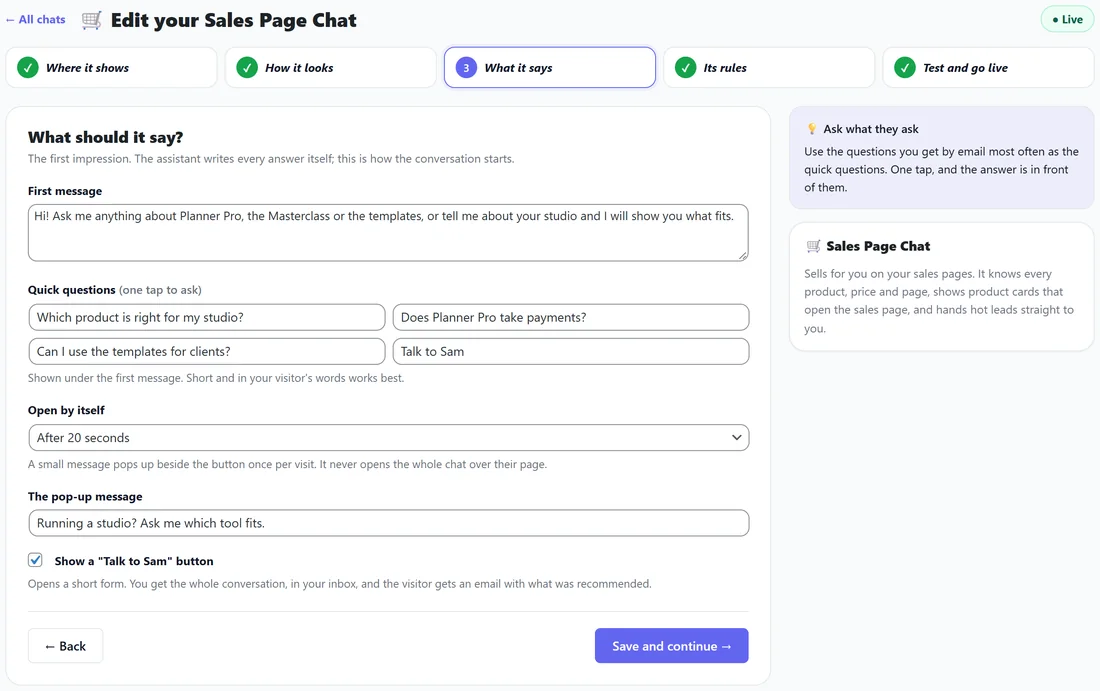
- First message, up to 400 characters. Each chat starts with a sensible one you can rewrite.
- Quick questions, up to four, one tap to ask. A quick question starting with Talk to opens the contact form instead.
- Open by itself: Never (only when they click), or after 5, 10, 20 or 30 seconds, or a minute. A small message then pops up beside the button once per visit; it never opens the whole chat over the page. Write that message in The pop-up message.
- Show a "Talk to" button, ticked by default. It opens a short form; you get the whole conversation in your inbox, and on the sales chat the visitor is emailed what was recommended.
Step 4, its rules:
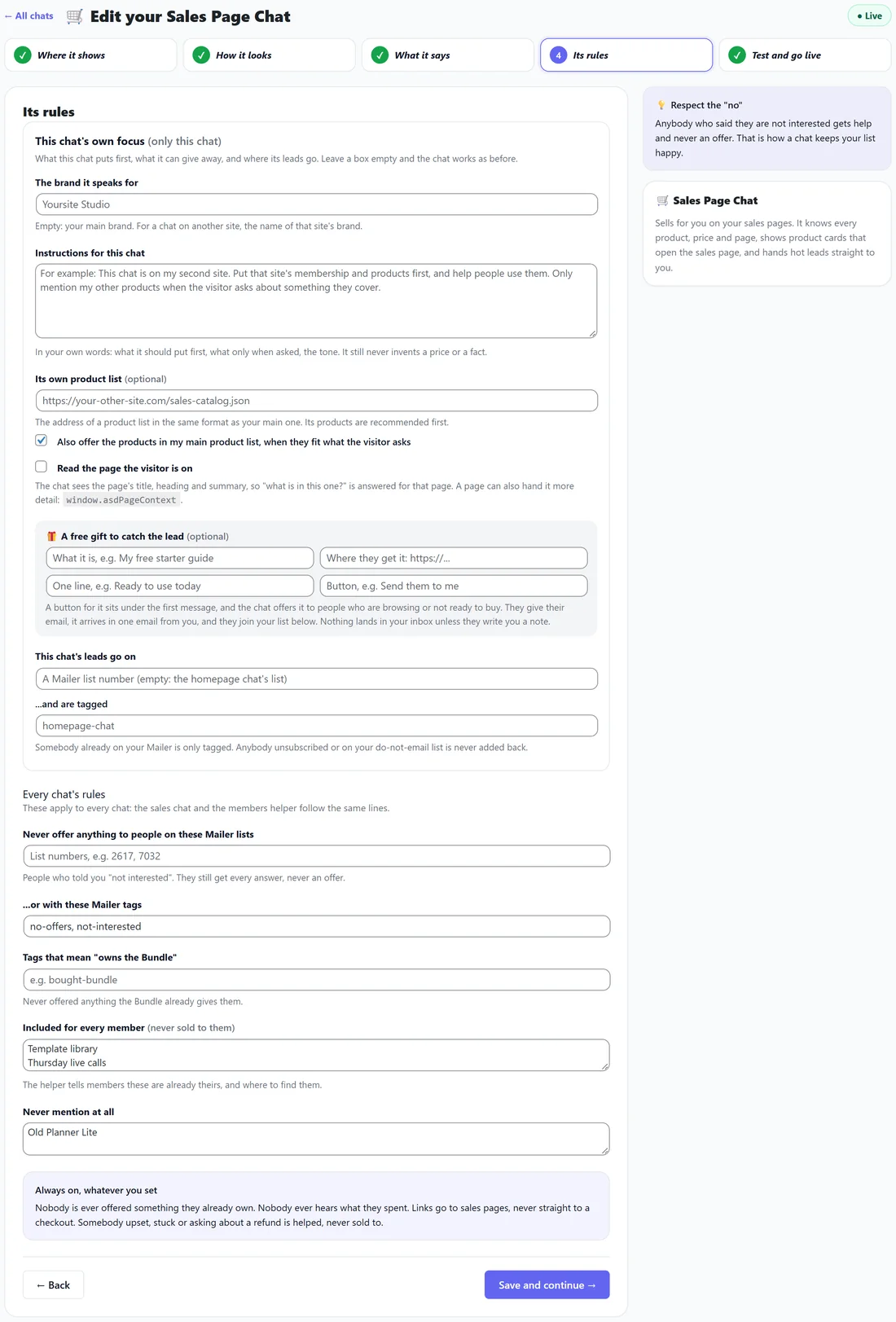
This chat's own focus applies only to the chat you are editing:
- The brand it speaks for: empty means your main brand.
- Instructions for this chat: in your own words, what it puts first, what it mentions only when asked, and the tone. It still never invents a price or a fact.
- Its own product list: the address of a product list in the same format as your main catalog. Its products are recommended first. Also offer the products in my main product list lets it suggest those too.
- Read the page the visitor is on: the chat sees the page's title, heading and summary, so "what is in this one?" is answered for that page. A page can hand it more detail with window.asdPageContext.
- A free gift to catch the lead: what it is, where they get it, one line and the button wording. A gift button sits under the first message and the gift arrives in one email.
- This chat's leads go on a Mailer list number, and are tagged with your tag. Somebody already on your Mailer is only tagged, and anybody unsubscribed is never added back.
Every chat's rules apply to all your chats:
- Never offer anything to people on these Mailer lists, or with these Mailer tags. They still get every answer, never an offer.
- Tags that mean "owns the Bundle", so those people are never offered what they already have.
- Included for every member: the helper tells members these are already theirs.
- Never mention at all.
Always on, whatever you set: nobody is offered something they already own, nobody hears what they spent, links go to sales pages and never straight to a checkout, and somebody upset or stuck is helped, never sold to.
Step 5, test and go live:
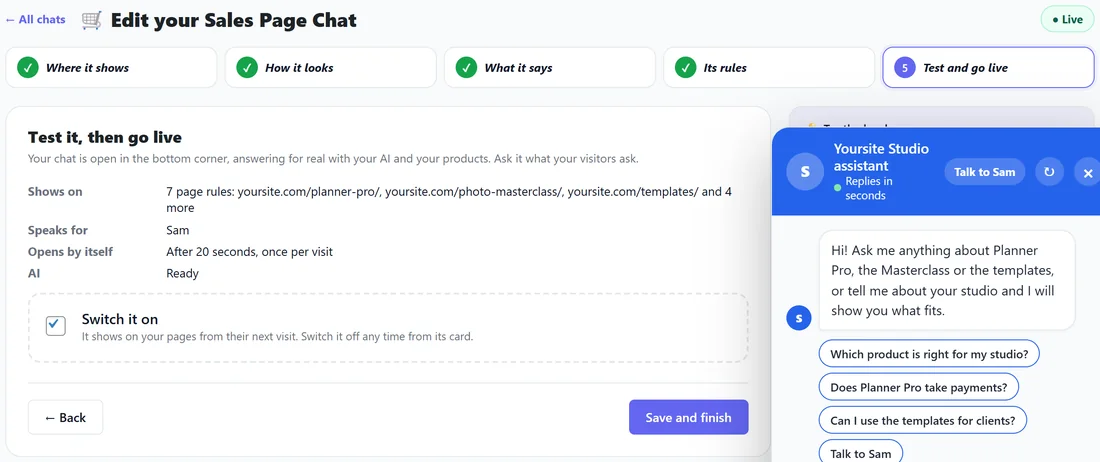
A summary of where it shows, who it speaks for, when it opens and whether the AI is ready. The chat in the corner answers for real with your AI and your products, so ask it the hard questions. Test answers are never counted in your numbers, but they do use AI credit. Tick Switch it on and press Save and finish; it shows on your pages from their next visit.
What visitors see:
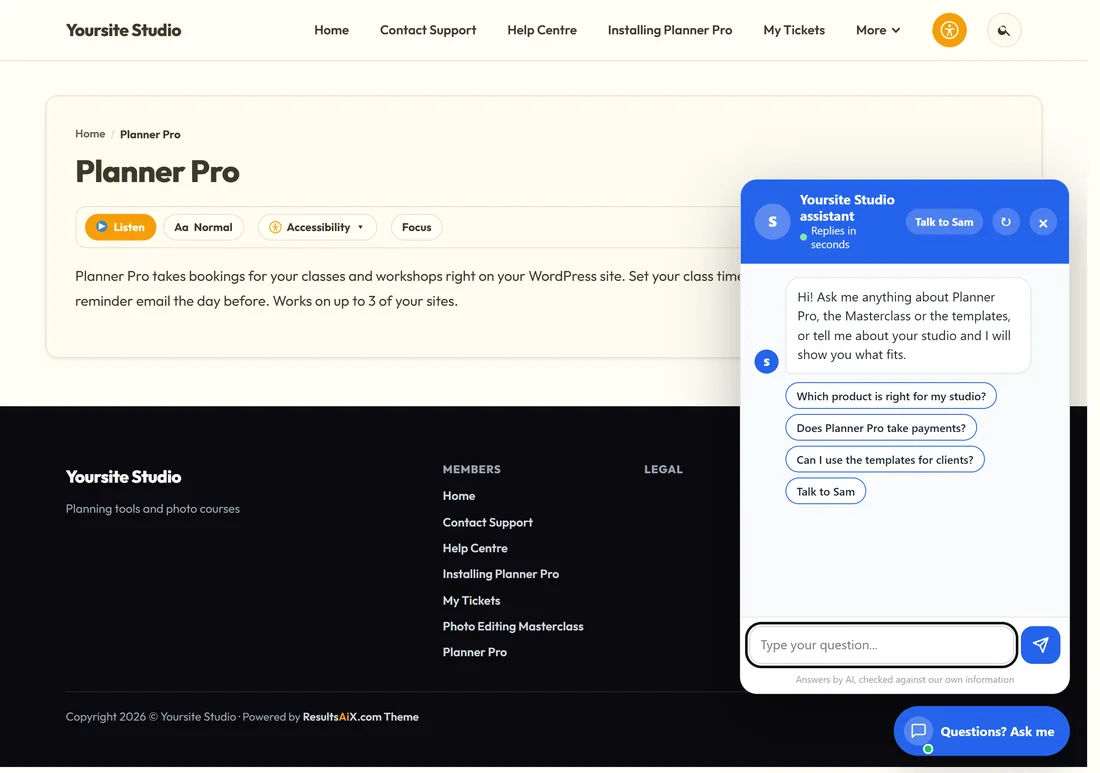
- A header with the photo, the assistant's name and Replies in seconds, then the Talk to button, start a new chat, and close.
- The first message and your quick questions.
- Typing dots while it thinks, and every answer in full.
- Product cards with a name, a line, the price and a View Sales Page button. Cards never link to a checkout.
- Answers by AI, checked against our own information, at the foot.
How the sales chat answers:
- A simple question, such as how many sites, gets a sentence or two with no cards.
- Questions about what a product does, or which one to choose, get a fuller answer with cards.
- Prices are quoted exactly as your catalog writes them, and nothing is invented.
- On a product's own sales page it answers for that product first.
- Someone asking for a person or help logging in goes straight to the contact form.
What it needs:
- An AI key under Settings, AI. Without one, the sales chat picks products by keyword.
- Your product catalog, a JSON file whose address goes under Chat history, Your products, Catalog address. Without it, no products are recommended.
- The daily ceiling, AI answers a day, at most, on Chat history, shared by every sales chat.
On your other sites:
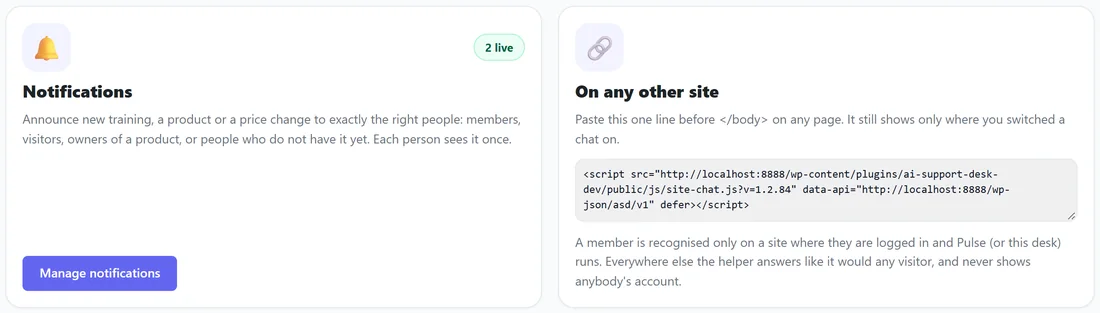
The On any other site card gives one line to paste before </body> on any page. It still shows only the chats switched on and matched to that page. With ResultsAiX Pulse, every site that reports to Pulse picks the chats up by itself. A member is recognised only on a site where they are logged in and Pulse or this desk runs; everywhere else the helper answers as it would any visitor.
A sales chat for another site or brand:
On the Add a sales chat card, type its name and press Add It. The same five steps open, and its card can be removed later; its conversations stay in Chat history.
How the Members Helper answers:
- It knows the signed-in member, what they own and what they have asked before, so it answers about their own products.
- It helps first, and only then may suggest one product the member does not have, as a sales page card.
- It never sells anything listed under Included for every member.
- Anything about money, keys, accounts or logins, or asking for a person, goes to support; a signed-in member gets the normal support answer, which can open a ticket for you.
With members only knowledge it also becomes a coach. See The Members Helper As A Coach, And Members Only Knowledge.
The Talk to form:
Pressing the Talk to button, or a quick question starting with Talk to, opens a short form: first name, email and anything to add. The whole conversation lands in your inbox as a ticket, so you never ask them to repeat it. On the sales chat the visitor is also emailed what was recommended.
Try it:
Try it on a chat's card opens the chat so you can talk to it the way a visitor would. Your own tries are kept apart from your numbers.
Good values:
- Open by itself: 20 or 30 seconds on a sales page, Never inside a members area.
- Quick questions: the three questions you are asked most, plus one starting Talk to.
- Colour: your brand colour if it is strong enough for white text; otherwise a darker shade of it.
Turning a chat off:
Switch it off on its card. Nothing about it shows on any page, its settings are kept, and its conversations stay in Chat history.
A real example:
Sam ticks the four Yoursite Studio sales pages, names the assistant Yoursite Studio assistant, picks blue, adds four quick questions including "Which product is right for my studio?" and "Talk to Sam", and sets it to pop up a message after 20 seconds. In 30 days the chat held 46 conversations, caught 10 leads and was followed by 3 sales.
Good to know about pages:
- A page can be matched by more than one line; Never on these pages always wins.
- An extra sales chat never shows inside your members area.
- On this site the chat script is added for you; on other sites it needs the one line or ResultsAiX Pulse.
What is counted:
Page loads where a chat was set to show, opens of the chat and how they happened, questions, card clicks, leads and the sales after a chat. Bots, your own visits and your own tests are left out. See Chat Reports, Chat History And Live Chats.
What the chats never do:
They never quote a price that is not in your catalog, never offer a discount you did not write, never link straight to a checkout, never tell anybody what they spent, and never sell to somebody upset or asking for help.
Tips:
- Start on your two or three best-selling pages, read the conversations for a few days, then add the rest.
- Use the questions you get most by email as the quick questions.
- See Chat Reports, Chat History And Live Chats to see which pages earn.