Inside your members area, the Members Helper can be more than a help desk. Give it your training library and it becomes a coach: it answers real questions about your members' business and sends them to your lessons, courses and AI bots by name. It does this from content only members can see.
Where to find it:
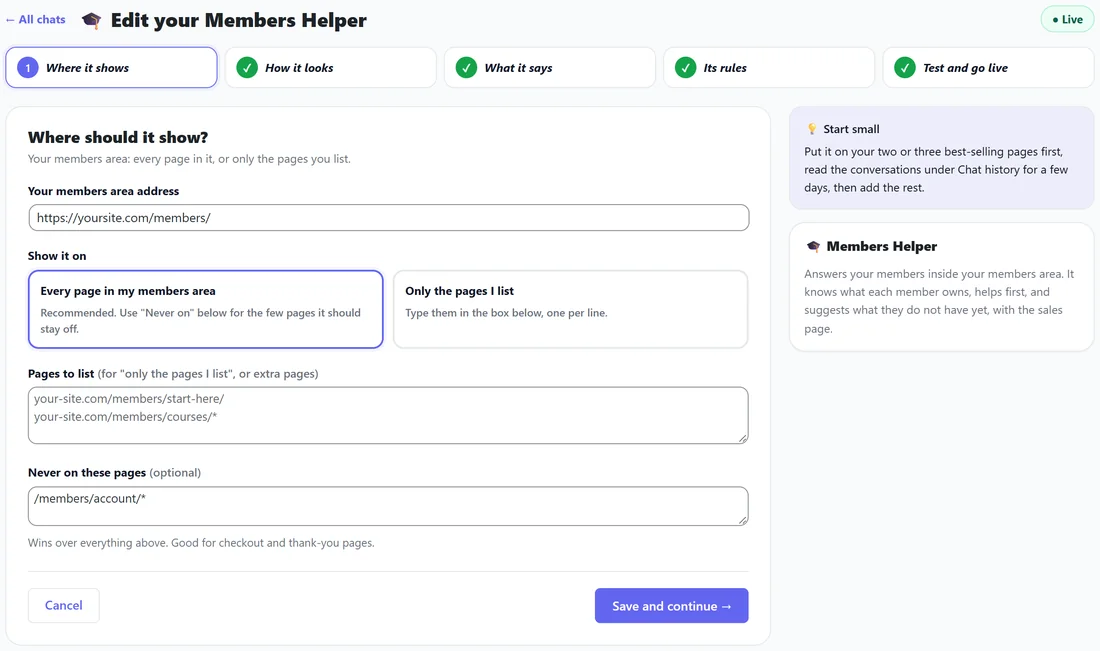
There is no separate setting. The coach works by itself once three things are true:
- An AI key (Claude, OpenAI or Gemini) is saved under Settings, AI.
- The Members Helper is set up and switched on under Chats.
- At least one source on the Knowledge Base screen is marked Members only, is live and holds content.
Members only sources:
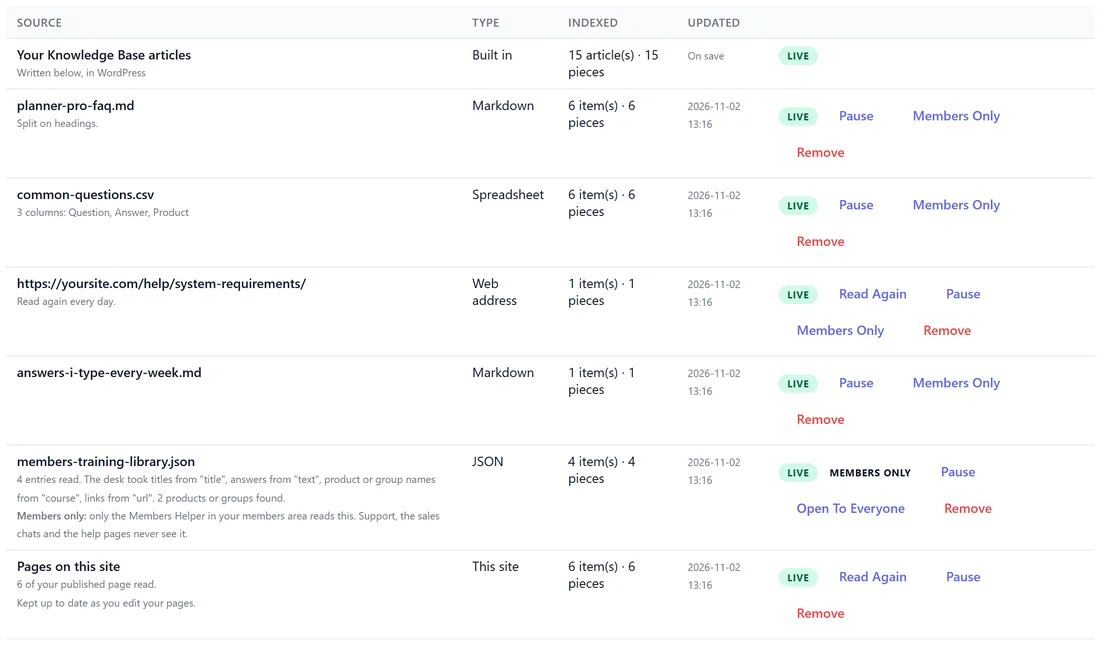
Open Knowledge Base on the desk's menu bar. In the table What the desk knows right now, every uploaded file, web address, blog and pasted text has a Members Only button. Press it and the row is marked Members only: from then on only the Members Helper in your members area reads it. Support answers, the sales chats and your public help pages never see it. Press Open To Everyone to undo it.
Pages on this site and your Knowledge Base articles are always open to everyone, so the button is not shown on those.
The setting belongs to the file's name, so uploading a new version of the same file keeps it members only. Product names found in a members only source are never added to your product list.
Writing your training library:
A JSON file works best: one record for each lesson, course, bot or page, with a title, the text and the address. A type field saying video lesson, ai bot, course or download page decides which button appears. Upload it on the Knowledge Base screen and press Members Only on its row.
What the coach does:
- It helps first. A business question gets a real answer, then one to three of your lessons, courses or AI bots by their exact title, kept short.
- Every lesson, course and bot it names becomes a button under its reply, up to three: Watch Lesson for a video lesson, Open This Bot for an AI bot, Open Course for a course, Open Downloads for a downloads page, and Open Page for anything else.
- It knows a lesson by its title, its course and the notes you wrote, and never claims to know what a video says.
- It cannot see which courses a member has, so it never tells somebody they have or do not have one.
- How do I questions about your products are answered from your normal documentation as well.
- It may suggest one product the member does not own, as a sales page card, following the rules you set in step 4 of the Chats wizard.
What it hands over:
Money questions, licence keys, accounts, logins, asking for a person, or somebody upset all go to support. A member who is signed in gets the normal support answer, which knows their account and can open a ticket for you. Somebody who is not signed in is shown the contact form.
Step by step, giving the helper your library:
- Make sure the Members Helper is set up and Live under Chats.
- Write or export your library as a JSON file, one record per lesson, course, bot or page.
- Open Knowledge Base, Upload files, drop the file in and press Add To Knowledge.
- In What the desk knows right now, press Members Only on its row. The row now says Members only.
- Open a page in your members area while signed in as a member and ask the helper a business question.
A good record:
- title: the lesson's exact title, as members see it.
- type: video lesson, ai bot, course or download page.
- course: which course it belongs to, where it has one.
- text: two or three sentences on what the lesson covers and who it is for.
- url: the lesson's page.
Keeping it current:
Upload the file again under the same name whenever you add lessons. It stays members only, and the old records are replaced in one go.
A real example:
Yoursite Studio uploads members-training-library.json with four records: Lesson 1: Your first edit, Pricing your classes, the Caption Writer bot and the Template library. Sam presses Members Only on its row. A member asks the helper "how should I price my classes?" and gets a short, real answer plus a Watch Lesson button for Pricing your classes.
Tips:
- Write a sentence or two of notes for every lesson. The coach can only point to what it can read.
- Keep one record per lesson so each gets its own button.
- See Many Products? Teach The Desk Everything With One JSON File for how JSON files are read.