Importing carries your members across. Compatibility mode keeps everything else working: the pages, plugins and outside tools that were built for the membership plugin you are replacing.
With it on, ResultsAiX Membership answers to the old plugin's shortcode names, PHP functions, action hooks and REST endpoint. Pages you built years ago keep reading correctly, and a licence server or portal wired to the old API keeps getting answers.
Where to find it:
Open AiX Membership, then the Settings tab. The Compatibility mode card sits under Appearance. The API keys card and The old plugin's tables card are further down the same tab. Diagnostics shows the state of all three.
Turning compatibility mode on:
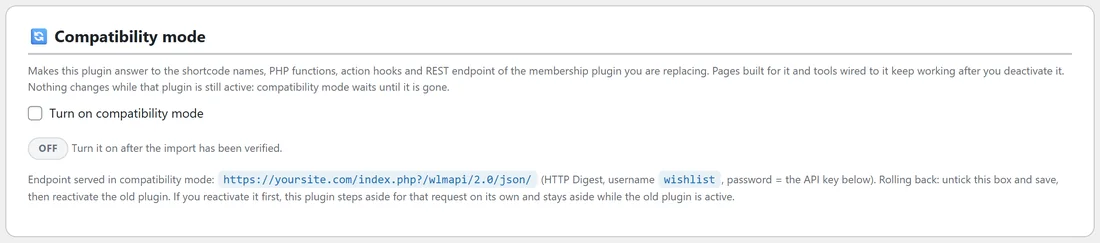
- Finish the import on the Import / Export tab and run the verification step.
- Open the Settings tab and tick Turn on compatibility mode.
- Press Save settings.
- Deactivate the old membership plugin and its shortcode add on on the Plugins screen.
- Reload any page and check the badge on the card.
What the badge means:
- Off: compatibility mode is not switched on. Turn it on after the import has been verified.
- Waiting: the box is ticked, but the old plugin is still active, so compatibility mode is standing by. Deactivate it and it switches over on the next page load.
- Saved: takes effect on the next page load.
- Active: shortcodes, functions, hooks and the API endpoint are being served by this plugin.
Two plugins answering to the same names at once would be a mess, so it waits for the old one to go.
What it answers to:
- Shortcodes: the old member tags for first name, last name, username, email, member level and login form, the is member and non member tags, and the smart shortcode tags that show or hide content by level and count members.
- PHP functions: the wlmapi functions and the API request class that licence servers and sync tools call from inside WordPress.
- Action hooks: when a member is added, removed, reactivated, expires or registers here, the matching old hooks fire, so autoresponder bridges built for the old plugin keep receiving them.
- The REST endpoint: the card prints the address it serves, which ends in /index.php?/wlmapi/2.0/json/. It uses HTTP Digest authentication with the username wishlist and the API key below as the password.
Rolling back is the same steps in reverse: untick the box and save, then reactivate the old plugin. If you reactivate it first, this plugin steps aside for that request on its own and stays aside while the old plugin is active.
API keys:
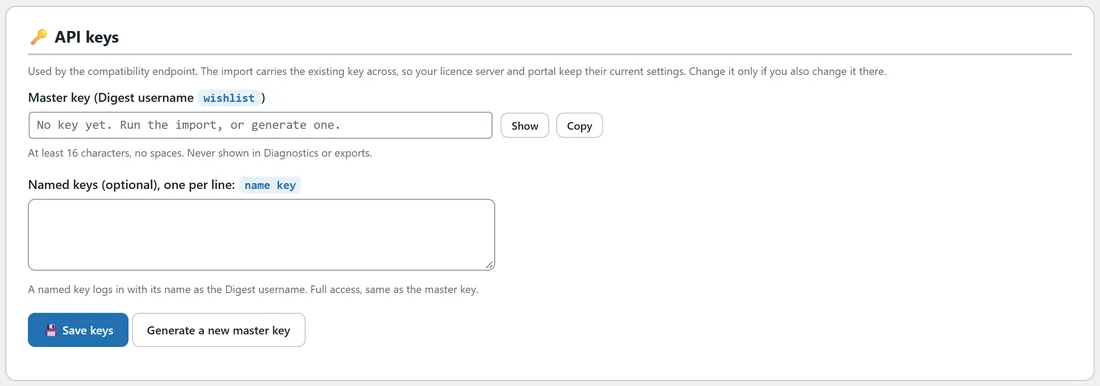
The API keys card holds the keys the compatibility endpoint accepts. The import carries your existing key across, so your licence server and portal keep the settings they already have. Change it only if you also change it there.
- Master key: logs in with the Digest username wishlist. Show reveals it and Copy copies it. It needs at least 16 characters and no spaces, and it is never shown in Diagnostics or exports.
- Named keys (optional): one per line, a name, a space, then the key. Each logs in with its own name as the Digest username and has full access, the same as the master key. Give each outside tool its own named key, and you can replace one without touching the others.
- Save keys stores both boxes.
- Generate a new master key makes a fresh random key. It asks you to confirm first, because every tool that uses the current key stops working until you paste the new one there.
On a site that never had a key, the box reads "No key yet. Run the import, or generate one."
Retiring the old plugin's tables:

The old plugin's tables stay in your database after you deactivate it, and they are your way back. The card called The old plugin's tables appears whenever they are there, and tells you how many it found.
Leave them alone until compatibility mode has run cleanly for a while. After that:
- Make sure compatibility mode shows Active and the old plugin is deactivated. Until both are true the button stays greyed out.
- Press Retire the old tables (rename) and confirm.
- The tables are renamed with the wlmretired_ prefix, so nothing on the site reads stale rows any more. Nothing is deleted.
To undo it, press Restore the old tables on the same card. Restore them before you ever reactivate the old plugin.
Checking it all in Diagnostics:
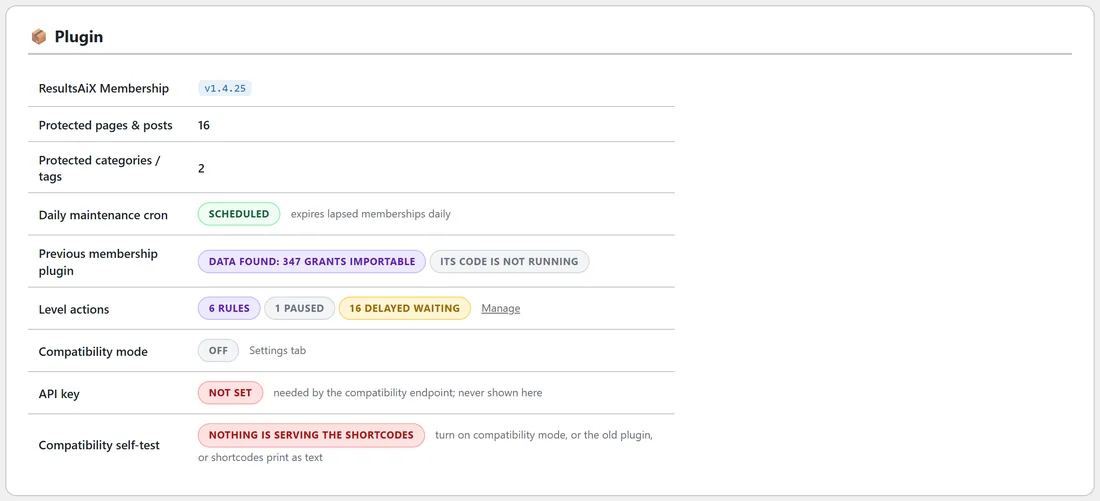
Open the Diagnostics tab and look at the Plugin card. Previous membership plugin says whether the old plugin's data was found and whether its code is still running. Compatibility mode, API key and Compatibility self-test show the state of everything on this page. Before you turn compatibility mode on, the self-test reads that nothing is serving the shortcodes yet; once it is on, it shows that this plugin is answering them.
Stripe subscriptions sold through the old plugin:
If you sold recurring memberships through the old plugin's Stripe connection, Stripe keeps sending renewals and cancellations to that plugin's webhook address. ResultsAiX Membership answers that same address. Renewals keep members in, cancellations end access, and nothing in Stripe needs changing.
When there is something to report, a box at the top of Recent activity on the Diagnostics tab shows whether the signing secret was found, how many plans are mapped to levels, and how many members carry a Stripe customer id. Any payer it could not place is listed with their Stripe customer id: look them up in Stripe, add the level on the Members tab, and later events find them.
A worked example:
Yoursite Academy has imported from WishList, verified the counts and checked a dozen pages.
- On the Settings tab, tick Turn on compatibility mode and press Save settings. The badge reads Waiting.
- Deactivate WishList Member on the Plugins screen. Reload: the badge reads Active.
- The licence server keeps calling the old API with the same master key, and the course pages that use the old first name tag still greet each member by name.
- A month later, with nothing to fix, press Retire the old tables (rename).
Tips:
- Give every outside tool its own named key. It makes later changes calm and small.
- Turn on Full API debug logging on the Diagnostics tab while you test a purchase through your licence server, then turn it off again.
Related: Migrating From WishList Member, Settings, Appearance And Diagnostics, and Developer Hooks: Payments And Automation.