There are two views of each member. The profile page is for the member: one page that shows what they hold, everything it lets them open, their downloads and their recent activity. The side panel is for you: one click on a member's name and their whole story slides in, orders and timeline included.
Both save support emails. Members find their own way to what they bought, and you answer "what happened with my account?" without opening five screens.
The profile page for members:
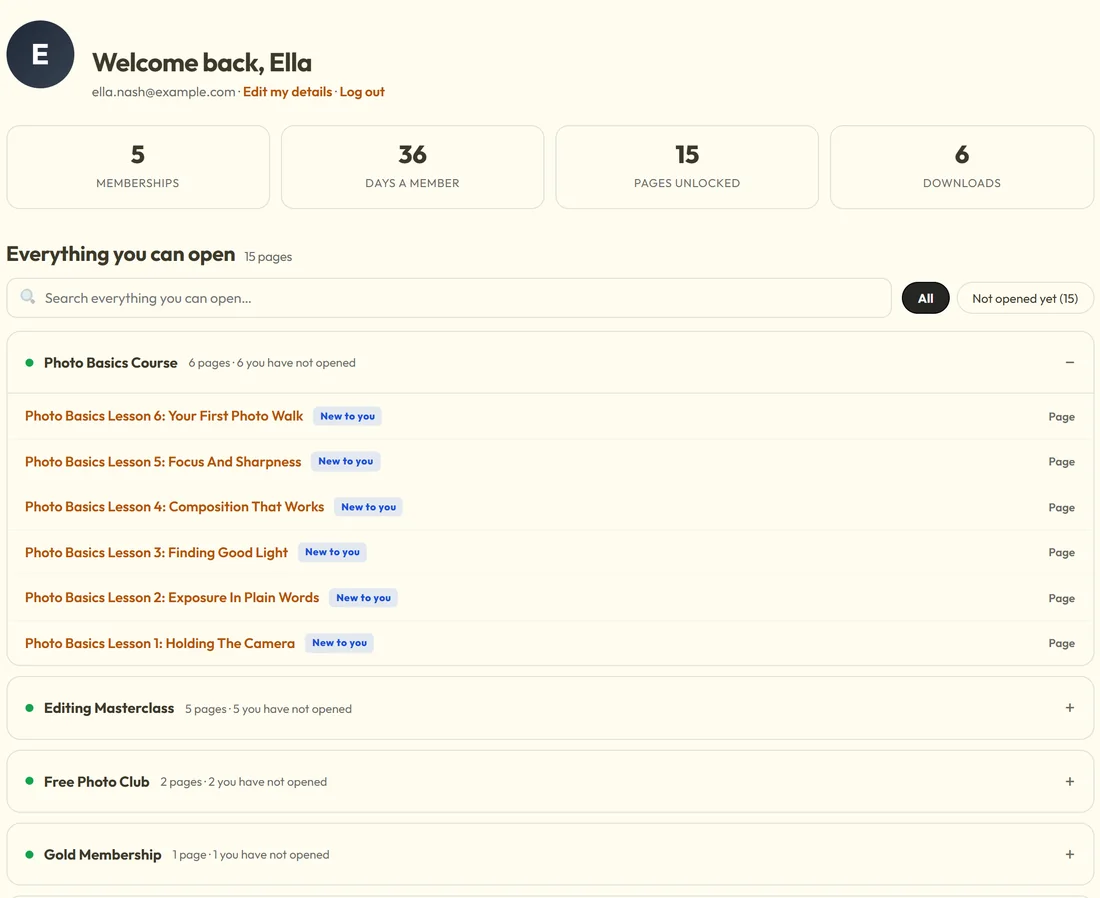
Put the shortcode [raxm_profile] on a page, for example a page called My Membership. The Setup Wizard makes this page for you. Every member who opens it sees their own profile; a visitor who is not logged in sees the login form.
What it shows, top to bottom:
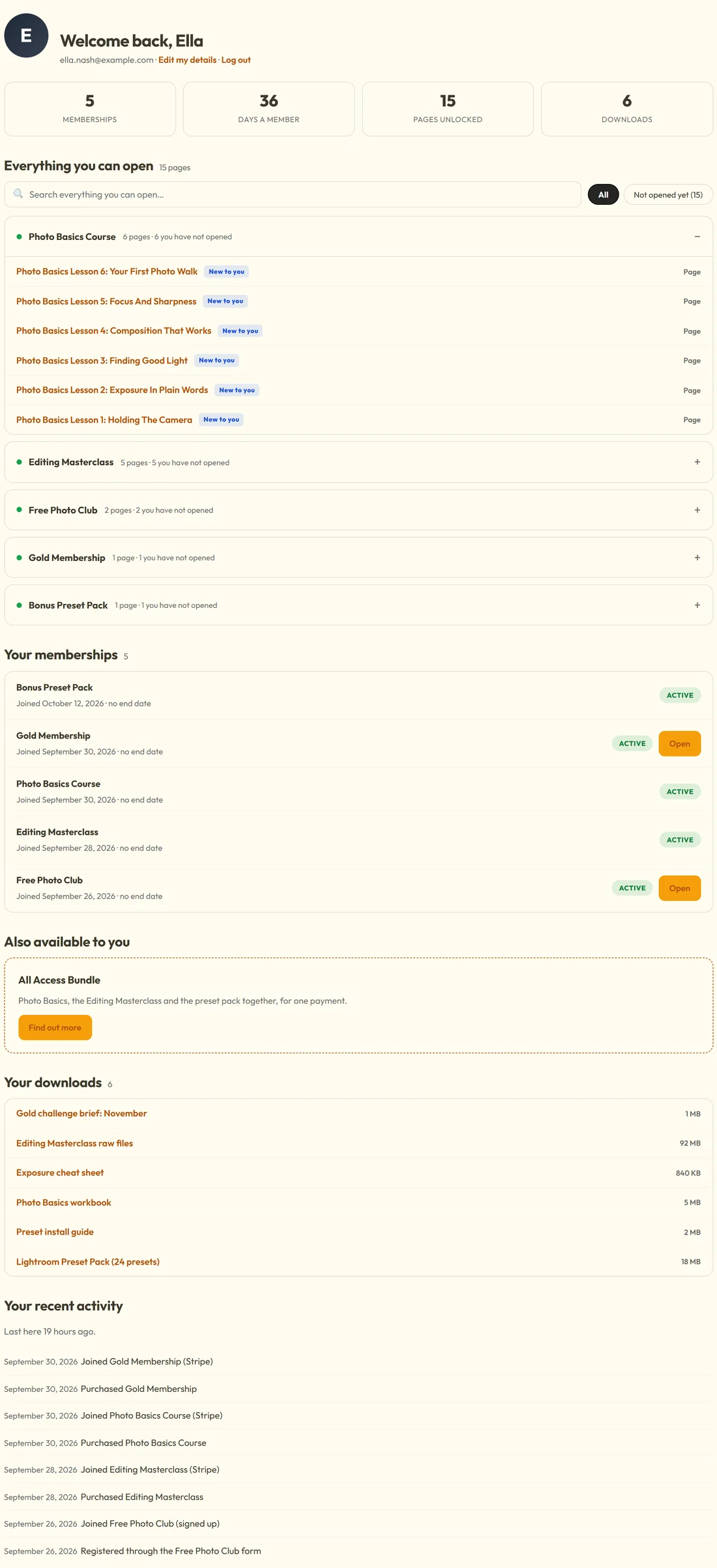
- A greeting with their name and email, and links to Edit my details and Log out.
- Four number tiles: memberships, days a member, pages unlocked and downloads.
- Pick up where you left off: what they were last reading, when ResultsAiX Search and its Member Activity are on the site.
- Everything you can open: the pages protected for the levels they hold, grouped by membership, with a search box and a Not opened yet filter. Pages they have never opened carry a New to you label.
- Ending soon: memberships with an end date coming up.
- Your memberships: each level they hold with its join date, end date and status, and an Open button when the level has an after-login page.
- Also available to you: the levels you chose to offer (see below).
- Your downloads: their protected files.
- Your recent activity: their own history.
Money never appears on it. Purchases are named, never priced, because a member's page is not a billing statement.
Shaping the page:
Every part can be changed with attributes on the shortcode, for example [raxm_profile show="stats,unlocked,levels,files" columns="2"].
- show picks the sections and the order they appear in: recent, stats, unlocked, ending, levels, offers, files, activity. Leave a name out and that section is gone.
- greeting changes the words before their first name. The default is Welcome back,
- recent is how many pick up where you left off cards show, 3 by default, and 0 hides them.
- unlocked_limit is how many pages are listed in each group before Show all, 8 by default. groups is how many memberships get their own group, 6 by default; the rest fold into Everything else.
- levels_limit is how many memberships show before Show all, 10 by default; 0 lists every one.
- ending_days is how far ahead counts as ending soon, 30 by default.
- files_limit, activity_limit and offers_limit are the number of rows in those sections: 12, 10 and 4 by default.
- columns is how many offer cards sit side by side: 2, 3 or 4.
- search="no" removes the two search boxes.
- login="message" shows a single line to visitors instead of the login form.
- recent_title, unlocked_title, ending_title, levels_title, offers_title, files_title and activity_title each give that section your own heading.
Older names still work: content means unlocked, and reading means recent.
Offering a level on the page:
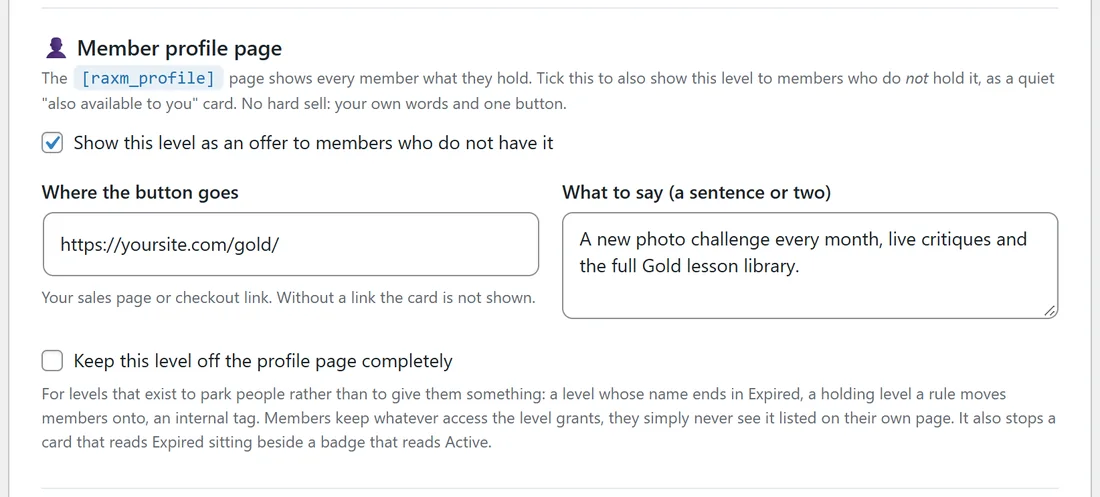
A member who holds the Free Photo Club can see a quiet card for the Photo Basics Course, in your words, with one button. Members who already hold the level never see it.
- Open the Levels tab and press Edit on the level you want to offer.
- Under Member profile page, tick Show this level as an offer to members who do not have it.
- Fill in Where the button goes with your sales page or checkout link. Without a link the card is not shown.
- Fill in What to say (a sentence or two).
- Press Save level.
It is a soft offer on a page they came to for another reason, which suits members far better than a hard sell.
Keeping a level off the page:
Some levels exist to park people rather than to give them something: a holding level a rule moves members onto, an internal tag, a level whose name ends in Expired. Open the level and, under Member profile page, tick Keep this level off the profile page completely.
The member keeps whatever access the level grants. It simply never appears on their page.
The side panel for you:
Click a member's name on the Members tab or the Dashboard, or the eye button on their row on the Members tab, and the side panel slides in from the right. Press the cross or Escape to close it.
What the side panel shows:
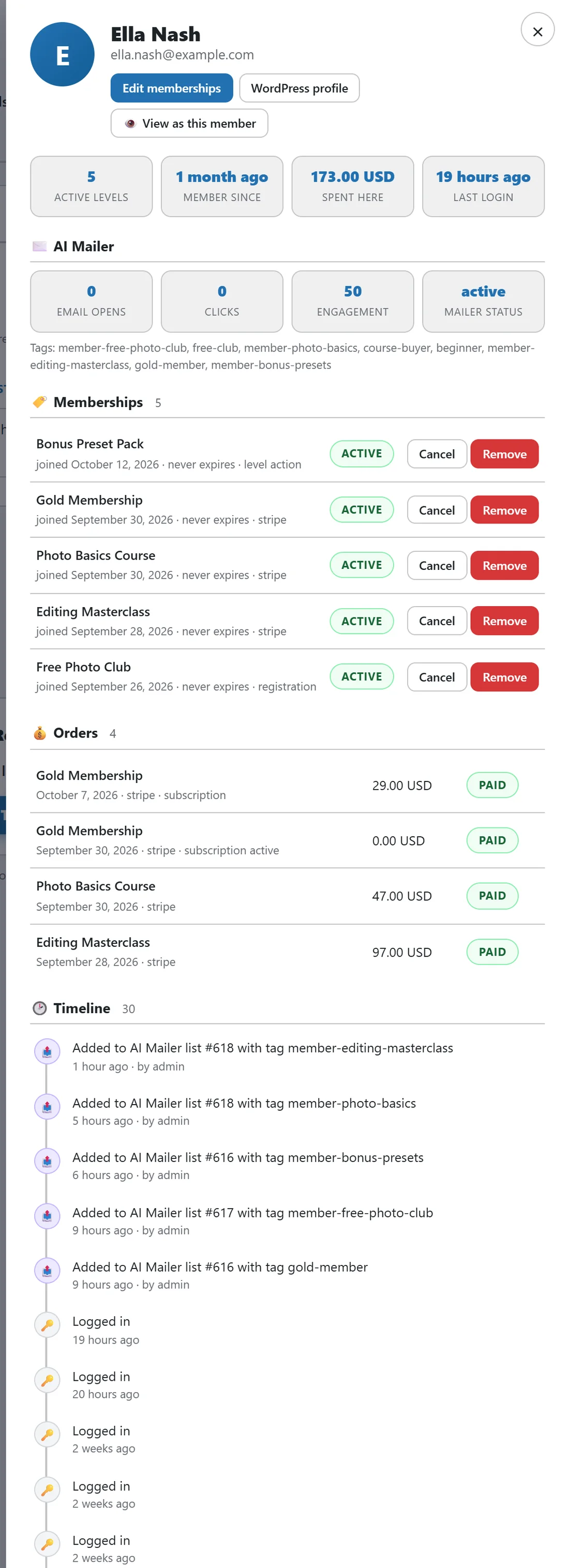
- Their name and email, with Edit memberships, WordPress profile and View as this member.
- Four tiles: active levels, member since, spent here and last login.
- With AI Mailer connected: email opens, clicks, engagement, Mailer status and their tags.
- Memberships: every level they hold or held, with join date, end date and how it arrived (registration, stripe, level action and so on). Each has Cancel or Put back, and Remove or Delete for good.
- Orders: every payment, with its amount, date, method and status.
- Timeline: everything that happened to them, newest first: joins, purchases, logins, level actions, poll answers, Mailer changes and notes from other plugins.
A real example:
Yoursite Academy puts [raxm_profile] on its My Membership page and ticks the offer on the Photo Basics Course, Editing Masterclass, Gold Membership and All Access Bundle levels. Past Members is kept off the page.
Ella Nash holds the Free Photo Club, both courses, the preset pack and Gold. Her page shows 5 memberships and 6 downloads, and the only offer left for her is the All Access Bundle. When Ella writes in to ask where the preset pack went, the owner clicks her name on the Members tab: the side panel shows the preset pack was given by a level action on 12 October, and her last login was yesterday.
Tips:
- Link to the profile page from your menu as My Membership, shown only to members who are logged in. See Menus That Change With Who Is Looking.
- Use show to keep the page short on a simple site, for example show="stats,levels,files".
- Use View as this member in the side panel to see their profile page exactly as they do.
Related guides: Look At The Site As One Of Your Members, Managing Members, Levels: Your Access Groups, Login, Registration And Account Pages.