Once Stripe is connected, every level can have a price. A paid level works exactly like a free one, except that joining takes the person through Stripe's checkout first. You can charge once, every month or every year, and offer a free trial on the recurring ones.
A level with no price stays free and behaves exactly as it always has.
Where to find it:
Open AiX Membership, Levels, and click Edit on a level. The Charge for this level block sits near the bottom of the level form, above Sort order. It only appears after Stripe is connected. See Charging For Membership: Connecting Your Own Stripe Account.
The Payments tab has a Paid levels table showing every level, its price, whether Stripe has it, and how many members hold it.
Putting a price on a level, step by step:
- Open Levels and click Edit on the level you want to sell.
- Make sure Allow free registration into this level is ticked. A paid level needs it to be open for sign ups, and with a price set that form becomes the paid checkout.
- In Charge for this level, type the Price.
- Check the Currency.
- Choose How often: One off payment, Every month or Every year.
- For a recurring level, set a Free trial in days if you want one.
- Click Save level.
When you save, the plugin creates the product and price in Stripe for you. The Paid levels table on the Payments tab then shows Ready in the In Stripe column.
Every setting:
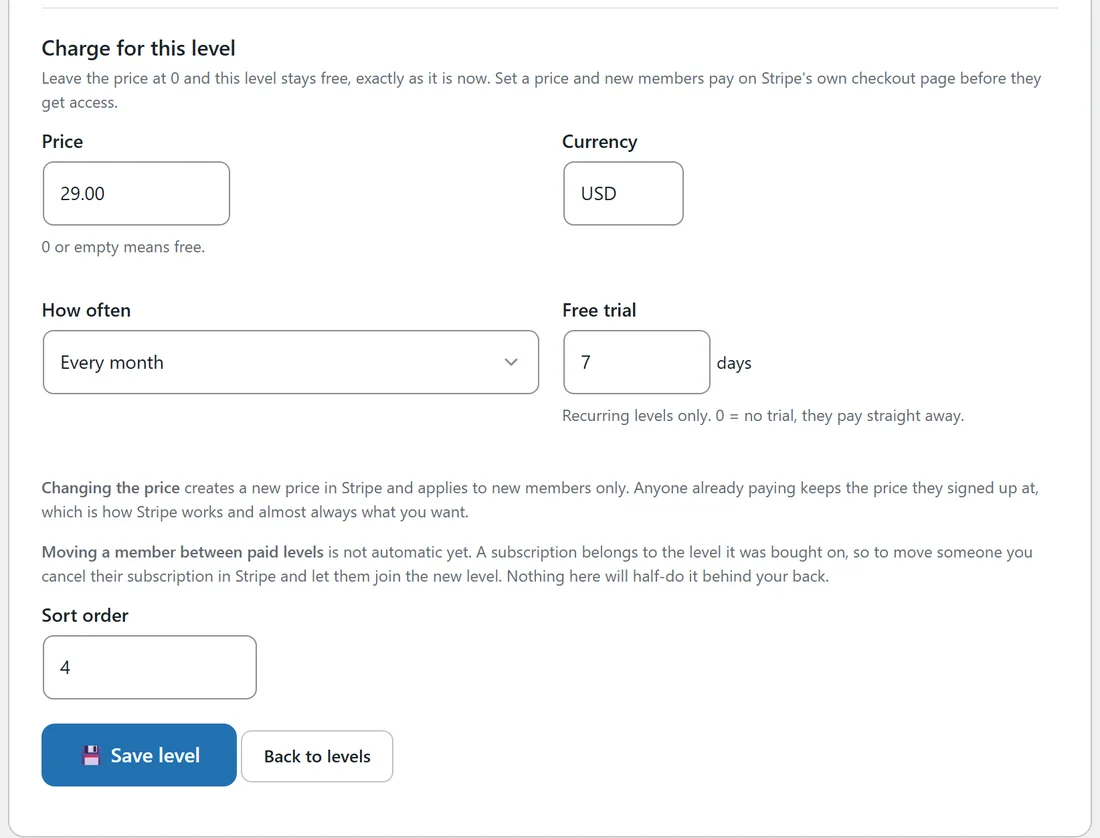
- Price: what a new member pays, for example 29.00. 0 or empty means the level is free.
- Currency: a three letter code such as USD, GBP or EUR. It starts as the currency on your payments card, and each level can have its own.
- How often: One off payment for a course bought once, Every month or Every year for a membership that renews.
- Free trial: days before the first charge, from 0 to 730. It only applies to recurring levels. 0 means they pay straight away. Seven to fourteen days is a common choice.
How a member buys a paid level:
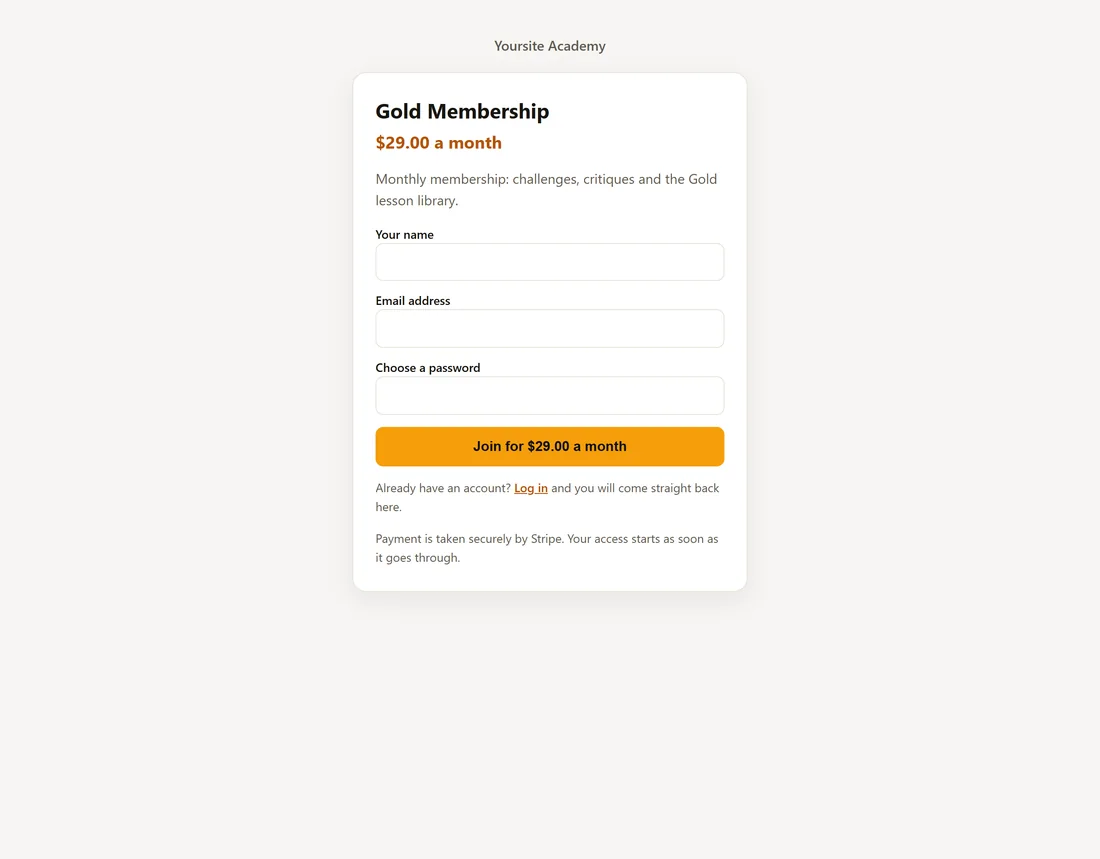
Paid levels are sold with the same tools as free ones:
- The [raxm_register level="gold"] shortcode on any page of your site. The button names the price, for example Join for the monthly price, so nobody reaches a card form by surprise.
- The level's buy link, a page drawn by the plugin that works from anywhere, even another website or an email. See Buy Links: Sell Or Share A Level From Any Page.
The buyer fills in their name, email and a password, clicks the button and pays on Stripe's checkout page. When Stripe confirms the payment, the level is added and they come back logged in. A visitor who is already logged in gets a single button straight to checkout, with no form to fill in.
Why the account is made before the payment:
The buyer's WordPress account is created first and parked as pending, and the level is given when Stripe's webhook confirms the payment. That way the buyer never has to type their details after paying, where a closed tab could cost them the account they just bought. They are also logged in when they come back from Stripe.
Sign ups that never pay are tidied away after a day. The tidy up only removes accounts that never paid, hold no membership at all, have written nothing on the site and are not administrators. Anything else is left alone and written in the log on the Payments tab.
Changing a price later:
Stripe prices cannot be edited, so changing the price on a level creates a new price in Stripe. It applies to new members only, and anyone already paying keeps the price they signed up at. That is how Stripe works and almost always what you want.
Moving a member between two paid levels is done by hand: a subscription belongs to the level it was bought on. Cancel the subscription in Stripe and let them join the new level. The level form shows this note under the price once a level is paid.
The Paid levels table:
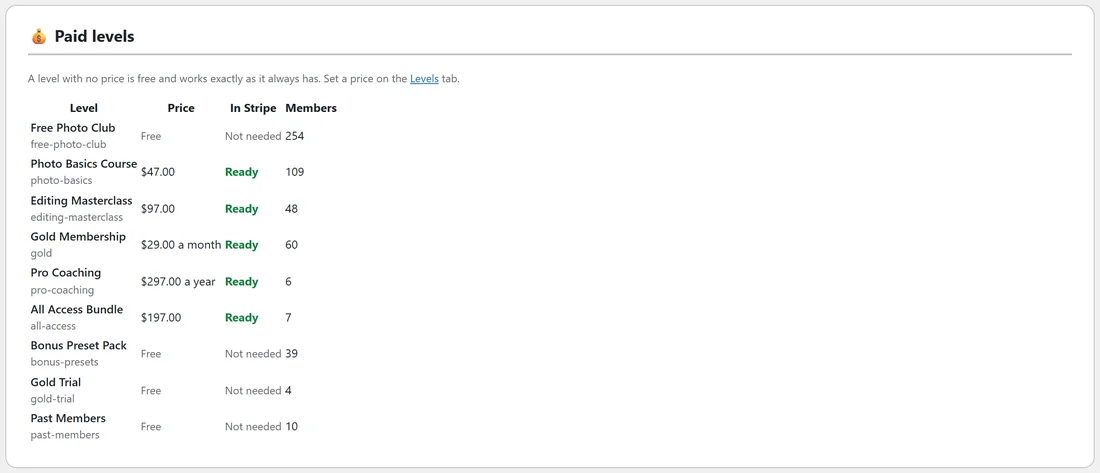
On the Payments tab, the Paid levels card lists every level with:
- Level: the name and slug.
- Price: for example the monthly price with "a month", or Free.
- In Stripe: Ready when Stripe has the price, Not needed for a free level, or Not synced if Stripe did not accept it. If you see Not synced, open the level and click Save level again, and check the Payments card for the reason.
- Members: how many hold the level.
An example from Yoursite Academy:
Yoursite Academy sells four things:
- Photo Basics Course and Editing Masterclass: One off payment.
- Gold Membership: Every month, with a 7 day Free trial.
- Pro Coaching: Every year, no trial.
- All Access Bundle: One off payment, and it also opens both courses. See Bundles: One Level That Opens The Others.
The Free Photo Club and the Bonus Preset Pack have no price. Every paid level shows Ready on the Payments tab. Gold is sold from a button on the Yoursite Academy sales page using its buy link, and from the Upgrade To Gold menu item for members who do not have it yet.
Tips:
- Try every paid level in test mode first with the 4242 4242 4242 4242 test card. See Testing A Sale Without Spending Money.
- Give a paid level an After-registration redirect to a welcome page so new buyers land somewhere that says thank you.
- To show a level to members who do not hold it yet, tick Show this level as an offer to members who do not have it on the level. See The Member Profile Page And The Side Panel.
- Read Renewals, Failed Cards, Refunds And Cancelling to see what happens month to month.