When a member writes in, you usually have their email address and nothing else. Ctrl+K takes you from that email to their record, their payments and their levels in one step, from any screen of the plugin.
One search box covers the whole plugin, and the answers come back in groups, so you can jump straight to the thing you meant.
Where to find it:
On any AiX Membership screen, press Ctrl+K, or Cmd+K on a Mac. You can also click the Ctrl+K to search button on the right of the tab bar. A search box opens over the page.
Before you type:
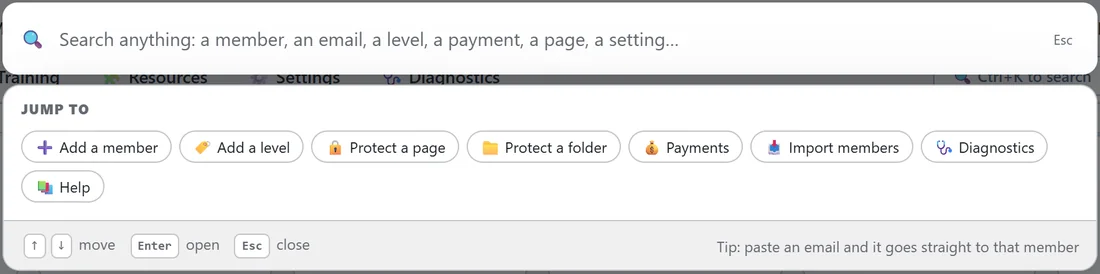
The box shows a Jump to row with shortcuts: Add a member, Add a level, Protect a page, Protect a folder, Payments, Import members, Diagnostics and Help. Your recent searches appear above it, kept in your browser, one click away.
What it searches:
- Members: by email, username or name, with how many active levels they hold and when they first joined.
- Levels: by name, with live members and how long they last.
- Payments: by email, first name, order key, Stripe transaction or subscription id, or product name.
- Protected content: protected pages and posts, and protected categories.
- Files & folders: protected files by title or file name, and protected folders by path.
- Settings & screens: the screens and settings of the plugin, so typing stripe, drip or folder takes you to the right screen.
- Help: topics from the Training tab.
Each group shows up to five answers, and a see all link opens the full list on the right screen.
It works out what you meant:
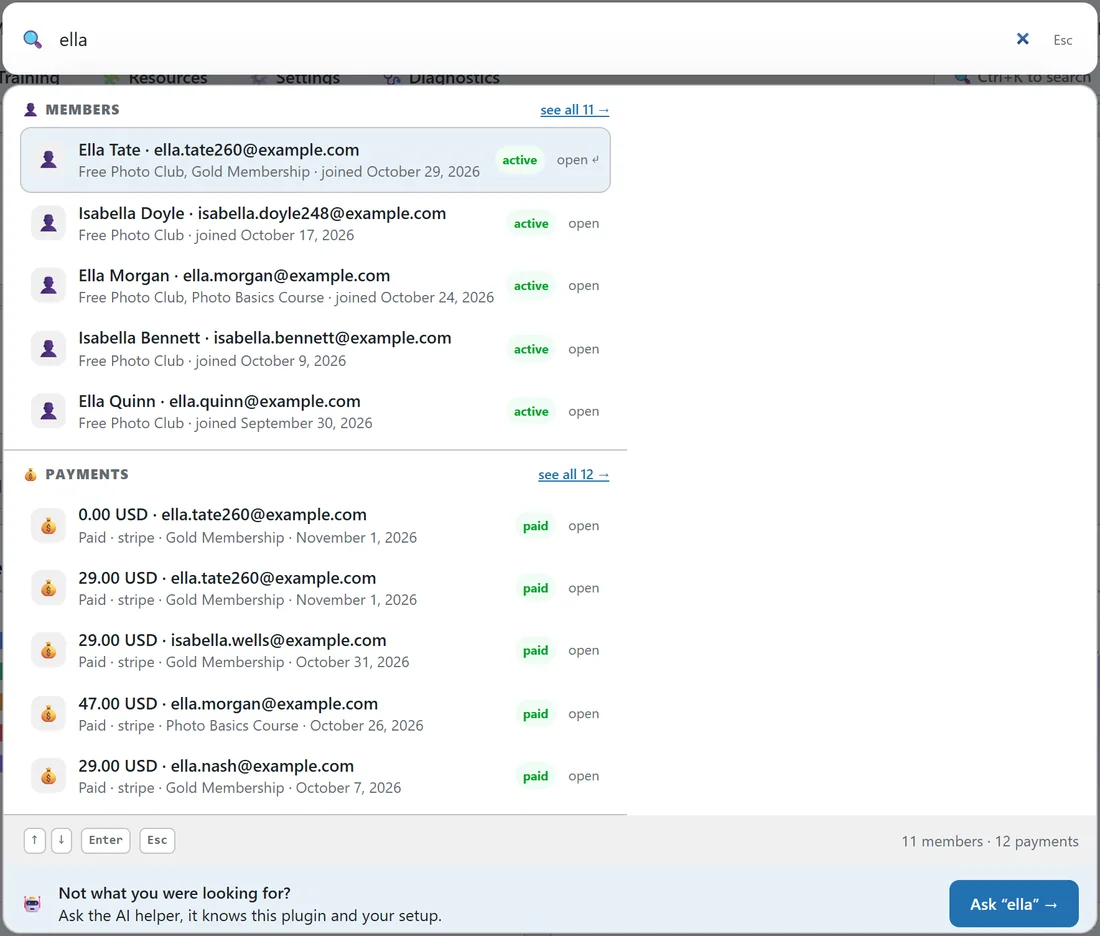
- Paste an email address and that member leads the results.
- An order key or a Stripe transaction id finds the payment, which is what you have when you are looking into a refund.
- A word like stripe, drip or folder puts the matching screen first, ahead of a page that happens to share the word.
- A name puts the members first when any member matches.
Using it from the keyboard:
- Press Ctrl+K.
- Type what you are looking for.
- Use the up and down arrow keys to move through the answers.
- Press Enter to open the highlighted one.
- Press Esc to close the box.
Opening a member goes to their record. Opening a payment, a level, a page or a screen goes straight to it.
Handing over to the AI Helper:
When an AI key is connected, the bottom of the results offers Not what you were looking for? with an Ask button that passes your words to the AI Helper, which knows the plugin and your setup. Without a key there is no button and nothing is locked. See AI Helper: Ask, And Build.
An example from Yoursite Academy:
A member writes in from ella.nash@example.com asking whether her Gold renewal went through. Yoursite Academy presses Ctrl+K, pastes the email, and Ella Nash comes up first under Members with her levels and join date, with her payments listed underneath, including the Gold renewals. One click on the latest one shows it was paid.
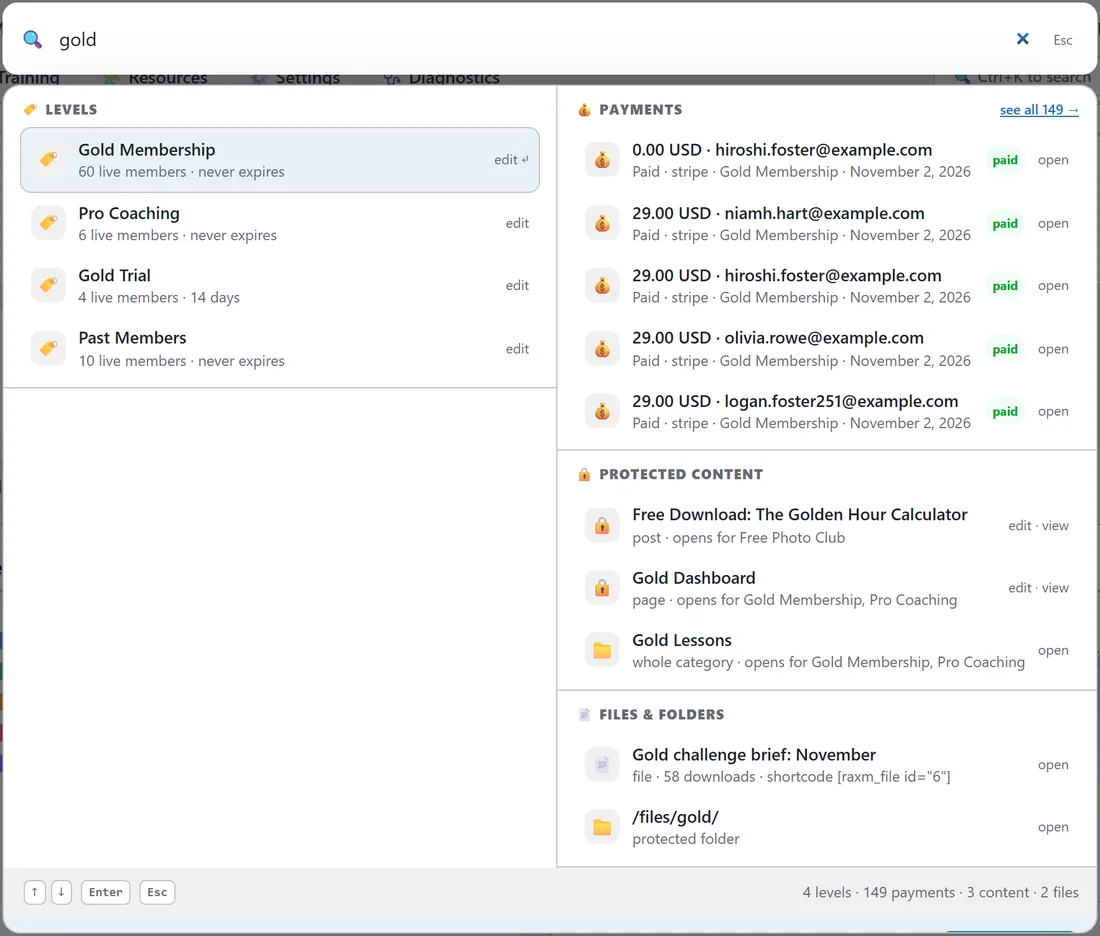
Typing gold instead brings up the Gold Membership level with 60 live members, the recent Gold payments, the Gold Dashboard and Gold Lessons under protected content, and the Gold files and folder.
Tips:
- Paste the full email from the member's message. An exact email always puts that person first.
- Use the Jump to shortcuts as a quick menu, even when you are not searching.
- The Training tab has its own search box for reading the help in full.