Your members need a few simple pages: somewhere to log in, somewhere to join, somewhere to land, and somewhere to see what they hold. ResultsAiX Membership draws all of them from shortcodes you drop onto ordinary WordPress pages, so they take on your theme's look and you can write whatever you like around them.
Members never have to see the WordPress login screen or the dashboard, and every form sends people to the right place for the level they hold.
The pages a members area needs:
- A Log In page with [raxm_login] on it.
- A Join page with [raxm_register level="your-level-slug"] for every level people can sign up to.
- A Members Home page, protected, where members land after logging in.
- An Account page with [raxm_account], or a richer My Membership page with [raxm_profile].
The Setup Wizard can build all four for you in one go. See The Setup Wizard: A Members Area In Five Minutes.
Where to find it:
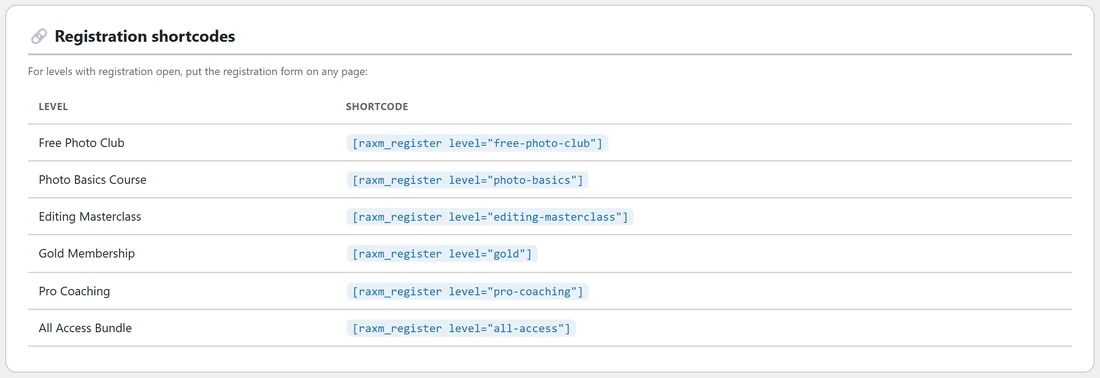
The shortcodes go on any page you edit in WordPress. The settings that tie them together are on AiX Membership, Settings tab, in the Login & redirects card. Each level's own redirects are on Levels, Edit, in the three After-login, After-registration and After-logout fields. The Levels tab also lists the ready made registration shortcode for every level that has registration open.
The login page:
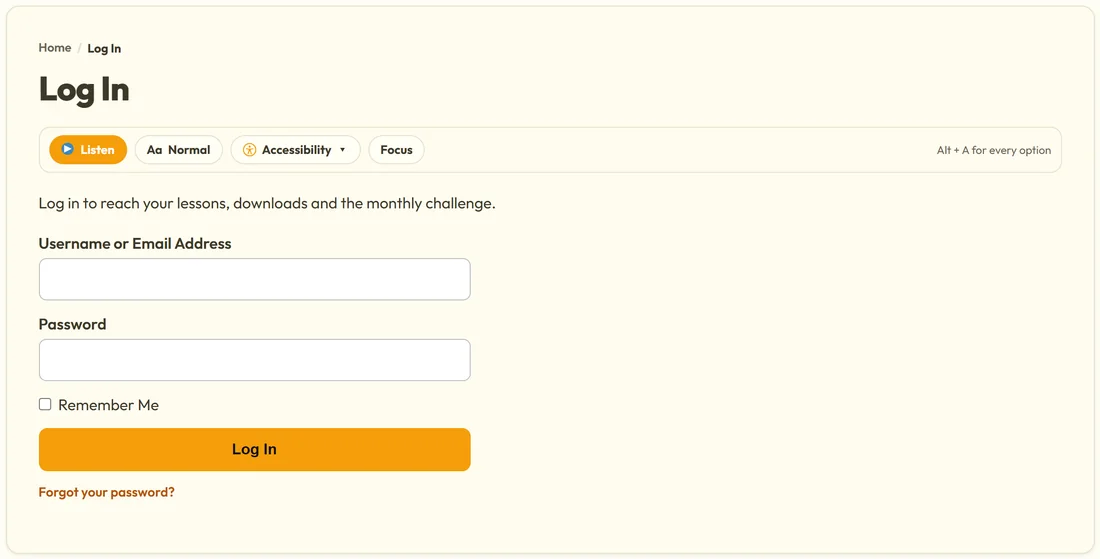
[raxm_login] shows a normal WordPress login form with Username or Email Address, Password, Remember Me and a Log In button, plus a Forgot your password? link underneath. It holds its shape on any theme.
If the details are wrong, the member sees "Login failed. Check your username and password." above the form. If somebody who is already logged in opens the page, they see "You are logged in as" with their name and a Log out link instead of the form.
- Go to Pages, Add New, and call the page Log In.
- Add a line of welcome text if you like, then the shortcode [raxm_login].
- Publish the page and copy its address.
- Open AiX Membership, Settings, and paste that address into Your login page (optional) in the Login & redirects card.
- Click Save settings at the bottom of the Settings tab.
Once the login page is set, the Log in link inside your protection message, the menu Log in item and the file download check all send people to your page rather than the standard WordPress one, and they come back to the page they were trying to open.
The shortcode takes one optional setting, redirect, for a page that should always go somewhere fixed: [raxm_login redirect="https://yoursite.com/members-home/"]. Without it, the member's level redirect or your global After login page is used.
The join page:
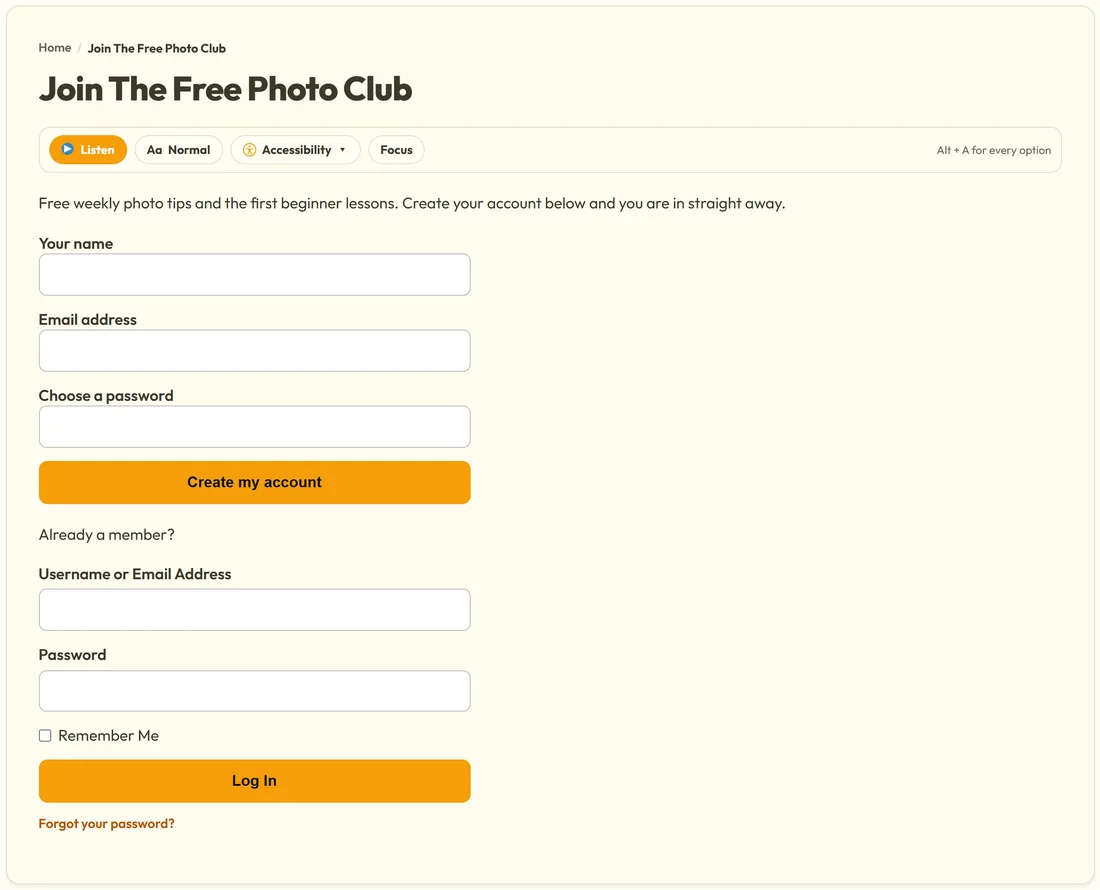
[raxm_register level="free-photo-club"] shows a registration form for one level. It asks for Your name, Email address and Choose a password (at least 8 characters), and the button reads Create my account.
- Open Levels, Edit on the level, tick Allow free registration into this level, and click Save level.
- Go back to the Levels tab and copy the shortcode for that level from the Registration shortcodes table.
- Create a page called Join, paste the shortcode, and publish.
What happens when somebody signs up:
- A hidden honeypot field catches spam bots. Real visitors never see it.
- The WordPress account is created with the subscriber role, and the person is logged in straight away, so there is no second step.
- If Email new members their login details when they register is ticked in Settings, they get the WordPress new account email.
- They land on the level's After-registration redirect, then its After-login redirect, then your global After login page, whichever is set first.
The shortcode has three settings: level (the slug, id or name of the level), redirect (a fixed page to land on after joining) and button (your own button words, for example button="Start my free membership").
If the person filling in the form is already logged in, there is no form at all. They get a single button that adds the level to their account, because you already know who they are. If they already hold the level, the form says "You already have this membership."
Join pages for paid levels:
The same shortcode sells a paid level once Stripe is connected. The button then names the price, for example Join for the monthly price, so nobody reaches a card form by surprise, and pressing it takes the buyer to Stripe's own checkout page. The level still needs Allow free registration into this level ticked to be open for sign ups. See Paid Levels: Putting A Price On Access.
The account page:
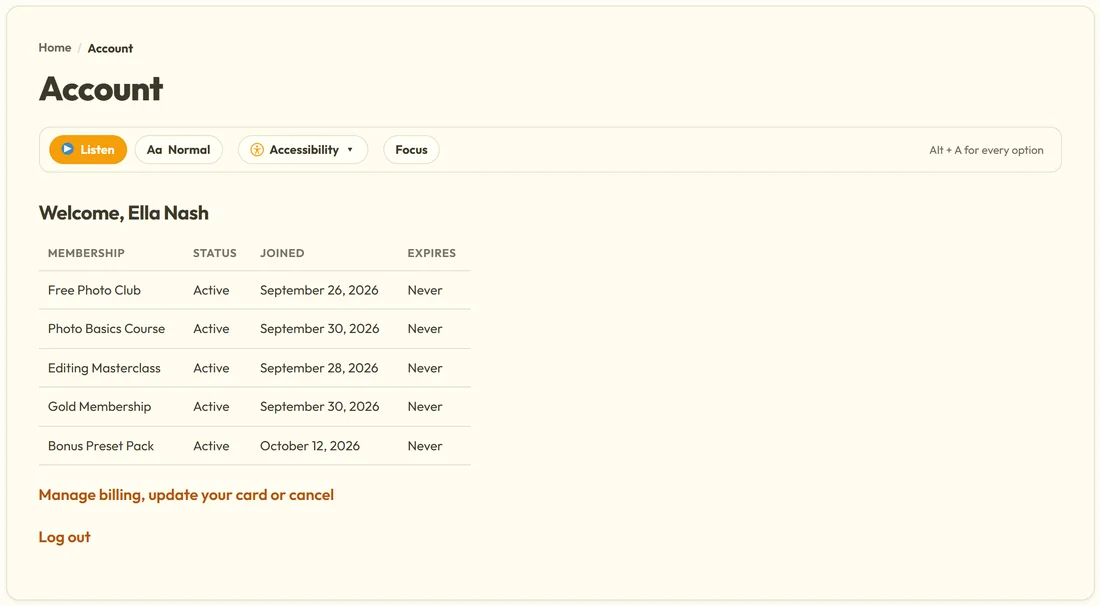
[raxm_account] shows "Welcome," and the member's name, then a table of every membership they hold with its Status, Joined date and Expires date (Never when it has no end). Under the table is a Log out link.
When Stripe is connected and the member has a live subscription, a Manage billing, update your card or cancel link appears above Log out. It opens their own Stripe billing page. Free members and one off buyers see no billing link. See Renewals, Failed Cards, Refunds And Cancelling.
A visitor who is not logged in sees the login form in place of the account table, so the page is safe to link from anywhere.
For a fuller page with everything a member can open, their downloads and their recent activity, use [raxm_profile] instead. See The Member Profile Page And The Side Panel.
The Login & redirects settings:
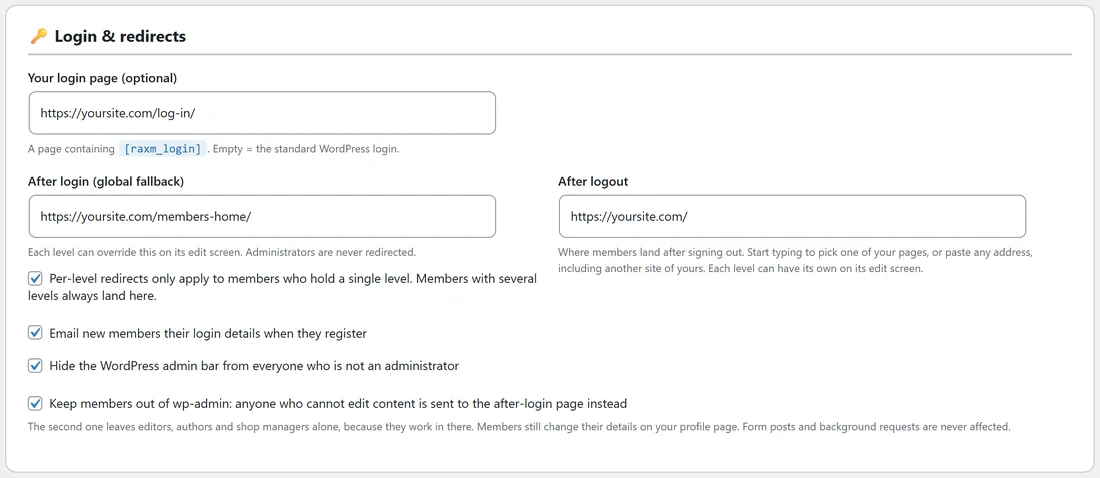
- Your login page (optional): the page holding [raxm_login]. Empty means the standard WordPress login.
- After login (global fallback): where members land after logging in when their level has no redirect of its own. Your Members Home page is the usual choice. Administrators are never redirected.
- Per-level redirects only apply to members who hold a single level: on by default. Somebody who holds several levels lands on the global page, so the plugin never has to guess which of their levels matters most. Untick it and the first level by sort order that has a redirect wins.
- After logout: where members land after signing out. Your home page or a sales page both work well. It can be another site of yours.
- Email new members their login details when they register: sends the WordPress new account email after a free registration.
- Hide the WordPress admin bar from everyone who is not an administrator: members see your site, not the black WordPress bar.
- Keep members out of wp-admin: anyone who cannot edit content is sent to the after login page instead. Editors, authors and shop managers are left alone.
An example from Yoursite Academy:
Yoursite Academy runs a free Photo Club that feeds its paid courses. Its pages are set up like this:
- Log In holds [raxm_login] and is set as Your login page.
- Join The Free Photo Club holds [raxm_register level="free-photo-club"], with a short line about the weekly tips above it and [raxm_login] underneath for people who already have an account.
- Members Home is protected for every level and holds [raxm_account] plus [raxm_poll], and it is the After login (global fallback).
- Gold Membership has its own After-login redirect to the Gold Dashboard, so a member who holds only Gold goes straight there.
- After logout goes back to the home page, and both the admin bar and wp-admin are closed to members.
When Ella Nash, who holds five levels, logs in, she lands on Members Home, because the single level rule sends people with several levels to the global page.
Tips:
- Check every page in a private browser window before you share the links. Administrators see everything, so what you see is not what a visitor sees.
- Put [raxm_login] underneath your join form with a line such as Already a member?, so returning members never get stuck.
- Use Look At The Site As One Of Your Members to check where a real member lands after logging in.
- Add Log in and Log out links to your menu with Menus That Change With Who Is Looking.