The Dashboard is the first screen you see in ResultsAiX Membership. It answers the everyday questions in one look: how many members you have, who joined and who left this month, who is logging in, what came in through the site, and what happened today.
It is built from your real membership records rather than from the day the plugin was installed, so a site that imported years of history shows years of history.
Where to find it:
Go to AiX Membership in the WordPress menu, or click Dashboard in the plugin's tab bar. It is the first tab.
On a brand new site with no levels yet, the top of the dashboard shows a Welcome card with Create your first level and Open Training. If WishList Member data is on the site and nobody has been imported yet, it offers Start the import instead.
The numbers across the top:
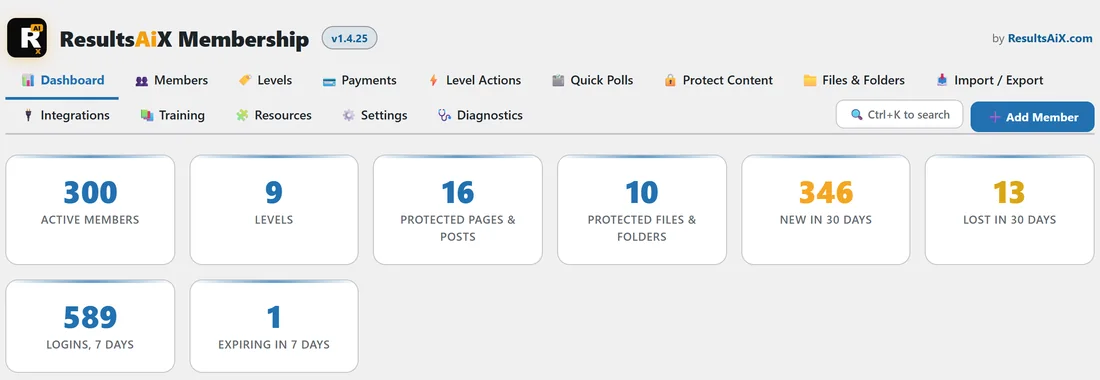
- Active Members: people who hold at least one active membership. Each person counts once, however many levels they hold.
- Levels: how many levels you have.
- Protected Pages & Posts: content with protection switched on.
- Protected Files & Folders: files in the protected library plus protected folders.
- New in 30 Days: memberships started in the last 30 days.
- Lost in 30 Days: memberships cancelled, removed or expired in the last 30 days.
- Logins, 7 Days: member logins in the last week. On sites where the reading history knows more, this becomes Members Active, 7 Days.
- Expiring in 7 Days: active memberships that reach their end date in the next week. A good list to send a renewal reminder to.
When ResultsAiX Search with its Member Activity report is active on the same site, two more appear: Reading This Week and Page Views This Week.
The charts:
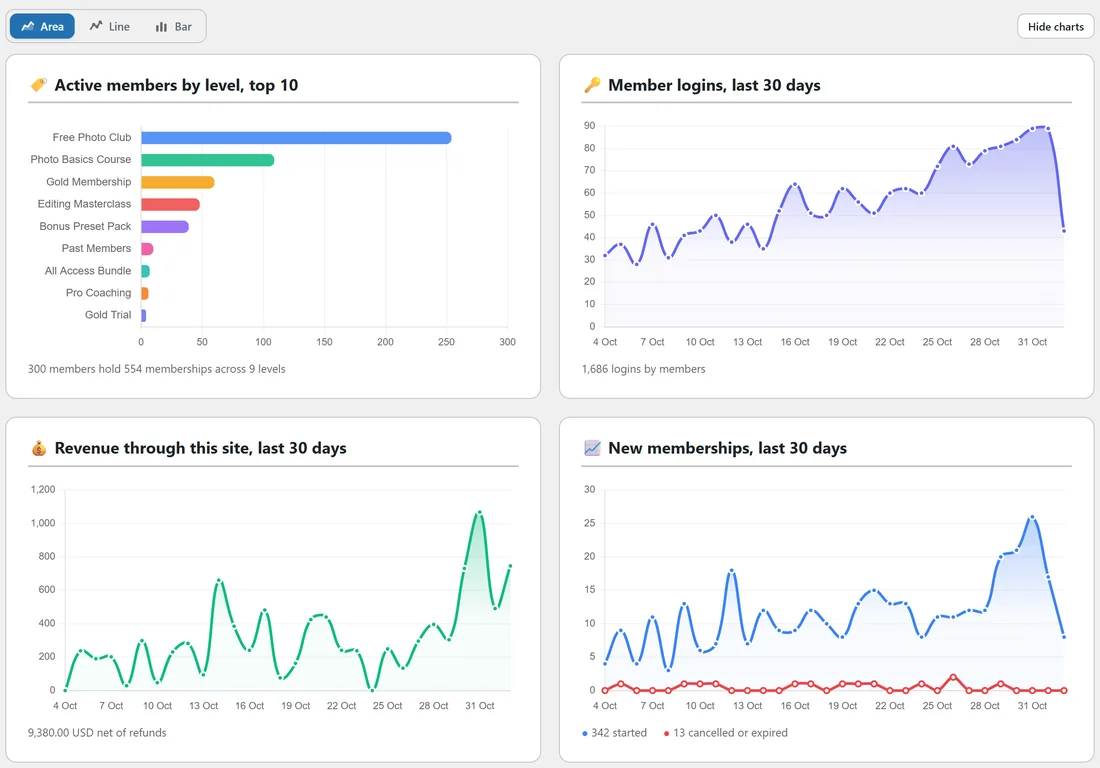
- Active members by level, top 10: how your members spread across your levels.
- Member logins, last 30 days: logins per day. When the reading history is available it shows Members-only page views instead, or Members seen, and the line under the chart says which and how it is counted.
- Revenue through this site, last 30 days: real money from this plugin's own orders, net of refunds. Test orders are never counted. It appears once there is revenue to show.
- New memberships, last 30 days: started in blue against cancelled or expired in red.
- Page views by members, last 14 days: when the reading history is available.
Use the Area, Line and Bar buttons above the charts to change their style, or Hide charts to fold them away. Your choice is remembered in that browser.
The activity cards:
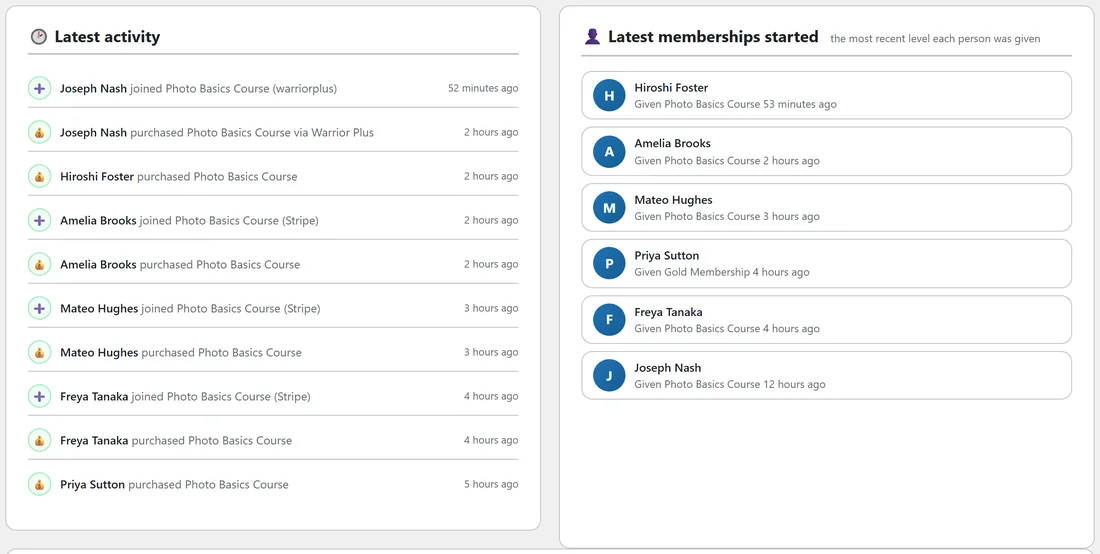
- Latest activity: the ten newest joins, purchases, cancellations, refunds and expiries, each with how long ago. Click a name to open that member's side panel.
- Latest memberships started: the six people most recently given a level, with the level and when. For somebody who has been a member for a long time, it also says the month they first joined.
Click any member here and the side panel opens with their memberships, orders and timeline. See The Member Profile Page And The Side Panel.
Further down:

- What members are reading: this week's most read pages and the all time list, with a Member Activity button, when ResultsAiX Search's Member Activity is active.
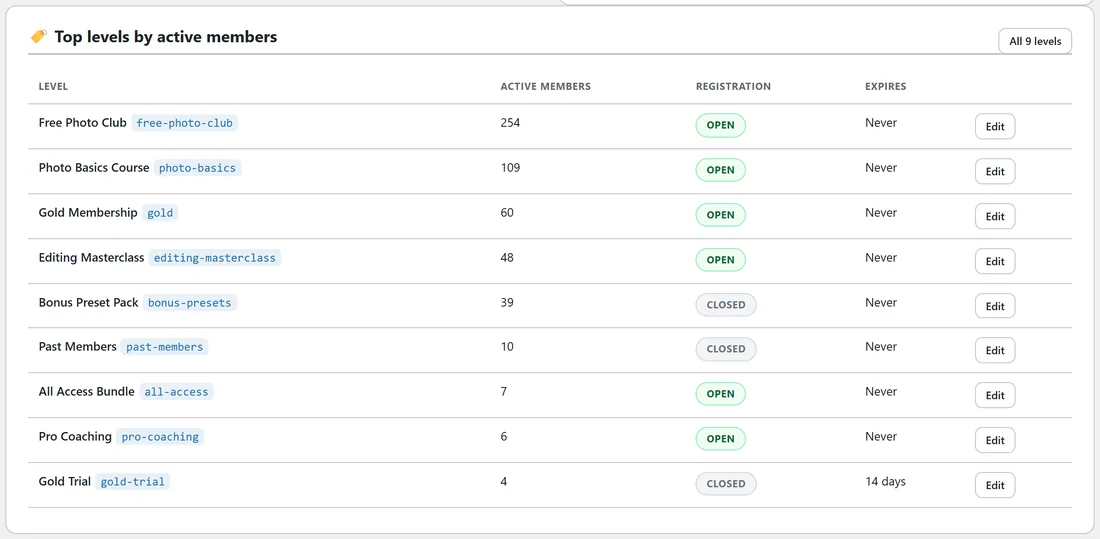
- Top levels by active members: your ten biggest levels with members, registration Open or Closed, when they expire, and an Edit button. All levels opens the Levels tab.
- Quick actions: Add a member, Protect content, Protect files and Sell a level, each one click from the screen that does it.
Using the dashboard day to day:
- Open the dashboard in the morning and read the eight numbers.
- If Lost in 30 Days jumped, open Latest activity to see who left and from which level.
- If Expiring in 7 Days is above zero, filter the Members tab by that level to see who is reaching their end date.
- Click a name in Latest activity to check one member's whole story in the side panel.
An example from Yoursite Academy:
Yoursite Academy's dashboard shows 300 active members across 9 levels, 346 new memberships in the last 30 days against 13 lost, and hundreds of logins in the last week. Free Photo Club is the biggest bar on the levels chart, followed by Photo Basics Course and Gold Membership. The revenue chart climbs towards the end of the month after a Photo Basics promotion, and Latest activity shows the morning's new buyers.
Tips:
- Ctrl+K works on the dashboard too, for jumping straight to a member or a payment. See Find Anything With Ctrl+K.
- Ask the AI Helper questions such as how many members joined this week and how many left. See AI Helper: Ask, And Build.
- Revenue only counts payments taken through this plugin's Stripe connection. Marketplace sales appear on the Integrations tab.