A level action is a rule that reads like one sentence: when a member is added to a level, add them to, remove them from, cancel their, or move them to other levels. It runs by itself every time, so you never have to remember.
Use it to hand out the parts of a bundle, to end a trial, to move somebody up to a better level, or to give a bonus a couple of weeks after a purchase.
Where to find it:
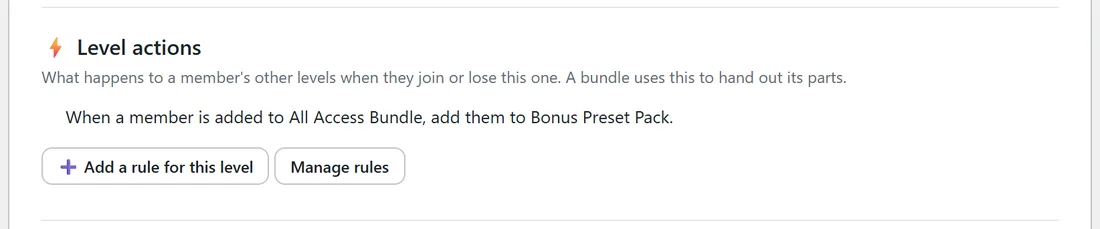
Open AiX Membership, then the Level Actions tab. It lists every rule in plain words with the level it watches. Each level's edit screen also has a Level actions section listing the rules that watch that level, with Add a rule for this level and Manage rules buttons.
The rules list:
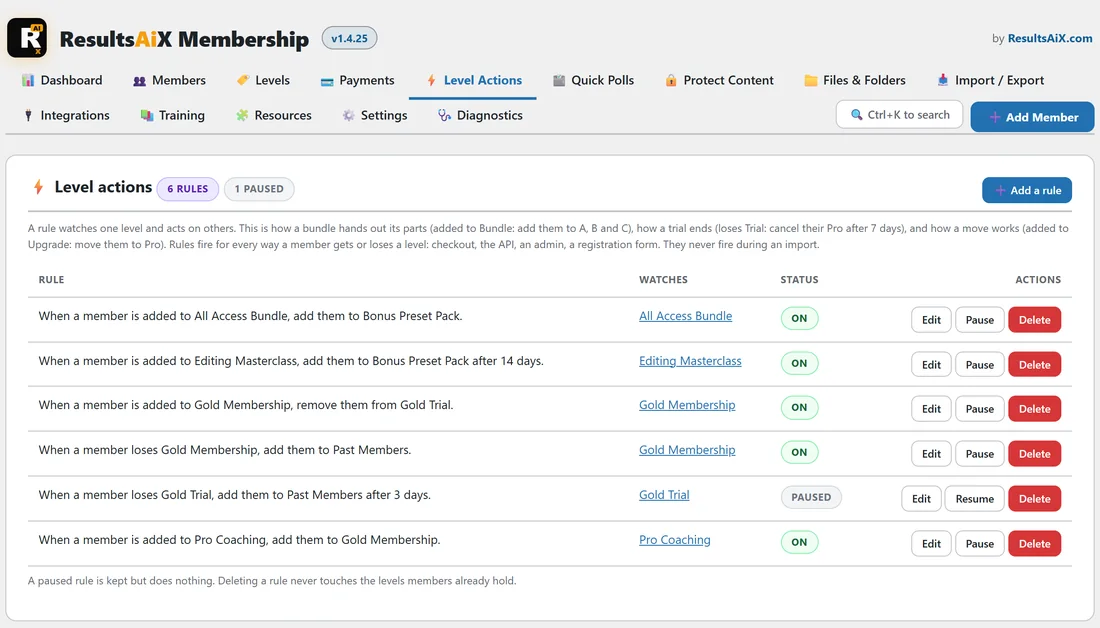
Each row reads as a sentence, for example "When a member is added to Editing Masterclass, add them to Bonus Preset Pack after 14 days." The Watches column names the trigger level; click it to see only the rules for that level. The Status column shows On or Paused. A badge next to the heading counts your rules and how many are paused, and rules brought across from WishList Member carry an imported badge.
Each row has three buttons:
- Edit opens the rule in the form below.
- Pause keeps the rule but stops it firing; Resume switches it back on.
- Delete removes the rule after you confirm. Members who already received levels through it keep them.
Adding a rule:
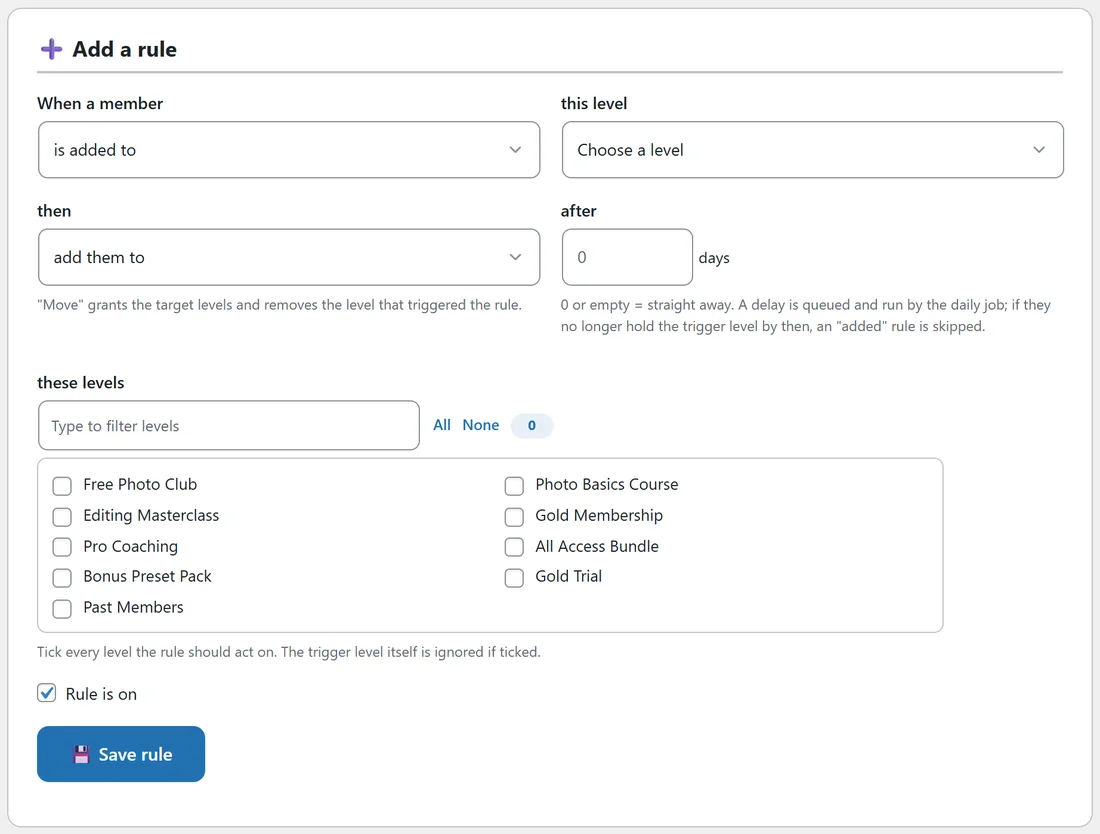
- Press Add a rule at the top, or scroll to the Add a rule form.
- When a member: choose is added to, or loses (removed, cancelled or expired).
- this level: pick the trigger level.
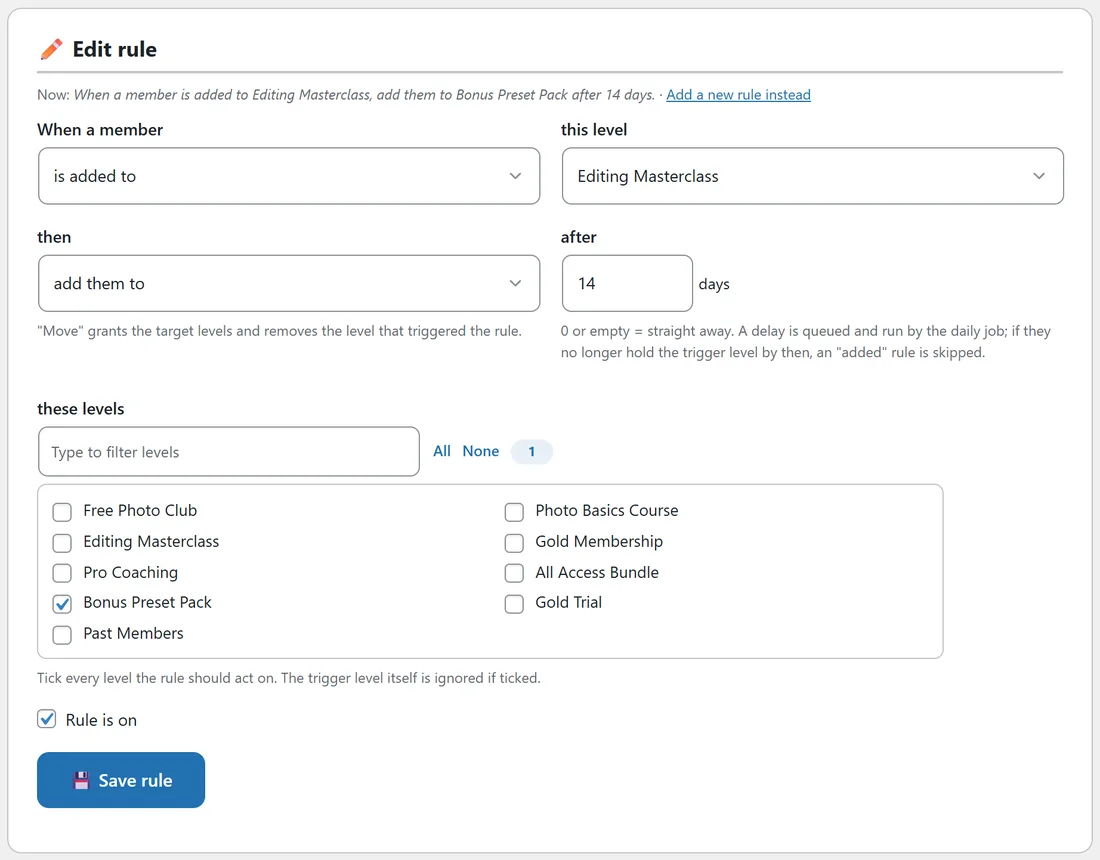
- then: choose add them to, remove them from, cancel their, or move them to. Move grants the target levels and removes the level that triggered the rule.
- after: the number of days to wait. 0 or empty means straight away.
- these levels: tick every level the rule should act on. Type to filter levels narrows a long list, and All and None tick or clear them all. The trigger level itself is ignored if ticked.
- Leave Rule is on ticked and press Save rule.
The rule applies to members added or removed from then on.
What sets a rule off:
A rule fires for every join or loss, whatever caused it: your own Stripe checkout, a marketplace sale, the API, an administrator adding somebody on the Members tab, a registration form, or another rule. Coming back from cancelled or expired counts as being added again. Re-saving a membership somebody already holds does not fire it twice.
Rules never fire during an import, so moving ten thousand members never sets off ten thousand bonus grants. A rule cannot loop back on itself, because the chain is cut as soon as it would repeat.
Delays and the waiting list:
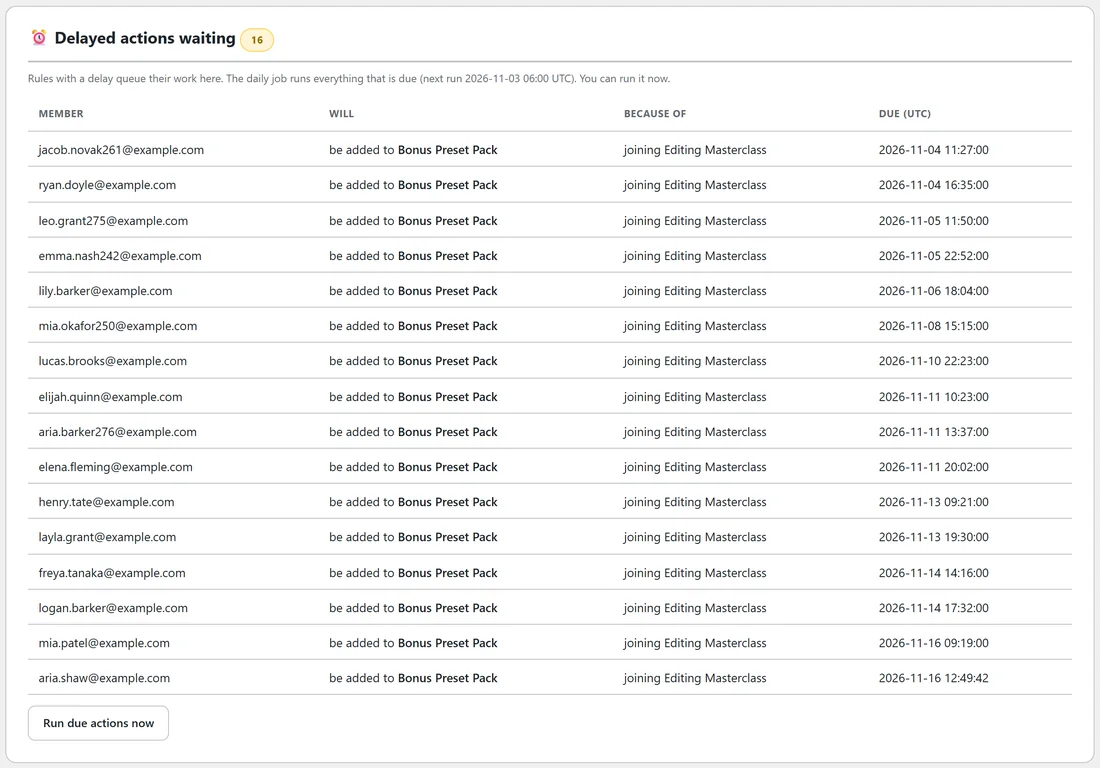
A rule with a delay does not act straight away. It adds a line to Delayed actions waiting at the bottom of the tab, showing the member, what will happen, which level caused it and when it is due (UTC). If the same thing is triggered again before then, the due date simply moves.
The daily job runs everything that is due; the card says when the next run is. Press Run due actions now to apply everything due right away.
One detail matters: a delayed rule that started with is added to is skipped if the member no longer holds the trigger level when it comes due. A purchase refunded inside the delay never hands out the bonus.
Pausing, editing and deleting:
- Pause keeps a rule and its settings, which is how you switch a bonus off for a while without rebuilding it.
- Edit changes the rule for future joins and losses. Add a new rule instead clears the form for a fresh one.
- Delete never touches levels members already received.
Bundles with level actions:
A level action gives real memberships, so the customer holds every part in their own right. That is the right choice when a product should stay after the bundle ends, or when joining a product should start its own welcome emails and mailing list. The other way to make a bundle is a level that simply opens the others without granting anything; see Bundles: One Level That Opens The Others.
Yoursite Academy's rules, as a worked example:
- When a member is added to All Access Bundle, add them to Bonus Preset Pack.
- When a member is added to Editing Masterclass, add them to Bonus Preset Pack after 14 days. Sixteen buyers are waiting for their presets in Delayed actions waiting.
- When a member is added to Gold Membership, remove them from Gold Trial. A trial member who buys stops being a trial member.
- When a member is added to Pro Coaching, add them to Gold Membership.
- When a member loses Gold Membership, add them to Past Members, the hidden level used for win back emails.
- When a member loses Gold Trial, add them to Past Members after 3 days. This one is paused while the owner rewrites the win back emails.
To add the 14 day preset bonus yourself:
- Choose is added to and Editing Masterclass.
- Choose add them to and type 14 in after.
- Tick Bonus Preset Pack and press Save rule.
Tips:
- Read each rule aloud from the list. If the sentence says what you mean, the rule does what you mean.
- Use a short delay for bonuses, so a quick refund never earns one.
- Use move them to for upgrades: the member gets the new level and loses the old one in one step.
- After saving a rule, add a test member on the Members tab and look at their memberships.
Related: Bundles: One Level That Opens The Others, Levels: Your Access Groups, and Managing Members.