A membership site's menu should change with the person reading it. A visitor needs Join and Log in. A member needs Members Home and Log out. A Gold member does not need an Upgrade To Gold link. ResultsAiX Membership adds one choice to every menu item in WordPress so you can set this once and forget it.
Nothing is installed in your theme. The rules sit on the menu items themselves, in the normal WordPress Menus screen.
Where to find it:
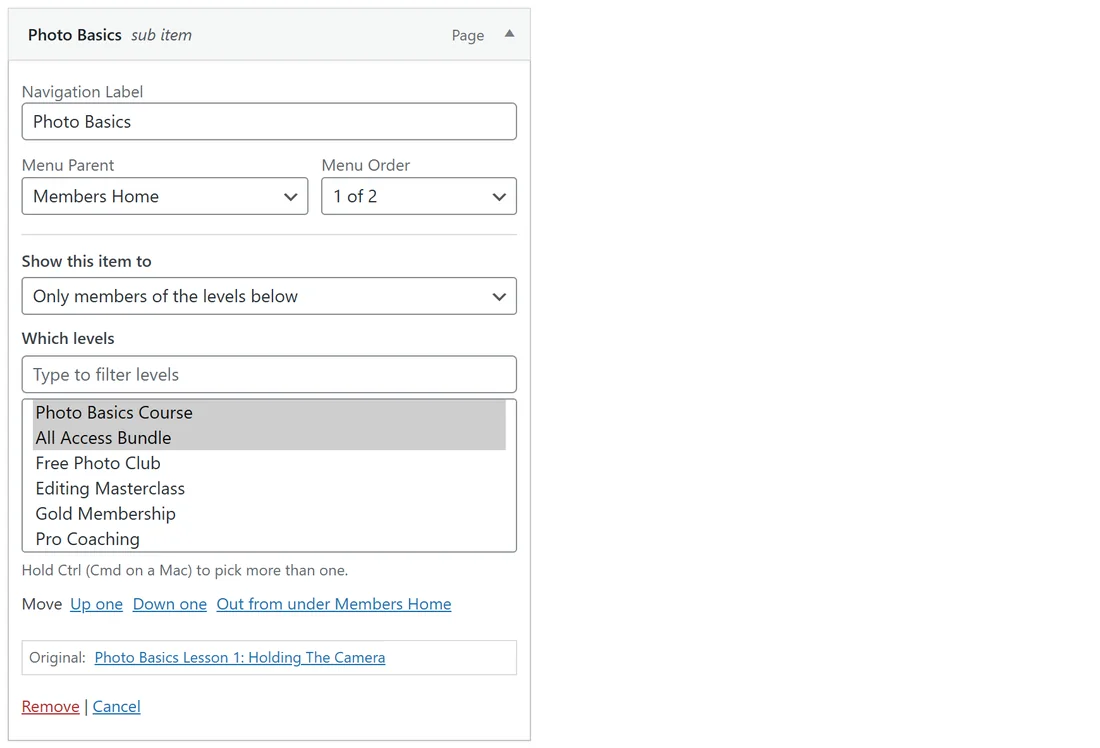
In WordPress, go to Appearance, Menus. Open any menu item with the small arrow on its right. Under the usual fields you will see Show this item to. The log in and log out links are in a box called ResultsAiX Membership on the left of the same screen, beside Pages, Posts and Custom Links.
Every rule on the site is also listed, read only, on AiX Membership, Protect Content tab, in the Menu visibility card, with an Edit your menus button that takes you to the Menus screen.
Setting who sees an item:
- Go to Appearance, Menus and pick the menu you want to edit.
- Click the arrow on the item to open it.
- Choose an option in Show this item to.
- If the option needs levels, the Which levels box appears. Type in Type to filter levels to find one, and hold Ctrl (Cmd on a Mac) to pick more than one.
- Click Save Menu.
The six choices:
- Everyone: the default. The item shows to all.
- Only visitors who are not logged in: for Join, pricing and Log in style items. It disappears the moment somebody becomes a member.
- Only members who are logged in: for Members Home, My Membership and anything a stranger has no use for.
- Only members of the levels below: the Gold Dashboard shows to Gold members and nobody else.
- Logged-in members who are NOT in the levels below: an upgrade link for members who have not upgraded yet. Visitors do not see it.
- Everybody except members of the levels below (visitors included): the same upgrade link, also shown to visitors. This is usually the one you want for selling.
A level rule with no levels picked behaves like Everyone, so deleting a level can never make an item vanish for everybody by accident.
Hiding a parent hides what is under it:
When a top level item is hidden, every item nested under it is hidden too. You do not have to set a rule on each child, and the children never jump up to the top level on their own. Build a Members Home item with your course pages nested under it, set Members Home to Only members who are logged in, and the whole section appears and disappears together.
The log in and log out links:
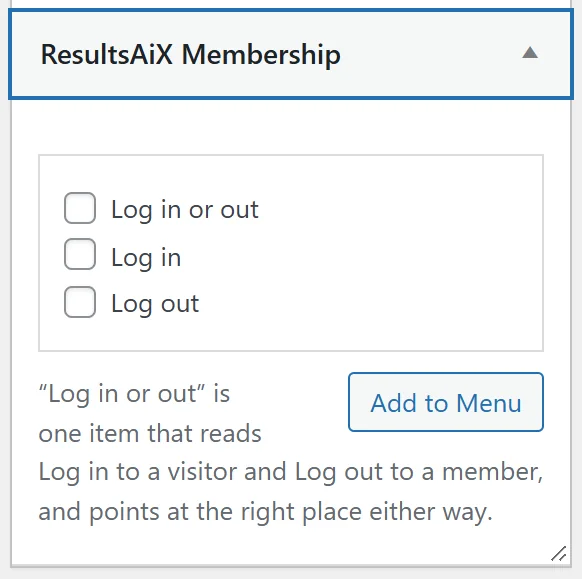
The ResultsAiX Membership box on the Menus screen offers three items:
- Log in or out: one item that reads Log in to a visitor and Log out to a member, and points at the right place either way. Most sites only need this one.
- Log in: shows only to visitors.
- Log out: shows only to members.
To add one:
- On Appearance, Menus, open the ResultsAiX Membership box on the left.
- Tick Log in or out (or one of the others).
- Click Add to Menu, drag the item where you want it, and click Save Menu.
The Log in item goes to Your login page from Settings, or the standard WordPress login when that is empty. The Log out item signs the member out and sends them to your After logout page. You never paste an address.
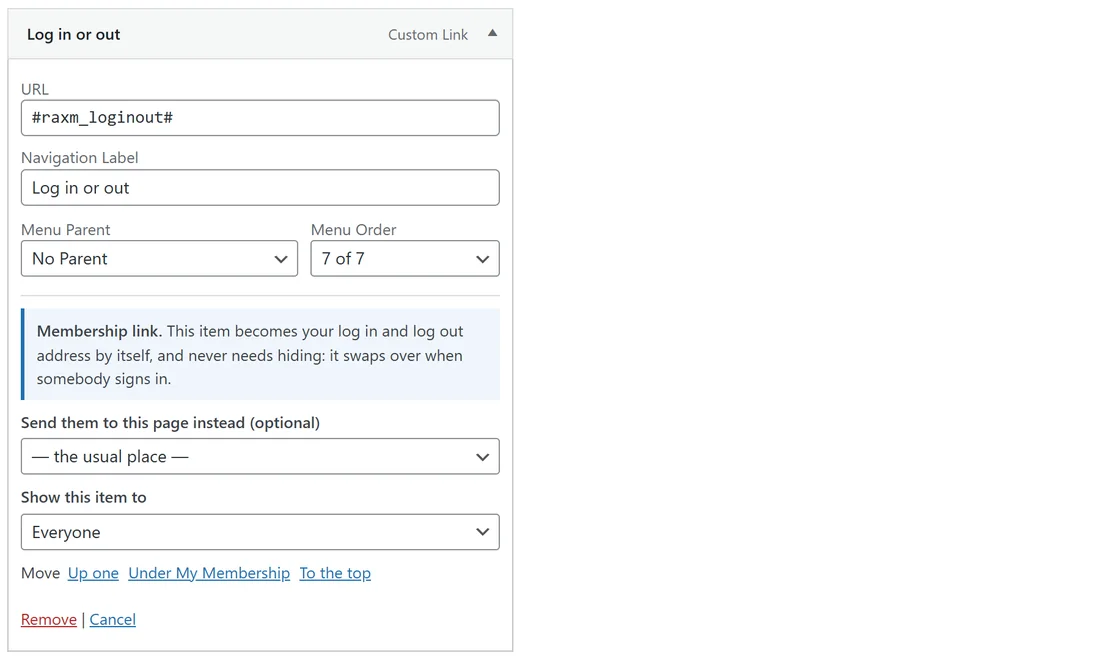
Opening the item shows a short note that it is a membership link, and an optional Send them to this page instead, for when one link should go somewhere different from your settings. Leave it on the usual place for normal use.
If you keep the default title, Log in or out, the item renames itself to Log in or Log out as people sign in and out. If you type your own title, your words are kept.
Administrators see the same menu:
A menu is navigation, so the rules apply to you as well when you are logged in. That way you see the menu a logged in member sees, and you never see a Log in link while you are signed in. A developer who wants administrators to see every item can switch that on with the raxm_menu_admin_bypass filter.
To see the menu as one particular member sees it, with their levels, use the View as button. See Look At The Site As One Of Your Members.
An example from Yoursite Academy:


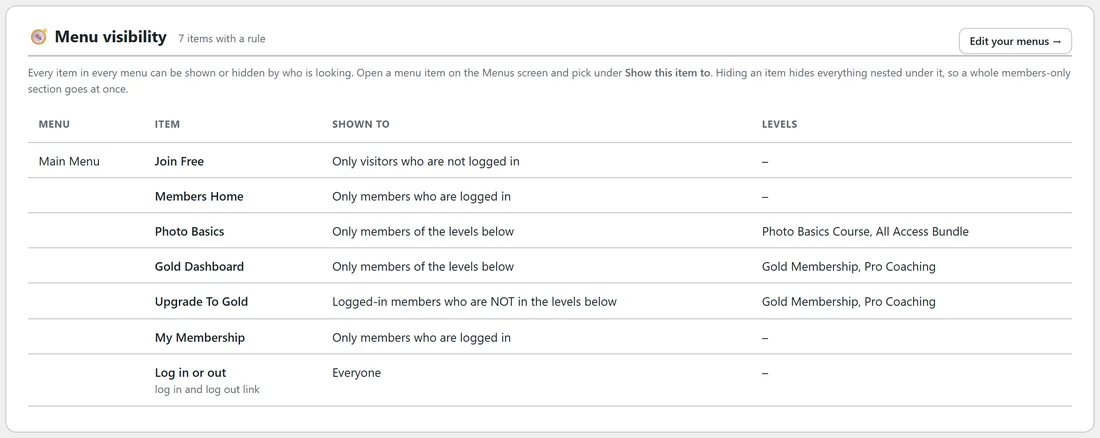
The Yoursite Academy Main Menu has these items:
- Home and Free Tips: Everyone.
- Join Free: Only visitors who are not logged in.
- Members Home: Only members who are logged in, with Photo Basics nested under it for Photo Basics Course and All Access Bundle members, and Gold Dashboard nested under it for Gold Membership and Pro Coaching members.
- Upgrade To Gold: Logged-in members who are NOT in the levels below, with Gold Membership and Pro Coaching picked.
- My Membership: Only members who are logged in.
- Log in or out: Everyone, using the membership link.
A visitor sees Home, Free Tips, Join Free and Log in. Ella Nash, who holds Gold, sees Home, Free Tips, Members Home, My Membership and Log out, and never sees the upgrade link.
Coming from another membership plugin:
When you import from WishList Member, its menu rules come across onto the same levels, and its login and log out menu items become working links. See Migrating From WishList Member.
Tips:
- Check the menu in a private window as a visitor, then with View as for a member of each level.
- Keep one Log in or out item rather than two separate items. It is one less thing to manage.
- The Menu visibility card on the Protect Content tab is the quickest way to review every rule on the site at once.