You do not need Stripe to sell a level. If you sell through JVZoo, Warrior Plus, ClickBank or PayPal, switch that marketplace on and every sale, rebill, refund and cancellation reaches ResultsAiX Membership on its own.
The marketplace posts a notification to your site. The plugin checks it is genuine, finds or creates the buyer's account, and gives or takes the levels you mapped to that product. The buyer gets their login and access without you doing anything.
Where to find it:
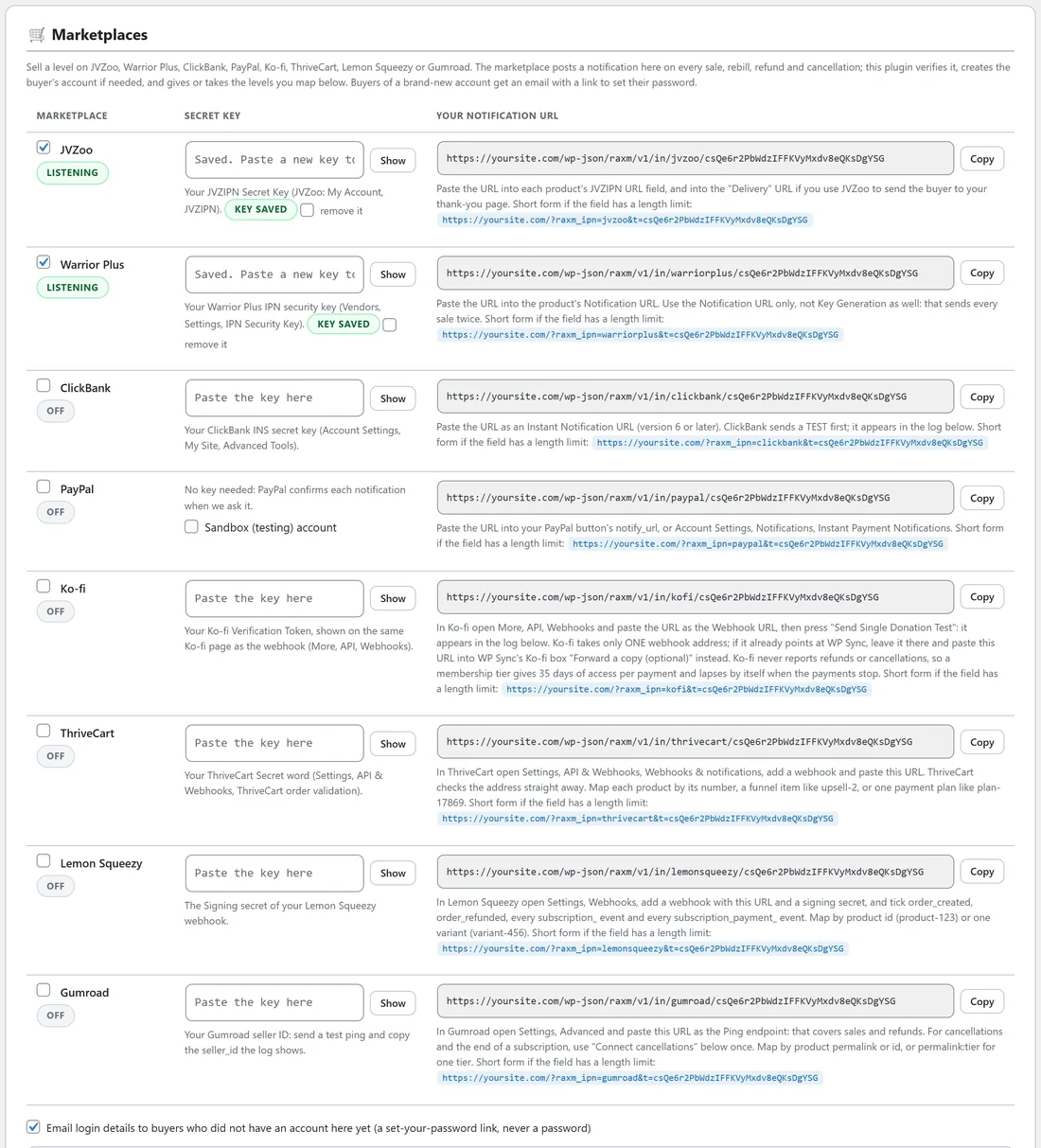
Open AiX Membership, then the Integrations tab. The Marketplaces box holds one row per marketplace. What each product delivers sits under it, and Recent marketplace notifications is at the bottom of the tab.
Each marketplace row has three parts:
- The tick box with the marketplace name switches it on. Its badge then reads Listening instead of Off.
- Secret key is where the marketplace's key goes. After saving, the box reads "Saved. Paste a new key to replace it." with a key saved badge, and a remove it box if you ever need to clear it.
- Your notification URL is the address you paste into the marketplace, with a Copy button. A short form is printed under it for fields with a length limit.
Setting up a marketplace step by step:
- Tick the marketplace you sell through.
- Paste its key into Secret key. JVZoo: My Account, then JVZIPN, the JVZIPN Secret Key. Warrior Plus: Vendors, Settings, IPN Security Key. ClickBank: Account Settings, My Site, Advanced Tools, the INS secret key. PayPal needs no key: PayPal confirms each notification when the plugin asks it. Tick Sandbox (testing) account only for a PayPal sandbox account.
- Press Save marketplace settings.
- Press Copy next to Your notification URL and paste it into the marketplace.
- Map the product under What each product delivers (below).
- Send a test from the marketplace and watch it arrive in Recent marketplace notifications.
Where the URL goes on each marketplace:
- JVZoo: each product's JVZIPN URL field, and the Delivery URL too if you use JVZoo to send buyers to your thank-you page.
- Warrior Plus: the product's Notification URL. Use that field only. Filling in Key Generation with the same address as well sends every sale twice.
- ClickBank: an Instant Notification URL, version 6 or later. ClickBank sends a TEST first, and it shows in the log.
- PayPal: your PayPal button's notify_url, or Account Settings, Notifications, Instant Payment Notifications.
Email login details to buyers:
Under the table, Email login details to buyers who did not have an account here yet is ticked by default. A brand-new buyer then gets an email with a link to set their password. A password is never sent in an email.
What each product delivers:
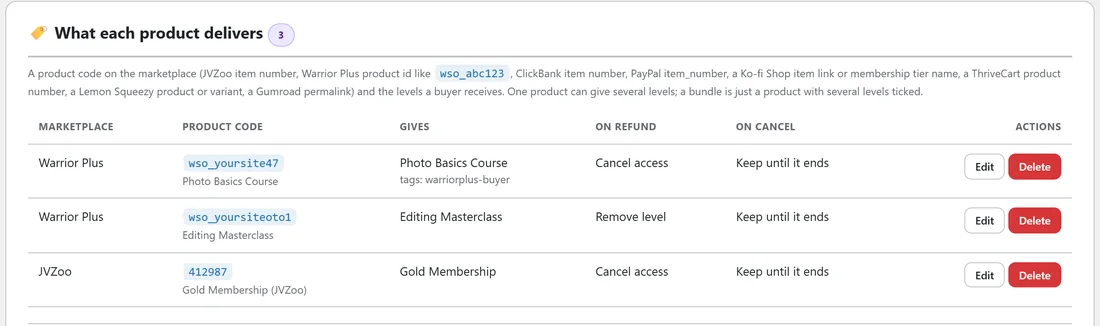
This table is the heart of it: a product code on the marketplace, and the levels a buyer of that product receives. Each row shows the marketplace, the product code with its name, the levels it gives (plus any Mailer list, tags or syncs), what happens on refund, what happens on cancel, and Edit and Delete buttons.
The product code is the JVZoo item number, the Warrior Plus product id (it looks like wso_abc123), the ClickBank item number or the PayPal item_number. One product can give several levels, so a bundle sold on a marketplace is simply a product with several levels ticked.
Adding a product mapping:
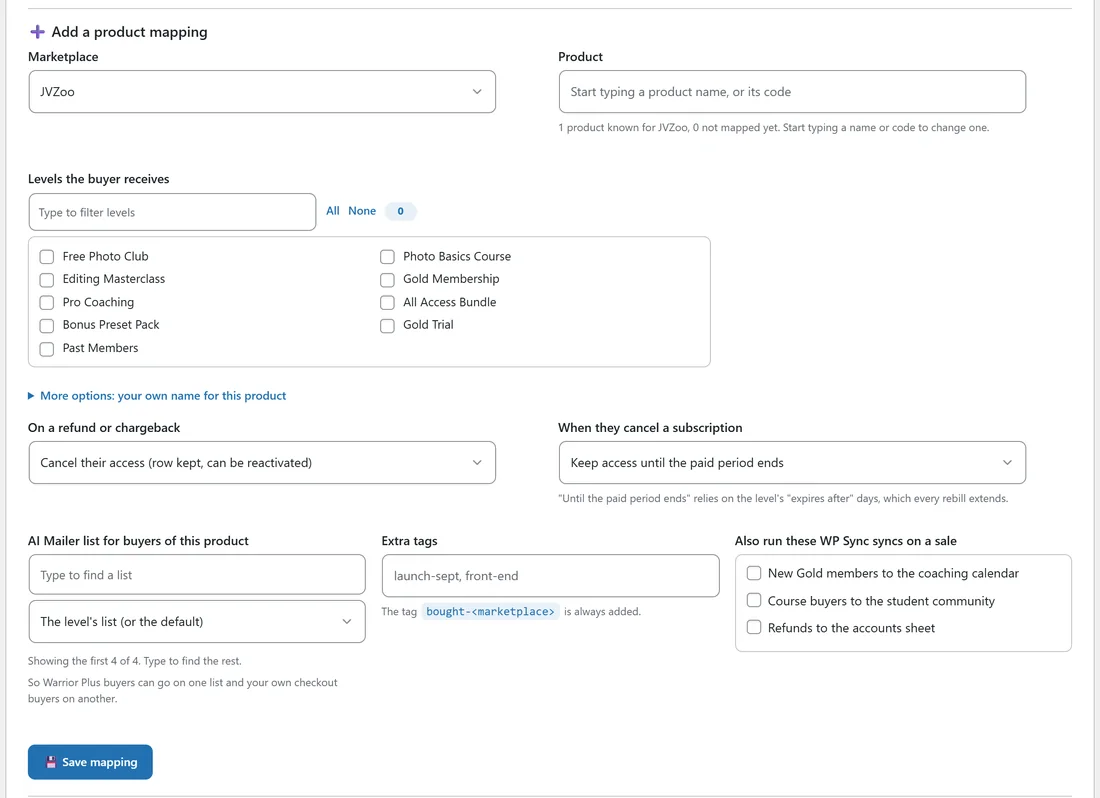
- Under Add a product mapping, pick the Marketplace.
- In Product, start typing a product name or its code and pick it from the list. The list holds codes that already arrived in real sales on this site, with the name the marketplace sent and whether sales are waiting. A code that is not in the list yet can still be typed in full, which you will do when you map a product before its first sale.
- Tick Levels the buyer receives.
- Optional: open More options: your own name for this product and type a Name. Leave it empty and the name the marketplace sends with each sale is used on the member's profile page and timeline, which is nearly always what you want.
- Choose On a refund or chargeback: Cancel their access (row kept, can be reactivated), Remove the levels completely, or Keep their access (just record it). Cancel is the default and the usual choice.
- Choose When they cancel a subscription: Keep access until the paid period ends (the default) or Cancel access straight away. Keeping access relies on the level's Membership expires after days, which every rebill extends, so set that on a level sold as a subscription.
- With ResultsAiX Mailer on the site, you can pick an AI Mailer list for buyers of this product and Extra tags. The tag bought- plus the marketplace name, for example bought-warriorplus, is always added.
- With WP Sync on the site, tick any syncs to run on a sale.
- Press Save mapping.
Paste many at once:
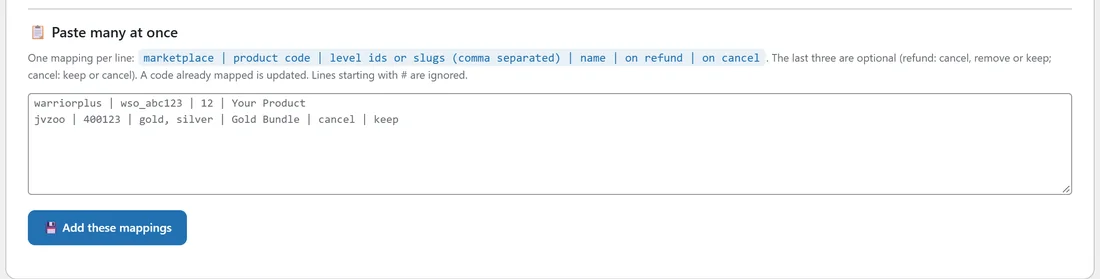
For a long product list, the Paste many at once box takes one mapping per line, in this order: marketplace | product code | level ids or slugs (comma separated) | name | on refund | on cancel. The last three are optional. On refund takes cancel, remove or keep; on cancel takes keep or cancel. A code that is already mapped is updated, and lines starting with # are ignored. Press Add these mappings.
What happens on each event:
- Sale: the account is found by email or created, the levels are given, the order is recorded, and level actions, AI Mailer and WP Sync all run.
- Rebill: a level with Membership expires after days is extended by that many days from its current end date, a cancelled membership is put back, and the renewal is recorded.
- Refund or chargeback: the product's refund rule decides. A refund is recorded as its own negative row; the original sale is never edited.
- Subscription cancelled: the product's cancel rule decides, and the timeline says whether access continues to its end date.
- Subscription resumed: access goes back on.
- A failed payment: noted on the member's timeline, and access is unchanged.
- A test ping: logged, and nothing changes.
Recent marketplace notifications:
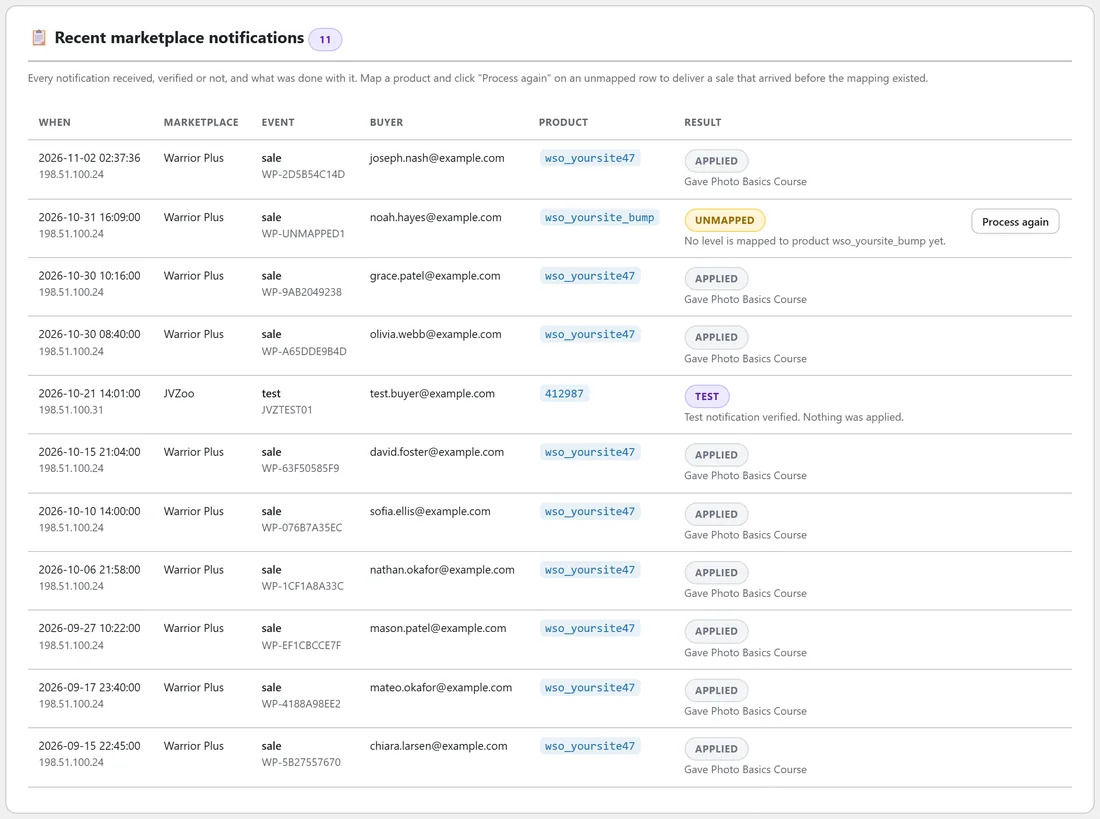
Every notification received, verified or not, is listed with when it arrived, the marketplace, the event and transaction, the buyer, the product code and the result: Applied, Test, Unmapped and so on, with a line saying exactly what was done.
A sale for a product you have not mapped yet is logged as Unmapped rather than thrown away. Map the product, then press Process again on that row, and the buyer gets their access.
Why a forged notification cannot give anyone access:
Every notification is checked the way the marketplace itself documents: JVZoo's verification, the Warrior Plus security key, ClickBank's encrypted notification, and PayPal's own confirmation. One that fails the check is logged and ignored. The same transaction arriving twice is recognised and applied once, so nobody is emailed or given a level twice. And if no key is saved yet, the marketplace is asked to try again later, so a sale that lands in the middle of your setup is not lost.
New URLs:
Generate new URLs makes a fresh address for every marketplace. Use it only if you want to retire the old addresses, because each marketplace then needs the new URL pasted in again.
A real example:
Yoursite Academy sells the Photo Basics Course on Warrior Plus as wso_yoursite47, and the Editing Masterclass as an upsell, wso_yoursiteoto1.
- Tick Warrior Plus, paste the IPN Security Key and save.
- Copy the Warrior Plus notification URL into both products' Notification URL field on Warrior Plus.
- Map wso_yoursite47 to Photo Basics Course, on refund Cancel their access, with the extra tag warriorplus-buyer.
- Map wso_yoursiteoto1 to Editing Masterclass, on refund Remove the levels completely.
A buyer, noah.hayes@example.com, also bought an order bump that was not mapped yet. His bump sale shows as Unmapped in the log. The owner maps wso_yoursite_bump, presses Process again, and Noah has the level a minute later.
Tips:
- Map products before launch day: you can type a code the site has never seen.
- Set Membership expires after on any level you sell as a monthly or yearly subscription, so Keep access until the paid period ends has a period to keep.
- Every Warrior Plus, ClickBank and JVZoo sale that names an affiliate keeps them on the buyer's account. See Selling On ThriveCart, Lemon Squeezy, Gumroad And Ko-fi for the affiliate link shortcode.
- Want to watch the whole thing before launch? See Testing A Sale Without Spending Money.
Related guides: Testing A Sale Without Spending Money, Selling On ThriveCart, Lemon Squeezy, Gumroad And Ko-fi, Level Actions And Bundles, AI Mailer And WP Sync.