The Members tab is where you look after the people on your site: find somebody, see what they hold, give them a level, take one away, change an end date or help them back into their account.
Every member is an ordinary WordPress user, usually with the Subscriber role. The plugin keeps a membership row for each level they hold, with its status, join date, end date and where it came from.
Where to find it:
AiX Membership, then the Members tab. Add Member at the top right of every tab opens the add form, and the Import / Export tab handles lists.
Finding a member:
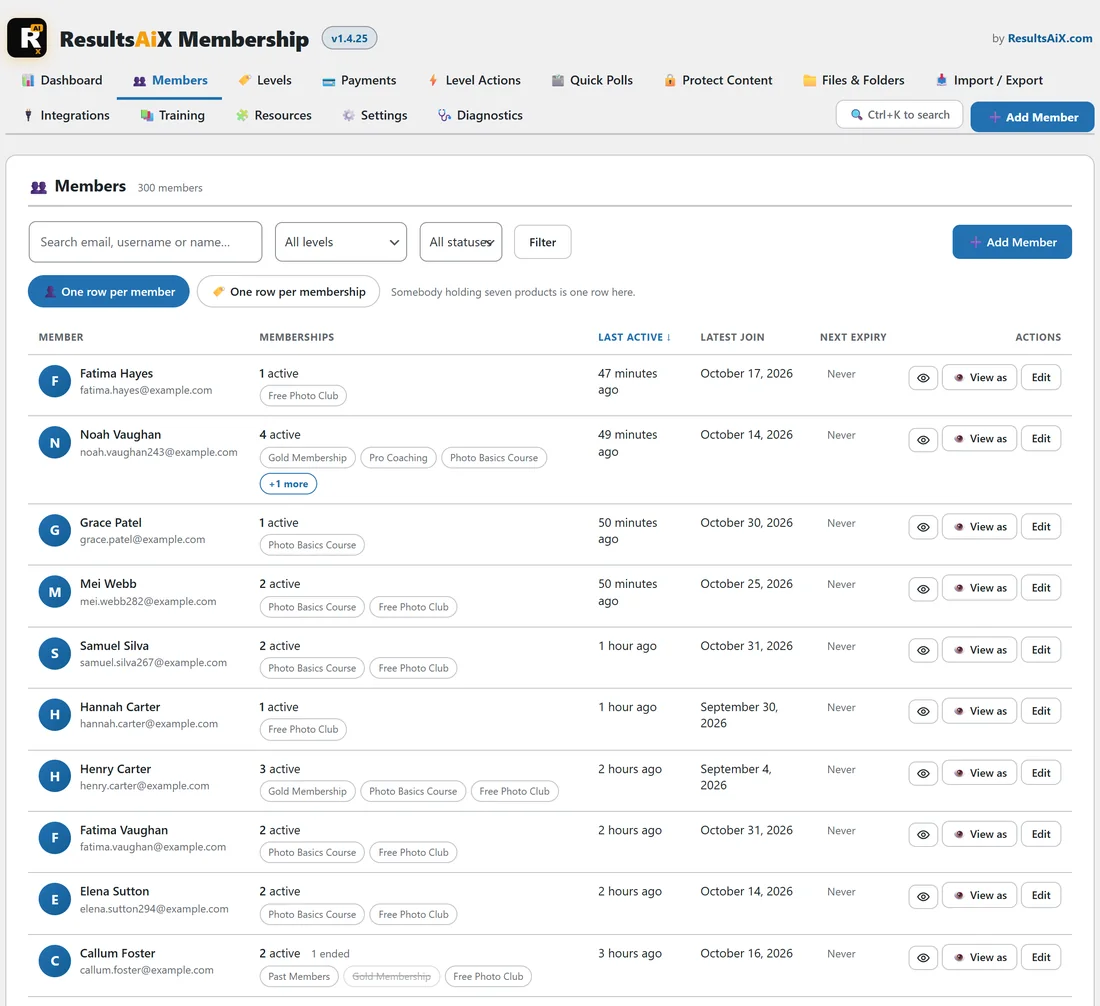
- Type an email, username or name in the search box.
- Optionally pick a level in All levels and a status in All statuses.
- Click Filter.
Click any column heading to sort by it; click again to reverse the order. Fifty rows show per page, with Newer and Older buttons below.
Two ways to see the list:
- One row per member (the default): each person once, with how many memberships are active, up to three level chips (an ended one is struck through), when they were last active, their latest join date and their next expiry.
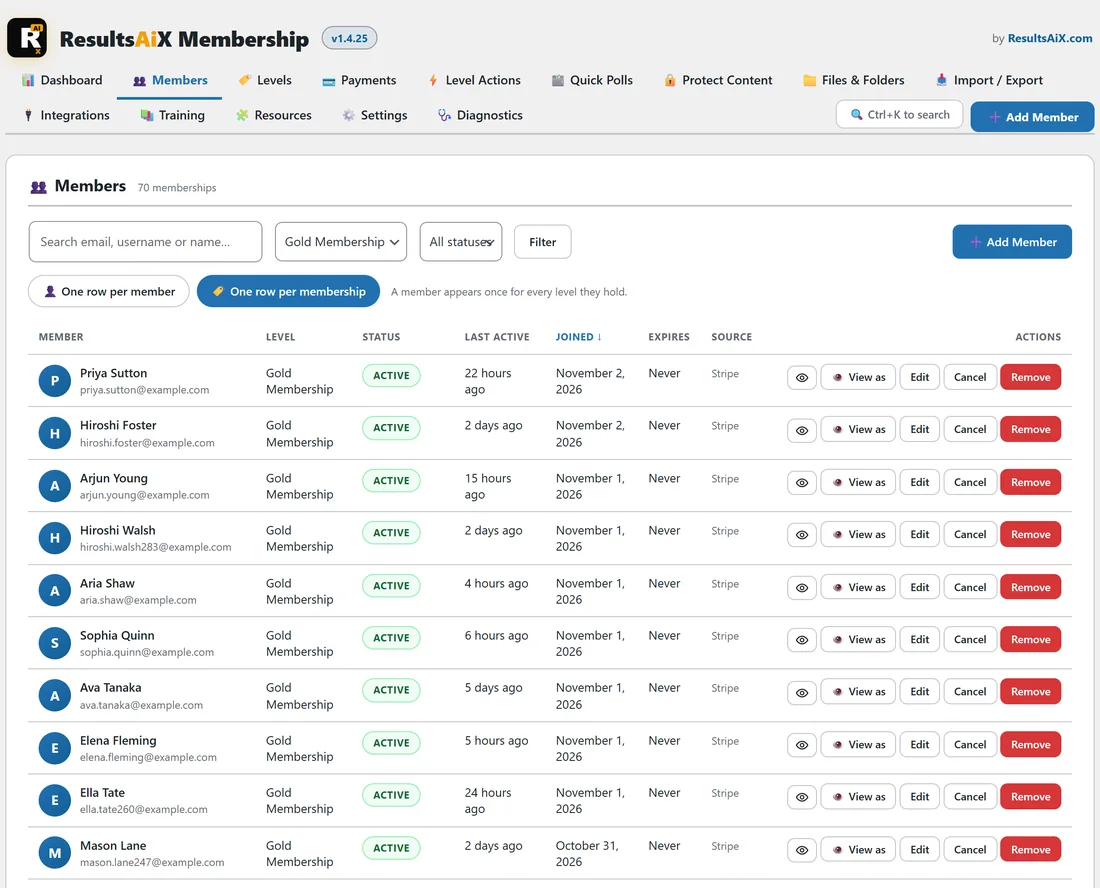
- One row per membership: every level a person holds on its own row, with its status, joined date, expiry and source, such as Stripe, signed up or level action. This is the view to use when you filter to one level.
Last active comes from the member's last login, or from their reading history when ResultsAiX Search is on the site.
The buttons on each row:
- The eye button opens the member side panel with their memberships, orders and timeline. See The Member Profile Page And The Side Panel.
- View as opens the site as that member. See Look At The Site As One Of Your Members.
- Edit opens their member screen.
In One row per membership you also get these buttons.
- Cancel: access stops, the row and its history stay. Use it when somebody leaves.
- Put back: brings a cancelled, expired or removed membership back to active.
- Remove: takes the level away. The row is kept with the status removed, so the history is still there.
- Delete for good: on a removed row, deletes the row itself. The WordPress user account is never touched.
Adding a member, step by step:
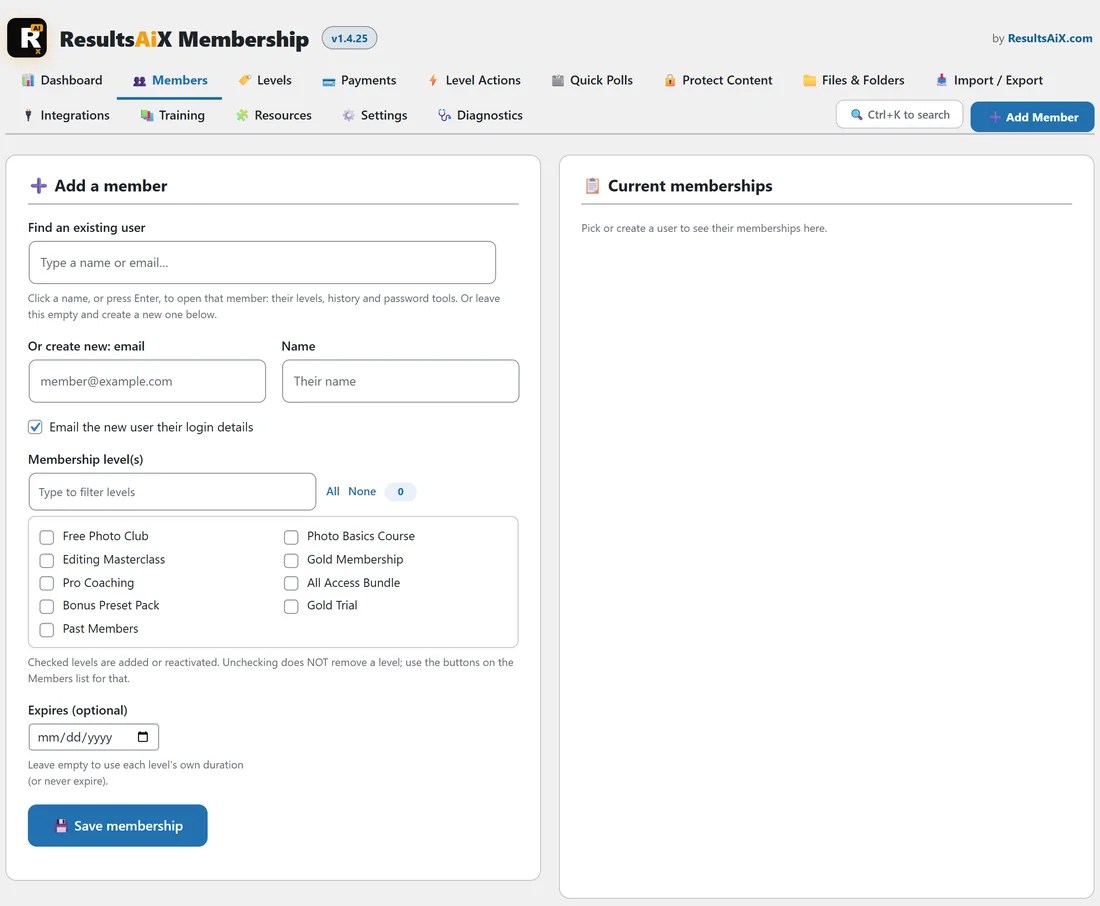
- Click Add Member.
- To use an existing account, type in Find an existing user and click the person in the list. Clicking a name, or pressing Enter, opens that member's own screen.
- To create a new account, leave that empty and fill in Or create new: email and Name.
- Leave Email the new user their login details ticked to send a set-your-password link.
- Tick one or more levels under Membership level(s).
- Optionally set Expires (optional). Empty uses each level's own length, or never.
- Click Save membership.
Changing an existing member:
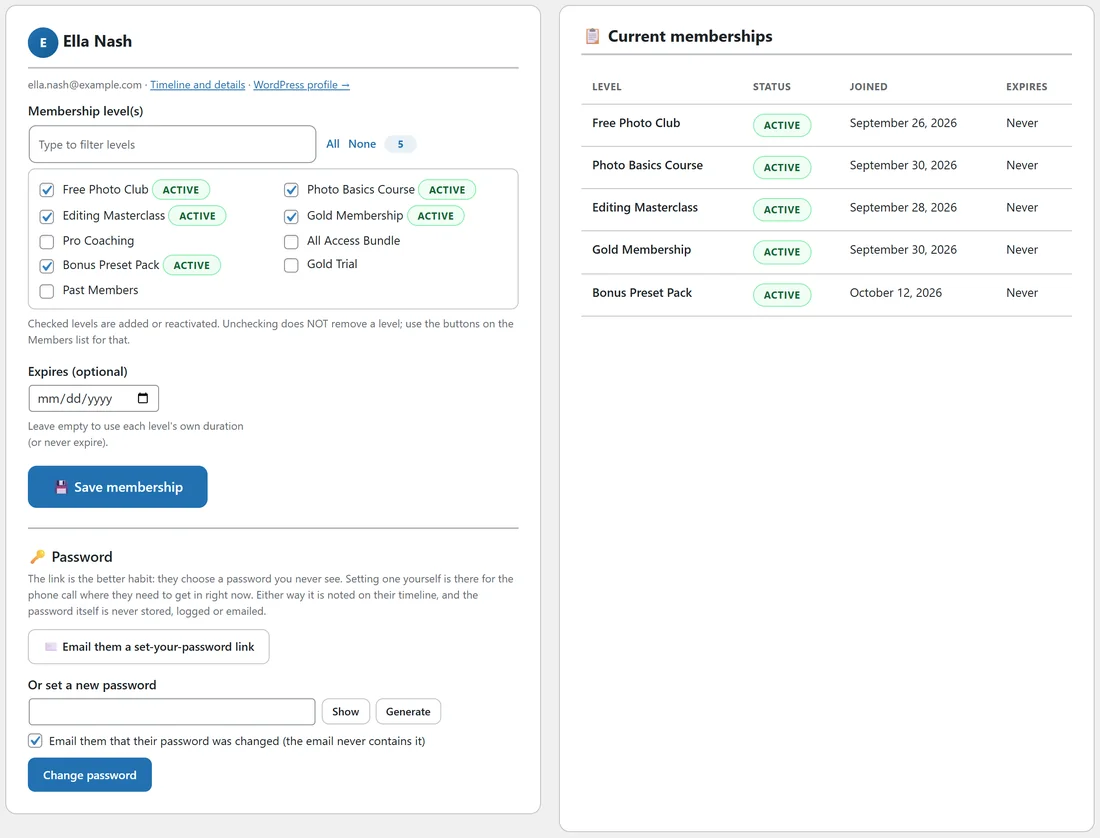
Open the member with Edit. The left side shows their levels with a status badge beside each one they hold; the right side shows Current memberships with joined and expiry dates.
- Tick a level and click Save membership to add it, or to bring back one that had ended.
- Unticking does not remove a level. Use Cancel or Remove on the Members list, or in the side panel, for that.
- Set Expires (optional) to give the ticked levels an end date.
Passwords:
On the member screen, the Password section offers two ways to help somebody in.
- Email them a set-your-password link: the better habit, because they choose a password you never see.
- Or set a new password: type one, or click Generate and Show, then Change password. Tick Email them that their password was changed (the email never contains it) to let them know.
Setting a password signs them out everywhere. Either way it is noted on their timeline, and the password itself is never stored in the timeline, logged or emailed. Administrator accounts do not get this section; an administrator's password is changed on their own WordPress profile.
End dates and expiry:
A membership's end date comes from the level's Membership expires after days, or from the date you set here. Once a day the plugin marks memberships that have passed their end date as expired, so access stops on its own. Paid subscriptions keep their end date up to date as payments arrive.
Exporting members:

On the Import / Export tab, Export members (CSV) has one button: Download members CSV. The file has every membership row: email, username, name, level, status, and the joined and expiry dates. Use it for a backup, for your email service, or to move members to another site.
Importing members from a CSV:
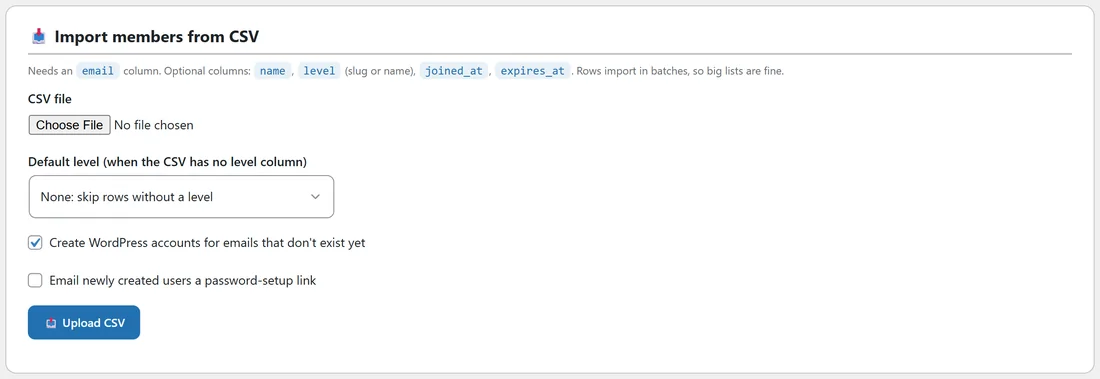
- Open the Import / Export tab and go to Import members from CSV.
- Prepare a CSV with an email column. Optional columns: name, level (the slug or the name), joined_at and expires_at.
- Choose the file under CSV file.
- In Default level (when the CSV has no level column), pick a level, or None: skip rows without a level.
- Leave Create WordPress accounts for emails that don't exist yet ticked to create new users.
- Tick Email newly created users a password-setup link if they should be told.
- Click Upload CSV. Rows import in batches with a progress bar, so long lists are fine.
Imports keep the join dates you give them, so drip continues from where it was.
A real example:
Ella Nash writes to Yoursite Academy to say her Gold lessons are locked. The owner types ella in the search box and sees her row: 5 active memberships, last active yesterday. The eye button shows Gold Membership is active and her latest Gold payment went through, so the owner clicks View as, opens a Gold lesson, and sees it is open for her. It turns out she was logged in on another account. The owner clicks Email them a set-your-password link on her member screen, and she is back in within minutes.
Members are ordinary WordPress users:
Nobody is locked into the plugin. Deactivating it leaves every account in place, and deleting it keeps your levels, members and protection unless Delete all plugin data when the plugin is deleted from the Plugins screen is ticked on the Settings tab. WordPress user accounts are never deleted either way.
Tips:
- Use One row per membership with a level filter to answer questions like who joined Gold this week: sort by Joined.
- Cancel keeps the history, which helps when somebody comes back. Put back restores them in one click.
- Before a big change, Download members CSV gives you a copy to fall back on.