The AI features in ResultsAiX Surveys use your own API key. You pay the provider directly for what you use, there are no credits to buy inside the plugin, and AI stays off until you switch it on. Everything else in the plugin works without it.
Where to find it:
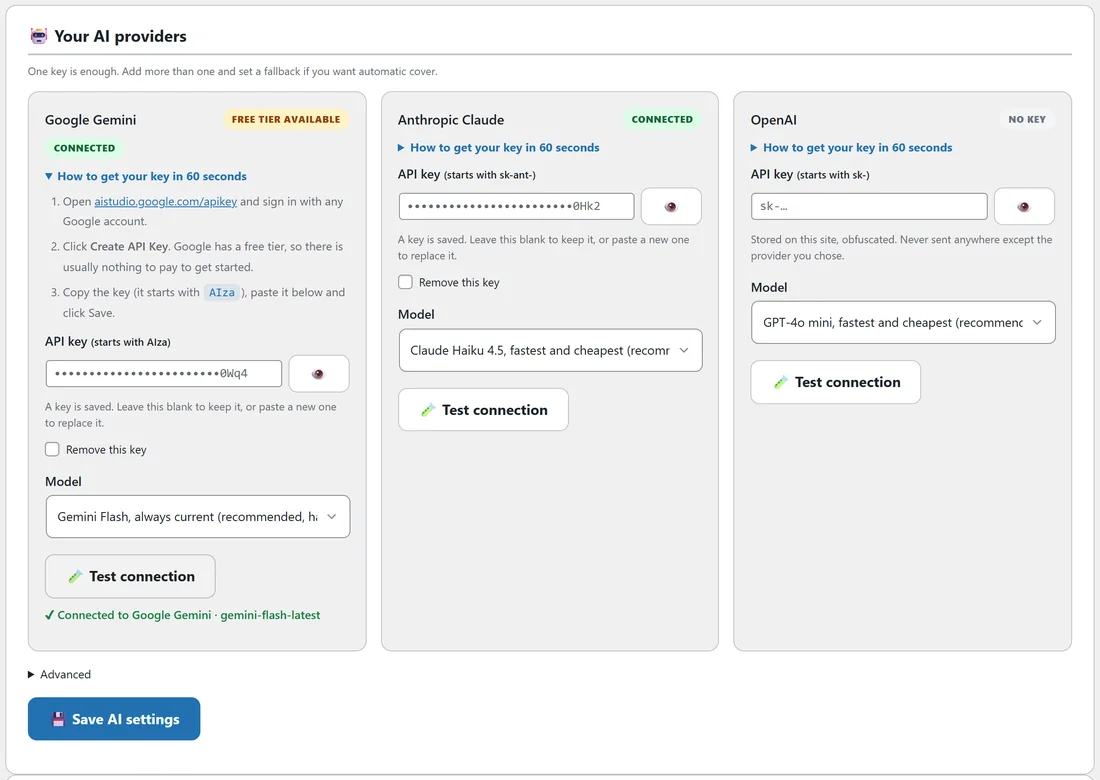
Open the Integrations & AI tab. The top of the page has three cards: AI (bring your own key), Your AI providers and AI usage. The Save AI settings button sits at the bottom of Your AI providers.
What the AI does here:
- Drafts a whole survey from your brief. See Drafting A Survey With AI, By Typing Or By Talking.
- Reads your results and writes a summary, findings and next steps. See AI Insights: Charts Free, Written Analysis With Your Key.
These are small, occasional calls: one when you generate a survey, and one each time you ask it to read your results.
Getting a key:
Each provider card has a How to get your key in 60 seconds link that opens the steps.
- Google Gemini: open aistudio.google.com/apikey, sign in with any Google account and click Create API Key. Keys start with AIza. Gemini has a free tier, so it is the one to pick if you want to try the AI features first.
- Anthropic Claude: open console.anthropic.com, add a little credit under Billing, then go to API Keys and click Create Key. Keys start with sk-ant.
- OpenAI: open platform.openai.com/api-keys, add credit under Billing if you have none, and click Create new secret key. Keys start with sk-.
Connect it, step by step:
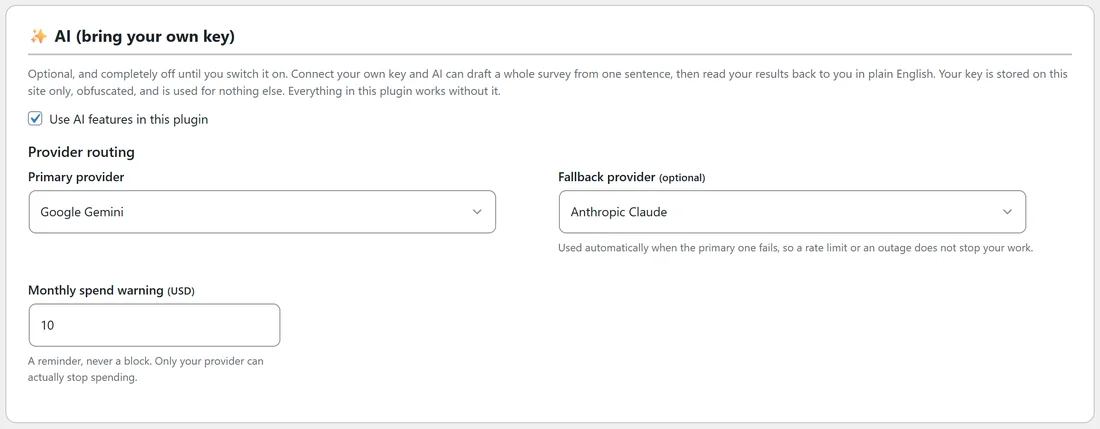
- Tick Use AI features in this plugin.
- Paste your key into the API key box on that provider's card. The eye button shows what you are typing.
- Pick a Model.
- Click Save AI settings.
- Click Test connection on that card. A green message confirms it, for example "Connected to Google Gemini · gemini-flash-latest".
Each card tests its own provider directly, so a broken key can never look healthy because another provider answered for it.
Provider routing:
- Primary provider: Auto, the first one with a key, or a named provider. One key is enough; with Auto, the first provider holding a key is used.
- Fallback provider (optional): when the primary fails, through a rate limit, an outage or a rejected key, the fallback is tried automatically. Leave it on None to use one provider only.
- Adding a second key never takes over a working primary. A new key only becomes the primary when the chosen primary has no key.
Which model should I choose?
The first model in each list is the recommended one: fast, low cost and good enough for drafting surveys and summing up results.
- Google Gemini: Gemini Flash, always current (recommended, has a free tier), Gemini 2.5 Flash, or Gemini 2.5 Pro for the highest quality.
- Anthropic Claude: Claude Haiku 4.5 (recommended), Claude Sonnet 4.6 for balance, or Claude Opus 4.8 for the highest quality.
- OpenAI: GPT-4o mini (recommended) or GPT-4o for the best quality.
The larger models are worth it when you have a big, messy set of written answers. If a provider ever says it does not recognise a model, pick another from the list and save again.
Already running ResultsAiX Mailer or the ResultsAiX Theme?
If either already has an AI key saved on this site, a box appears: Use a key already saved on this site by ResultsAiX Mailer or the ResultsAiX Theme. Tick it and the card says Using Mailer's key or Using the Theme's key. Nothing is copied: the other product keeps its key and this one reads it each time, so changing it there changes it here. Mailer keeps Claude and OpenAI keys only. Paste your own key at any time to use a different one here.
How your key is stored:
Keys are stored on your site only, obfuscated, never in plain text, and sent nowhere except the provider you chose. The key box always opens empty, with only a masked hint such as the last four characters, so the key cannot leak back out through the screen or a screenshot. Leave the box empty to keep the saved key, paste a new one to replace it, or tick Remove this key to clear it.
Advanced, a custom API address:
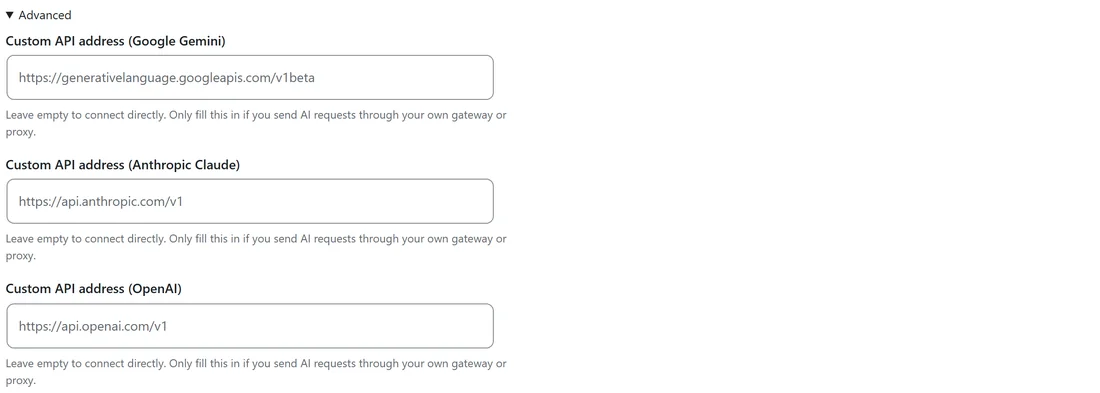
Under Advanced there is a Custom API address box per provider. Leave it empty to connect to the provider directly, which is right for almost everyone. Fill it in only if you send AI requests through your own gateway or proxy. The address must start with https:// (http:// only for localhost or a .local name) and have no ? or # part, for example https://gateway.example.com/v1. An address that does not fit is not saved, a message says why, and your other settings are still saved. A site wide address can also be set in wp-config.php, and a borrowed key uses the address saved with it in Mailer or the Theme.
What it costs, and seeing it:
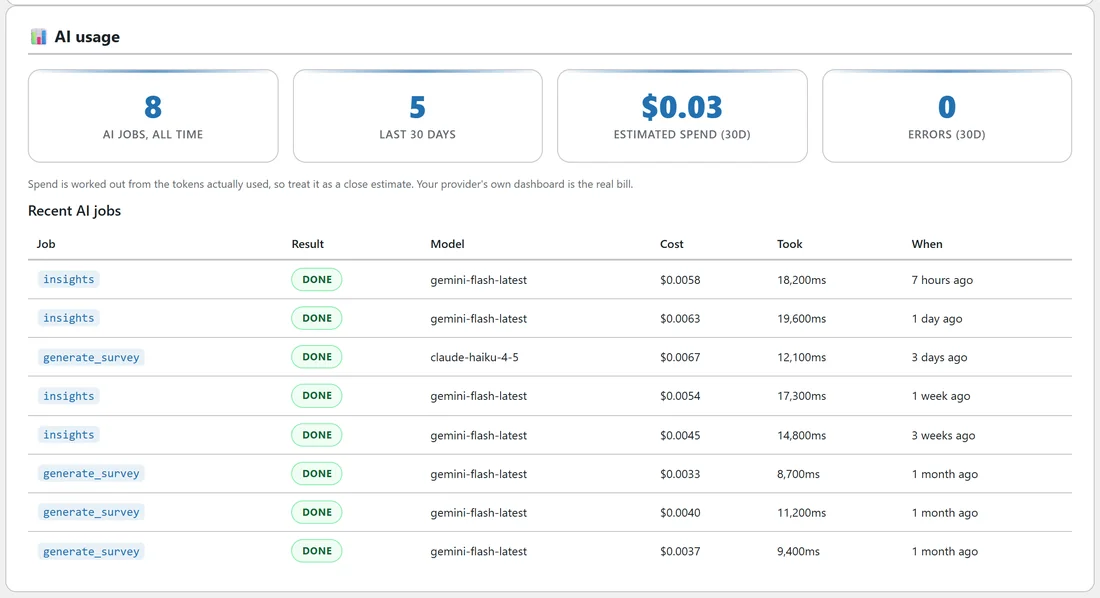
The AI usage card shows AI jobs, all time, Last 30 days, Estimated spend (30d) and Errors (30d), and a Recent AI jobs table with the job, the result, the model, the cost, how long it took and when. Spend is worked out from the tokens actually used, so treat it as a close estimate; your provider's own dashboard is the real bill.
Set a Monthly spend warning (USD) to get a reminder on this card when the last 30 days pass it. It is a reminder, never a block; only your provider can actually stop spending, and every provider lets you set a hard limit in its own account. If the latest AI call ended in an error, a Last AI error note shows the provider's own words, and it clears itself the next time a call works.
A real example:
Yoursite Academy pastes a Gemini key, keeps Gemini Flash, and adds a Claude key as the fallback. Test connection on the Gemini card shows a green Connected message. Over 30 days the usage card shows 5 jobs, one survey draft and four readings, with an estimated spend of a few cents.
Tips:
- Start with Gemini and its free tier; add a fallback once you rely on the AI features.
- Click Test connection after every key change.
- The Diagnostics report shows which provider and model are in use, never the key itself.